
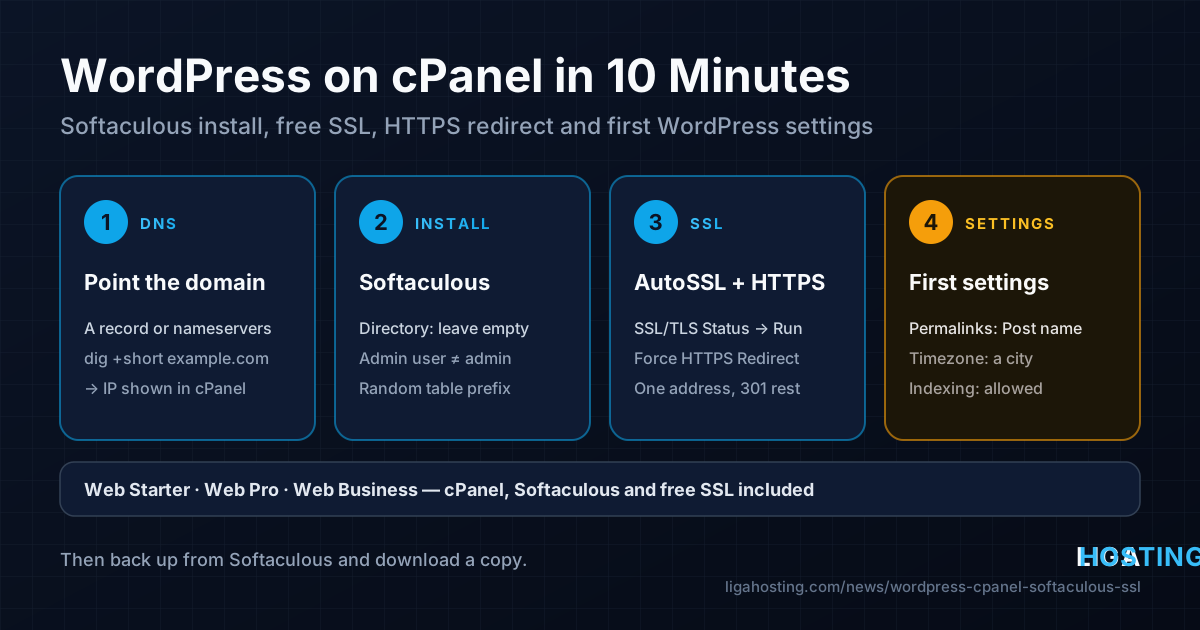
Launch a WordPress Site on cPanel in 10 Minutes — Softaculous, SSL and First Settings
You have a shared hosting account with cPanel, a domain, and you want a working WordPress site today — with HTTPS, sensible settings and a backup — without touching a Linux server. This is exactly what cPanel and the Softaculous auto installer are made for.
This guide goes through the whole path in order: pointing the domain, installing WordPress with the right options, getting the free SSL certificate issued, forcing HTTPS, and the handful of WordPress settings worth changing in the first ten minutes. After each step there is a quick way to check that it really worked.
What you need before you start
- The cPanel login from your hosting welcome email (usually a URL on port 2083, a username and a password), or access through the client area.
- A domain whose DNS you control — either at your registrar or already pointed to the hosting account.
- An email address you actually read for the WordPress admin account. Password resets and security notices go there.
- About ten minutes. Most of the waiting time is DNS and the SSL certificate, not the installation.
All three Liga Hosting web hosting plans include cPanel, Softaculous, MySQL databases and a free SSL certificate, so the steps below are the same on each. The differences that matter for WordPress are how many sites you can host and whether daily backups are included:
| Plan | Storage | Websites | Relevant extras |
|---|---|---|---|
| Web Starter (€1/month) | 20 GB SSD | 1 | Free SSL, email accounts, Softaculous |
| Web Pro (€3/month) | 50 GB SSD | Multiple | Daily backups, unlimited email accounts |
| Web Business (€10/month) | Unlimited SSD | Unlimited | Daily backups, free dedicated IP |
Step 1 — Point the domain and check DNS
WordPress can be installed before DNS is ready, but the SSL certificate cannot be issued until the domain resolves to your hosting account. Do this first so it propagates while you work.
There are two ways to connect a domain:
- Change the nameservers at your registrar to the ones in your hosting welcome email. DNS is then managed in cPanel under Zone Editor, and cPanel creates the A, MX and other records for you.
- Keep your current DNS and create an A record for
example.comand forwww.example.com(or a CNAME forwww) pointing to the account's IP address, shown in cPanel under General Information → Shared IP Address (or the dedicated IP on Web Business).
If you are not sure which record does what, our article DNS Records Explained covers A, CNAME, MX and TXT. Check the result from your own computer:
# Both names should return the IP shown in cPanel
dig +short example.com A
dig +short www.example.com

# Ask a public resolver directly, to bypass your local cache
dig +short example.com A @1.1.1.1

# Which nameservers does the domain use now?
dig +short example.com NS
On Windows, nslookup example.com 1.1.1.1 gives the same information. New A records usually appear within minutes; nameserver changes can take a few hours to be visible everywhere.
Step 2 — Install WordPress with Softaculous
In cPanel, find Softaculous Apps Installer (or the WordPress icon in the same section), open WordPress and click Install. The form looks long, but only a few fields need attention:
| Field | What to set |
|---|---|
| Choose Installation URL | Protocol https:// (choose the www or non-www variant you want as the main address) and your domain |
| In Directory | Leave empty to install at example.com. Softaculous pre-fills wp on some setups, which would put the site at example.com/wp |
| Site Name / Description | Your site title and a short tagline; both can be changed later |
| Admin Username | Anything except admin, your domain name or your email — it is the first thing bots try |
| Admin Password | Use the generator; save it in a password manager |
| Admin Email | A real mailbox you read, ideally not on the same domain |
| Select Language | The language of the admin area and the default theme texts |
Open Advanced Options before clicking Install. Two settings there are worth changing:
- Table Prefix — Softaculous usually generates a random one. Keep it random rather than the default
wp_; it costs nothing and blocks some automated SQL injection payloads that assume the default. - Auto Upgrade — set WordPress core to upgrade at least for minor (security) versions, and enable auto-upgrade for plugins and themes if you will not log in every week.
The database name, database user and password are created automatically; you do not need to make them by hand in MySQL Databases. Click Install and wait for the confirmation with the site URL and the admin URL (https://example.com/wp-admin/).
If Softaculous complains that the directory is not empty, there is usually a default index.html or cgi-bin placeholder in public_html. Open File Manager, look at what is there, and delete only the placeholder files — an index.html left in place can be served instead of WordPress.
Step 3 — Get the free SSL certificate issued
On cPanel, free certificates are normally issued and renewed automatically by AutoSSL once the domain points to the account. You do not need to install Certbot or paste certificate files — that is what you would do on a VPS, as described in our guide to Let's Encrypt on a VPS.
- In cPanel, open SSL/TLS Status.
- Check that
example.comandwww.example.comare listed. A green lock means a valid certificate is installed. - If they show a red or yellow status, click Run AutoSSL and wait a minute or two.
AutoSSL proves you control the domain by fetching a file over HTTP or checking DNS, so it fails when the domain does not yet point to the account. If a name is still excluded, the status page shows the reason — almost always "DNS does not resolve to this server". Fix DNS (step 1), wait, and run it again.
Verify from your own computer:
# Should print an HTTP/2 or HTTP/1.1 status line without certificate errors
curl -sI https://example.com/ | head -n 1

# Show who issued the certificate and when it expires
echo | openssl s_client -connect example.com:443 -servername example.com 2>/dev/null \
  | openssl x509 -noout -issuer -subject -dates
If you use Cloudflare in proxied mode (orange cloud), pause the proxy or use DNS-only for the first issuance if AutoSSL keeps failing, and set Cloudflare's SSL mode to Full (strict) once the origin certificate is in place.
Step 4 — Force HTTPS and pick one address
Having a certificate does not stop visitors from opening http://. You want every variant — http, https, with and without www — to end on the same single address with a 301 redirect.
In recent cPanel versions, open Domains and switch on Force HTTPS Redirect for your domain. If that toggle is not available, add this to the top of public_html/.htaccess, above the # BEGIN WordPress block:
# Redirect all HTTP traffic to HTTPS
RewriteEngine On
RewriteCond %{HTTPS} !=on
RewriteRule ^ https://%{HTTP_HOST}%{REQUEST_URI} [L,R=301]
Then, in WordPress, go to Settings → General and make sure both WordPress Address (URL) and Site Address (URL) start with https:// and use the same host name you chose in Softaculous. WordPress itself redirects www to non-www (or the opposite) based on these fields.
Check all four variants in one go:
for u in http://example.com http://www.example.com https://example.com https://www.example.com; do
  printf '%-28s ' "$u"; curl -s -o /dev/null -w '%{http_code} -> %{redirect_url}\n' "$u/"
done
Three lines should show 301 pointing to your main address, and the main address itself should return 200.
Step 5 — The first WordPress settings worth changing
Log in at https://example.com/wp-admin/ and go through these before you write any content. Changing some of them later (permalinks especially) breaks links that are already shared.
- Settings → General: set the Timezone to a city (for example
Bucharest), not a UTC offset, so scheduled posts respect daylight saving time. Check the date format and site language. - Settings → Permalinks: choose Post name. URLs become
example.com/my-first-post/instead of?p=123. Save even if it already looks selected; this rewrites the.htaccessrules. - Settings → Reading: make sure Discourage search engines from indexing this site is unchecked when you go live. Decide whether the home page shows your latest posts or a static page.
- Settings → Discussion: if you do not need comments, uncheck Allow people to submit comments on new posts. If you do, keep Comment must be manually approved on to avoid spam going live.
- Users → Profile: set a Nickname and Display name publicly as to something other than your login name, so the username is not printed under every post.
- Clean up: delete the "Hello world!" post, the sample page and the sample comment. Under Plugins, remove anything you did not choose to install.
Finally, under Appearance → Themes, keep one default theme installed alongside the one you use. If your theme breaks after an update, WordPress can fall back to it.
Step 6 — Basic security that takes two minutes
- Disable the built-in file editor. In cPanel's File Manager, edit
public_html/wp-config.phpand add this line above/* That's all, stop editing! */:
If someone gets into the admin area, they can no longer inject PHP code through Appearance → Theme File Editor.define( 'DISALLOW_FILE_EDIT', true ); - Keep the plugin count low. Every plugin is code that must be updated. Install only what you use, from the official directory or a vendor you trust.
- Use two-factor authentication for administrator accounts, via a well-maintained 2FA plugin.
- Check the PHP version. In cPanel, look for MultiPHP Manager or Select PHP Version (the name depends on the server setup). Use a currently supported PHP version that your theme and plugins support; Tools → Site Health in WordPress tells you if the version is outdated.
If your account has Terminal or SSH access in cPanel, WP-CLI makes these checks quick. Run them from the site directory:
cd ~/public_html
wp core version                 # installed WordPress version
wp core check-update            # is a newer version available?
wp plugin list --update=available
wp option get siteurl           # should start with https://
wp option get home
Step 7 — Email and backups
Email. Create a mailbox such as contact@example.com in cPanel under Email Accounts, and use it as the sender for contact forms. WordPress sends mail with PHP by default; if form messages land in spam, an SMTP plugin that logs in to your cPanel mailbox usually solves it. Make sure SPF and DKIM are enabled under Email Deliverability in cPanel — it shows which records are missing or wrong.
Backups. On Web Pro and Web Business, daily backups are included. Even so, keep your own copy before any big change:
- In Softaculous, open All Installations and click the backup icon next to your site. Softaculous saves the files and database to the backups directory of your account.
- Download the archive to your computer, so a copy exists outside the hosting account.
- Make a backup before major WordPress updates, theme changes or installing large plugins — restoring from Softaculous takes one click.
Final checklist
| Check | How to verify |
|---|---|
| Domain resolves to the hosting account | dig +short example.com A returns the IP from cPanel |
| Valid certificate for both names | Green status in SSL/TLS Status; openssl s_client shows the expiry date |
| One main address, everything else redirects | The curl loop shows three 301 and one 200 |
| No mixed content | Padlock in the browser on several pages; no warnings in the developer console |
| Indexing allowed | Settings → Reading checkbox off |
| Backup exists | Archive downloaded from Softaculous |
Common problems and quick fixes
- The old "default page" still shows: an
index.htmlinpublic_htmltakes priority overindex.php. Delete or rename it. ERR_TOO_MANY_REDIRECTS: usually Cloudflare in Flexible SSL mode combined with an HTTPS redirect on the server. Switch Cloudflare to Full (strict). Also check that the WordPress URLs and the.htaccessredirect do not point at different host names.- Padlock missing on some pages: images or scripts still load over
http://. With WP-CLI, preview the fix first:wp search-replace 'http://example.com' 'https://example.com' --skip-columns=guid --dry-run, then run it without--dry-runafter taking a backup. - Locked out of wp-admin: use Lost your password? on the login page; if the email never arrives, change the password from Softaculous (All Installations → edit installation → admin password) instead.
Frequently Asked Questions
Do I need to create the MySQL database myself?
No. Softaculous creates the database, the database user and a strong password, and writes them into wp-config.php. You only need MySQL Databases or phpMyAdmin if you import an existing site manually.
Is the free SSL certificate renewed automatically?
Yes, AutoSSL in cPanel renews certificates before they expire, as long as the domain still points to the hosting account. If you move DNS elsewhere or a name stops resolving, renewal for that name fails and SSL/TLS Status shows why.
Should my main address use www or not?
Either works. What matters is choosing one, using it in Softaculous and in the WordPress URL settings, and redirecting the other variant to it. Changing it later means redirects and a search-and-replace in the database.
Can I host more than one WordPress site?
Web Starter includes one website. Web Pro supports multiple websites and Web Business unlimited websites; add each extra domain in cPanel under Domains, then install WordPress for it in Softaculous with that domain selected.
When is shared hosting no longer enough?
When you need root access, custom server software, or consistently more resources than a shared account provides. Our VPS plans give you full root, but they are unmanaged: you install and maintain the web server, PHP, database and SSL yourself.
At Liga Hosting, every web hosting plan — Web Starter, Web Pro and Web Business — comes with cPanel, the Softaculous auto installer and a free SSL certificate, so you can follow this guide from start to finish on any of them. Contact us if you are unsure which plan fits your site.