
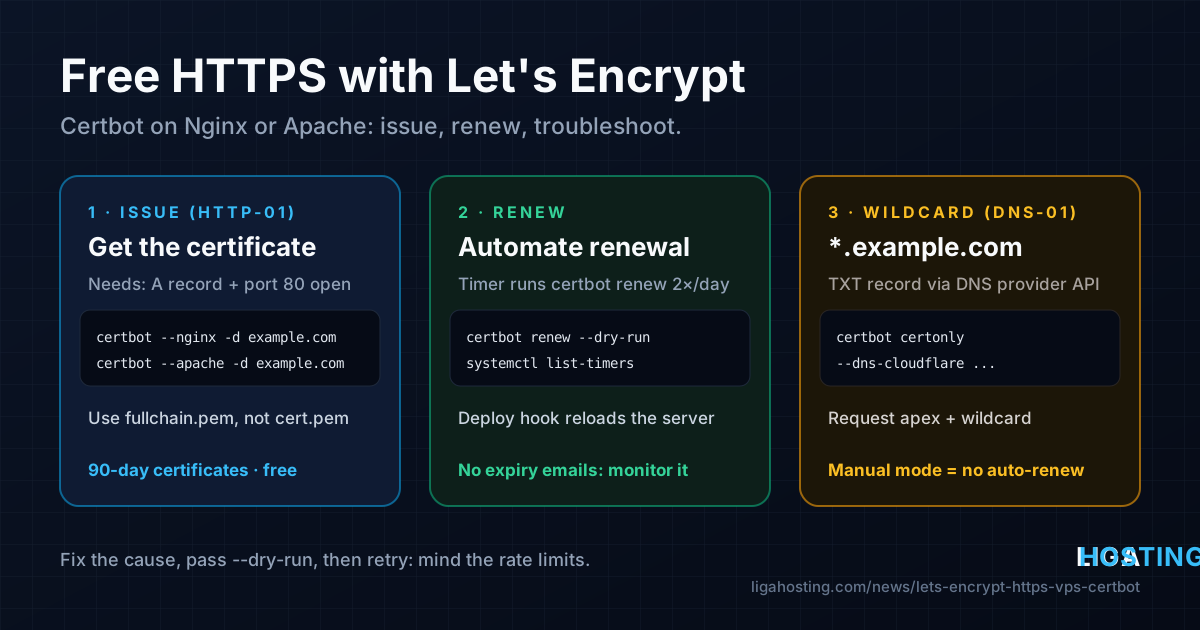
Free HTTPS on a VPS with Let's Encrypt — Certbot, Renewal and Common Errors
Every site needs HTTPS: browsers mark plain HTTP as "Not secure", many APIs refuse it, and HTTP/2 only works over TLS in practice. On a VPS you do not have to pay for a certificate. Let's Encrypt issues free, browser-trusted certificates, and Certbot requests, installs and renews them for you.
Getting the first certificate takes a few minutes. The part people get wrong is what happens later: a renewal that silently fails, a firewall that blocks validation, or a rate limit hit after too many retries. This guide covers the whole lifecycle on Ubuntu, Debian and AlmaLinux, for Nginx and Apache, with commands to verify each step.
How Let's Encrypt checks that the domain is yours
Before issuing a certificate, Let's Encrypt asks Certbot to prove control of every name on it. This is called a challenge, and there are three types:
| Challenge | How it works | Use it when |
|---|---|---|
| HTTP-01 | Certbot places a file under /.well-known/acme-challenge/; Let's Encrypt fetches it over port 80 | Normal sites on a VPS — the default and simplest option |
| DNS-01 | Certbot creates a TXT record _acme-challenge.example.com; Let's Encrypt looks it up | Wildcard certificates, servers without port 80 open, internal hosts |
| TLS-ALPN-01 | Validation happens inside a TLS handshake on port 443 | Rarely needed; not supported by Certbot's standard plugins |
Certificates are currently valid for 90 days, and Let's Encrypt has announced that lifetimes will be shortened step by step over the coming years. Treat renewal as something that must run automatically, never as a calendar reminder. Also note that Let's Encrypt no longer sends expiry warning emails, so your own checks are the only safety net.
Before you start — DNS, ports and the web server
Most failed first attempts come from one of these three prerequisites. Check them first:
# 1. The domain must point to your VPS (compare with the server's real IP)
dig +short A example.com
dig +short A www.example.com
dig +short AAAA example.com     # see the note below
curl -4 -s https://ifconfig.me ; echo

# 2. Ports 80 and 443 must be open
# Ubuntu / Debian with UFW:
sudo ufw allow 80,443/tcp
# AlmaLinux with firewalld:
sudo firewall-cmd --permanent --add-service=http --add-service=https
sudo firewall-cmd --reload

# 3. The web server must answer on port 80 for the domain
curl -sI http://example.com | head -n 1
An AAAA record matters more than people expect: if one exists, Let's Encrypt prefers IPv6 when validating. If it points to an old server, or your web server does not listen on IPv6, validation fails even though IPv4 works perfectly. Remove AAAA records the VPS does not actually serve. Our guide to DNS records explains A, AAAA and CAA records in detail.
Port 80 must stay open even after you redirect everything to HTTPS — HTTP-01 renewals use it every time.
Install Certbot
Ubuntu and Debian — the distribution packages are fine and include the renewal timer:
sudo apt update
# For Nginx:
sudo apt install -y certbot python3-certbot-nginx
# For Apache:
sudo apt install -y certbot python3-certbot-apache
The Certbot project itself recommends the snap package, which always has the newest version (sudo snap install --classic certbot). Either works; just do not install both, or you will have two certbot commands and two renewal timers.
AlmaLinux (and other RHEL-compatible systems) — Certbot comes from EPEL:
sudo dnf install -y epel-release
sudo dnf install -y certbot python3-certbot-nginx    # or python3-certbot-apache
# Apache on AlmaLinux also needs the TLS module:
sudo dnf install -y mod_ssl
Check the installation with certbot --version.
Get a certificate for Nginx
The Nginx plugin finds the right server block by its server_name, so make sure your site config contains the exact names you are requesting:
server {
    listen 80;
    listen [::]:80;
    server_name example.com www.example.com;
    root /var/www/example.com;
}
Then request the certificate:
sudo nginx -t && sudo systemctl reload nginx
sudo certbot --nginx -d example.com -d www.example.com
On the first run Certbot asks for an email address and agreement to the terms, validates both names over HTTP-01, and edits the server block. It adds lines like these and, if you agree, a redirect from HTTP to HTTPS:
listen 443 ssl;
ssl_certificate /etc/letsencrypt/live/example.com/fullchain.pem;
ssl_certificate_key /etc/letsencrypt/live/example.com/privkey.pem;
include /etc/letsencrypt/options-ssl-nginx.conf;
ssl_dhparam /etc/letsencrypt/ssl-dhparams.pem;
Always point Nginx at fullchain.pem, not cert.pem. Using only the leaf certificate works in some desktop browsers but fails on many phones and in tools like curl, because the intermediate certificate is missing.
Get a certificate for Apache
The Apache plugin works the same way. It needs a VirtualHost on port 80 with a matching ServerName (and ServerAlias for www):
# Ubuntu / Debian: enable the TLS module first
sudo a2enmod ssl
sudo apache2ctl configtest && sudo systemctl reload apache2

sudo certbot --apache -d example.com -d www.example.com
Certbot creates a new file such as /etc/apache2/sites-available/example.com-le-ssl.conf (on AlmaLinux, under /etc/httpd/conf.d/) with a <VirtualHost *:443> block and enables it. On AlmaLinux run sudo apachectl configtest and reload httpd instead of apache2.
Other methods — webroot and standalone
If you prefer to manage the web server configuration yourself, or run something Certbot has no plugin for (for example a reverse proxy in a container), use certonly. It only obtains the certificate and leaves your configuration untouched.
Webroot — the web server keeps running and serves the challenge file from a directory:
sudo certbot certonly --webroot -w /var/www/example.com \
  -d example.com -d www.example.com
Standalone — Certbot starts its own temporary web server on port 80, so nothing else may be using that port:
sudo certbot certonly --standalone -d example.comWith either method you add the ssl_certificate paths to your configuration manually, and you must tell Certbot how to reload the service after renewal (see the hooks below). For standalone on a server that already runs a web server, add --pre-hook "systemctl stop nginx" --post-hook "systemctl start nginx" — but webroot is usually the better choice because it causes no downtime.
Verify that HTTPS really works
Do not stop at "the padlock appears in my browser". Check what the server actually sends:
# Certificates Certbot manages, their names and expiry dates
sudo certbot certificates

# What the server presents to clients (issuer, names, dates)
echo | openssl s_client -connect example.com:443 -servername example.com 2>/dev/null \
  | openssl x509 -noout -issuer -subject -ext subjectAltName -dates

# Full chain check: curl fails if the intermediate is missing
curl -sSI https://example.com | head -n 1
curl -sI http://example.com | grep -i '^location'
The last command should show a redirect to https://. Test both example.com and www.example.com: a certificate that covers only one of them is the most common reason for a warning on "the other" address.
Auto-renewal — make sure it actually runs
Certbot installs a scheduled job that runs certbot renew twice a day. Renewal happens when a certificate is close to expiry (about 30 days before by default); the rest of the time the command simply does nothing. Find the timer for your installation:
systemctl list-timers | grep -i certbot
# apt package:  certbot.timer
# snap package: snap.certbot.renew.timer
# AlmaLinux/EPEL: certbot-renew.timer — NOT enabled by default:
sudo systemctl enable --now certbot-renew.timer
Then simulate a full renewal against Let's Encrypt's staging environment. It does not count towards rate limits and does not replace your certificates:
sudo certbot renew --dry-runIf the dry run passes, real renewals will pass too, as long as nothing changes (firewall, DNS, web server config). Run it again after every such change.
Reload after renewal. The Nginx and Apache plugins reload the web server for you. With webroot, standalone or DNS methods, a renewed certificate sits on disk while the service keeps serving the old one from memory — until it expires. Add a deploy hook, which runs only after a successful renewal:
sudo tee /etc/letsencrypt/renewal-hooks/deploy/reload-nginx.sh >/dev/null <<'EOF'
#!/bin/sh
systemctl reload nginx
EOF
sudo chmod +x /etc/letsencrypt/renewal-hooks/deploy/reload-nginx.sh
The same idea applies to other services using the certificate, such as a mail server or a panel. Settings for each certificate live in /etc/letsencrypt/renewal/example.com.conf; edit them through Certbot options rather than by hand where possible.
Because there are no expiry emails any more, add an external check: a monitoring service that alerts when a certificate has fewer than 14 days left, or a weekly cron job running openssl x509 -checkend 1209600 against the live certificate.
Wildcard certificates with the DNS-01 challenge
A wildcard certificate such as *.example.com covers every subdomain one level deep. Let's Encrypt issues wildcards only through DNS-01. Two things to remember: the wildcard does not cover the bare domain (request both), and it does not cover deeper levels such as a.b.example.com.
For automatic renewal, Certbot must be able to create the TXT record itself through your DNS provider's API. Certbot has plugins for many providers; this example uses Cloudflare DNS:
sudo apt install -y python3-certbot-dns-cloudflare     # AlmaLinux: dnf install python3-certbot-dns-cloudflare

sudo mkdir -p /root/.secrets
sudo tee /root/.secrets/cloudflare.ini >/dev/null <<'EOF'
dns_cloudflare_api_token = YOUR_API_TOKEN
EOF
sudo chmod 600 /root/.secrets/cloudflare.ini

sudo certbot certonly --dns-cloudflare \
  --dns-cloudflare-credentials /root/.secrets/cloudflare.ini \
  -d example.com -d '*.example.com'
Create the API token with permission to edit DNS for that one zone only — never use a global account key. Quote '*.example.com' so the shell does not expand the asterisk.
If your DNS provider has no plugin, you can use --manual --preferred-challenges dns and add the TXT record by hand. That works once, but manual certificates cannot renew automatically, so it is only suitable for testing. Before confirming in manual mode, check that the record is visible: dig +short TXT _acme-challenge.example.com @1.1.1.1.
Rate limits and the staging environment
Let's Encrypt limits how many certificates you can request. Normal use never comes close, but a script retrying in a loop can hit the limits in minutes. The most important ones (check the official rate limits page for current values):
| Limit | Value | Typical way to hit it |
|---|---|---|
| Certificates per registered domain | 50 per 7 days | Many separate certificates for many subdomains |
| Duplicate certificates (same exact set of names) | 5 per 7 days | Reinstalling the server and requesting again each time |
| Failed validations | 5 per hostname, per account, per hour | Retrying while DNS or the firewall is still wrong |
| Names per certificate | 100 | Putting every site on one certificate |
When experimenting, use the staging environment: add --test-cert (or --dry-run for certonly and renew). Staging certificates are not trusted by browsers but have much higher limits. When you rebuild a server, copy /etc/letsencrypt from the old one or from a backup instead of requesting new certificates for the same names.
Common errors and how to fix them
- "Timeout during connect (likely firewall problem)" — Let's Encrypt could not reach port 80. Check UFW or firewalld, any panel firewall, and that the A/AAAA records point to this VPS. Test from outside:
curl -I http://example.com/.well-known/acme-challenge/testshould return a 404 from your server, not hang. - "Invalid response … 404" for the challenge URL — the request reached a web server, but not the right folder. Usually another
serverblock or VirtualHost answers for that name, the webroot path is wrong, or a rewrite rule (for example in a CMS) catches/.well-known/. Make sure the challenge path is served as a static file. - "DNS problem: NXDOMAIN looking up A" — the name does not exist in DNS yet, or you requested a typo. Fix the record and wait for it to propagate before retrying.
- "CAA record for example.com prevents issuance" — your domain has CAA records that do not include Let's Encrypt. Add
example.com. CAA 0 issue "letsencrypt.org"or remove the restrictive record. - "Could not bind TCP port 80 because it is already in use" — standalone mode while Nginx or Apache is running. Use the web server plugin or webroot instead.
- "Too many certificates (5) already issued for this exact set of identifiers" — the duplicate limit. Wait until the window passes, reuse existing certificates, or add/remove a name only if you really need a different certificate.
- Browser still shows the old certificate after renewal — the service was not reloaded. Add a deploy hook and run
sudo systemctl reload nginx(orapache2/httpd). - Redirect loop or "too many redirects" behind Cloudflare — the Cloudflare SSL mode is Flexible while the origin redirects to HTTPS. Switch it to Full (strict) once the origin has a valid certificate.
For any error, the detailed log is in /var/log/letsencrypt/letsencrypt.log. Fix the cause, run with --dry-run until it passes, and only then request the real certificate — this keeps you away from the failed-validation limit. If ports 80 or 443 are already in use by something unexpected, sudo ss -ltnp | grep -E ':(80|443)\s' shows which process holds them. A good firewall baseline for a new server is covered in our VPS security checklist.
Frequently Asked Questions
Are Let's Encrypt certificates as secure as paid ones?
Yes, for encryption. A Let's Encrypt certificate is a domain-validated (DV) certificate, trusted by all major browsers and using the same TLS encryption as a paid DV certificate. Paid certificates mainly add organisation validation, longer lifetimes or warranties, not stronger encryption.
Do I need to keep port 80 open after enabling HTTPS?
Yes, if you use the HTTP-01 challenge. Renewals validate over port 80, and the HTTP-to-HTTPS redirect also needs it. Only with DNS-01 validation can port 80 stay closed.
How do I know auto-renewal works?
Check that the timer is active with systemctl list-timers | grep -i certbot and run sudo certbot renew --dry-run. If both look good, renewal will happen automatically about 30 days before expiry. Add an external expiry check as a safety net.
Can I use one certificate for several domains?
Yes. Add each name with its own -d option, up to 100 names per certificate. In practice one certificate per site is easier to manage, because a validation problem with one domain then does not block renewal for the others.
What happens if a certificate expires?
Visitors get a full-page security warning and most API clients refuse to connect. Fix the cause shown in /var/log/letsencrypt/letsencrypt.log, run sudo certbot renew, and reload the web server. The site works again as soon as the new certificate is served.
At Liga Hosting, our Standard VPS and Performance VPS plans come with full root access, a dedicated IPv4 address and DDoS protection, so you can run Certbot, Nginx or Apache and every command in this guide yourself. If you would rather not manage certificates at all, our Web Hosting plans include a free SSL certificate.