
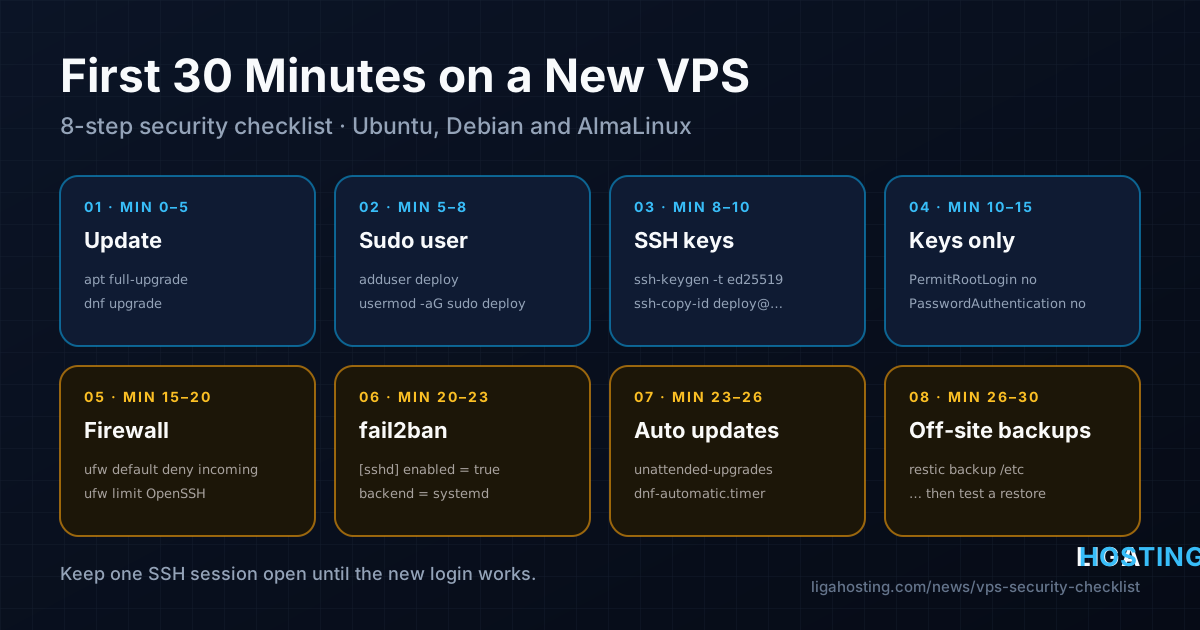
Your First 30 Minutes on a New VPS — Security Checklist
A new VPS with a public IPv4 address starts receiving SSH login attempts within minutes of booting. Most of them are automated scripts trying root with common passwords. They are not personal, but they are constant, and a server that still accepts passwords for root is only one weak password away from being someone else's server.
This checklist is what to do before you install your website, database or application. It takes about half an hour, every step has a command to verify it, and the order is chosen so you never lock yourself out. Commands are given for Ubuntu 22.04/24.04 and Debian 12/13, with the AlmaLinux 8/9/10 equivalent wherever it differs.
| Minute | Step | What it protects against |
|---|---|---|
| 0–5 | Update the system | Known vulnerabilities in the installed image |
| 5–10 | Create a sudo user and add your SSH key | Working as root all the time, weak passwords |
| 10–15 | Disable root and password login over SSH | Brute-force and password-guessing attacks |
| 15–20 | Firewall (UFW or firewalld) | Services you did not mean to expose |
| 20–23 | fail2ban | Repeated login attempts, log noise |
| 23–26 | Automatic security updates | Vulnerabilities published after today |
| 26–30 | Off-server backups | Mistakes, compromises and disk problems |
Step 1 — Log in and update everything
Log in with the root credentials from your welcome email, then bring the system fully up to date. The OS image may be weeks old, and the first round of updates often includes OpenSSH, the kernel and OpenSSL.
# Ubuntu / Debian
apt update && apt full-upgrade -y
apt install -y sudo curl ca-certificates

# AlmaLinux
dnf upgrade -y
If a new kernel was installed, reboot now while nothing important is running: reboot. You can check whether a reboot is pending with ls /var/run/reboot-required on Ubuntu/Debian, or dnf needs-restarting -r on AlmaLinux (from dnf-plugins-core).
While you are here, change the root password to a long random one (passwd) — after this guide you will not use it for SSH anymore, but it should not stay the one that was sent by email.
Step 2 — Create a non-root user with sudo
Working as root means every typo runs with full privileges, and every attacker knows the user name. Create your own user and give it administrator rights through sudo. Replace deploy with any name you like.
# Ubuntu / Debian
adduser deploy
usermod -aG sudo deploy

# AlmaLinux
useradd -m -G wheel deploy
passwd deploy
The password you set here is used for sudo only, not for SSH login (that comes next). Make it strong anyway and store it in a password manager.
Verify: switch to the new user and run a command with sudo. It should print root.
su - deploy
sudo whoami
exit
Step 3 — Set up SSH key authentication
An SSH key pair replaces the password: the private key stays on your computer, the public key goes on the server. It cannot be guessed, so brute-force attacks become pointless.
On your own computer (Linux, macOS, or Windows 10/11 PowerShell), create a key if you do not have one yet. Ed25519 is the modern default; set a passphrase when asked.
ssh-keygen -t ed25519 -C "you@laptop"Copy the public key to the new user. On Linux and macOS:
ssh-copy-id -i ~/.ssh/id_ed25519.pub deploy@203.0.113.10Windows does not ship ssh-copy-id; this PowerShell one-liner does the same job:
type $env:USERPROFILE\.ssh\id_ed25519.pub | ssh deploy@203.0.113.10 "mkdir -p ~/.ssh && chmod 700 ~/.ssh && cat >> ~/.ssh/authorized_keys && chmod 600 ~/.ssh/authorized_keys"On AlmaLinux, if you created ~/.ssh by hand, restore the SELinux labels or the key will be ignored: restorecon -Rv /home/deploy/.ssh.
Verify: open a new terminal and log in as the new user. You should get in without being asked for the account password (only for the key passphrase, if you set one).
ssh deploy@203.0.113.10Do not continue until this works. The next step turns passwords off.
Step 4 — Disable root login and password authentication
Now tell the SSH server to accept only keys and to refuse root entirely. Instead of editing the main config, put your settings in a drop-in file. Current Ubuntu, Debian and AlmaLinux 9/10 read /etc/ssh/sshd_config.d/*.conf first, and for each setting the first value found wins — that is why the file name starts with 00-: some images ship a 50-cloud-init.conf that turns passwords back on.
sudo tee /etc/ssh/sshd_config.d/00-hardening.conf >/dev/null <<'EOF'
PermitRootLogin no
PasswordAuthentication no
KbdInteractiveAuthentication no
PubkeyAuthentication yes
MaxAuthTries 3
LoginGraceTime 30
EOF
On AlmaLinux 8 the drop-in directory is not included by default; set the same lines directly in /etc/ssh/sshd_config instead (and use ChallengeResponseAuthentication no in place of the KbdInteractiveAuthentication line).
Test the syntax, then check the values the server will actually use:
sudo sshd -t
sudo sshd -T | grep -Ei '^(permitrootlogin|passwordauthentication|kbdinteractiveauthentication|pubkeyauthentication)'
You want to see permitrootlogin no, passwordauthentication no, kbdinteractiveauthentication no and pubkeyauthentication yes. If one still says yes, another file in sshd_config.d sets it first — find it with grep -ri passwordauthentication /etc/ssh/.
Apply the change. Keep your current session open while you do this:
# Ubuntu / Debian
sudo systemctl restart ssh

# AlmaLinux
sudo systemctl restart sshd
Verify from a second terminal on your computer:
ssh deploy@203.0.113.10                                   # works with the key
ssh root@203.0.113.10                                     # must be refused
ssh -o PubkeyAuthentication=no deploy@203.0.113.10        # must fail: "Permission denied (publickey)"
Step 5 — Turn on the firewall
A firewall makes sure only the ports you chose are reachable, even if a package you install later starts listening on something unexpected. The rule is simple: deny all incoming traffic, then allow SSH and the services you actually run. Always allow SSH before enabling the firewall.
Ubuntu / Debian — UFW:
sudo apt install -y ufw
sudo ufw default deny incoming
sudo ufw default allow outgoing
sudo ufw limit OpenSSH          # allow SSH, rate-limit repeated connections
sudo ufw allow 80,443/tcp       # only if this server will serve websites
sudo ufw enable
sudo ufw status verbose
AlmaLinux — firewalld (usually installed and active already):
sudo dnf install -y firewalld
sudo systemctl enable --now firewalld
sudo firewall-cmd --permanent --add-service=ssh
sudo firewall-cmd --permanent --add-service=http --add-service=https   # only for web servers
sudo firewall-cmd --reload
sudo firewall-cmd --list-all
Verify: compare the open ports with what is actually listening. Anything listening on 0.0.0.0 or [::] that you do not recognise should be stopped, bound to 127.0.0.1, or kept closed in the firewall.
sudo ss -tulpnOne important exception: Docker writes its own iptables rules, and ports published with -p 8080:80 are reachable from the internet even if UFW does not allow them. For containers that should only be reached locally or through a reverse proxy, publish them as -p 127.0.0.1:8080:80.
The firewall on your VPS filters what reaches your services; it is separate from the network-level DDoS filtering in front of the server. We explain the difference in our DDoS protection guide.
Step 6 — Install fail2ban
With password login disabled, brute-force attempts cannot succeed, but they still fill your logs and use resources. fail2ban reads the SSH log and temporarily bans addresses that fail too often.
# Ubuntu / Debian
sudo apt install -y fail2ban python3-systemd

# AlmaLinux (fail2ban comes from EPEL)
sudo dnf install -y epel-release
sudo dnf install -y fail2ban fail2ban-firewalld
Never edit jail.conf — package updates overwrite it. Create /etc/fail2ban/jail.local:
[DEFAULT]
bantime  = 1h
findtime = 10m
maxretry = 5
# Add your own static IP here so you can never ban yourself
ignoreip = 127.0.0.1/8 ::1

[sshd]
enabled = true
backend = systemd
backend = systemd reads the journal directly, which matters on Debian 12 and newer, where /var/log/auth.log no longer exists by default. On AlmaLinux, the fail2ban-firewalld package makes bans go through firewalld automatically.
sudo systemctl enable --now fail2ban
sudo systemctl restart fail2ban
sudo fail2ban-client status sshd
Verify: the status output should show the jail with a Currently failed and Currently banned counter. After a few hours on a public IP you will usually see the banned list grow. If you ever ban yourself, unban from another connection with sudo fail2ban-client set sshd unbanip 198.51.100.7.
Step 7 — Enable automatic security updates
Most compromises do not use new tricks; they use vulnerabilities that were fixed weeks earlier on servers nobody updated. Let the server install security updates on its own.
Ubuntu / Debian — unattended-upgrades:
sudo apt install -y unattended-upgrades
sudo dpkg-reconfigure -plow unattended-upgrades    # answer "Yes"
cat /etc/apt/apt.conf.d/20auto-upgrades
The file should contain:
APT::Periodic::Update-Package-Lists "1";
APT::Periodic::Unattended-Upgrade "1";
Kernel updates only take effect after a reboot. If a short nightly restart is acceptable for your service, allow it in /etc/apt/apt.conf.d/52unattended-upgrades-local:
Unattended-Upgrade::Automatic-Reboot "true";
Unattended-Upgrade::Automatic-Reboot-Time "04:00";
Test the configuration without installing anything: sudo unattended-upgrade --dry-run --debug. Results are logged in /var/log/unattended-upgrades/.
AlmaLinux — dnf-automatic:
sudo dnf install -y dnf-automatic
sudo sed -i 's/^upgrade_type.*/upgrade_type = security/; s/^apply_updates.*/apply_updates = yes/' /etc/dnf/automatic.conf
sudo systemctl enable --now dnf-automatic.timer
systemctl list-timers dnf-automatic.timer
Step 8 — Set up backups that live somewhere else
Security is not only about keeping attackers out. A wrong rm -rf, a broken upgrade or a compromised application can destroy data just as well, and a backup stored on the same VPS disappears together with it. Our VPS plans are unmanaged, so backups of your data are your responsibility — plan them on day one, not after the first incident.
A simple and reliable tool is restic: encrypted, deduplicated backups to another server over SFTP or to S3-compatible storage. It is in the Ubuntu/Debian repositories and in EPEL for AlmaLinux.
# Ubuntu / Debian: sudo apt install -y restic     AlmaLinux: sudo dnf install -y restic
sudo sh -c 'openssl rand -base64 32 > /root/.restic-pass && chmod 600 /root/.restic-pass'
export RESTIC_REPOSITORY=sftp:backup@backup.example.com:/srv/restic/web1
export RESTIC_PASSWORD_FILE=/root/.restic-pass

sudo -E restic init
sudo -E restic backup /etc /home /var/www
sudo -E restic forget --keep-daily 7 --keep-weekly 4 --keep-monthly 6 --prune
For an SFTP repository, root on the VPS needs its own SSH key that the backup server accepts. Copy /root/.restic-pass to your password manager — without it the backup cannot be decrypted. Databases should be dumped first (mysqldump or pg_dump into a file under a backed-up directory), then backed up. Run the commands from a daily cron job or systemd timer.
Verify by actually restoring. A backup you have never restored is only a hope:
sudo -E restic snapshots
sudo -E restic restore latest --target /tmp/restore-test --include /etc/ssh
Final check — the 2-minute audit
Before you install anything else, run through this list. Every line should match:
sudo sshd -T | grep -E 'permitrootlogin|passwordauthentication'→ bothno;sudo ufw statusorsudo firewall-cmd --list-all→ only SSH and the ports you chose;sudo ss -tulpn→ no unexpected services listening publicly;sudo fail2ban-client status sshd→ jail active;systemctl list-timers→apt-daily-upgrade.timerordnf-automatic.timerscheduled;restic snapshots→ at least one snapshot, and one test restore done;sudo journalctl -u ssh -u sshd --since today | grep Accepted→ only your own logins.
Frequently Asked Questions
Should I change the SSH port from 22?
It is optional. A different port cuts down log noise from automated scanners, but it is not real protection — key-only login and fail2ban are. If you change it, allow the new port in the firewall first, update fail2ban's port setting, and on AlmaLinux tell SELinux about it with semanage port -a -t ssh_port_t -p tcp 2222. On Ubuntu 24.04 SSH is socket-activated, so run sudo systemctl daemon-reload and sudo systemctl restart ssh.socket after the change.
Is UFW enough, or do I also need fail2ban?
They do different jobs. UFW decides which ports are open at all; fail2ban watches logs and bans addresses that misbehave on the ports that are open. With password login disabled, fail2ban is mostly about reducing noise and load, but it is cheap and worth having — and it can later protect web logins too.
Will automatic updates break my server?
Security-only updates from the distribution are designed to be safe and rarely change behaviour. The risk of running unpatched for months is much higher. Keep major upgrades (for example a new Ubuntu release) manual, and keep backups so you can recover if something does go wrong.
Does Liga Hosting secure the operating system for me?
No. Our VPS plans are unmanaged: you get full root access and administer the operating system yourself, which is exactly why this checklist exists. Our support helps with the network, hardware, IP addresses, reverse DNS and billing.
At Liga Hosting, every Standard VPS and Performance VPS runs on KVM with NVMe storage, a dedicated IPv4, DDoS protection and full root access, so you can apply every step in this checklist from your first login. Billing is daily or monthly, which makes it easy to spin up a test server and practise. Contact us if you have questions about networking, IPs or reverse DNS.