
Your Own VPN on a VPS with WireGuard — Step by Step
A VPN on your own VPS gives you one fixed exit IP address, an encrypted tunnel on hotel and café Wi-Fi, and private access to services you do not want to expose to the internet. You do not need a third-party VPN subscription to get that: WireGuard is built into the Linux kernel, is configured with a few short text files and runs comfortably on the smallest VPS.
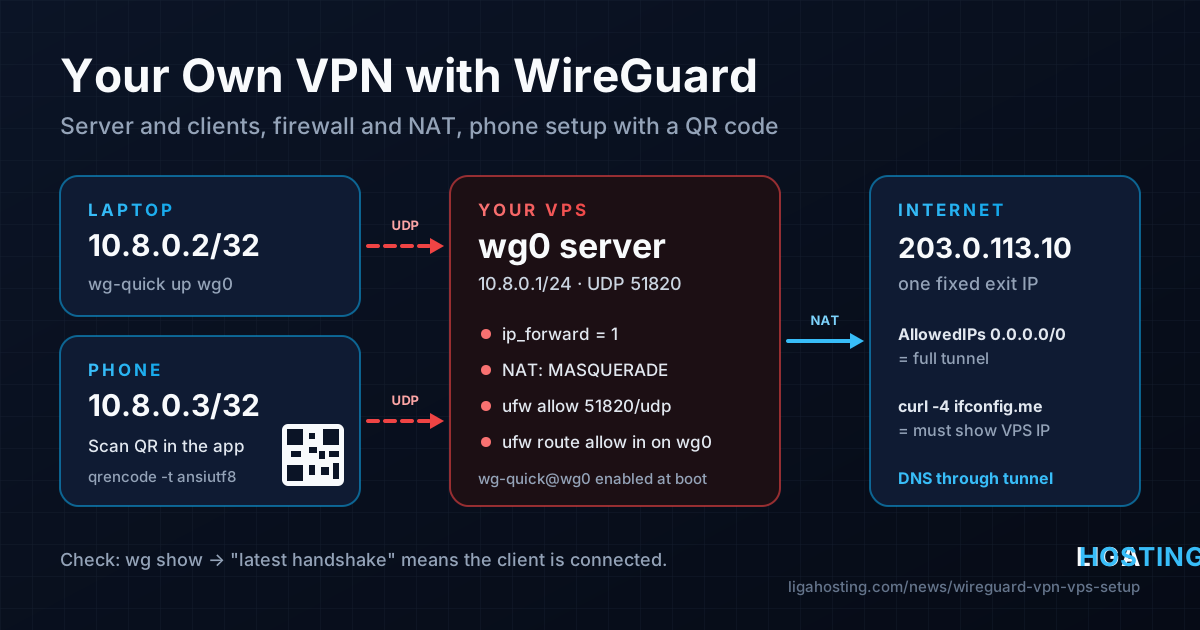
This guide builds a complete setup: server, laptop client, phone client via QR code, firewall and NAT, and a check after each step. Commands are for Ubuntu 22.04/24.04 and Debian 12/13, with the AlmaLinux 9 differences noted where they matter.
How the setup works
WireGuard has no users or passwords. Every device has a key pair: a private key that never leaves the device and a public key that you give to the other side. The server knows the public key of each client, each client knows the public key of the server, and only devices whose keys match can talk.
The values used in this guide:
| Item | Value in this guide |
|---|---|
| VPS public IP | 203.0.113.10 (replace with yours) |
| WireGuard port | 51820/udp |
| Tunnel network | 10.8.0.0/24 |
| Server address in the tunnel | 10.8.0.1 |
| Laptop / phone | 10.8.0.2 / 10.8.0.3 |
Before you start, the VPS should be updated and have SSH secured. If it is a fresh server, run through our first 30 minutes security checklist first.
Step 1 — Install WireGuard on the server
The kernel module is already included in current Ubuntu, Debian and AlmaLinux kernels; you only install the tools. We also install qrencode for the phone step.
# Ubuntu / Debian
sudo apt update
sudo apt install -y wireguard qrencode iptables

# AlmaLinux 9
sudo dnf install -y epel-release
sudo dnf install -y wireguard-tools qrencode
Check that the module loads: sudo modprobe wireguard && lsmod | grep wireguard.
Step 2 — Generate the keys
Create the server key pair inside /etc/wireguard. umask 077 makes the new files readable only by root, which matters: anyone with the private key can impersonate the server.
sudo -i
cd /etc/wireguard
umask 077
wg genkey | tee server.key | wg pubkey > server.pub

# One key pair per client device
wg genkey | tee laptop.key | wg pubkey > laptop.pub
wg genkey | tee phone.key | wg pubkey > phone.pub

ls -l /etc/wireguard
Every file should show -rw-------. Generating client keys on the server is quickest and needed for the QR code; the stricter alternative is to let each device generate its own key in the app and send you only the public key.
Step 3 — Write the server configuration
First find the name of the network interface that leads to the internet. On many VPS it is eth0, but it may be ens3, ens18 or similar:
ip -o -4 route show to default | awk '{print $5}'Now create /etc/wireguard/wg0.conf. Paste the contents of server.key, laptop.pub and phone.pub where shown, and replace eth0 if your interface has another name:
[Interface]
Address = 10.8.0.1/24
ListenPort = 51820
PrivateKey = <contents of server.key>
# NAT: traffic from the tunnel leaves the VPS with its public IP
PostUp = iptables -t nat -A POSTROUTING -s 10.8.0.0/24 -o eth0 -j MASQUERADE
PostDown = iptables -t nat -D POSTROUTING -s 10.8.0.0/24 -o eth0 -j MASQUERADE

[Peer]
# laptop
PublicKey = <contents of laptop.pub>
AllowedIPs = 10.8.0.2/32

[Peer]
# phone
PublicKey = <contents of phone.pub>
AllowedIPs = 10.8.0.3/32
What the lines do:
- Address — the server's own address inside the tunnel.
- ListenPort — the UDP port clients connect to.
- PostUp / PostDown — commands run when the tunnel starts and stops. The MASQUERADE rule rewrites the source address of client traffic to the VPS IP, so replies from the internet come back to the server.
- AllowedIPs on the server — which tunnel address each client may use. Always a single
/32per client; two peers must never share one.
AlmaLinux: leave out the two PostUp/PostDown lines. firewalld handles NAT instead (step 5).
Step 4 — Enable IP forwarding and start the tunnel
By default Linux does not pass packets from one interface to another. A VPN server must, so turn forwarding on permanently:
echo 'net.ipv4.ip_forward = 1' | sudo tee /etc/sysctl.d/99-wireguard.conf
sudo sysctl --system | grep ip_forward
Start WireGuard and enable it at boot:
sudo systemctl enable --now wg-quick@wg0
sudo systemctl status wg-quick@wg0 --no-pager

# Verify
sudo wg show
ip -brief address show wg0
sudo ss -lunp | grep 51820
wg show should list the interface, its public key, the listening port and both peers. A "latest handshake" appears once a client connects.
Step 5 — Open the firewall
Clients need to reach UDP port 51820, and the server must be allowed to forward traffic from wg0 to the internet.
UFW (Ubuntu, Debian). UFW drops forwarded traffic by default, so add a route rule as well as the port rule:
sudo ufw allow 51820/udp comment 'WireGuard'
sudo ufw route allow in on wg0 out on eth0
sudo ufw status verbose
Replies are accepted by UFW's built-in rule for established connections. If you are new to UFW, our UFW firewall basics article explains the default policies.
No firewall active: nothing to do; the default FORWARD policy is ACCEPT. Check with sudo iptables -S FORWARD | head -1.
firewalld (AlmaLinux). Open the port, enable masquerading on the public zone and put wg0 in the trusted zone:
sudo firewall-cmd --permanent --zone=public --add-port=51820/udp
sudo firewall-cmd --permanent --zone=public --add-masquerade
sudo firewall-cmd --permanent --zone=trusted --add-interface=wg0
sudo firewall-cmd --reload
sudo firewall-cmd --get-active-zones
Step 6 — Connect a laptop
On the server, write the laptop's client file. The [Peer] here is the server:
# /etc/wireguard/laptop.conf (on the server, to be copied to the laptop)
[Interface]
PrivateKey = <contents of laptop.key>
Address = 10.8.0.2/32
DNS = 1.1.1.1, 9.9.9.9

[Peer]
PublicKey = <contents of server.pub>
Endpoint = 203.0.113.10:51820
AllowedIPs = 0.0.0.0/0
PersistentKeepalive = 25- AllowedIPs = 0.0.0.0/0 sends all IPv4 traffic through the tunnel (a "full tunnel"). For a split tunnel that only reaches the VPN network and the server, use
10.8.0.0/24instead. - DNS — the resolvers the device uses while connected, so DNS queries also go through the tunnel.
- PersistentKeepalive = 25 sends a small packet every 25 seconds, which keeps home routers and mobile networks from forgetting the connection.
Copy the file to the laptop securely, for example with scp, then import it:
- Windows and macOS: install the official app from wireguard.com/install, choose "Import tunnel from file" and click Activate.
- Linux: install
wireguard, save the file as/etc/wireguard/wg0.confand runsudo wg-quick up wg0. If it fails withresolvconf: command not found, installopenresolv.
Verify from the laptop:
ping -c 3 10.8.0.1
curl -4 https://ifconfig.me    # must print 203.0.113.10, the VPS IP
On the server, sudo wg show now shows a latest handshake and growing transfer counters for the laptop.
Step 7 — Connect a phone with a QR code
Instead of typing keys on a phone, create the phone's config on the server and show it as a QR code in the terminal:
# as root (sudo -i)
cd /etc/wireguard
cat > phone.conf <<EOF
[Interface]
PrivateKey = $(cat phone.key)
Address = 10.8.0.3/32
DNS = 1.1.1.1, 9.9.9.9

[Peer]
PublicKey = $(cat server.pub)
Endpoint = 203.0.113.10:51820
AllowedIPs = 0.0.0.0/0
PersistentKeepalive = 25
EOF

qrencode -t ansiutf8 < phone.conf
On the phone, install the official WireGuard app (App Store or Google Play), tap +, choose Scan from QR code, give the tunnel a name and switch it on. Make the terminal window large enough to show the whole code.
The QR code contains the phone's private key. Do not screenshot it or send it by chat. Once the phone and the laptop are connected, delete the client private keys and configs from the server:
shred -u /etc/wireguard/phone.key /etc/wireguard/phone.conf /etc/wireguard/laptop.key /etc/wireguard/laptop.confAdding and removing devices later
To add a device without disconnecting the others, append a new [Peer] block with the next free address (10.8.0.4/32, and so on) to wg0.conf and reload only the changed settings:
sudo bash -c 'wg syncconf wg0 <(wg-quick strip wg0)'To revoke a lost or old device, delete its [Peer] block from wg0.conf and run the same command, or remove it from the running interface immediately:
sudo wg set wg0 peer 'PUBLIC_KEY_OF_THE_DEVICE=' removeBecause every device has its own key, revoking one never affects the others.
Troubleshooting
| Symptom | Likely cause and fix |
|---|---|
No "latest handshake" in wg show | UDP 51820 is blocked, the Endpoint IP or port is wrong, or a public key was pasted in the wrong place. Watch for packets with sudo tcpdump -ni any udp port 51820 while the client connects. |
| Handshake and ping to 10.8.0.1 work, but no internet | Forwarding or NAT is missing: check sysctl net.ipv4.ip_forward, the interface name in PostUp and sudo iptables -t nat -S POSTROUTING. Docker sets the FORWARD policy to DROP. |
| Websites open by IP but not by name | DNS: check the DNS = line in the client config; on Linux clients install openresolv. |
| Some sites load forever, small pages work | MTU. Add MTU = 1380 to the client's [Interface] section and reconnect. |
| Tunnel drops after some idle minutes | Add PersistentKeepalive = 25 on the client. |
WireGuard is silent by design: it does not answer packets with wrong keys, so a missing handshake is almost always a key, address or firewall mistake.
Frequently Asked Questions
How much VPS do I need for a personal WireGuard VPN?
Very little. WireGuard runs in the kernel and uses almost no memory, so the smallest VPS plan is enough for a handful of devices. Throughput depends mostly on the network and the CPU's speed for encryption, not on RAM.
Is a self-hosted VPN anonymous?
No. It encrypts your traffic on untrusted networks and gives you a fixed IP, but that IP is your own VPS, registered to you. It protects you from the local network, not from being identified.
Why does my IPv6 traffic not go through the tunnel?
AllowedIPs = 0.0.0.0/0 routes only IPv4. Add ::/0 as well: if the server has no IPv6, that traffic is dropped and apps fall back to IPv4 through the tunnel instead of leaking outside it.
Can I use a different port than 51820?
Yes. Change ListenPort on the server, the Endpoint in every client and the firewall rule. On restrictive networks UDP 443 is a common choice.
A WireGuard VPN fits easily on our smallest Standard VPS: VPS XS with 1 vCPU and 2 GB RAM costs €2.5/month or €0.10/day, with a dedicated IPv4, DDoS protection and full root access, in Frankfurt or Tulcea. For heavier workloads next to the VPN, see the Performance VPS line. The VPS is unmanaged, so you run the setup above yourself; contact us for network, IP or billing questions.