
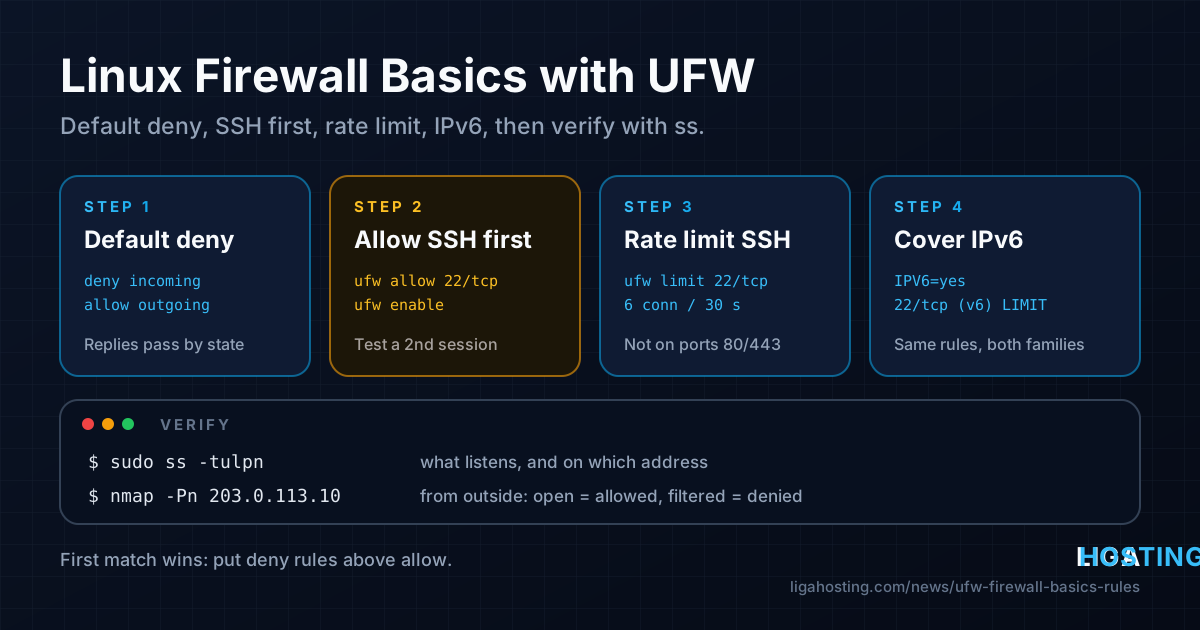
Linux Firewall Basics with UFW — Rules You Actually Need
A fresh VPS usually has no active firewall. Every service that listens on a public address — SSH, a database you installed "just to test", a development server on port 3000 — is reachable from the whole internet. UFW (Uncomplicated Firewall) fixes that with a handful of readable commands.
Our first 30 minutes security checklist turns UFW on in two lines. This guide goes further: how UFW decides what to allow, how to enable it without locking yourself out, which rules a typical server really needs, how rate limiting and IPv6 work, and how to prove with ss and an outside scan that only the ports you want are open.
How UFW works in two minutes
UFW is a front end for the kernel's packet filter (netfilter, through iptables or nftables). You write simple rules; UFW translates them into the real firewall tables and loads them at boot. Three ideas cover almost everything:
- Default policies decide what happens to traffic that no rule matches. For a server: deny incoming, allow outgoing.
- Rules are checked in order, and the first match wins. A
denyplaced after anallowfor the same traffic never takes effect. - Replies are allowed automatically. UFW is stateful: when your server opens a connection (apt updates, DNS lookups, API calls), the answers come back without any extra rule.
UFW is preinstalled on Ubuntu but inactive. On Debian, install it first. On AlmaLinux the native firewall is firewalld; use that instead of UFW (equivalents are at the end of this guide).
# Debian (Ubuntu already has it)
sudo apt update && sudo apt install -y ufw

# Current state — "Status: inactive" on a new server
sudo ufw status verbose
Step 1 — See what is listening before you write rules
A firewall should match what actually runs on the server. List every listening socket with ss:
sudo ss -tulpnRead the Local Address:Port column:
| Local address | Meaning |
|---|---|
0.0.0.0:22 or [::]:22 | Listening on all IPv4 / IPv6 addresses — reachable from outside unless the firewall blocks it |
127.0.0.1:3306 or [::1]:6379 | Local only — not reachable from the internet, no firewall rule needed |
203.0.113.10:80 | Listening on one specific public address |
*:5353 (udp) | All addresses, usually a system service such as mDNS or a DHCP client |
The last column shows the process (users:(("sshd",pid=812,...))). Write down what must be public — typically SSH and maybe 80/443 — and what should not be. The firewall is the second line of defence: if a database only needs local access, also bind it to 127.0.0.1 in its own configuration.
Step 2 — Set the default policies
These two commands do not take effect until UFW is enabled, so they are safe to run now:
sudo ufw default deny incoming
sudo ufw default allow outgoing
deny silently drops packets; the sender waits until it times out. reject answers immediately with "connection refused". For incoming traffic on a public server, deny is the usual choice. Restricting outgoing traffic is possible, but on a general-purpose VPS it mostly breaks updates, DNS and outgoing mail, so leave it on allow unless you have a specific reason.
Step 3 — Allow SSH first, then enable
This is the one step that can cost you access to the server. If you enable UFW with "deny incoming" and no SSH rule, your current session may survive for a moment, but the next login will be dropped. Add the SSH rule before ufw enable:
# Standard port 22 (Ubuntu also offers the profile name: sudo ufw allow OpenSSH)
sudo ufw allow 22/tcp comment 'SSH'

# If SSH runs on a custom port, allow that one instead
sudo ufw allow 2222/tcp comment 'SSH'

# Check which port sshd really listens on
sudo ss -tlnp | grep sshd
If you are connected remotely and want a safety net, schedule an automatic disable before enabling. If something goes wrong, the firewall switches itself off in five minutes and you can log in again:
sudo systemd-run --on-active=5min /usr/sbin/ufw disable
# prints a unit name such as run-r1a2b3c4.timer

sudo ufw enable
# "Command may disrupt existing ssh connections. Proceed with operation (y|n)?" → y
Now open a second SSH session from your computer. If it connects, cancel the safety timer with sudo systemctl stop run-r1a2b3c4.timer (use the name that was printed). Keep the first session open until the test succeeds.
Step 4 — Add only the rules your services need
Add one rule per public service. A few common examples:
# Web server
sudo ufw allow 80/tcp comment 'HTTP'
sudo ufw allow 443/tcp comment 'HTTPS'
# or with an application profile (installed with the nginx package on Ubuntu/Debian)
sudo ufw app list
sudo ufw allow 'Nginx Full'

# HTTP/3 (QUIC) only if your web server has it enabled
sudo ufw allow 443/udp

# A database reachable only from one application server
sudo ufw allow from 203.0.113.10 to any port 3306 proto tcp comment 'MySQL from app'

# SSH only from your office or VPN address (replace the open SSH rule afterwards)
sudo ufw allow from 203.0.113.10 to any port 22 proto tcp

# A port range needs a protocol
sudo ufw allow 60000:61000/udp comment 'mosh'
Use comment on every rule. Six months later, "MySQL from app" explains far more than a bare port number.
What you usually do not need: rules for outgoing traffic, rules for replies, rules for 127.0.0.1, or a rule for ping. Loopback traffic is always allowed, and UFW's built-in rules in /etc/ufw/before.rules already accept ICMP echo requests and essential IPv6 ICMP messages.
Step 5 — Rate limit SSH
Bots try SSH logins on every public IP all day. UFW has a built-in limiter:
sudo ufw limit 22/tcp comment 'SSH rate limit'limit allows the connection but denies an IP address that opens 6 or more connections within 30 seconds. If you already have allow 22/tcp, running limit for the same port updates the existing rule instead of adding a second one; check with sudo ufw status that the action now shows LIMIT IN.
Two limits of the limiter:
- It counts connections, not failed passwords. One SSH connection can try several passwords. SSH keys with password login disabled, plus fail2ban, are the real protection; the limiter just reduces noise.
- Do not use it on 80/443. A single browser opens several connections at once, and visitors behind a shared address or a CDN would be blocked. Rate limit web traffic in the web server (for example Nginx
limit_req) instead.
Step 6 — IPv6: make sure both families are covered
A firewall that only protects IPv4 leaves the same services open over IPv6. UFW handles both when this line is set (it is the default on current Ubuntu and Debian):
grep IPV6 /etc/default/ufw
# IPV6=yes
If you change it, run sudo ufw disable && sudo ufw enable to reload. With IPV6=yes, every rule without a specific address is created twice, and ufw status shows a second line marked (v6):
To                         Action      From
--                         ------      ----
22/tcp                     LIMIT       Anywhere                   # SSH rate limit
80/tcp                     ALLOW       Anywhere                   # HTTP
22/tcp (v6)                LIMIT       Anywhere (v6)              # SSH rate limit
80/tcp (v6)                ALLOW       Anywhere (v6)              # HTTP
Rules with an IPv4 source address (from 203.0.113.10) only apply to IPv4. If you allow an admin address, add its IPv6 address as a separate rule too, or you may find yourself blocked when your computer prefers IPv6. Keep this line on yes even if the server has no IPv6 address today: the rules cost nothing and protect you the day one is added.
Managing rules: order, delete, block an address
Number the rules to see their order and to remove one:
sudo ufw status numbered
sudo ufw delete 4                 # delete by number (numbers shift after each delete)
sudo ufw delete allow 3306/tcp    # or delete by repeating the rule
Because the first match wins, a block for a single abusive address must go above the allow rules, using insert:
sudo ufw insert 1 deny from 198.51.100.23 comment 'abuse'
sudo ufw status numbered
With ufw deny from ... (without insert) the rule is appended at the end, after allow 80/tcp — and the address can still reach your website. IPv6 rules are always listed after the IPv4 ones, so to block an IPv6 address insert it at the position of the first (v6) rule.
Other useful commands:
sudo ufw show added— the rules exactly as you typed them, handy to copy to another server;sudo ufw reload— reload after editing files under/etc/ufw/;sudo ufw disable— stop filtering, rules are kept;sudo ufw reset— disable and delete all rules (backups are saved in/etc/ufw/).
Logging: see what the firewall blocks
sudo ufw logging low
# Ubuntu (rsyslog)
sudo tail -f /var/log/ufw.log
# Debian 12 and newer often have no rsyslog — read the kernel journal instead
sudo journalctl -k -f | grep UFW
Each blocked packet appears as a [UFW BLOCK] line with SRC= (sender), DPT= (destination port) and PROTO=. If a service "doesn't work" after enabling UFW, look here first: a block on the port you expect means a missing rule. low is enough for daily use; medium and high log far more and fill the disk on a busy server.
Verify from the outside
Rules on the server are only half the proof. Test from another machine — your computer or a second server — never from the VPS itself, because local connections bypass the filtering you want to test:
# Single ports
nc -vz 203.0.113.10 22
nc -vz 203.0.113.10 3306

# The most common 1000 TCP ports (install nmap on the testing machine)
nmap -Pn 203.0.113.10

# IPv6 as well, if the server has an address
nmap -6 -Pn 2001:db8::10
Allowed ports show as open; everything else should be filtered — that is what deny looks like from outside. A port shown as closed means UFW let the packet through but nothing listens there; compare with your ss -tulpn list.
Two traps: Docker and port changes
Docker publishes ports around UFW. A container started with -p 8080:80 adds its own iptables rules that are evaluated before UFW's, so the port is open to the world even though ufw status does not list it. Publish to localhost only (-p 127.0.0.1:8080:80) and put a reverse proxy in front. Our Docker on a VPS guide explains this in detail.
Changing the SSH port. Do it in this order: allow the new port in UFW, change the SSH configuration, restart SSH, check with ss -tlnp that it listens on the new port, log in on the new port from a second session, and only then delete the old rule.
AlmaLinux: the same rules with firewalld
AlmaLinux and other RHEL-based systems ship firewalld, usually active with SSH allowed. Do not run UFW and firewalld together. The equivalents:
| Task | UFW | firewalld |
|---|---|---|
| Status | ufw status verbose | firewall-cmd --list-all |
| Allow SSH | ufw allow 22/tcp | firewall-cmd --permanent --add-service=ssh |
| Allow web | ufw allow 80,443/tcp | firewall-cmd --permanent --add-service={http,https} |
| Allow a port | ufw allow 8443/tcp | firewall-cmd --permanent --add-port=8443/tcp |
| Remove | ufw delete allow 8443/tcp | firewall-cmd --permanent --remove-port=8443/tcp |
| Apply | immediate | firewall-cmd --reload |
The ss -tulpn check and the external nmap test work exactly the same way. Full reference: the firewalld documentation; for UFW, man ufw and the Ubuntu UFW page.
Frequently Asked Questions
I enabled UFW and lost SSH access. What now?
If you set the five-minute systemd-run timer, wait for it: UFW disables itself and you can log in. Otherwise you need console access to the server outside the network, where you can run sudo ufw allow 22/tcp or sudo ufw disable. That is why the SSH rule always comes before ufw enable.
Do I need a firewall if my provider has DDoS protection?
Yes. DDoS filtering protects against floods of traffic; it does not decide which of your ports should be reachable. Closing a database or admin port that was exposed by mistake is the server firewall's job.
Should I use deny or reject?
For incoming traffic from the internet, deny (drop) is the common default: scanners get no answer and it costs nothing. reject is friendlier for internal networks, because legitimate clients fail immediately instead of waiting for a timeout.
Is ufw limit enough to stop brute-force attacks?
No. It only slows down very fast connection attempts. Use SSH keys, disable password login, and add fail2ban for bans based on failed logins in the logs.
Why does a port still work after I removed its rule?
Check three things: an existing connection stays open until it is closed, another rule (for example an application profile or an address-based rule) may still match, and Docker-published ports bypass UFW entirely. sudo ufw status numbered and sudo iptables -S show what is really loaded.
Every Standard VPS and Performance VPS at Liga Hosting runs on KVM with full root access and DDoS protection, so you can set up UFW or firewalld exactly as described here. The servers are unmanaged — you administer the operating system — and our team helps with network, IP and hardware questions through the contact page.