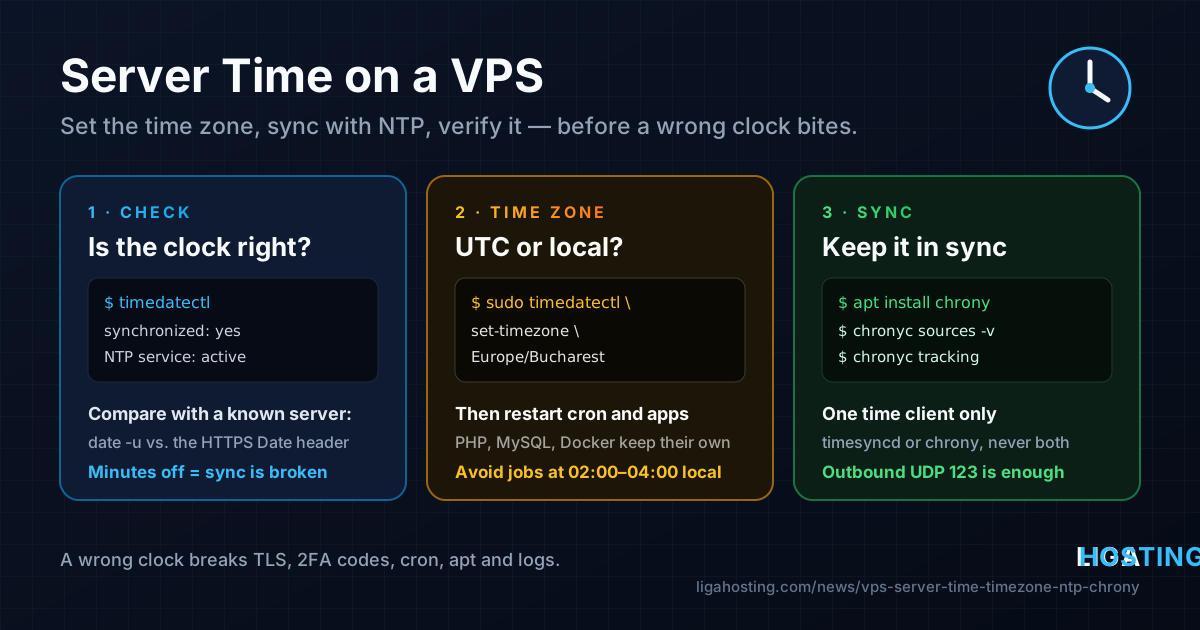
Server Time on a VPS — Time Zone, NTP Sync and Why a Wrong Clock Breaks Things
Nobody thinks about the server clock until something strange happens: a backup job runs two hours early, two-factor codes are suddenly "invalid", apt update complains that a release file "is not valid yet", or the logs of two servers cannot be lined up during an incident. Very often the cause is the same — the clock or the time zone on the VPS is not what you think it is.
This guide shows how to check the time on a Linux VPS, choose a sensible time zone, keep the clock synchronised with NTP using systemd-timesyncd or chrony, and verify that it really works. The commands are for current Ubuntu and Debian, with the AlmaLinux differences noted.
Why the clock matters more than it seems
Many things on a server silently depend on accurate time:
- TLS certificates have a "not before" and a "not after" date. A clock that is far off makes valid certificates look expired or not yet valid — for your server's outgoing connections (APIs, package mirrors, webhooks) and for ACME clients such as Certbot.
- Two-factor codes (TOTP) change every 30 seconds. If the server is a minute off, codes from an authenticator app are rejected, and you can lock yourself out of an admin panel.
- Tokens and sessions (JWT
expandnbf, signed URLs, cookies) are checked against the current time. - Package managers refuse repository metadata whose date is in the future.
- Cron jobs and timers fire according to the system clock and time zone.
- Logs are only useful when you can compare them with other systems, Cloudflare, your monitoring, or a payment provider.
The key idea: there are two separate questions. Is the clock correct (synchronised with real time)? And which time zone is used to display it? A server can have a perfect clock and still run your 03:00 job at the wrong hour because the time zone is UTC instead of local time.
Step 1 — Check the current state with timedatectl
On any systemd-based distribution (Ubuntu, Debian, AlmaLinux) one command shows almost everything:
timedatectlTypical output:
               Local time: Sun 2026-11-15 10:42:07 UTC
           Universal time: Sun 2026-11-15 10:42:07 UTC
                 RTC time: Sun 2026-11-15 10:42:07
                Time zone: Etc/UTC (UTC, +0000)
System clock synchronized: yes
              NTP service: active
RTC in local TZ: no- System clock synchronized: yes — an NTP client has confirmed the clock is accurate. no means it has never synced or has lost contact with its servers.
- NTP service: active — a time synchronisation service is running.
- Time zone — the zone used for local time, cron and most programs.
- RTC in local TZ: no — the virtual hardware clock is kept in UTC. Leave it like that on Linux servers.
For an independent check, compare your server with a well-known web server. The Date header of an HTTPS response is always in GMT:
date -u
curl -sI https://www.debian.org | grep -i '^date:'
A difference of a second or two is just network delay. A difference of minutes means synchronisation is not working.
Step 2 — Choose and set the time zone
There are two reasonable choices:
| Time zone | Advantages | Watch out for |
|---|---|---|
| UTC | No daylight saving jumps, easy to compare logs across servers and services, the default on most VPS images | You must convert when reading logs and when writing cron schedules |
| Local zone (e.g. Europe/Bucharest) | Logs and cron match the hours you and your customers live in | Twice a year an hour is skipped or repeated; jobs scheduled in that hour may be skipped or run twice |
For servers that talk to other systems, UTC is the safer default. For a single business site where everyone works in one country, a local zone is fine — just avoid scheduling important jobs between 02:00 and 04:00 local time, where daylight saving changes happen in Europe.
List the available zones and set one:
timedatectl list-timezones | grep -i europe
sudo timedatectl set-timezone Europe/Bucharest

# Or back to UTC
sudo timedatectl set-timezone Etc/UTC

timedatectl | grep 'Time zone'
This updates the /etc/localtime link. On Debian and Ubuntu, also keep /etc/timezone consistent if some tool reads it; sudo dpkg-reconfigure tzdata sets both interactively.
Step 3 — Make running services use the new zone
Changing the zone does not automatically update programs that are already running. Many read the zone once at start-up:
# cron: Debian/Ubuntu and AlmaLinux service names
sudo systemctl restart cron      # Debian / Ubuntu
sudo systemctl restart crond     # AlmaLinux

# Logging
sudo systemctl restart rsyslog 2>/dev/null || true
Some software keeps its own time zone setting, independent of the system:
- PHP uses
date.timezoneinphp.ini; WordPress and many frameworks have their own setting on top of that. - MySQL / MariaDB read the system zone at start-up. Check with
SELECT @@global.time_zone, @@system_time_zone;. Storing timestamps in UTC and converting in the application avoids most surprises. - Docker containers are usually UTC regardless of the host. Pass
-e TZ=Europe/Bucharest(if the image contains time zone data) or mount/etc/localtime:/etc/localtime:ro. - systemd timers use the system zone unless you add a zone to
OnCalendar=, e.g.OnCalendar=*-*-* 03:00:00 Europe/Bucharest.
If you schedule tasks with cron, our guide to cron jobs on Linux explains CRON_TZ and other ways to avoid time-related surprises.
Step 4 — Find out which NTP client you have
NTP (Network Time Protocol) keeps the clock correct by comparing it with time servers on the internet and adjusting it gradually. Two clients are common:
- systemd-timesyncd — a lightweight, client-only service. It is present on many Ubuntu and Debian images and is perfectly adequate for a typical web server.
- chrony — a full NTP implementation. It is the default on AlmaLinux and other RHEL-family systems, corrects drift faster and more precisely, can use several servers at once, and supports NTS (authenticated NTP).
See which one is running:
systemctl is-active systemd-timesyncd chrony chronyd 2>/dev/null
timedatectl show -p NTP -p NTPSynchronized
Run only one time client. Two services adjusting the same clock fight each other. On Debian and Ubuntu, installing the chrony package automatically removes systemd-timesyncd.
Option A — systemd-timesyncd (simple and enough for most)
Enable it and check its status:
sudo timedatectl set-ntp true
timedatectl timesync-status
The important lines of timesync-status:
- Server — the address it is currently using;
- Offset — how far the local clock was from the server at the last poll; a few milliseconds is normal;
- Poll interval — how often it checks, growing from 32 seconds up to about 34 minutes as the clock stabilises;
- Packet count — if this stays at 0, no answers are coming back.
The distribution already configures default servers. To choose your own, use a drop-in file instead of editing the main config:
sudo mkdir -p /etc/systemd/timesyncd.conf.d
sudo tee /etc/systemd/timesyncd.conf.d/servers.conf >/dev/null <<'EOF'
[Time]
NTP=0.pool.ntp.org 1.pool.ntp.org 2.pool.ntp.org
FallbackNTP=time.cloudflare.com
EOF
sudo systemctl restart systemd-timesyncd
timedatectl timesync-status | grep -E 'Server|Offset'
Limitation: timesyncd talks to one server at a time and does not support NTS. If you need better accuracy, authenticated time, or you run databases in a cluster, use chrony.
Option B — chrony (more accurate, recommended for production)
Install and start it:
# Ubuntu / Debian (service name: chrony, config: /etc/chrony/chrony.conf)
sudo apt update && sudo apt install -y chrony
sudo systemctl enable --now chrony

# AlmaLinux (service name: chronyd, config: /etc/chrony.conf)
sudo dnf install -y chrony
sudo systemctl enable --now chronyd
The default configuration already points to a public pool. A clear, minimal configuration looks like this (on Debian/Ubuntu you can place server lines in /etc/chrony/sources.d/, files ending in .sources):
# Several servers from the public NTP pool
pool pool.ntp.org iburst maxsources 4

# Optional: an NTS-authenticated server (chrony 4.0 or newer)
server time.cloudflare.com iburst nts

# Step the clock immediately if it is more than 1 s off during the first 3 updates
makestep 1 3

# Remember the clock's drift rate between restarts
driftfile /var/lib/chrony/chrony.drift

# Keep the virtual hardware clock in sync
rtcsync
What the directives do:
iburstsends a quick burst of requests at start-up so the first sync takes seconds, not minutes.makestep 1 3allows a jump of the clock right after boot (when it can be far off), then only smooth adjustments. Smooth correction matters: jumping backwards in time confuses databases and running applications.ntsuses Network Time Security, so a man-in-the-middle cannot feed you a fake time. It needs outgoing TCP port 4460 in addition to UDP 123.
Without an allow line chrony does not answer NTP requests from other machines, so it does not turn your VPS into a public time server. Keep it that way unless you deliberately serve time to your own private network.
After changing the file, restart and verify:
sudo systemctl restart chrony      # chronyd on AlmaLinux
chronyc sources -v
chronyc tracking
Step 5 — Read chronyc output correctly
chronyc sources lists each server. The first two characters tell you its state:
| Mark | Meaning |
|---|---|
^* | The server currently used to discipline the clock |
^+ | A good server combined with the selected one |
^- | Reachable, but not used in the calculation |
^? | Not reachable or not yet checked — look at your firewall |
^x | "Falseticker" — its time disagrees with the others and is ignored |
The Reach column is an octal record of the last eight polls; 377 means all eight answered. In chronyc tracking, look at:
- System time — the current difference from NTP time, for example "0.000021 seconds fast";
- Leap status — must be Normal; "Not synchronised" means no usable source.
If the clock is badly wrong (for example after restoring an old snapshot) and you do not want to wait, force an immediate correction:
sudo chronyc makestep
chronyc tracking | grep 'System time'
Step 6 — Firewall and virtualisation details
NTP clients send requests from the server to UDP port 123. With UFW's default "allow outgoing" policy, replies are accepted automatically because they belong to a connection the server started — you do not need to open port 123 for incoming traffic. If you restrict outgoing traffic, allow it explicitly:
sudo ufw allow out 123/udp comment 'NTP'
sudo ufw allow out 4460/tcp comment 'NTS key exchange'
On a KVM virtual machine the kernel normally uses the paravirtual kvm-clock clock source, which is stable and does not need tuning:
cat /sys/devices/system/clocksource/clocksource0/current_clocksourceThings that can still push a VM's clock off: a VPS restored from an old snapshot or backup, a long pause, or the NTP service being disabled during setup. An active NTP client fixes all of these within seconds to minutes — which is why it must always be enabled.
Troubleshooting checklist
- "System clock synchronized: no" — confirm only one client runs, then check its log:
journalctl -u systemd-timesyncd -n 30orjournalctl -u chrony -n 30(chronydon AlmaLinux). - All sources show
^?or timesyncd's packet count stays 0 — outgoing UDP 123 is blocked, or DNS cannot resolve the pool names. Test withgetent hosts pool.ntp.org. - Time is right but cron runs at the wrong hour — it is a time zone issue, not NTP. Check
timedatectland restart cron. - Logs show times different from
date— the service started before you changed the zone; restart it.journalctlcan show any view you want:journalctl --utc.
If a wrong clock made Certbot or another ACME client fail, fix the time first and then retry; our article on Let's Encrypt on a VPS covers renewal checks. The official chrony documentation describes every directive in detail.
Frequently Asked Questions
Should my server use UTC or my local time zone?
UTC is the safest choice for servers that exchange data with other systems, because it never changes for daylight saving and makes logs easy to compare. A local zone is acceptable for a simple site run from one country, as long as important jobs are not scheduled during the night-time hours when the clocks change.
Is systemd-timesyncd good enough, or do I need chrony?
For a typical web server, timesyncd keeps the clock within milliseconds, which is plenty. Choose chrony if you want several servers at once, NTS authentication, faster correction after boot, or you run clustered databases and distributed systems that care about precise ordering.
Do I need to open port 123 in my firewall?
Not for incoming traffic. The VPS is only an NTP client, and replies to its own requests are allowed by a stateful firewall. You only need a rule if you block outgoing traffic by default; then allow outgoing UDP 123 (and TCP 4460 if you use NTS).
Why are my two-factor codes rejected on the server?
TOTP codes are only valid for about 30 seconds, so a clock that is a minute or more off produces "invalid code" errors. Check timedatectl; if it says the clock is not synchronised, enable NTP and wait for the first successful sync.
At Liga Hosting, our Standard VPS and Performance VPS plans run on KVM with full root access, so you choose the time zone, the NTP client and every setting in this guide. If you need help with the network side of your VPS, contact our team.