
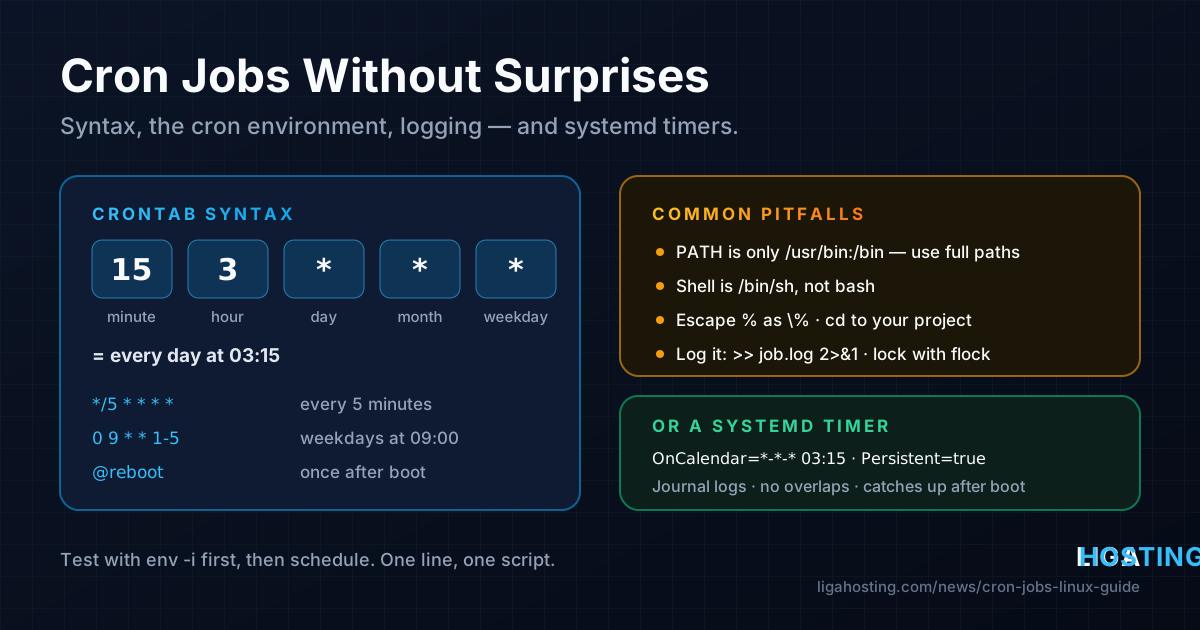
Cron Jobs Explained — Schedule Tasks on Linux Without Surprises
Every server needs things done on a schedule: a nightly backup, a database dump, cleaning old files, a PHP task every few minutes. On Linux the classic tool for this is cron, and it is installed on almost every VPS image.
Cron itself is simple. The surprises come from everything around it: a script that works when you type it but does nothing at 03:00, output that disappears, two copies of a job running at once. This guide covers the syntax, the environment cron gives your jobs, logging and verification, and when a systemd timer is the better choice.
How cron works
A background service (cron on Ubuntu and Debian, crond from the cronie package on AlmaLinux) wakes up every minute, reads the schedule tables and starts every command whose time matches. There are two kinds of tables:
- User crontabs — one per user, edited with
crontab -e. Jobs run as that user. - System crontabs —
/etc/crontaband the files in/etc/cron.d/. They have an extra field that names the user.
# Ubuntu / Debian
sudo apt install -y cron
systemctl status cron

# AlmaLinux
sudo dnf install -y cronie
sudo systemctl enable --now crond

# Everyday commands
crontab -e                    # edit your crontab
crontab -l                    # list it
sudo crontab -u www-data -l   # another user's crontab
Do not edit the files under /var/spool/cron/ directly: crontab -e checks the syntax before installing the new table.
The five time fields
# ┌──────── minute        (0–59)
# │ ┌────── hour          (0–23)
# │ │ ┌──── day of month  (1–31)
# │ │ │ ┌── month         (1–12)
# │ │ │ │ ┌ day of week   (0–7, 0 and 7 are Sunday)
# │ │ │ │ │
  15 3 * * * /usr/local/bin/backup.sh
Each field accepts * (every value), a list (1,15), a range (1-5) and a step (*/10).
| Schedule | Meaning |
|---|---|
*/5 * * * * | Every 5 minutes |
30 2 * * * | Every day at 02:30 |
0 9 * * 1-5 | Monday to Friday at 09:00 |
0 4 1 * * | At 04:00 on the 1st of every month |
@reboot | Once, when cron starts after boot |
Two rules catch almost everyone:
- Day of month and day of week are combined with OR when both are set.
0 8 13 * 5runs on every 13th and every Friday. */7is not "every 7 minutes". It means minutes 0, 7 … 56, then 0 again — a 4-minute gap each hour. Steps are only even when they divide 60.
Cron uses the server's time zone (check with timedatectl; restart cron after changing it). Jobs between 02:00 and 03:00 can be skipped or run twice on daylight saving days — servers on UTC avoid that.
/etc/cron.d and the cron.daily folders
Files in /etc/cron.d/ are a clean way to ship a job with an application. Note the user field:
# /etc/cron.d/example-cleanup
PATH=/usr/local/bin:/usr/bin:/bin
# m  h  dom mon dow user      command
20   4  *   *   *   www-data  find /var/www/example.com/tmp -type f -mtime +7 -delete
A file there is silently ignored if:
- its name contains a dot — on Debian and Ubuntu,
cleanup.cronis skipped; use letters, digits, dashes and underscores; - it is writable by group or others or not owned by root — use
sudo chmod 644; - the last line has no newline — always end the file with an empty line.
The folders /etc/cron.hourly, cron.daily, cron.weekly and cron.monthly run every executable inside them with run-parts. The same naming rule applies: on Debian and Ubuntu, backup.sh in cron.daily never runs. Check with run-parts --test /etc/cron.daily. On AlmaLinux these folders are run by anacron with a random delay, so the time varies; if a job must run at a precise time, give it its own line.
Why it works in your shell but not in cron
This is the number one cron problem. Your login shell loads ~/.bashrc, ~/.profile, PATH additions, nvm or a virtualenv. Cron loads none of that. A job gets roughly:
SHELL=/bin/sh
PATH=/usr/bin:/bin
HOME=/home/youruser- "command not found". Tools in
/usr/local/bin,/usr/sbinor~/.local/binare not in cron's PATH. Use full paths (find them withcommand -v php) or set PATH at the top of the crontab. Variables are not expanded there, so writePATH=/usr/local/bin:/usr/bin:/bin, notPATH=$PATH:.... - Bash syntax fails. The shell is
/bin/sh(dash on Ubuntu and Debian), so[[ ]],$RANDOMandsourcebreak. Use a script with#!/bin/bash, or setSHELL=/bin/bash. - Relative paths. The working directory is the home folder. Start with
cd /var/www/example.com &&or use absolute paths. - The
%sign. In a crontab line, an unescaped%means newline.date +%Fbreaks; writedate +\%F. - Missing variables. Values you exported in your shell do not exist in cron. Load them inside the script.
Test a command in a cron-like environment before scheduling it:
env -i HOME="$HOME" PATH=/usr/bin:/bin SHELL=/bin/sh \
  /bin/sh -c '/usr/local/bin/backup.sh'
The rule that prevents most problems: one crontab line, one script. Keep the line short and put the work in an executable script that sets its own PATH, uses set -euo pipefail and absolute paths.
Logging: find out what actually happened
By default, job output is emailed to the user. Most VPS have no mail server, so it is thrown away (Debian logs "No MTA installed, discarding output"). First check that cron started the job:
# Ubuntu / Debian
journalctl -u cron --since today | grep CMD

# AlmaLinux
sudo tail /var/log/cron
No CMD line means the schedule, file name or permissions are wrong. A CMD line with no result means the command itself fails. Then capture its output:
# Append stdout and stderr to a file
15 3 * * * /usr/local/bin/backup.sh >> /var/log/backup.log 2>&1

# Or send it to the journal with a tag (read with: journalctl -t backup)
15 3 * * * /usr/local/bin/backup.sh 2>&1 | /usr/bin/logger -t backup
Order matters: >> file 2>&1 captures both streams; 2>&1 >> file loses the errors. Log files need a /etc/logrotate.d/ entry; the journal rotates itself. Avoid > /dev/null 2>&1 on important jobs — it hides the error you will need the day the job breaks.
Overlaps, load and silent failures
A job that runs every 5 minutes and sometimes takes 7 will eventually run twice at once. flock (part of util-linux) allows only one copy:
*/5 * * * * /usr/bin/flock -n /run/lock/import.lock /usr/local/bin/import.sh >> /var/log/import.log 2>&1-n makes the second copy exit immediately; the lock is released when the first one ends, even if it crashes.
- Avoid 00:00. Backups, log rotation and updates all at midnight compete for disk and CPU. Pick odd minutes like
17 3 * * *. - Be gentle. Prefix heavy jobs with
nice -n 10 ionice -c3so they do not slow the website. - Notice when a job stops. A job failing silently looks like one that succeeds. Exit non-zero on errors, write a timestamp on success (
date > /var/lib/backup/last-ok), and alert when it gets old. - Test quickly. Use
* * * * *, watch the log for two minutes, then set the real time.
Backups are the most common cron job; our guide to backing up a VPS with the 3-2-1 rule covers what to back up and where to keep it.
systemd timers: the modern alternative
Ubuntu, Debian and AlmaLinux all have systemd timers. They need two small files instead of one line, but solve several cron problems by design: output and exit codes go to the journal, a job never overlaps itself, Persistent=true runs a job missed while the server was off, and RandomizedDelaySec spreads load. The service, /etc/systemd/system/backup.service:
[Unit]
Description=Nightly backup

[Service]
Type=oneshot
ExecStart=/usr/local/bin/backup.sh
Nice=10
The timer, /etc/systemd/system/backup.timer:
[Unit]
Description=Run backup every night

[Timer]
OnCalendar=*-*-* 03:15:00
RandomizedDelaySec=10min
Persistent=true

[Install]
WantedBy=timers.target
Enable and verify:
sudo systemctl daemon-reload
sudo systemctl enable --now backup.timer
systemctl list-timers backup.timer      # next and last run
sudo systemctl start backup.service     # run once now to test
journalctl -u backup.service -n 50      # output and exit status
systemd-analyze calendar "Mon..Fri 09:00"   # check an expression
Full syntax: systemd.timer and systemd.time.
Cron or systemd timer?
| Situation | Good choice |
|---|---|
| Quick, simple job, or cPanel shared hosting | cron |
| Important job: logs, exit codes, no overlaps | systemd timer |
| Server may be off at the scheduled time | systemd timer (Persistent=true) |
| Heavy job that must not starve the website | systemd timer with CPUQuota, MemoryMax |
Either works. What matters is that every job runs a script with absolute paths, logs somewhere you look, and tells you when it stops working.
Frequently Asked Questions
Why does my cron job not run at all?
Check the cron log. No CMD line means a schedule mistake, a dot in the /etc/cron.d file name, wrong permissions, a missing final newline or a stopped service. If the line is there, the command fails — usually PATH or a missing variable.
Can cron run a job every 30 seconds?
Not directly; one minute is the smallest unit. Use two lines, one starting with sleep 30;, or a systemd timer with OnCalendar=*:*:0/30 and AccuracySec=1s.
Do cron jobs run if the server was off at the scheduled time?
No, classic cron skips them. anacron and systemd timers with Persistent=true catch up after boot.
Which user should a cron job run as?
The least privileged user that can do the work: the owner of the site files for website tasks, root only for system tasks like full-server backups.
Where do I set up cron jobs on shared hosting?
On cPanel hosting, use the Cron Jobs page in the control panel. The same rules apply: full paths and output sent to a log file.
At Liga Hosting, our Standard VPS and Performance VPS plans give you full root access on KVM with NVMe storage, so you can use cron, systemd timers and every setting in this guide. For smaller sites, our cPanel web hosting includes a Cron Jobs page in the control panel.