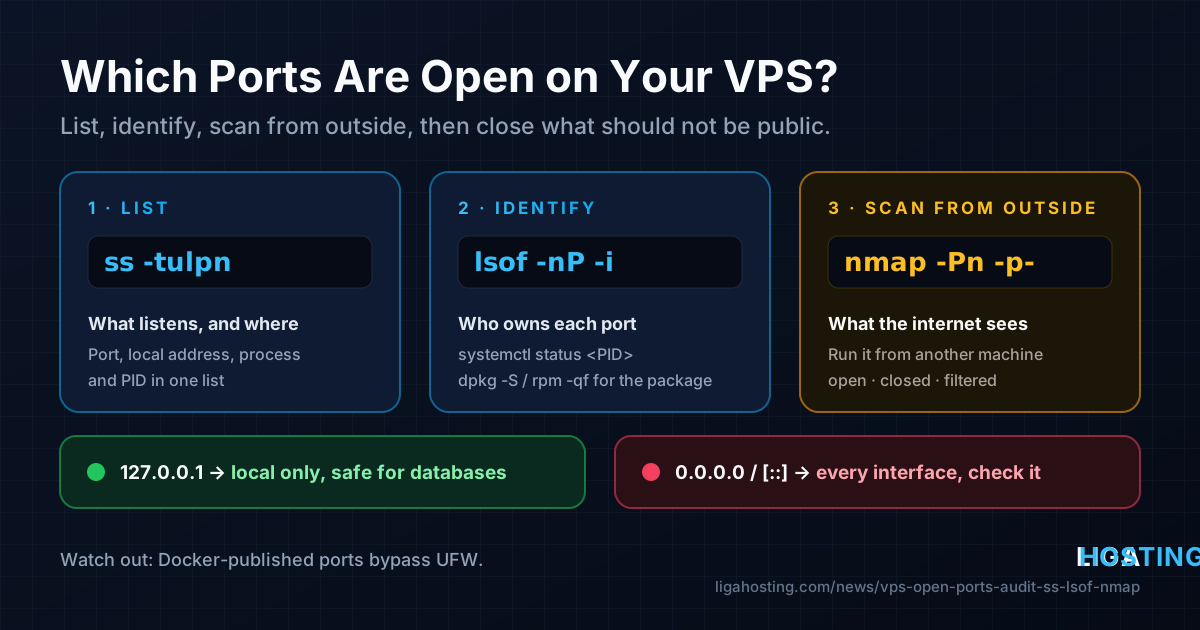
Which Ports Are Open on Your VPS? Audit Them with ss, lsof and nmap
Every program that accepts network connections opens a port. Over time a VPS collects them: the web server you installed on purpose, a database that came with a tutorial, a Docker container from a test, an RPC service that was in the base image. Each one that is reachable from the internet is something attackers will find and try — automated scanners check the whole IPv4 space continuously.
This guide shows how to make a complete list of what is listening on your server, find out which program owns each port, check from the outside what the internet really sees, and close everything that should not be public. All commands work on current Ubuntu and Debian; where AlmaLinux differs, it is noted.
Listening, open and reachable are not the same thing
Three separate questions decide whether a port is a risk:
- Is a program listening? If nothing listens on a port, there is nothing to attack there.
- On which address does it listen? A service bound to
127.0.0.1accepts connections only from the server itself. One bound to0.0.0.0or[::]accepts them on every network interface, including the public one. - Does the firewall let traffic through? Even a service on
0.0.0.0is unreachable if the firewall drops the packets — as long as the firewall is active and nothing bypasses it.
Local address in ss | Who can connect |
|---|---|
127.0.0.1:3306, [::1]:6379 | Only programs on the same server |
0.0.0.0:22, *:80 | Anyone who can reach any IPv4 address of the server |
[::]:443 | Anyone over IPv6 — and, on most systems, over IPv4 too |
203.0.113.10:8080 | Anyone who reaches that specific public address |
The safest setup uses both layers: services that do not need to be public listen only on localhost, and the firewall allows only the ports you chose. If one layer fails — a firewall reset, a package that changes its default — the other still protects you.
Step 1 — List everything that listens with ss
ss is part of iproute2 and is installed on every current distribution (it replaces the older netstat). Run it with sudo, otherwise it cannot show which process owns sockets of other users:
sudo ss -tulpn-tand-u— TCP and UDP sockets;-l— only listening sockets (for UDP: sockets waiting for packets);-p— show the process name and PID;-n— show numbers instead of guessing service names, so:3306stays:3306.
A typical result on a small web server looks like this (shortened):
Netid State  Local Address:Port  Process
udp   UNCONN 127.0.0.53%lo:53    users:(("systemd-resolve",pid=512,fd=13))
udp   UNCONN 127.0.0.1:323       users:(("chronyd",pid=620,fd=5))
udp   UNCONN 0.0.0.0:111         users:(("rpcbind",pid=480,fd=5))
tcp   LISTEN 0.0.0.0:22          users:(("sshd",pid=801,fd=3))
tcp   LISTEN 0.0.0.0:80          users:(("nginx",pid=930,fd=6))
tcp   LISTEN 0.0.0.0:443         users:(("nginx",pid=930,fd=7))
tcp   LISTEN 0.0.0.0:3306        users:(("mariadbd",pid=1044,fd=20))
tcp   LISTEN 0.0.0.0:6379        users:(("redis-server",pid=1102,fd=6))
tcp   LISTEN 0.0.0.0:8080        users:(("docker-proxy",pid=1530,fd=4))
Read it line by line. Ports 22, 80 and 443 are expected. The first two UDP lines are local only. But 3306 (MariaDB), 6379 (Redis), 8080 (a Docker container) and 111 (rpcbind) listen on every interface — those are the ones to investigate.
Step 2 — Find out which program owns a port
The process name from ss is usually enough, but sometimes it is not obvious — a python3 or java process, or a name you do not recognise. Use the PID to dig further:
# Full command line and owner of the process
ps -o pid,user,lstart,cmd -p 1530

# Which systemd service started it (works with a PID)
systemctl status 1530

# The executable on disk and the package it belongs to
readlink -f /proc/1530/exe
dpkg -S /usr/bin/docker-proxy        # Ubuntu / Debian
rpm -qf /usr/bin/docker-proxy        # AlmaLinux
lsof gives the same information from the other direction and is handy when you start from a port number:
sudo apt install -y lsof             # AlmaLinux: sudo dnf install -y lsof
sudo lsof -nP -iTCP:6379 -sTCP:LISTEN
sudo lsof -nP -iUDP:111
If ss shows systemd as the owner, the port is socket-activated: systemd listens and starts the real service on the first connection. Stopping the service is not enough in that case. List the socket units with systemctl list-sockets and disable the .socket unit as well (see step 5).
Step 3 — Check what the internet really sees with nmap
The view from inside the server does not tell you what the firewall lets through. For that, scan the server from another machine — your laptop or a second server. Scanning from the VPS itself to its own public IP does not follow the real path and can give misleading results.
Only scan servers you own or are allowed to test. Scanning other people's systems can break their terms of service and, in some countries, the law.
# Install on the machine you scan from
sudo apt install -y nmap             # AlmaLinux: sudo dnf install -y nmap

# All 65,535 TCP ports; -Pn skips the "is the host up?" ping
nmap -Pn -p- 203.0.113.10

# The most common UDP ports (needs root, and is slow)
sudo nmap -Pn -sU --top-ports 50 203.0.113.10


# If the server also has an IPv6 address, scan that too
nmap -6 -Pn -p- 2001:db8::10
nmap reports each port in one of three main states:
| State | Meaning | What to do |
|---|---|---|
| open | A service accepted the connection | Fine if you meant it to be public; otherwise close it |
| closed | The server answered, but nothing listens there | Harmless, but the firewall is not filtering that port |
| filtered | No answer — a firewall dropped the probe | The normal result for every port you did not allow |
For a quick single check without nmap, nc -vz 203.0.113.10 3306 tells you whether one TCP port accepts connections. Compare the nmap list with the ss list from step 1: every open port should be one you can explain.
Step 4 — The usual suspects
These services are the ones most often found exposed by accident. Many have no password by default or have a long history of being abused when public:
| Port | Service | Should it be public? |
|---|---|---|
| 3306 | MySQL / MariaDB | Almost never — bind to localhost |
| 5432 | PostgreSQL | Almost never — bind to localhost |
| 6379 | Redis | No — exposed Redis is a frequent way into servers |
| 27017 | MongoDB | No |
| 11211 | Memcached | No — UDP 11211 has been used for huge DDoS amplification |
| 9200 | Elasticsearch / OpenSearch | No |
| 111 | rpcbind (NFS helper) | No — remove it if you do not use NFS |
| 2375 | Docker API without TLS | Never — it gives full root control of the server |
| 8080, 3000, 8000, 5000 | App and admin panels in development mode | Usually no — put them behind Nginx with HTTPS |
If you need to reach a database or admin panel from your own computer, you do not have to open its port. An SSH tunnel does it securely through port 22 — see SSH Tunnels Explained.
Step 5 — Close ports at the source
The best fix is to stop the service from listening publicly at all. Change its configuration, restart it, then run ss again to confirm.
MySQL / MariaDB — in /etc/mysql/mariadb.conf.d/50-server.cnf (MariaDB on Debian/Ubuntu), /etc/mysql/mysql.conf.d/mysqld.cnf (MySQL on Ubuntu) or a file in /etc/my.cnf.d/ (AlmaLinux):
[mysqld]
bind-address = 127.0.0.1
Redis — in /etc/redis/redis.conf (on AlmaLinux /etc/redis/redis.conf or /etc/redis.conf, depending on the version):
bind 127.0.0.1 -::1
protected-mode yes
PostgreSQL — in /etc/postgresql/<version>/main/postgresql.conf (Debian/Ubuntu) or /var/lib/pgsql/data/postgresql.conf (AlmaLinux):
listen_addresses = 'localhost'Restart and verify:
sudo systemctl restart mariadb redis-server postgresql   # use the names you have
sudo ss -tlnp | grep -E ':(3306|6379|5432)\s'
The output should now show 127.0.0.1 (or [::1]) instead of 0.0.0.0. Applications on the same server connect to 127.0.0.1 and keep working.
Services you do not need — stop them and keep them from starting at boot. rpcbind is a common example on server images:
sudo systemctl disable --now rpcbind.service rpcbind.socket
# or remove it completely if nothing uses NFS:
sudo apt purge rpcbind               # AlmaLinux: sudo dnf remove rpcbind
Before you remove anything, check what depends on it: apt-cache rdepends --installed rpcbind on Debian/Ubuntu, or dnf repoquery --installed --whatrequires rpcbind on AlmaLinux.
Step 6 — Docker ports and the firewall
This catches many people. When you publish a container port with -p 8080:80 or ports: - "8080:80", Docker writes its own iptables rules, and traffic to that port is forwarded to the container before UFW's rules are checked. The result: ufw status says port 8080 is not allowed, yet nmap finds it open. firewalld on AlmaLinux behaves similarly unless you configure Docker's zone on purpose.
See what is published:
docker ps --format 'table {{.Names}}\t{{.Ports}}'An entry like 0.0.0.0:8080->80/tcp is public. If Nginx on the same server is the only thing that should talk to the container, publish it on localhost only:
# docker-compose.yml
services:
  app:
    image: nginx:alpine
    ports:
      - "127.0.0.1:8080:80"
Recreate the container with docker compose up -d and check ss again: the line now shows 127.0.0.1:8080.
For the firewall side of the same topic, including a default-deny policy, see Linux Firewall Basics with UFW.
Step 7 — Keep a baseline and notice changes
An audit is only accurate on the day you do it. Package updates, new containers and quick tests add ports later. Save the current, approved state once:
sudo sh -c "ss -Htuln | awk '{print \$1, \$5}' | sort -u > /root/ports.baseline"
sudo cat /root/ports.baseline
Then create /usr/local/bin/ports-check:
#!/bin/sh
# Prints the difference between the approved ports and the current ones
ss -Htuln | awk '{print $1, $5}' | sort -u > /tmp/ports.now
diff -u /root/ports.baseline /tmp/ports.now
Make it executable and run it daily from cron:
sudo chmod +x /usr/local/bin/ports-check
echo '20 7 * * * root /usr/local/bin/ports-check' | sudo tee /etc/cron.d/ports-check
When nothing changed, the script prints nothing. When a new listening socket appears, cron sends the diff to root's mailbox (or to the address in MAILTO, if mail delivery is set up). Lines starting with + are new ports. Investigate them with step 2, and update the baseline when the change is intended. Some UDP client sockets may appear and disappear; if they create noise, limit the check to TCP with ss -Htln.
Frequently Asked Questions
Is an open port dangerous by itself?
No. A port is only as risky as the service behind it. Ports 80 and 443 with an up-to-date web server, or 22 with SSH keys, are normal. The danger is in services that were never meant to be public, have weak or no authentication, or are not updated.
If my firewall blocks a port, do I still need to bind the service to localhost?
It is strongly recommended. Firewalls get disabled during troubleshooting, reset by scripts, or bypassed — Docker is the common example. A service that listens only on 127.0.0.1 stays private even when the firewall fails.
nmap shows a port as open, but ss does not show it. Why?
Most often the traffic is forwarded somewhere else by NAT rules, as Docker does, so check docker ps and sudo iptables -t nat -L -n. Also make sure you scanned the right IP address and that nothing between you and the server, such as a proxy on your own network, answers on its behalf.
Should I move SSH to a different port?
It reduces log noise from automated scanners, but it is not real protection: a full nmap scan finds the new port in minutes. Disabling password logins and using SSH keys matters much more. If you change the port, allow the new one in the firewall before restarting sshd.
Can I scan my server with nmap from the server itself?
You can scan 127.0.0.1 to list local services, but that does not test the firewall or the network path. For a real external view, run the scan from a different machine on the internet.
At Liga Hosting, our Standard VPS and Performance VPS plans are KVM servers with NVMe storage, DDoS protection and full root access, so you decide exactly which services listen and which ports your firewall opens. If something on the network side looks wrong after your own checks, contact us.