
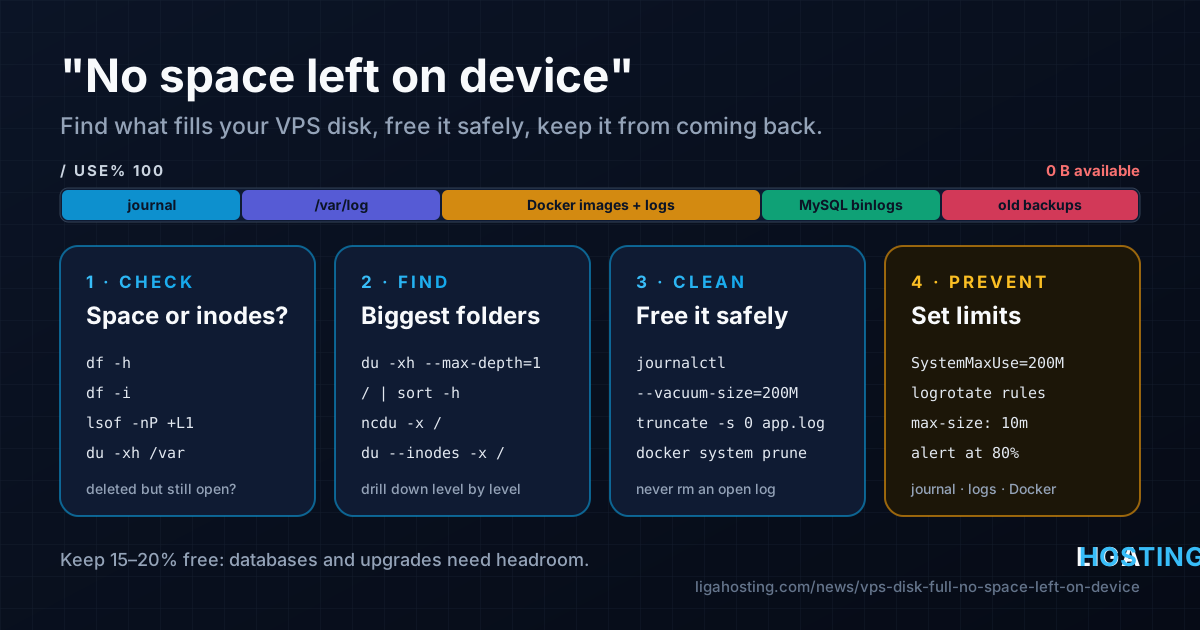
"No Space Left on Device" — Find What Fills Your VPS Disk and Fix It
The site stops saving uploads, MySQL refuses to start, apt fails halfway, and every command ends with the same line: "No space left on device". A full disk is one of the most common reasons a VPS suddenly breaks, and it rarely happens because your actual data grew. Usually it is something that grows quietly in the background: logs, the systemd journal, Docker images, database binary logs or old backups.
This guide shows how to confirm what kind of "full" you have, find exactly which directory is responsible, free space safely, and stop it from happening again. Every command works on current Ubuntu and Debian; where AlmaLinux differs, it is noted.
Step 1 — Is it disk space or inodes?
The same error message has two different causes. A filesystem can run out of blocks (the actual space) or out of inodes (the entries that describe each file). Check both:
# Space per filesystem, human-readable
df -h

# Inodes per filesystem
df -i
Look at the line for / (and for any separate mount such as /var or /home):
- Use% at 100% in
df -h— you are out of space. Continue with step 2. - IUse% at 100% in
df -i, but free space left — you have millions of tiny files. Jump to the inode section below. - Use% around 95% but "Avail" shows 0 — on ext4, about 5% of the space is reserved for root. Normal users and services that do not run as root hit the limit earlier.
If the disk is completely full, some tools may misbehave. Get a little breathing room first with the two safest quick wins, then investigate properly:
# Ubuntu / Debian: remove downloaded package files
sudo apt clean

# AlmaLinux
sudo dnf clean all

# Any distribution with systemd: shrink the journal to 200 MB
sudo journalctl --vacuum-size=200M
Step 2 — Find the directories that take the space
du is installed everywhere. Start at the root and stay on one filesystem (-x), so it does not wander into /proc or mounted backups:
sudo du -xh --max-depth=1 / 2>/dev/null | sort -h | tail -n 15The biggest directory is at the bottom. Repeat the command one level deeper on whatever is largest, for example /var, then /var/lib, until you reach the real culprit:
sudo du -xh --max-depth=1 /var 2>/dev/null | sort -h | tail -n 10
sudo du -xh --max-depth=1 /var/lib 2>/dev/null | sort -h | tail -n 10
A faster way to browse is ncdu, an interactive disk usage viewer. It scans once and lets you move through directories with the arrow keys and delete with d:
# Ubuntu / Debian
sudo apt install -y ncdu

# AlmaLinux (ncdu is in EPEL)
sudo dnf install -y epel-release && sudo dnf install -y ncdu

sudo ncdu -x /
On most servers the answer lands in one of the places in the table below.
| Location | What usually grows there | Safe fix |
|---|---|---|
/var/log/journal | systemd journal | journalctl --vacuum-size |
/var/log | Nginx, Apache, app and mail logs | logrotate, truncate |
/var/lib/docker | images, stopped containers, build cache, container logs | docker system prune, log limits |
/var/lib/mysql | binary logs (binlog.*, mysql-bin.*) | PURGE BINARY LOGS, expiry setting |
/var/cache/apt, /var/cache/dnf | downloaded packages | apt clean, dnf clean all |
/home, /root, /backup | old backups and archives | move off the server, delete old copies |
The systemd journal
The journal keeps logs from every service. By default it can use up to 10% of the filesystem (capped at 4 GB), which on a 10 or 20 GB disk is a lot. Check its size and shrink it:
journalctl --disk-usage

# Keep at most 200 MB
sudo journalctl --vacuum-size=200M

# Or keep only the last two weeks
sudo journalctl --vacuum-time=2weeks
Vacuuming only removes archived journal files, so the result may be slightly above the limit. To make the limit permanent, create a drop-in file instead of editing the main config:
sudo mkdir -p /etc/systemd/journald.conf.d
printf '[Journal]\nSystemMaxUse=200M\n' | sudo tee /etc/systemd/journald.conf.d/size.conf
sudo systemctl restart systemd-journald
journalctl --disk-usage
Log files that never rotate
Traditional log files in /var/log are managed by logrotate, which runs daily. Problems start when an application writes logs somewhere logrotate does not know about, or when debug logging was left on. Find the biggest ones:
sudo find /var/log /var/www /home -xdev -type f -name '*.log' -size +100M -exec ls -lh {} \; 2>/dev/nullDo not delete a log file that a running process is writing to — the space will not come back (see the next section). Empty it in place instead:
sudo truncate -s 0 /var/www/example.com/storage/logs/app.logThen give that log a rotation rule, for example /etc/logrotate.d/example-app:
/var/www/example.com/storage/logs/*.log {
    daily
    rotate 7
    compress
    delaycompress
    missingok
    notifempty
    copytruncate
}
copytruncate lets you rotate logs of applications that keep the file open and cannot be told to reopen it. Test the rule without changing anything with sudo logrotate -d /etc/logrotate.d/example-app, then force one real run with sudo logrotate -f /etc/logrotate.d/example-app. For a tour of which log lives where, see Linux logs for VPS owners.
Deleted files that still use space
A classic trap: you delete a 6 GB log file, but df still shows the disk as full. On Linux, a file is only really removed when the last process that has it open closes it. Until then the space stays used, even though the file no longer appears in any directory — and du cannot see it, which is why du and df disagree.
# Files that are deleted but still open
sudo lsof -nP +L1 2>/dev/null | awk 'NR==1 || $7 > 100000000'
The output shows which process (for example nginx, php-fpm or java) is holding the file and its size in bytes. Restart or reload that service and the space is released:
sudo systemctl restart php8.3-fpm   # use the service name lsof showed
df -h /
Docker images, containers and logs
Docker keeps every image you pulled, every stopped container and the whole build cache under /var/lib/docker. On a server that updates containers regularly, this grows by gigabytes. See where it goes:
docker system dfThe RECLAIMABLE column tells you how much you can free. Clean it up in increasing order of aggressiveness:
# Stopped containers, unused networks, dangling images, build cache
docker system prune

# Also remove all images not used by a running container
docker system prune -a
Leave out --volumes unless you are sure: volumes hold databases and uploaded files, and a pruned volume is gone for good. List them first with docker volume ls.
The other Docker space eater is container logs. With the default json-file driver, a chatty container writes an unlimited log at /var/lib/docker/containers/<id>/<id>-json.log. Limit them for all containers in /etc/docker/daemon.json:
{
  "log-driver": "json-file",
  "log-opts": {
    "max-size": "10m",
    "max-file": "3"
  }
}
Restart Docker with sudo systemctl restart docker. The limit applies only to containers created afterwards, so recreate yours (docker compose up -d --force-recreate). If you are new to Compose, our Docker on a VPS for beginners guide covers the basics.
Database binary logs, caches and old kernels
MySQL 8 enables binary logs by default and keeps them for 30 days. On a busy database that can be more than the data itself. Check and purge from the MySQL shell:
SHOW BINARY LOGS;
PURGE BINARY LOGS BEFORE NOW() - INTERVAL 3 DAY;
Never delete the binlog.* files with rm; MySQL keeps an index of them. To make it permanent, set binlog_expire_logs_seconds = 259200 (3 days) in the [mysqld] section. If you do not use replication or point-in-time recovery, you can disable binary logs with disable_log_bin instead. On MariaDB the setting is expire_logs_days.
Package system leftovers are quick to clean:
# Ubuntu / Debian: cached packages and unused dependencies, old kernels included
sudo apt clean
sudo apt autoremove --purge

# AlmaLinux: cached metadata and packages; keep only the 2 newest kernels
sudo dnf clean all
sudo dnf remove --oldinstallonly --setopt installonly_limit=2 kernel
Other places worth a look: /tmp and /var/tmp (old uploads and build files), /var/crash and /var/lib/systemd/coredump (crash dumps), and backup scripts that keep every archive on the same disk — copy backups off the server and keep only the newest local copy.
Running out of inodes
If df -i shows 100%, the problem is the number of files, not their size. Typical sources are PHP session files, cache directories of a CMS, a mail queue full of undelivered messages, or a script that creates one small file per request. Find the directory with the most files:
sudo du --inodes -x --max-depth=1 / 2>/dev/null | sort -n | tail -n 10
# then drill down, e.g.
sudo du --inodes -x --max-depth=1 /var/lib 2>/dev/null | sort -n | tail -n 10
Deleting millions of files with rm * fails with "Argument list too long". Use find, which deletes them as it goes. For example, PHP sessions older than one day:
sudo find /var/lib/php/sessions -type f -name 'sess_*' -mmin +1440 -delete
df -i /
Then fix the cause: make sure PHP's session garbage collection runs, set an expiry on the application's file cache, or move caching to Redis.
Stop it from happening again
- Limits everywhere:
SystemMaxUsefor the journal, logrotate rules for application logs,max-sizefor Docker logs, an expiry for binary logs. - Regular cleanup: a weekly cron job running
docker image prune -af --filter "until=168h"keeps only images used in the last week. - An early warning: get an alert at 80% instead of discovering it at 100%. A minimal check in cron:
#!/bin/sh
# /etc/cron.hourly/disk-check (make it executable with chmod +x)
USE=$(df --output=pcent / | tail -n 1 | tr -dc '0-9')
[ "$USE" -ge 80 ] && echo "Disk on $(hostname) is ${USE}% full" | mail -s "Disk warning" admin@example.com
This needs a working mail setup. For proper graphs and alerts, see Monitor your VPS — uptime alerts, resource graphs and disk warnings.
And if after all the cleanup the disk is simply full of real data — photos, databases, archives you need — the server is too small for the job. Upgrades within the same VPS line are done from the client area, and the Performance VPS line has much more NVMe space per plan if storage is your main need.
Frequently Asked Questions
Why does df say the disk is full when du shows much less?
Almost always because of deleted files that a running process still keeps open. Run sudo lsof -nP +L1, restart the service holding them, and the space returns.
Is it safe to delete everything in /var/log?
No. Deleting active log files does not free space while services hold them open, and some services fail if their log directory disappears. Delete old rotated files (*.gz, *.1), truncate active ones with truncate -s 0, and use journalctl --vacuum-size for the journal.
Will docker system prune delete my data?
Without --volumes, it removes stopped containers, unused networks, unused images and build cache — not your volumes. Data stored inside a stopped container (not in a volume) is removed with that container, so make sure important data lives in volumes or bind mounts.
Should I reduce the 5% reserved space on ext4?
On a data-only filesystem it is reasonable to lower it with sudo tune2fs -m 1 /dev/vda1 (use your own device from df -h). On the root filesystem, keep some reserve: it lets root log in and repair the system when ordinary processes have filled the disk.
How much free disk space should a VPS keep?
Aim for at least 15–20% free. Databases need room for temporary tables and updates, package upgrades unpack before they install, and a sudden burst of logs can fill the rest quickly. If you stay above 80% after cleanup, plan an upgrade.
At Liga Hosting, every Standard VPS and Performance VPS runs on NVMe storage with full root access, so you can use every tool in this guide. Need more room? Upgrade within the same line from the client area, or pick a Performance plan starting at 100 GB NVMe. Contact us if you want to move between lines.