
Where to Look When Something Breaks — Linux Logs for VPS Owners
The site shows a 502, a service will not start, or SSH suddenly feels slow. On a VPS nobody else is watching the server for you, but the server has almost always written down what went wrong. The hard part is knowing which log to open and how to read it without scrolling through thousands of lines.
This guide is a map. It shows where Ubuntu, Debian and AlmaLinux keep their logs, the journalctl commands worth memorising, how to read web server and PHP errors, and what to do when the disk itself is full — the one problem that makes everything else fail at once.
Start here: a two-minute triage
Before opening any log, run these four commands. They answer "is it the disk, the memory, or a crashed service?" in seconds:
df -h /                      # disk space on the root filesystem
free -h                      # memory and swap
systemctl --failed           # services systemd thinks have failed
journalctl -p err -b --no-pager | tail -n 30   # errors since the last boot
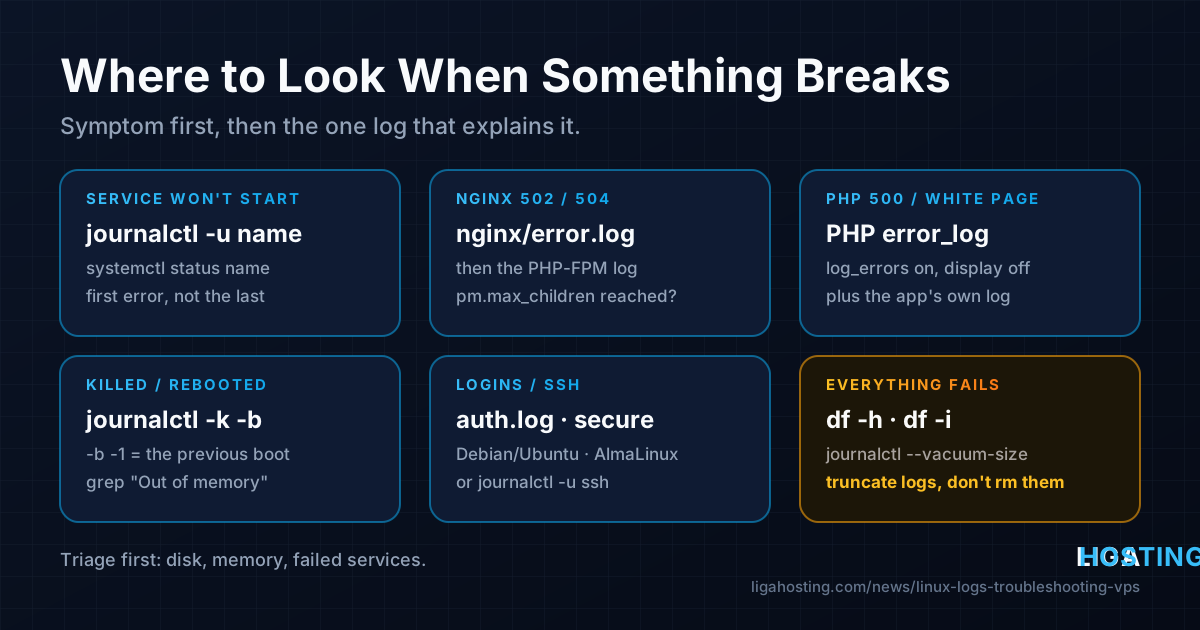
Then go to the log that matches the symptom:
| Symptom | First place to look |
|---|---|
| A service will not start | systemctl status name, then journalctl -u name |
| 502 / 504 from Nginx | Nginx error.log, then the PHP-FPM or app log |
| 500 or white page in PHP | PHP error log and the site's own error log |
| Process killed, server rebooted | journalctl -k and journalctl -b -1 |
| Login problems, brute force | /var/log/auth.log (Debian/Ubuntu) or /var/log/secure (AlmaLinux) |
| Everything fails at once | df -h and df -i — the disk is probably full |
journalctl: the one tool that covers most of the system
On every modern distribution, systemd's journal collects the output of all services, the kernel and the boot process. You read it with journalctl. Run it as root (or with sudo), otherwise you only see part of it.
# One service, newest entries, follow live (Ctrl+C to stop)
sudo journalctl -u nginx -f

# One service, only today, no pager (good for copying)
sudo journalctl -u nginx --since today --no-pager

# A time window
sudo journalctl --since "2026-10-29 09:00" --until "2026-10-29 09:30"
sudo journalctl --since "1 hour ago"

# Only warnings and worse (err, crit, alert, emerg)
sudo journalctl -p warning -b

# Kernel messages: OOM killer, disk and network errors
sudo journalctl -k -b

# Search the message text
sudo journalctl -u php8.3-fpm -g "max_children"
Useful details:
-bmeans "since the current boot".-b -1is the previous boot, which is exactly what you want after an unexpected reboot.journalctl --list-bootsshows which boots are stored.-utakes the unit name. SSH issshon Ubuntu/Debian andsshdon AlmaLinux; MariaDB ismariadb; PHP-FPM is versioned on Debian/Ubuntu (php8.3-fpmon Ubuntu 24.04,php8.2-fpmon Debian 12) and justphp-fpmon AlmaLinux.systemctl list-units --type=servicelists them.-ejumps to the end, and-n 100limits output to the last 100 lines.- Timestamps are in the server's time zone. Check it with
timedatectlso you compare the right minutes with the time a visitor reported.
When a service fails to start, systemctl status shows the last few lines, but they are often cut. The full reason is usually a few lines higher in journalctl -u name -n 50 — look for the first error, not the last one. For Nginx and Apache, also run the config test, which prints the file and line number of the mistake: sudo nginx -t, sudo apachectl configtest.
Keep the journal after a reboot (and limit its size)
If journalctl -b -1 says it has no data for the previous boot, your journal is stored only in memory (/run/log/journal) and is lost on every restart. Whether it is persistent by default depends on the distribution and image, so check:
ls -d /var/log/journal 2>/dev/null && echo persistent || echo "volatile (lost on reboot)"
journalctl --disk-usage
To make it persistent and cap its size, create a drop-in file:
sudo mkdir -p /etc/systemd/journald.conf.d
sudo tee /etc/systemd/journald.conf.d/50-persistent.conf >/dev/null <<'EOF'
[Journal]
Storage=persistent
SystemMaxUse=500M
MaxRetentionSec=1month
EOF
sudo systemctl restart systemd-journald
journalctl --list-boots | tail -n 3
SystemMaxUse is the most important line on a small VPS: without it, the journal may use up to 10% of the filesystem (capped at 4 GB). On a 10 GB or 20 GB disk, 500 MB or less is a sensible limit.
The /var/log map: Debian/Ubuntu vs AlmaLinux
Many services still write classic text files under /var/log, either directly or through rsyslog. The names differ between distribution families:
| What | Ubuntu / Debian | AlmaLinux |
|---|---|---|
| General system messages | /var/log/syslog | /var/log/messages |
| Logins, sudo, SSH | /var/log/auth.log | /var/log/secure |
| Kernel | /var/log/kern.log | in messages / journalctl -k |
| Package installs and updates | /var/log/apt/history.log, /var/log/dpkg.log | /var/log/dnf.log, dnf history |
| Nginx | /var/log/nginx/ | /var/log/nginx/ |
| Apache | /var/log/apache2/ | /var/log/httpd/ |
| MySQL / MariaDB | /var/log/mysql/error.log or the journal | /var/log/mariadb/mariadb.log |
Recent Debian releases no longer install rsyslog by default, so /var/log/syslog and auth.log may simply not exist — everything is in the journal instead (journalctl -u ssh, journalctl -p err). That is normal, not a sign of a broken system.
Three commands cover almost all reading of text logs:
sudo tail -n 100 /var/log/syslog          # last lines
sudo tail -f /var/log/nginx/error.log      # follow live
sudo grep -i "error" /var/log/syslog | tail -n 50
sudo zgrep "Failed password" /var/log/auth.log.2.gz   # search rotated, compressed logs
Old logs are renamed to .1, .2.gz and so on by logrotate. zgrep and zcat read the compressed ones without unpacking them.
When something stopped working right after maintenance, the package history tells you what changed and when: grep " upgrade " /var/log/dpkg.log | tail on Debian/Ubuntu, sudo dnf history on AlmaLinux.
Web server logs: reading 4xx and 5xx
Each web server keeps two logs. The access log has one line per request with the status code; the error log explains why something failed. If a virtual host defines its own access_log / error_log, look there instead of the default file: grep -R "_log" /etc/nginx/sites-enabled/ shows where each site writes.
# Last server errors (status 5xx) in the default "combined" format
sudo awk '$9 ~ /^5/' /var/log/nginx/access.log | tail -n 20

# Count status codes in the current log
sudo awk '{print $9}' /var/log/nginx/access.log | sort | uniq -c | sort -rn

# Top 10 client IPs (bots, scrapers, attacks)
sudo awk '{print $1}' /var/log/nginx/access.log | sort | uniq -c | sort -rn | head

# Recent errors
sudo tail -n 50 /var/log/nginx/error.log
Typical Nginx error lines and what they mean:
connect() to unix:/run/php/php8.3-fpm.sock failed (2: No such file or directory)— PHP-FPM is not running, or the socket path in the Nginx config does not match the installed PHP version. Checksystemctl status php8.3-fpmandls /run/php/.(11: Resource temporarily unavailable)orupstream timed out— PHP-FPM is running but every worker is busy. Check the PHP-FPM log (next section).connect() failed (111: Connection refused) while connecting to upstream— the backend app on127.0.0.1:portis down or listens on a different port. Compare withsudo ss -ltnp.Permission deniedon a file — wrong ownership, or on AlmaLinux possibly SELinux. Checksudo ausearch -m avc -ts recent.client intended to send too large body— an upload larger thanclient_max_body_size.
For Apache the files are access.log / error.log under /var/log/apache2/ on Debian/Ubuntu and access_log / error_log under /var/log/httpd/ on AlmaLinux; the same awk commands work on the access log.
PHP errors: where they actually go
"500 Internal Server Error" with an empty error log usually means PHP is logging somewhere you have not looked. There are three layers:
- The PHP-FPM master log — pool problems, crashed workers, the
max_childrenwarning. Ubuntu/Debian:/var/log/php8.3-fpm.log(version in the name); AlmaLinux:/var/log/php-fpm/error.log. - The PHP error log — fatal errors, warnings, uncaught exceptions from your code. Where it goes is set by
error_login php.ini or in the pool; on AlmaLinux the default pool writes to/var/log/php-fpm/www-error.log. - The application's own log — for example
wp-content/debug.logfor WordPress orstorage/logs/laravel.logfor Laravel.
Find what PHP-FPM is actually using and set an explicit log per pool:
# Which settings are in effect (CLI and FPM may use different php.ini files)
php -i | grep -E "^(error_log|log_errors|display_errors)"
sudo grep -rE "^\s*(php_admin_value\[error_log\]|catch_workers_output)" /etc/php/

# In the pool file, e.g. /etc/php/8.3/fpm/pool.d/www.conf
php_admin_flag[log_errors] = on
php_admin_value[error_log] = /var/log/php/www-error.log
catch_workers_output = yes
sudo mkdir -p /var/log/php && sudo chown www-data:www-data /var/log/php
sudo php-fpm8.3 -t && sudo systemctl reload php8.3-fpmOn AlmaLinux the user is usually apache (or nginx, depending on the pool) and the test command is sudo php-fpm -t. Keep display_errors = Off on a live site: errors belong in the log, not in front of visitors.
The line that matters most on a busy site is this one in the FPM log:
WARNING: [pool www] server reached pm.max_children setting (5), consider raising itIt explains most "502/504 under load" reports. How to size the pool correctly is covered in our guide to PHP-FPM tuning and pm.max_children.
Kernel messages: killed processes and unexpected reboots
If MySQL or PHP "just disappeared", ask the kernel:
sudo journalctl -k -b | grep -iE "out of memory|killed process|oom"
sudo journalctl -b -1 -n 50 --no-pager      # last lines before the previous shutdown
last -x reboot shutdown | head              # when the server restarted
"Out of memory: Killed process" means the OOM killer stopped a process to save the system — see why a VPS runs out of memory for the fix. If the previous boot ends normally with services stopping one by one, the reboot was clean (someone or something ran a restart, for example unattended upgrades). If it simply stops mid-stream, it was a hard reset or crash.
Disk full: find it, free it, prevent it
A full disk produces strange, unrelated-looking errors: MySQL refuses writes, PHP sessions fail, Nginx cannot write temp files, even SSH logins may hang. Look for "No space left on device" in the logs, and check both space and inodes:
df -h          # space
df -i          # inodes: 100% here also means "disk full", even with free GB
Find what is big, staying on one filesystem (-x) so you do not scan /proc:
sudo du -xh --max-depth=1 / 2>/dev/null | sort -h | tail -n 10
sudo du -xh --max-depth=1 /var 2>/dev/null | sort -h | tail -n 10
sudo find / -xdev -type f -size +200M -exec ls -lh {} \; 2>/dev/null

# Many small files (inode problem): count files per directory
sudo find /var -xdev -type f | cut -d/ -f2-4 | sort | uniq -c | sort -rn | head
The usual suspects on a VPS:
- The journal —
journalctl --disk-usage; shrink it now withsudo journalctl --vacuum-size=200Mand setSystemMaxUseas shown above. - One huge log file — an access log never rotated, or a
debug.logleft on. - Package cache —
sudo apt cleanorsudo dnf clean all. - Docker — images and container logs under
/var/lib/docker;docker system dfshows the split. - Old backups and database dumps left in
/rootor the web root. - PHP session files — the classic inode problem in
/var/lib/php/sessions.
Empty a big log, do not delete it. If you rm a log that a running process still has open, the space is not freed until that process restarts. Truncate it instead:
sudo truncate -s 0 /var/log/nginx/access.log

# Already deleted something and df did not change? Find deleted-but-open files:
sudo lsof +L1 2>/dev/null | head
# then restart the process holding them (e.g. sudo systemctl restart nginx)
Make sure logrotate is doing its job
logrotate runs daily (from a systemd timer or cron) and rotates, compresses and deletes old logs according to files in /etc/logrotate.d/. Packages such as Nginx, Apache and PHP-FPM install their own rules; logs you create yourself need one too:
sudo tee /etc/logrotate.d/php-custom >/dev/null <<'EOF'
/var/log/php/*.log {
    weekly
    rotate 8
    compress
    delaycompress
    missingok
    notifempty
    copytruncate
}
EOF

sudo logrotate -d /etc/logrotate.d/php-custom    # dry run: shows what would happen
systemctl list-timers | grep logrotate           # is it scheduled?
copytruncate is the simple choice for applications that cannot be told to reopen their log file. For services that support it, a postrotate reload (as the Nginx package does) is cleaner.
Frequently Asked Questions
Should I use journalctl or the files in /var/log?
Both, depending on the service. Anything run by systemd is in the journal, and journalctl -u is usually the fastest way to see why it failed. Web servers, PHP and databases often keep their detailed logs as files under /var/log, so for a website problem you will end up reading both.
Why is /var/log/syslog or auth.log missing?
The system probably does not run rsyslog. Recent Debian images keep everything in the journal only. Use journalctl instead, or install rsyslog if you prefer text files.
Is it safe to delete old logs to free space?
Rotated, compressed files such as .2.gz can be deleted. For the active log file use truncate -s 0 rather than rm, and use journalctl --vacuum-size for the journal. Keep recent logs if you are still investigating a problem or an intrusion.
The site returns 500 but every log is empty — what now?
Check that log_errors is on and where error_log points for the FPM pool, look for a per-site log defined in the virtual host, and check the application's own log. Then reproduce the error while running tail -f on the Nginx and PHP logs at the same time.
Can Liga Hosting support read my server logs for me?
Our VPS plans are unmanaged: you have full root access and administer the operating system yourself, including its logs. Support helps with the network, hardware, IP addresses, reverse DNS and billing — if your logs point to a network problem outside the VPS, open a ticket with the exact times.
At Liga Hosting, our Standard VPS and Performance VPS plans run on KVM with NVMe storage, DDoS protection and full root access, so every log and command in this guide is yours to use. If your sites outgrow the disk, upgrades within the same VPS line are self-service from the client area, and the Performance line offers much more NVMe space per plan.