
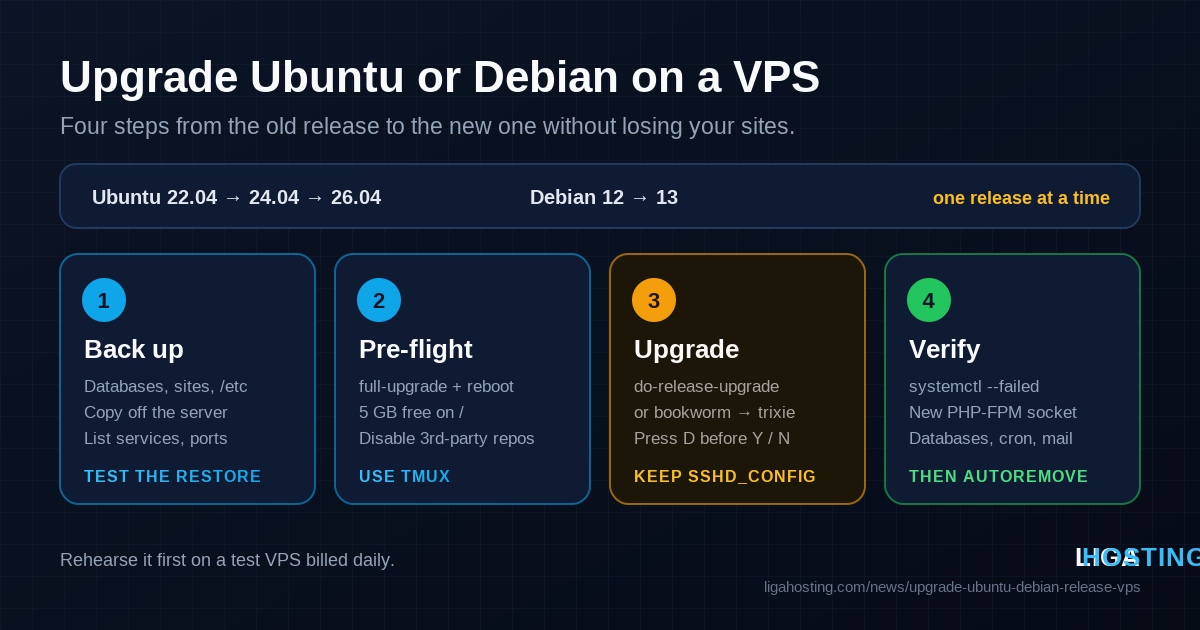
Upgrade Your VPS to a New Ubuntu or Debian Release — Safely, Step by Step
Your VPS has been running fine for years on the same Linux version. Then one day apt stops bringing security fixes, a tool you need asks for a newer PHP or Python, or the login banner says the release has reached the end of standard support. It is time to move to the next release.
A release upgrade is not the same as the daily apt upgrade. It replaces almost every package on the system, including the kernel, OpenSSH, PHP, the database server and Python. Done carelessly over SSH it can leave you with a server that does not boot or that you cannot log in to. Done with a plan, it usually takes 30–60 minutes. This guide covers Ubuntu (24.04 → 26.04) and Debian (12 → 13), with a short section on AlmaLinux.
Upgrade in place or reinstall?
There are two ways to get a newer release, and both are valid:
| In-place upgrade | Fresh install + migration | |
|---|---|---|
| Downtime | One reboot plus the time to fix anything that breaks | Close to zero if you switch DNS at the end |
| Effort | Low: a handful of commands | Higher: reinstall software, copy data, test |
| Risk | A failed upgrade affects the live server | The old server stays untouched until you switch |
For a server with one or two well-known services, the in-place upgrade is fine. For an old, heavily customised server that nobody fully remembers, a fresh VPS and a planned move is often safer — see how to move a website to a new server without downtime. Whatever you choose, never skip releases: Ubuntu goes from one LTS to the next (22.04 → 24.04 → 26.04), Debian from one stable to the next (11 → 12 → 13). Each hop is a separate, complete upgrade.
Know where you are and how much time you have
cat /etc/os-release
uname -r
Approximate end of regular security support (check the official Ubuntu and Debian pages for exact dates):
| Release | Regular support ends | Next step |
|---|---|---|
| Ubuntu 22.04 LTS | 2027 | 24.04 LTS |
| Ubuntu 24.04 LTS | 2029 | 26.04 LTS |
| Debian 12 "bookworm" | 2026 (then Debian LTS until 2028) | Debian 13 "trixie" |
| Debian 13 "trixie" | around 2028 (then LTS) | — |
You do not have to upgrade the week a new release comes out. Ubuntu itself only offers the LTS-to-LTS upgrade once the first point release (for example 26.04.1) is published, after the early bugs are fixed. A good rule: upgrade within the first year of the new release, well before the old one runs out of support.
Step 1 — Back up and write down what is running
The single most important step. Have a backup that is stored off the server and that you know how to restore — databases, website files, /etc and anything under /home or /srv. If you do not have that yet, read how to back up a VPS properly first.
Then take a quick snapshot of the current state, so you can compare after the upgrade:
mkdir -p ~/pre-upgrade && cd ~/pre-upgrade
sudo tar czf etc-backup.tar.gz /etc
dpkg -l > packages.txt
systemctl list-units --type=service --state=running --no-pager > services.txt
sudo ss -ltnp > ports.txt
crontab -l > crontab.txt 2>/dev/null
# Dump databases even if you have nightly backups
sudo mysqldump --all-databases --single-transaction > all-databases.sql   # MySQL/MariaDB
sudo -u postgres pg_dumpall > postgres-all.sql                        # PostgreSQL
Copy the ~/pre-upgrade folder to your own computer or backup storage with scp or rsync. A backup that lives only on the server you are about to modify does not count.
Step 2 — Pre-flight checks
Most failed upgrades are caused by something that was already wrong before starting. Check these five things:
# 1. Current release fully up to date
sudo apt update && sudo apt full-upgrade
sudo reboot            # boot into the latest kernel before the big step

# 2. Enough free space (aim for 5 GB+ on /, a few hundred MB on /boot if separate)
df -h / /boot
sudo apt clean
sudo apt autoremove --purge

# 3. No broken or half-configured packages
sudo dpkg --audit
sudo apt -f install

# 4. Held packages (they block the upgrade or get left behind)
apt-mark showhold

# 5. Third-party repositories (PPAs, Docker, NodeSource, Sury PHP, MariaDB.org...)
ls /etc/apt/sources.list.d/
Third-party repositories deserve attention. Ubuntu's upgrader disables them automatically; on Debian you must do it yourself. After the upgrade, re-enable each one only when its vendor publishes packages for the new release — otherwise you mix packages built for the old system with the new one.
Finally, use a session that survives a dropped connection. On Debian, start tmux (or screen) before the upgrade; if your SSH connection drops, log in again and run tmux attach. Ubuntu's upgrader runs itself inside screen automatically when it is available.
Step 3 — Ubuntu: do-release-upgrade
Ubuntu has a dedicated tool that checks the system, changes the repositories, downloads the new packages and installs them in the right order.
# Make sure the tool is installed and set to LTS releases only
sudo apt install -y update-manager-core
grep Prompt /etc/update-manager/release-upgrades     # should say Prompt=lts

# Is a new release offered yet?
sudo do-release-upgrade -c
If it says no new release is found and you are on 24.04, the 26.04 upgrade is simply not open yet for your path; wait for the point release instead of forcing it with -d (that flag is for development versions).
When you run the upgrade over SSH, the tool warns you and offers to start a second SSH server on port 1022 as a backup way in. Accept it, and open that port temporarily if you use a firewall:
sudo ufw allow 1022/tcp comment 'temporary, release upgrade'
sudo do-release-upgrade
The tool shows a summary (packages to remove, install and upgrade) and asks for confirmation. Read the list of packages to be removed: if something important to you is there, stop and find out why. The download and installation take from 10 minutes to over half an hour.
If the connection drops, log in again (on port 22, or 1022 if needed) and reattach with sudo screen -r. Do not start a second upgrade on top of a running one. When it finishes, it asks to reboot. After you are back in, remove the temporary rule with sudo ufw delete allow 1022/tcp.
Step 3 — Debian: bookworm to trixie
Debian has no special tool: you point APT at the new release and let it do a full upgrade. Follow the order below; it matches the official release notes.
tmux new -s upgrade

# 1. Find every source that mentions the old release
grep -rn bookworm /etc/apt/sources.list /etc/apt/sources.list.d/

# 2. Disable third-party repositories first (example: rename the file)
sudo mv /etc/apt/sources.list.d/docker.list /etc/apt/sources.list.d/docker.list.disabled

# 3. Switch the official Debian sources to trixie
sudo sed -i 's/bookworm/trixie/g' $(grep -rl --include='*.list' --include='*.sources' bookworm /etc/apt/sources.list /etc/apt/sources.list.d/)

# 4. Upgrade in two stages
sudo apt update
sudo apt upgrade --without-new-pkgs
sudo apt full-upgrade
The first stage upgrades what it can without adding or removing packages, which keeps the process stable; the second does the rest, including the new kernel. Check that the security line was converted too: it should read trixie-security. Before rebooting, make sure a kernel for the new release is installed: dpkg -l 'linux-image*' | grep ^ii.
Read the Debian 13 release notes before you start — especially the "issues to be aware of" chapter. It lists changes that can affect servers, and ten minutes there saves an hour of guessing later.
The questions you will be asked during the upgrade
Both Ubuntu and Debian stop when a configuration file you changed also changed in the new package:
Configuration file '/etc/ssh/sshd_config'
 ==> Modified (by you or by a script) since installation.
 ==> Package distributor has shipped an updated version.
   What would you like to do about it ?  Your options are:
    Y or I  : install the package maintainer's version
    N or O  : keep your currently-installed version
D : show the differences between the versions- Press D first to see what differs. Often the only difference is your own change plus some new comments.
- Keep your version (N) for files you deliberately tuned:
sshd_config, Nginx site files,php.ini,my.cnf. The new version is saved next to it as.dpkg-distso you can compare later. - Take the new version (Y) for files you never meant to change. Your old one is kept as
.dpkg-old. - For
sshd_config, keeping your version is usually the safe choice, because it contains your login settings (key-only login, allowed users, port).
Step 4 — After the reboot: check everything
Reboot, log in, and go through this list before you call it done:
cat /etc/os-release                # new version?
uname -r                           # new kernel?
systemctl --failed                 # any service that did not start?
sudo ss -ltnp                      # compare with ~/pre-upgrade/ports.txt
sudo journalctl -p err -b          # errors since this boot
sudo nginx -t                      # or: sudo apachectl configtest
find /etc -name '*.dpkg-dist' -o -name '*.dpkg-old' -o -name '*.ucf-dist'
Then test your sites in a browser, send a test email if the server sends mail, and look at cron jobs and backups — they fail quietly. When everything works, clean up: sudo apt autoremove --purge removes packages that are no longer needed, including old kernels.
What usually breaks — and how to fix it
A new release brings new major versions of language runtimes and databases. These are the common surprises on web servers:
- PHP version change. Debian 12 ships PHP 8.2 and Debian 13 ships PHP 8.4; Ubuntu also moves to a newer PHP with each LTS. The PHP-FPM socket path changes with it, so Nginx returns 502 Bad Gateway. Find the new socket with
ls /run/php/, updatefastcgi_passin your site config, and copy your pool settings (pm.max_childrenand friends) from the old/etc/php/8.x/fpm/pool.d/folder. Install the PHP extensions you had before (php8.4-mysql,php8.4-curland so on) and check that your application supports the new version. - Database upgrades. MariaDB normally upgrades its data automatically on start; check the log with
sudo journalctl -u mariadb. PostgreSQL is different: the new version installs next to the old one, and your data stays in the old cluster until you move it. List clusters withpg_lsclustersand follow the official procedure (pg_upgradecluster) before removing the old version. - Python virtual environments. A venv is tied to the Python version that created it. After the upgrade, recreate it and reinstall requirements:
python3 -m venv --clear venv && venv/bin/pip install -r requirements.txt. - Re-enabled third-party repositories. Change their release name (for example
bookworm→trixie) only after the vendor supports it, then runsudo apt update && sudo apt full-upgrade.
AlmaLinux: major versions need ELevate
On AlmaLinux, dnf upgrade keeps you within one major version (for example 9.x) and moves to new minor releases automatically. A jump to the next major version (8 → 9 or 9 → 10) uses the ELevate project, which is based on the Leapp tool:
sudo dnf upgrade -y && sudo reboot
sudo dnf install -y https://repo.almalinux.org/elevate/elevate-release-latest-el$(rpm --eval %rhel).noarch.rpm
sudo dnf install -y leapp-upgrade leapp-data-almalinux
sudo leapp preupgrade        # writes a report to /var/log/leapp/leapp-report.txt
# Fix every "inhibitor" listed in the report, then:
sudo leapp upgrade
sudo reboot
The upgrade finishes during the reboot, in a special boot environment, so the server is unavailable for longer than a normal restart. Read the pre-upgrade report carefully. For heavily customised servers many administrators prefer a fresh install of the new major version and a migration.
Frequently Asked Questions
Can I skip a release, for example go from Ubuntu 22.04 straight to 26.04?
No. Upgrade one release at a time: 22.04 to 24.04, check that everything works, then 24.04 to 26.04. On Debian the same applies: 11 to 12, then 12 to 13. Skipping releases is not supported and tends to fail in the middle.
How long will my sites be offline?
Services keep running during most of the download and installation, but they are restarted several times and the server reboots at the end. Plan for 30–60 minutes of possible disruption on a small VPS, at a quiet time, and longer if something needs fixing afterwards.
Is it safe to run the upgrade over SSH?
Yes, if you use tmux or screen so a dropped connection does not kill the process, and on Ubuntu accept the extra SSH server on port 1022. Keep your SSH configuration when asked about sshd_config, and do not close your session until you have checked that a new login works.
Can I test the upgrade first?
Yes, and it is the best way to avoid surprises. Restore your backup on a second VPS with the same release, run the upgrade there and fix what breaks. With daily billing, a test VPS for a day or two costs very little.
Will Liga Hosting support do the upgrade for me?
No. Our VPS are unmanaged: you have full root access and administer the operating system yourself. Support helps with network, hardware, IP addresses, reverse DNS and billing.
At Liga Hosting, our Standard VPS and Performance VPS plans run on KVM with full root access, NVMe storage and DDoS protection, so you choose the distribution and decide when to upgrade it. Daily billing makes it easy to spin up a test VPS and rehearse the upgrade before touching production. Contact us if you have questions about the network or your plan.