
How to Move a Website to a New Server Without Downtime
Moving a site to a new server sounds risky: change the DNS, hope for the best, and spend the evening answering "the site is down" messages. It does not have to be like that. With a bit of preparation, the DNS switch itself causes no outage at all: some visitors reach the old server, some the new one, and both serve the same site. The only pause is a few minutes while the last data is copied — and on many sites not even that.
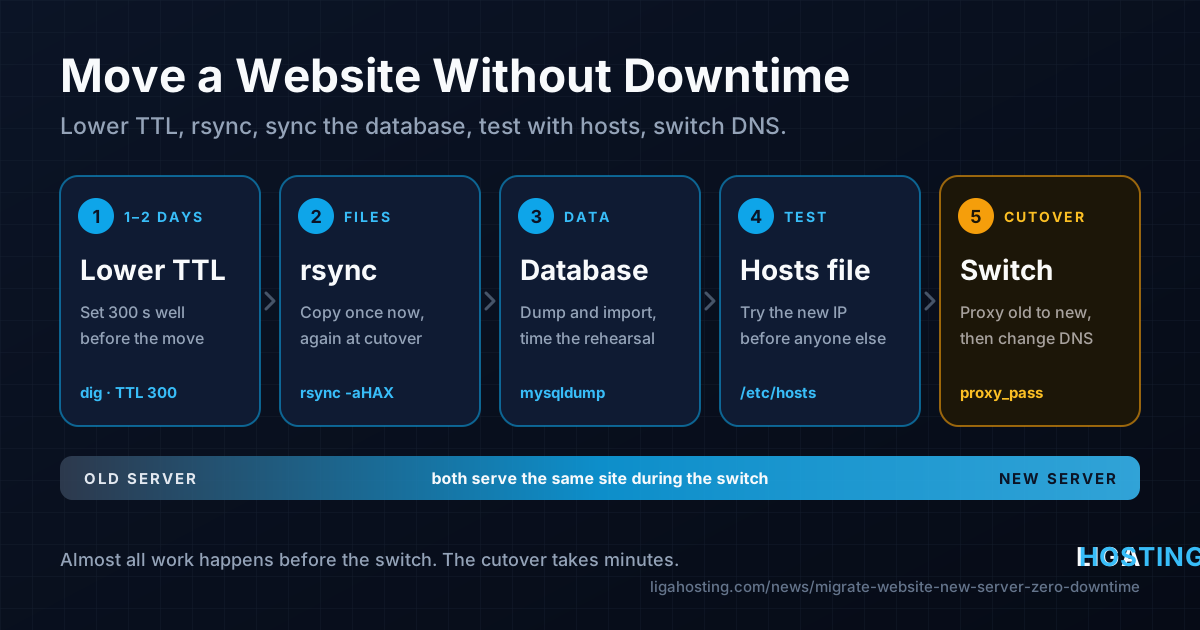
This guide walks through the method that works for most websites (WordPress, Laravel, a custom PHP app, a static site): lower the DNS TTL in advance, copy the files with rsync, move the database, test the new server privately through your hosts file, then switch DNS and keep the old server forwarding late visitors. The commands are for Ubuntu/Debian, with notes for AlmaLinux where it differs.
The plan at a glance
The secret of a zero-downtime move is that almost all of the work happens before anyone is sent to the new server. The actual cutover takes a few minutes.
| When | What you do |
|---|---|
| 1–2 days before | Lower the TTL of the DNS records you will change |
| Same days | Install the new server, first rsync, first database import |
| Before cutover | Test the new server through the hosts file |
| Cutover (5–15 min) | Short write freeze, final sync, change the DNS record |
| Next 24–48 h | Old server forwards stragglers to the new one |
| Afterwards | Raise the TTL, keep a final backup, retire the old server |
In the examples below, 198.51.100.20 is the old server, 203.0.113.10 is the new one and the site is example.com.
Step 1 — Lower the DNS TTL first
The TTL (time to live) of a DNS record tells resolvers how many seconds they may cache the answer. With a TTL of 86400, visitors may keep reaching the old IP for up to 24 hours after your change. Lower it to 300 seconds before the move and the switch takes effect within minutes.
Check the current TTL by asking your authoritative name server directly (a public resolver shows a value that counts down):
# Which name servers are authoritative for the domain?
dig +short NS example.com

# Ask one of them; the number after the name is the TTL in seconds
dig +noall +answer example.com A @ns1.example.net
dig +noall +answer www.example.com A @ns1.example.net
In your DNS panel, set the TTL of every record that will change — usually the bare domain and www — to 300. Then wait at least as long as the old TTL: if it was 86400, the lower value only becomes effective everywhere after 24 hours, because resolvers still hold the old answer with the old TTL.
Two things to avoid:
- Do not change name servers at the same time. NS records at the registry often have a TTL of 1–2 days that you cannot lower. Move the DNS zone as a separate step, days earlier.
- Do not forget the AAAA record. If an IPv6 address points to the old server, lower its TTL too and update or remove it at the cutover.
If you need a refresher on record types, see our guide to DNS records explained.
Step 2 — Prepare the new server
The new server should run the same stack as the old one, ideally the same major versions. On the old server, note the output of nginx -v, php -v, mysql --version and php -m (the PHP extensions), then install the same on the new server (on AlmaLinux use dnf; Apache is httpd with configs in /etc/httpd/):
# Ubuntu / Debian example for an Nginx + PHP-FPM + MariaDB stack
sudo apt update
sudo apt install -y nginx mariadb-server php-fpm php-mysql php-curl php-gd php-mbstring php-xml php-zip php-intl rsync
Then bring over the configuration that is not part of the site files:
- Web server virtual hosts:
/etc/nginx/sites-available/(or/etc/apache2/sites-available/), plus any custom PHP-FPM pool in/etc/php/*/fpm/pool.d/. - TLS certificates: you cannot get a new Let's Encrypt certificate with the usual HTTP challenge before DNS points to the new server. Copy the whole
/etc/letsencryptdirectory instead (rsync with-akeeps its symlinks); renewals continue to work once DNS has moved. Our Let's Encrypt guide covers the details. - Scheduled jobs:
crontab -lfor each user,/etc/cron.d/and any systemd timers (systemctl list-timers). Add them on the new server, but keep them disabled until the cutover so jobs do not run twice. - Firewall rules and SSH keys for anyone who deploys to the server.
Check the configuration before going further: sudo nginx -t (or sudo apachectl configtest).
Step 3 — Copy the files with rsync
rsync only transfers what has changed, so you can run it once now (slow, everything) and again at the cutover (fast, only the differences). Run it from the new server, pulling from the old one over SSH:
# Preview first: -n = dry run, nothing is written
sudo rsync -aHAXn --numeric-ids --info=stats2 \
  root@198.51.100.20:/var/www/example.com/ /var/www/example.com/

# Real copy
sudo rsync -aHAX --numeric-ids --info=progress2 \
  root@198.51.100.20:/var/www/example.com/ /var/www/example.com/
What the options do:
-a— archive mode: recursive, keeps permissions, timestamps, owners and symlinks.-H -A -X— keep hard links, ACLs and extended attributes.--numeric-ids— keep owner IDs as numbers. Make sure the site user (for examplewww-data, UID 33 on Debian/Ubuntu) has the same UID on both servers, otherwise fix ownership afterwards withchown -R. On AlmaLinux the web user is usuallynginxorapache.- The trailing slash on the source means "the contents of this directory". Without it you get
/var/www/example.com/example.com/.
Verify the copy by comparing size and number of files on both sides:
du -sh /var/www/example.com; find /var/www/example.com -type f | wc -lStep 4 — Copy the database
Create the database and user on the new server with the same name and password the application uses (look them up in wp-config.php, .env or similar):
sudo mysql -e "CREATE DATABASE exampledb CHARACTER SET utf8mb4 COLLATE utf8mb4_unicode_ci;
CREATE USER 'exampleuser'@'localhost' IDENTIFIED BY 'use-the-existing-password';
GRANT ALL PRIVILEGES ON exampledb.* TO 'exampleuser'@'localhost';"
Then stream a consistent dump from the old server straight into the new one. --single-transaction takes a consistent snapshot of InnoDB tables without locking the site:
# Run on the new server
ssh root@198.51.100.20 \
  "mysqldump --single-transaction --quick --routines --triggers --events exampledb | gzip" \
  | gunzip | sudo mysql exampledb

# Quick check: same tables, similar row counts on both sides
sudo mysql -e "SELECT table_name, table_rows FROM information_schema.tables WHERE table_schema='exampledb' ORDER BY table_name;"
Common problems at this step:
- Unknown collation
utf8mb4_0900_ai_ci— the dump comes from MySQL 8 and the new server runs an older MariaDB. Install MySQL 8 on the new server or replace the collation in the dump withutf8mb4_unicode_ci. - MyISAM tables are not covered by
--single-transaction. That is fine for this first copy; the final sync happens while writes are frozen. - PostgreSQL: use
pg_dump -Fcandpg_restoreinstead.
This first import is a rehearsal: its duration is roughly how long writes will be paused at the cutover.
Step 5 — Test the new server with the hosts file
Now you can use the site on the new server while the whole world still uses the old one. Your computer's hosts file overrides DNS for you alone. Add a line with the new IP:
# Linux / macOS: /etc/hosts      Windows: C:\Windows\System32\drivers\etc\hosts
203.0.113.10  example.com www.example.com
Browsers cache DNS, so close and reopen the browser (or use a private window). For command-line checks, curl --resolve does the same without editing any file:
curl -sI --resolve example.com:443:203.0.113.10 https://example.com/ | head -5To be sure you are really on the new server, watch its access log while you click around: sudo tail -f /var/log/nginx/access.log. Then test what matters for your site:
- pages and images (missing files or wrong permissions);
- admin login, saving a post, uploading a file;
- contact forms, outgoing email, payments in test mode;
- the PHP error log, for missing extensions.
Changes made here are overwritten by the final sync, so test but do not do real work. Remove the hosts line when you are done.
Step 6 — The cutover: final sync and DNS switch
Pick a quiet hour. The goal is to make sure no data is written on the old server after its last copy.
- Freeze writes on the old server. The safest way is maintenance mode —
wp maintenance-mode activatefor WordPress,php artisan downfor Laravel — which shows a short "back in a minute" page during the sync. On a mostly read-only site you can keep it online and simply stop writes instead: no publishing, comments or checkout for 15 minutes. - Final file sync with
--delete, so files removed on the old server are removed on the new one too:sudo rsync -aHAX --numeric-ids --delete \ root@198.51.100.20:/var/www/example.com/ /var/www/example.com/ - Final database sync: repeat the dump-and-import command from step 4. Drop and recreate the database first, or rely on the dump's
DROP TABLE IF EXISTSstatements (included by default). - Turn off maintenance mode on the new server (the flag came over with the files), enable its cron jobs, and do one last check through the hosts file.
- Make the old server forward to the new one (next step). From this moment every visitor is served by the new server, whatever DNS says.
- Change the A record (and AAAA, if you have one) to
203.0.113.10.
Step 7 — Forward stragglers from the old server
Even with a TTL of 300, a few resolvers and long-running clients ignore it and keep hitting the old IP for hours. If the old server still ran the site, those visitors would write to a database you no longer use. The fix: replace the site's server block on the old server with a reverse proxy to the new one.
server {
    listen 443 ssl;
    listen 80;
    server_name example.com www.example.com;

    ssl_certificate     /etc/letsencrypt/live/example.com/fullchain.pem;
    ssl_certificate_key /etc/letsencrypt/live/example.com/privkey.pem;

    location / {
        proxy_pass https://203.0.113.10;
        proxy_set_header Host $host;
        proxy_set_header X-Forwarded-For $proxy_add_x_forwarded_for;
        proxy_set_header X-Forwarded-Proto $scheme;
        proxy_ssl_server_name on;
        proxy_ssl_name $host;
    }
}
Reload with sudo nginx -t && sudo systemctl reload nginx and turn off cron jobs on the old server. From now on, every request — whichever IP it reaches — is handled by the new server and its database. With Apache, ProxyPass with SSLProxyEngine On and ProxyPreserveHost On does the same.
Watch the switch happen:
# What the world sees (public resolvers)
dig +short example.com @1.1.1.1
dig +short example.com @8.8.8.8

# Traffic still arriving at the old server should slowly fade out
sudo tail -f /var/log/nginx/access.log
Rollback plan and cleanup
Decide before the cutover what makes you roll back (for example: checkout broken, errors you cannot fix in 30 minutes). In the first minutes it is easy: point the A record back to the old IP and remove the proxy block there. Once real orders or posts exist on the new server, rolling back means syncing the database in the other direction — another reason to test well in step 5.
Once the old server's access log has been quiet for a day or two:
- raise the TTL back to a normal value such as 3600;
- run
sudo certbot renew --dry-runon the new server to confirm certificate renewal works from there; - set up backups on the new server and test a restore;
- take a final backup of the old server, then cancel it.
If email runs on the same server, treat it as a separate migration: MX records, mailboxes and reverse DNS each need their own plan.
Frequently Asked Questions
Is the migration really zero downtime?
DNS changes cause no outage: either the old or the new server answers at every moment, and both serve the same data. The only pause is the few minutes of the final sync, while writes are frozen. Very busy shops or apps use database replication to avoid even that.
How low should I set the TTL, and how far in advance?
300 seconds is a safe value that every DNS provider accepts. Change it at least as long before the move as the old TTL — 24 hours ahead if it was 86400 — and raise it again once the move is finished.
Do I need a new SSL certificate on the new server?
Not right away. Copy the existing certificates from /etc/letsencrypt so HTTPS works from the first request. After DNS points to the new server, renewals work from there as usual.
Can I copy the whole server instead of just the site?
You can, but copying the system directories of one installation over another usually breaks packages and boot settings. Installing a fresh OS and moving only the site, database and selected configs is cleaner and lets you upgrade versions along the way.
What if my site is behind Cloudflare?
With proxied records the visitors see Cloudflare's IPs, so the switch is instant once you change the origin IP in the dashboard; the TTL step matters less. Still test the new server first with the hosts file or curl --resolve.
At Liga Hosting, our Standard VPS and Performance VPS plans give you full root access, NVMe storage and DDoS protection, and daily billing makes it easy to run the new server alongside the old one while you test. For simpler sites, our cPanel web hosting is an option too. Contact us if you have questions about IPs or reverse DNS for your new server.