
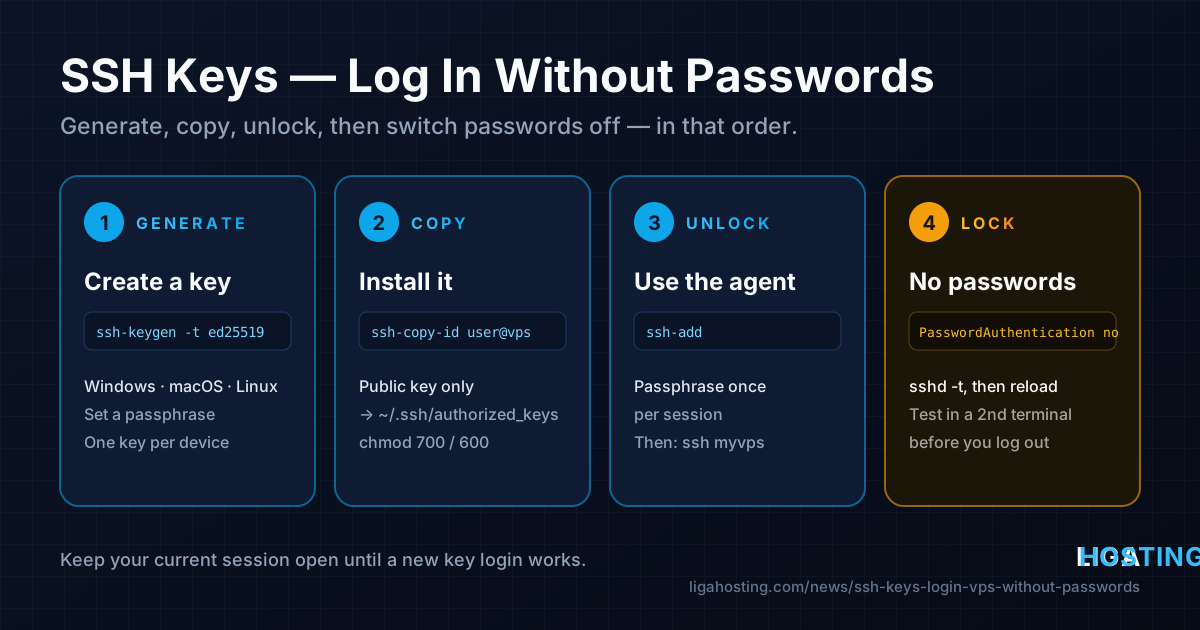
SSH Keys Explained — Log In to Your VPS Without Passwords
Every VPS with SSH open to the internet gets password guesses within minutes of going online. A strong password helps, but it can still be guessed, phished or reused. An SSH key can't be guessed in practice, it never travels to the server, and once it's set up it is also faster: you type ssh myvps and you're in.
Our first-30-minutes security checklist mentions keys in a single step. This guide covers that step in full: how keys work, how to create one on Windows, macOS and Linux, how to install it on the server, how to stop typing the passphrase every time, and how to turn off password logins without locking yourself out.
How SSH keys work in one minute
An SSH key is a pair of files. The private key stays on your computer and must never leave it. The public key can be shared with anyone; you put a copy of it on every server you want to log in to.
When you connect, the server sends a challenge that only the matching private key can sign. Your SSH client signs it locally, and the server checks the signature against the public key in ~/.ssh/authorized_keys. Nothing secret is sent over the network, so a fake or compromised server learns nothing it can reuse.
| File | Where | What it is |
|---|---|---|
~/.ssh/id_ed25519 | Your computer | Private key. Keep it secret and protect it with a passphrase. |
~/.ssh/id_ed25519.pub | Your computer | Public key: one line starting with ssh-ed25519. |
~/.ssh/authorized_keys | The server | The public keys allowed to log in as that user, one per line. |
~/.ssh/known_hosts | Your computer | Fingerprints of servers you have already connected to. |
Which key type to choose
For a new key in 2026 the answer is almost always Ed25519. The keys are short, fast and secure, and every supported version of Ubuntu, Debian and AlmaLinux accepts them.
| Type | Use it when |
|---|---|
| Ed25519 | Default choice for any modern server and client. |
| RSA 4096 | Only when an old device or appliance does not support Ed25519. |
| Ed25519-SK | You have a FIDO2 hardware security key. |
| DSA, RSA 1024 | Never. These are obsolete and current OpenSSH rejects them. |
Generate a key on Linux and macOS
Open a terminal on your own computer, not on the VPS:
ssh-keygen -t ed25519 -C "laptop-2026"-t ed25519selects the key type.-Cis a comment saved at the end of the public key. Use something that tells you which device the key belongs to, so you know which line to delete later.- Press Enter to accept the default path
~/.ssh/id_ed25519. - Enter a passphrase. It encrypts the private key file, so a stolen laptop or backup does not mean a stolen server. With ssh-agent (below) you type it once per session, not on every login.
Check the result:
ls -l ~/.ssh/id_ed25519 ~/.ssh/id_ed25519.pub
cat ~/.ssh/id_ed25519.pub
The private key should be -rw------- (600). The .pub file is the single line you will copy to servers.
Generate a key on Windows
Windows 10 and 11 ship the OpenSSH client, so you do not need PuTTY. Open PowerShell and run the same command:
ssh-keygen -t ed25519 -C "windows-desktop"The files go to C:\Users\YOU\.ssh\. Show the public key with:
Get-Content $env:USERPROFILE\.ssh\id_ed25519.pubIf ssh is not found, add it under Settings → System → Optional features → OpenSSH Client.
Copy the public key to the VPS
You need to log in with your password one last time to install the key. On Linux and macOS, ssh-copy-id does everything, including creating the folder and setting permissions:
# Replace deploy with your user and 203.0.113.10 with your VPS IP
ssh-copy-id -i ~/.ssh/id_ed25519.pub deploy@203.0.113.10
Windows has no ssh-copy-id, but this PowerShell one-liner does the same job:
Get-Content $env:USERPROFILE\.ssh\id_ed25519.pub | ssh deploy@203.0.113.10 "umask 077; mkdir -p ~/.ssh && cat >> ~/.ssh/authorized_keys"If you prefer to do it by hand, log in to the server and paste the public key line:
mkdir -p ~/.ssh
nano ~/.ssh/authorized_keys        # paste the ssh-ed25519 ... line, save
chmod 700 ~/.ssh
chmod 600 ~/.ssh/authorized_keys
Permissions matter: if the home directory, ~/.ssh or authorized_keys can be written by other users, OpenSSH ignores the key on purpose. On AlmaLinux, SELinux may also block a file created or copied in an unusual way; restorecon -Rv ~/.ssh fixes the labels.
Now test it from a new terminal:
ssh -i ~/.ssh/id_ed25519 deploy@203.0.113.10You should be asked for the key's passphrase (on your computer), not for the server password. If you still get a password prompt, the key was not accepted — see the troubleshooting section before going further.
Check the server fingerprint once. On your first connection SSH shows the server's fingerprint and asks you to confirm it. To be sure you are talking to your VPS and not something in between, compare it with what the server reports:
ssh-keygen -lf /etc/ssh/ssh_host_ed25519_key.pubUse ssh-agent so you type the passphrase once
ssh-agent holds your unlocked key in memory and signs logins for you. The private key never leaves the agent.
Linux: most desktop sessions already run an agent. If not, start one and add the key:
eval "$(ssh-agent -s)"
ssh-add ~/.ssh/id_ed25519
ssh-add -l          # lists loaded keys
macOS: store the passphrase in the Keychain so the key unlocks automatically after login:
ssh-add --apple-use-keychain ~/.ssh/id_ed25519Windows: the agent is a service that is disabled by default. In PowerShell as Administrator:
Get-Service ssh-agent | Set-Service -StartupType Automatic
Start-Service ssh-agent
Then, in a normal PowerShell window, run ssh-add $env:USERPROFILE\.ssh\id_ed25519. The key stays available after a reboot.
Agent forwarding (ssh -A) lets a server use your local agent. Anyone with root on that server can use it while you are connected, so enable it only for hosts you fully control, never with Host *.
Save typing with ~/.ssh/config
A short config file on your computer turns long commands into ssh myvps, and the same name works with scp, rsync and git:
Host myvps
    HostName 203.0.113.10
    User deploy
    Port 22
    IdentityFile ~/.ssh/id_ed25519
    IdentitiesOnly yes
    AddKeysToAgent yes
IdentitiesOnly yes makes SSH offer only this key. Without it, a client with many keys in the agent can hit the server's MaxAuthTries limit and fail with "Too many authentication failures". On macOS you can add UseKeychain yes to the block. On Windows the file is C:\Users\YOU\.ssh\config, with no extension.
Disable password logins safely
Only do this after key login works for every account you use. The safety rule: keep your current SSH session open until you have tested a new login. An open session is not affected by reloading sshd, so if something goes wrong you can still fix it.
Current Ubuntu, Debian and AlmaLinux read extra files from /etc/ssh/sshd_config.d/. For each setting OpenSSH uses the first value it finds, and these files are read in alphabetical order before the rest of the main file. That is why a cloud-image file such as 50-cloud-init.conf containing PasswordAuthentication yes can silently override your change. Check what exists first:
grep -i '^Include' /etc/ssh/sshd_config
sudo grep -ri 'passwordauthentication\|permitrootlogin' /etc/ssh/sshd_config /etc/ssh/sshd_config.d/
Create a file whose name sorts first:
sudo nano /etc/ssh/sshd_config.d/00-keys-only.confPubkeyAuthentication yes
PasswordAuthentication no
KbdInteractiveAuthentication no
PermitRootLogin prohibit-passwordPasswordAuthentication noturns off plain password logins.KbdInteractiveAuthentication nocloses the second password path (the old name wasChallengeResponseAuthentication).PermitRootLogin prohibit-passwordlets root log in only with a key. Usenoinstead if you always log in as a normal user with sudo.
Test the configuration, check the values sshd will actually use, then reload:
sudo sshd -t
sudo sshd -T | grep -Ei '^(passwordauthentication|kbdinteractiveauthentication|permitrootlogin|pubkeyauthentication)'

# Ubuntu / Debian
sudo systemctl reload ssh
# AlmaLinux
sudo systemctl reload sshd
sshd -t prints nothing when the syntax is fine. sshd -T must show passwordauthentication no. If it still says yes, another file is setting it first.
Now verify from a second terminal on your computer. First, a normal login must still work. Then force a password attempt, which must be refused:
ssh myvps
ssh -o PubkeyAuthentication=no -o PreferredAuthentications=password deploy@203.0.113.10
# expected: deploy@203.0.113.10: Permission denied (publickey).
Only when both results look right should you close the original session. Brute-force attempts will keep showing up in the logs, but without password logins they cannot succeed. If you also want them to stop filling your logs, see our fail2ban guide.
When the key is not accepted
Run the client in verbose mode. It shows which keys are offered and what the server answers:
ssh -v myvps 2>&1 | grep -Ei 'offering|accepted|denied|identity file'On the server, the log usually names the exact reason:
# Ubuntu / Debian
sudo journalctl -u ssh -n 50 --no-pager
# AlmaLinux
sudo journalctl -u sshd -n 50 --no-pager- "Authentication refused: bad ownership or modes" — fix permissions:
chmod 700 ~/.ssh,chmod 600 ~/.ssh/authorized_keys, and make sure the home directory is not group-writable. - The key was added for the wrong user — each user has their own
authorized_keys. A key in/root/.ssh/does not let you log in asdeploy. - The line was broken while pasting — the public key must be a single line. Check it with
ssh-keygen -lf ~/.ssh/authorized_keyson the server. - The client offers a different key — use
-iorIdentitiesOnly yesin your config.
Several devices, lost laptops and key rotation
- One key per device. Do not copy one private key between your laptop, desktop and phone. Create a key on each, with a clear
-Ccomment, and add each public key to the server. - Lost or replaced device: delete its line from
~/.ssh/authorized_keyson every server. There is nothing to reload; the change takes effect on the next login. - Back up your private key (encrypted, with its passphrase) or keep a second key stored safely. If your only key is lost and passwords are disabled, you can only get back in through an out-of-band console, if one is available.
Frequently Asked Questions
Is a key with an empty passphrase safe?
It works, and it is common for automated jobs, but anyone who copies the file can use it straight away. For your personal key, set a passphrase and use ssh-agent. For automation, use a separate key that is allowed to do only what it needs.
Can I use the same public key on many servers?
Yes. The public key is not secret, and putting it on several servers is normal. What you should not do is copy the private key to other computers or to the servers themselves.
Does changing the SSH port replace keys?
No. A different port reduces the noise from automated scanners, but it is not a security barrier. Keys with password logins disabled are what actually stop brute-force attacks. If you change the port, open the new one in your firewall first.
Do I need to convert my PuTTY key?
Only if you want to use the built-in Windows OpenSSH client, VS Code or Git with it. PuTTYgen can export the key in OpenSSH format. The public key line is the same either way, so the server side does not change.
What happens if I lock myself out?
If you kept the original session open, you can fix the configuration from there. Otherwise you need console access that does not depend on SSH. This is why you should test a new login before closing your session, and keep a backup key.
Every Liga Hosting Standard VPS and Performance VPS runs on KVM with NVMe storage, DDoS protection and full root access, so you decide how SSH is configured, from key types to who may log in. Plans start with the VPS XS at €2.50/month or €0.10/day. For network, IP or reverse DNS questions, contact us.