
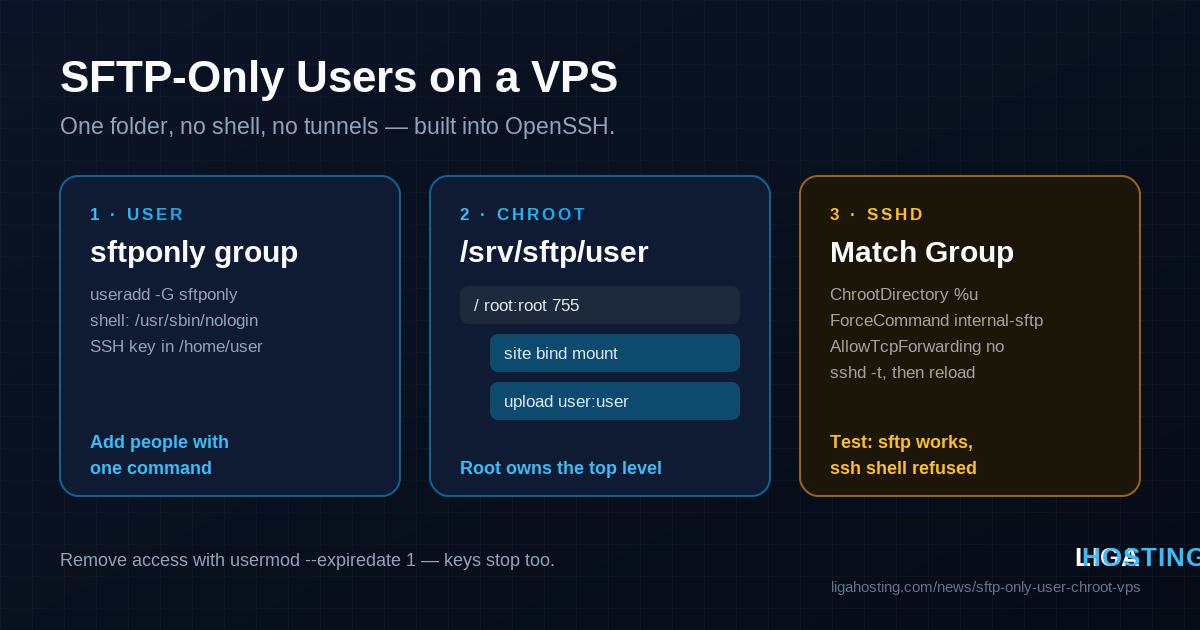
SFTP-Only Users on a VPS — Give File Access Without a Shell
Sooner or later someone else needs to put files on your server: a web designer updating a theme, a client uploading product photos, an agency deploying a static site. The quick answer — "here is the root password" or "I made you a normal user" — gives them far more than they need. A normal Linux user can log in with a shell, read most of the system, see your other sites and run whatever they like.
OpenSSH can do much better without installing anything. You can create users that can only use SFTP, cannot open a shell, and see only one folder as their whole filesystem. This guide sets that up step by step on Ubuntu, Debian and AlmaLinux, explains why each permission must be exactly as shown, and covers the errors you will most likely hit.
What you are building
The setup has three parts, all handled by the SSH server you already run:
- A group,
sftponly. Every member gets the restricted treatment. Adding or removing a person is one command. ForceCommand internal-sftp. Whatever the user tries to run, sshd starts its built-in SFTP server instead. No shell, no commands, no port forwarding.ChrootDirectory. After login, the user's view of the filesystem starts at a folder you choose./etc,/homeand your other sites simply do not exist for them.
| Access type | Shell | Sees whole filesystem | Encrypted | Good for |
|---|---|---|---|---|
| Root or sudo user | Yes | Yes | Yes | You, the administrator |
| Normal user | Yes | Mostly (read) | Yes | Trusted team members who run commands |
| Chrooted SFTP user | No | No, one folder | Yes | Designers, clients, uploads |
| Plain FTP | No | Depends on server | No | Avoid on a VPS |
SFTP runs over the existing SSH port, so there is no extra service to install, patch or open in the firewall. FileZilla, WinSCP, Cyberduck and the sftp command all support it.
Step 1 — Create the group and the first user
Run everything as root or with sudo. In the examples the user is called alice; replace it with your own name.
# Create the group once
sudo groupadd sftponly

# Create the user: a home for SSH keys, no usable shell, member of sftponly
sudo useradd -m -s /usr/sbin/nologin -G sftponly alice

# Optional: set a password (skip this if you will use SSH keys only)
sudo passwd alice

# Verify
id alice
getent passwd alice
id should list sftponly among the groups, and getent should end with /usr/sbin/nologin. That path works on Ubuntu, Debian and AlmaLinux. The nologin shell is a second safety net: even if the SSH configuration were wrong, the account could not start an interactive session.
The home directory /home/alice stays outside the chroot. It is only used to store ~/.ssh/authorized_keys, which sshd reads before it locks the user into the folder.
Step 2 — Prepare the chroot directory (the ownership rule)
This is where most setups fail. For security reasons, sshd refuses to chroot into a directory unless that directory and every directory above it are owned by root and not writable by group or others. If the user could write to their own chroot root, they could plant files that trick setuid programs, so OpenSSH simply does not allow it.
The consequence: the user cannot write directly into the top of their chroot. They write into a subfolder that you give them.
# Chroot root: owned by root, mode 755
sudo mkdir -p /srv/sftp/alice
sudo chown root:root /srv/sftp /srv/sftp/alice
sudo chmod 755 /srv/sftp /srv/sftp/alice

# A folder the user can write to
sudo mkdir /srv/sftp/alice/upload
sudo chown alice:alice /srv/sftp/alice/upload
sudo chmod 750 /srv/sftp/alice/upload

# Check every level of the path at once
namei -l /srv/sftp/alice/upload
In the namei output, /, srv, sftp and alice must all show root root and no w in the group and other positions (for example drwxr-xr-x). Only upload belongs to alice.
If you only need an upload drop box — a client sending you files — you are done with this step. For website files, continue with step 3.
Step 3 — Give access to a website folder with a bind mount
Your site probably lives in /var/www/example.com. You cannot make /var/www/example.com the chroot itself if the user must write into it, and you should not move the site. The clean solution is a bind mount: the same folder appears a second time inside the chroot.
# Mount point inside the chroot
sudo mkdir /srv/sftp/alice/site

# Make it permanent
echo '/var/www/example.com  /srv/sftp/alice/site  none  bind  0  0' | sudo tee -a /etc/fstab
sudo systemctl daemon-reload
sudo mount /srv/sftp/alice/site

# Verify: the source should be /var/www/example.com
findmnt /srv/sftp/alice/site
ls -la /srv/sftp/alice/site
Now set ownership so that alice can write and the web server can read. On Ubuntu and Debian the web server group is www-data; on AlmaLinux it is nginx or apache.
sudo chown -R alice:www-data /var/www/example.com
# Directories: owner rwx, group r-x, setgid so new files keep the www-data group
sudo find /var/www/example.com -type d -exec chmod 2750 {} +
# Files: owner rw, group r
sudo find /var/www/example.com -type f -exec chmod 640 {} +
If your application must write to some folders (uploads, cache), give those folders group write separately rather than opening the whole tree. If another user already deploys to this site, add alice to that user's group instead of changing the owner. Our guide to Linux file permissions for websites explains these choices in detail.
Two things to know about bind mounts: symbolic links that point outside the chroot will appear broken to the SFTP user, and /etc/fstab mistakes can stop a server from booting cleanly. Always run sudo findmnt --verify after editing fstab.
Step 4 — Configure sshd
Open /etc/ssh/sshd_config and add this block at the very end of the file. A Match block applies to every line below it until the next Match or the end of the file, so putting it in the middle would accidentally restrict settings meant for everyone.
Match Group sftponly
    ChrootDirectory /srv/sftp/%u
    ForceCommand internal-sftp -d /site -u 0027
    AllowTcpForwarding no
    AllowAgentForwarding no
    X11Forwarding no
    PermitTunnel no
What each line does:
Match Group sftponly— the rules apply only to members of the group. Your own admin account is not affected.ChrootDirectory /srv/sftp/%u—%uis replaced by the user name, so one block serves every user.internal-sftp— the SFTP server built into sshd. Unlike the externalsftp-serverbinary, it needs no files inside the chroot.-d /site— the folder the user lands in after login (inside the chroot). Use-d /uploadfor a drop box.-u 0027— umask for new files: they become 640 and directories 750, matching the permissions from step 3.- The
nolines block SSH tunnels, so the account cannot be used to reach databases or other services on the server.
Test the syntax and the effective settings before reloading, then reload. The service is called ssh on Ubuntu and Debian and sshd on AlmaLinux:
sudo sshd -t
sudo sshd -T -C user=alice,host=client.example.com,addr=198.51.100.20 | grep -Ei 'chrootdirectory|forcecommand|allowtcpforwarding'

# Ubuntu / Debian
sudo systemctl reload ssh
# AlmaLinux
sudo systemctl reload sshd
The sshd -T -C line shows the configuration exactly as sshd will apply it to alice. You should see your chroot path, the force command and allowtcpforwarding no. Keep your current SSH session open until the tests in step 6 pass.
Step 5 — Passwords or SSH keys
Keys are the better choice. Ask the person for their public key (a single line starting with ssh-ed25519 or ssh-rsa) and install it:
sudo install -d -m 700 -o alice -g alice /home/alice/.ssh
echo 'ssh-ed25519 AAAA...their-public-key... designer-laptop' | sudo tee /home/alice/.ssh/authorized_keys
sudo chown alice:alice /home/alice/.ssh/authorized_keys
sudo chmod 600 /home/alice/.ssh/authorized_keys
If you disabled password logins globally (as you should on a VPS) but the person cannot use keys, you can allow passwords for this group only by adding PasswordAuthentication yes inside the Match Group sftponly block. Use a long random password, and make sure fail2ban or similar protection covers SSH. Our article on SSH keys explains how the other side generates a key pair.
Step 6 — Test it like an attacker would
From another computer, check both what should work and what must not:
# 1. SFTP works and lands in /site
sftp alice@203.0.113.10
sftp> pwd
Remote working directory: /site
sftp> put index.html
sftp> cd /
sftp> ls
site  upload
sftp> cd /etc
Couldn't canonicalize: No such file or directory

# 2. A shell is refused
ssh alice@203.0.113.10
This service allows sftp connections only.

# 3. Tunnels are refused
ssh -N -L 3306:127.0.0.1:3306 alice@203.0.113.10
The tunnel attempt should fail with a message like "administratively prohibited" as soon as something tries to use the forwarded port. Back on the server, confirm that the uploaded file has the expected owner, group and mode:
ls -l /var/www/example.com/index.html
# -rw-r----- 1 alice www-data ... index.html
Some clients (WinSCP with "preserve permissions", or sftp put -p) set file modes explicitly after upload. If you see 644 or 600 instead of 640, check the client's transfer settings.
Troubleshooting the usual errors
When an SFTP user cannot connect, the client usually shows only "Connection closed" or "Broken pipe". The real reason is in the server log:
# Ubuntu / Debian
sudo journalctl -u ssh -n 50 --no-pager
# AlmaLinux
sudo journalctl -u sshd -n 50 --no-pager| Log message or symptom | Cause and fix |
|---|---|
bad ownership or modes for chroot directory | A directory in the chroot path is not owned by root or is group/world-writable. Run namei -l and fix with chown root:root and chmod 755. |
| Login works, but upload says "Permission denied" | The user is trying to write into the chroot root, or the target folder is not owned by or writable for them. Write into /site or /upload. |
/site is empty | The bind mount is not active (often after a reboot with a typo in fstab). Check findmnt /srv/sftp/alice/site and run sudo mount -a. |
| User gets a normal shell | The Match block is not applied: wrong group name, block placed before other settings, or sshd not reloaded. Check with sshd -T -C. |
| Key is rejected | Wrong owner or mode on /home/alice/.ssh or authorized_keys; look for "bad ownership or modes" or "Authentication refused" in the log. |
| AlmaLinux: writes fail although permissions look right | Probably SELinux. Check with sudo ausearch -m avc -ts recent and fix the label or boolean it points to — do not disable SELinux. |
Adding more users and removing access
Because the configuration is per group, a second person needs no sshd change at all: create the user with -G sftponly, create /srv/sftp/<name> owned by root, add their writable folder or bind mount, and they are ready. Two users can even bind-mount the same site folder if they work on it together.
When the work is finished, remove access properly instead of only changing a password, because SSH keys keep working after a password change:
# Block the login immediately (keys and password)
sudo usermod --expiredate 1 alice

# Later, clean up completely
sudo umount /srv/sftp/alice/site
sudo sed -i '\#/srv/sftp/alice/site#d' /etc/fstab
sudo systemctl daemon-reload
sudo userdel -r alice
sudo rm -r /srv/sftp/alice

# Give the site files back to their regular owner
sudo chown -R youruser:www-data /var/www/example.com
Check sudo findmnt --verify after removing the fstab line, and run getent group sftponly from time to time to see who still has access.
Frequently Asked Questions
Is SFTP the same as FTPS or FTP?
No. SFTP is a file transfer protocol that runs inside SSH, on the SSH port, and is always encrypted. FTP sends passwords in clear text, and FTPS is FTP wrapped in TLS with extra ports to manage. On a VPS where SSH is already running, SFTP is the simplest secure option.
Why can the user not upload files to the top folder after login?
Because OpenSSH requires the chroot directory to be owned by root and not writable by anyone else. That is a deliberate security rule. Give the user a writable subfolder such as /upload or a bind-mounted /site, and start them there with internal-sftp -d.
Can I use a symlink instead of a bind mount?
No. A symlink inside the chroot that points to /var/www/example.com is resolved inside the chroot, where that path does not exist, so it appears broken. A bind mount makes the real folder appear inside the chroot.
Can an SFTP-only user still harm my site?
They can change or delete the files you give them write access to, including uploading PHP code that the web server will run. Give access only to the folder they need, keep backups, and remove the account when the work is done.
Do I need this on shared hosting?
No. On cPanel shared hosting you create FTP accounts limited to a folder from the control panel. The chroot setup in this guide is for a VPS or dedicated server where you administer SSH yourself.
At Liga Hosting, every Standard VPS and Performance VPS comes with full root access, NVMe storage and DDoS protection, so you decide exactly who can reach which folder over SSH. If you prefer not to manage SSH users at all, our cPanel web hosting plans include FTP access managed from the control panel. Contact us if you need help choosing.