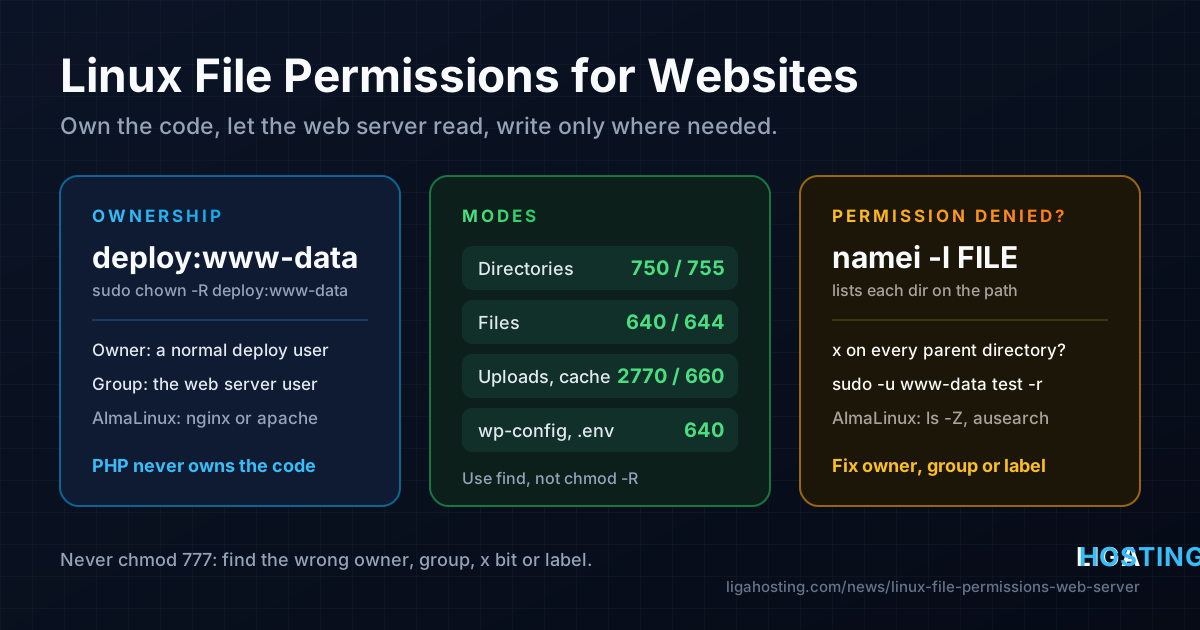
Linux File Permissions for Websites — chown, chmod and the Web Server User
You upload a site to your VPS and get "403 Forbidden". Or the site loads, but WordPress cannot upload an image, Laravel cannot write its log, and somewhere a forum post tells you to run chmod -R 777. It works — and it leaves every file on the site writable by any process on the server.
File permissions are one of those things that look confusing until you see the three or four rules behind them. This guide explains how Linux permissions work, which user your web server really runs as, a safe layout you can copy for a typical PHP site, how SELinux changes the picture on AlmaLinux, and how to find the exact cause of a "Permission denied" in a minute.
How Linux permissions work in two minutes
Every file and directory has an owner (a user), a group, and three sets of permissions: for the owner, for members of the group, and for everyone else ("other"). Look at them with ls -l:
$ ls -l /var/www/example.com/public
-rw-r----- 1 deploy www-data  3210 Nov 10 09:12 index.php
drwxr-x--- 5 deploy www-data  4096 Nov 10 09:12 assets
The first character is the type (- file, d directory). Then come three groups of rwx: owner, group, other. In the example, deploy can read and write index.php, members of www-data can only read it, and everyone else gets nothing.
The letters mean slightly different things for files and directories, and this is where most confusion comes from:
| Bit | Number | On a file | On a directory |
|---|---|---|---|
r | 4 | Read the content | List the names inside |
w | 2 | Change the content | Create, delete and rename entries inside |
x | 1 | Run it as a program | Enter it and reach files inside (traverse) |
The numeric form adds the values for each group: 7 = rwx, 6 = rw-, 5 = r-x, 4 = r--, 0 = nothing. So 644 means owner rw, group r, other r, and 750 means owner rwx, group r-x, other nothing.
Two consequences matter for websites:
- To read
/var/www/example.com/public/index.php, a process needsxon every directory in the path andron the file itself. One directory withoutxbreaks everything below it. - Deleting a file depends on
won the directory, not on the file. A read-only file inside a writable directory can still be deleted and replaced.
Find out which user your web server and PHP run as
Permissions only make sense once you know who is reading the files. On a typical VPS there are two processes involved: the web server (Nginx or Apache) serves static files, and PHP-FPM runs your PHP code. They may run as different users.
# Which users do the worker processes run as?
ps -eo user,comm | grep -E 'nginx|apache2|httpd|php-fpm' | sort | uniq -c

# Ubuntu / Debian: PHP-FPM pool user (the version number may differ)
grep -E '^(user|group|listen\.owner|listen\.group)' /etc/php/*/fpm/pool.d/www.conf

# AlmaLinux: PHP-FPM pool user
grep -E '^(user|group)' /etc/php-fpm.d/www.conf
The usual defaults:
| Distribution | Nginx workers | Apache workers | PHP-FPM default pool |
|---|---|---|---|
| Ubuntu, Debian | www-data | www-data | www-data |
| AlmaLinux, Rocky | nginx | apache | apache (change to nginx if you use Nginx) |
The master process of Nginx and Apache runs as root, which is normal: it only opens ports and starts the workers. The workers are the ones that touch your files, so they are the ones that need access.
A safe layout for a typical PHP site
The idea is simple: a normal user owns the code, the web server can only read it, and it can write only where the application really needs to. If someone finds a hole in a plugin, the PHP process cannot overwrite your code, and you do not have to work as root to deploy.
Create a deployment user (if you do not have one already) and the site directory. The commands are for Ubuntu and Debian; on AlmaLinux replace www-data with nginx or apache.
# A user that owns and deploys the code (log in as this user with an SSH key)
sudo adduser deploy

# The site directory: owned by deploy, group = web server group
sudo mkdir -p /var/www/example.com/public
sudo chown -R deploy:www-data /var/www/example.com

# Directories: owner full access, group may enter and list, others nothing
sudo find /var/www/example.com -type d -exec chmod 750 {} +

# Files: owner read/write, group read, others nothing
sudo find /var/www/example.com -type f -exec chmod 640 {} +
Why find instead of chmod -R 750? Because -R applies the same mode to files and directories. Directories need x to be entered, but regular files should not be executable. Using find -type d and find -type f gives each the right mode.
750/640 or 755/644? Both are fine. 755/644 lets every local user read the files, which is harmless when you are the only user on the VPS. 750/640 is stricter and better when several people or sites share the server; then every process that needs the files (Nginx, PHP-FPM, backup scripts) must be in the group or run as the owner.
Check the result as the web server user itself, not as root — root ignores normal permissions and will always succeed:
sudo -u www-data test -r /var/www/example.com/public/index.php && echo "readable"
sudo -u www-data ls /var/www/example.com/public >/dev/null && echo "listable"
Writable directories only where they are needed
Most applications need to write in a few places: uploaded files, cache, sessions, logs. Give the web server group write access only to those directories, never to the whole site.
# WordPress: media uploads (and the cache folder if a caching plugin uses it)
sudo find /var/www/example.com/public/wp-content/uploads -type d -exec chmod 2770 {} +
sudo find /var/www/example.com/public/wp-content/uploads -type f -exec chmod 660 {} +

# Laravel: storage and bootstrap/cache
cd /var/www/example.com
sudo chmod -R g+w storage bootstrap/cache
sudo find storage bootstrap/cache -type d -exec chmod g+s {} +
The leading 2 in 2770 (or g+s) is the setgid bit on a directory. New files and folders created inside inherit the directory's group (www-data) instead of the creator's primary group. Without it, a file or folder you create over SSH gets the group deploy, and with a 750/640 layout the web server can no longer read it.
Files that PHP creates in these directories are owned by www-data. To let your deployment user read them and add or remove files there too, add it to the group and log in again:
sudo usermod -aG www-data deploy
# log out and back in, then confirm:
id deploy
Should WordPress update itself? With this layout, the WordPress core and plugin directories are not writable by PHP, so one-click updates from the dashboard will ask for FTP credentials. That is the safer option: run updates with WP-CLI as the owner (sudo -u deploy wp plugin update --all). If you prefer dashboard updates, you must make wp-content writable by the PHP user, and you accept that a compromised plugin can modify other plugins. Our guide on cleaning a hacked WordPress site shows what that looks like in practice.
Protect the files that hold secrets
Configuration files with database passwords and API keys deserve tighter permissions than the rest of the code. The web server process needs to read them, but nobody else should:
# WordPress
sudo chown deploy:www-data /var/www/example.com/public/wp-config.php
sudo chmod 640 /var/www/example.com/public/wp-config.php

# Laravel, Node.js and other apps with a .env file
sudo chown deploy:www-data /var/www/example.com/.env
sudo chmod 640 /var/www/example.com/.env
Two more rules help a lot:
- Keep secrets outside the public web root when the framework allows it. Laravel's
.envsits one level abovepublic/, and the Nginxrootshould point topublic/, not to the project folder. See our Laravel deployment guide for the full Nginx block. - Block hidden files in the web server, so a forgotten
.env,.gitfolder or backup cannot be downloaded even if it ends up in the public directory:
# Nginx, inside the server { } block
location ~ /\.(?!well-known) {
    deny all;
}
The (?!well-known) part keeps /.well-known/ reachable, which Let's Encrypt needs for HTTP validation.
Why chmod 777 is never the fix
777 means "everyone can read, write and execute". On a website it means:
- any process on the server — including a compromised plugin or a script running under another site's user — can change your code;
- an attacker who manages to upload one PHP file can rewrite every other file and plant a backdoor that survives plugin updates;
- it spreads: the same habit applied to a home directory or
~/.sshmakes the SSH server refuse key logins, and security scanners flag it immediately.
Every time 777 "fixes" something, the real problem was one of these: the wrong owner, the wrong group, a missing x on a parent directory, or SELinux. The next two sections show how to find which one.
To find world-writable files and directories that already exist on your site:
sudo find /var/www -perm -0002 -not -type l -lsAnything listed should be fixed with the find ... chmod commands from the layout section.
AlmaLinux: SELinux is a second permission layer
On AlmaLinux, Rocky and other RHEL-based systems, SELinux is enabled by default. It works on top of normal permissions: even if ls -l looks perfect, the web server is denied access to files that do not have the right SELinux label. This is the most common reason for a 403 that "makes no sense" on AlmaLinux.
# Is SELinux enforcing?
getenforce

# Show the SELinux labels next to the files
ls -Z /var/www/example.com/public
Files under /var/www get the httpd_sys_content_t label (readable by Nginx and Apache) automatically. Problems start when you create the site somewhere else, such as /srv/www or a home directory, or when you mv files instead of copying them — moved files keep their old label.
# Tool for permanent rules
sudo dnf install -y policycoreutils-python-utils

# Read-only content for the whole site
sudo semanage fcontext -a -t httpd_sys_content_t "/srv/www/example.com(/.*)?"

# Writable directory for uploads
sudo semanage fcontext -a -t httpd_sys_rw_content_t "/srv/www/example.com/public/wp-content/uploads(/.*)?"

# Apply the rules to existing files
sudo restorecon -Rv /srv/www/example.com
Use semanage fcontext plus restorecon, not chcon: labels set with chcon are lost the next time the file system is relabeled. To see what SELinux blocked, check the audit log:
sudo ausearch -m avc -ts recentSome denials are not about files at all. If Nginx proxies to a backend (Node.js, a Docker container) and you get "502 Bad Gateway" with a "permission denied while connecting to upstream" line in the error log, allow outgoing connections with sudo setsebool -P httpd_can_network_connect 1. Disabling SELinux completely is not the fix — label the files correctly instead.
Diagnose "Permission denied" step by step
When something cannot be read or written, start with the error log. It tells you the exact path and which process failed:
# Nginx
sudo tail -n 20 /var/log/nginx/error.log
# typical line: open() "/var/www/example.com/public/index.php" failed (13: Permission denied)

# PHP-FPM (Ubuntu/Debian path; on AlmaLinux: /var/log/php-fpm/www-error.log)
sudo tail -n 20 /var/log/php*-fpm.log
Then check every directory in the path at once with namei, which is part of util-linux and installed on Ubuntu, Debian and AlmaLinux:
namei -l /var/www/example.com/public/index.phpf: /var/www/example.com/public/index.php
drwxr-xr-x root root /
drwxr-xr-x root root var
drwxr-xr-x root root www
drwxr-x--- deploy deploy example.com
drwxr-x--- deploy www-data public
-rw-r----- deploy www-data index.phpHere the problem is visible immediately: example.com belongs to group deploy with no access for others, so www-data cannot enter it, even though public and index.php are correct. Fix the group on that directory (sudo chgrp www-data /var/www/example.com) and test again with sudo -u www-data test -r ....
A quick checklist when the log shows error 13:
- Does the web server user have
xon every parent directory? (namei -l) - Is the file owned by the right user or group, and does that group have
r(orwfor writes)? - Is the site in a home directory? On recent Ubuntu and Debian releases, home directories are not readable by other users by default, so the web server cannot enter them. Move the site to
/var/wwwinstead of opening up the home directory. - On AlmaLinux: does
ls -Zshowhttpd_sys_content_t(orhttpd_sys_rw_content_tfor writable folders)? Doesausearch -m avcshow a denial? - Did you add a user to a group? Group changes apply only to new logins and to services after a restart (
sudo systemctl restart php8.3-fpm, version adjusted).
Frequently Asked Questions
Should my website files be owned by www-data?
Not the code. If the PHP user owns the files, any vulnerability in your application can modify them. Let a normal user own the code, give the web server group read access, and make only upload, cache and log directories writable by the web server.
What are the correct permissions for WordPress?
Directories 755 (or 750), files 644 (or 640), wp-config.php 640 or 600, and wp-content/uploads writable by the web server group. Run core and plugin updates with WP-CLI as the owning user.
Why do I get 403 Forbidden even though permissions look correct?
Check every parent directory with namei -l — one missing x blocks everything below it. On AlmaLinux, check the SELinux label with ls -Z. Also make sure the directory has an index file, because Nginx returns 403 for a directory without one when listing is disabled.
Is it safe to run chown -R on the whole site?
Yes, as long as the path is exactly right and you know which directories must stay writable. Double-check the path before pressing Enter, never run it on / or /var, and reapply the writable-directory permissions afterwards.
Does shared hosting need any of this?
Much less. On shared hosting with cPanel, the panel runs your site under your own account and sets ownership for you; you only need standard modes like 755 for directories and 644 for files. On a VPS you are the administrator, so the layout is your choice.
At Liga Hosting, our Standard VPS and Performance VPS plans run on KVM with NVMe storage and full root access, so you decide who owns what on your server. If you would rather not manage a server at all, cPanel web hosting handles file ownership for you.