
Deploy a Laravel App on a VPS — Nginx, PHP-FPM, Queues and Scheduler
Your Laravel app runs perfectly with php artisan serve on your laptop. On a fresh VPS, the same code shows a blank 500 page, "Permission denied" in the log, e-mails that are never sent because no queue worker runs, and scheduled tasks that never fire.
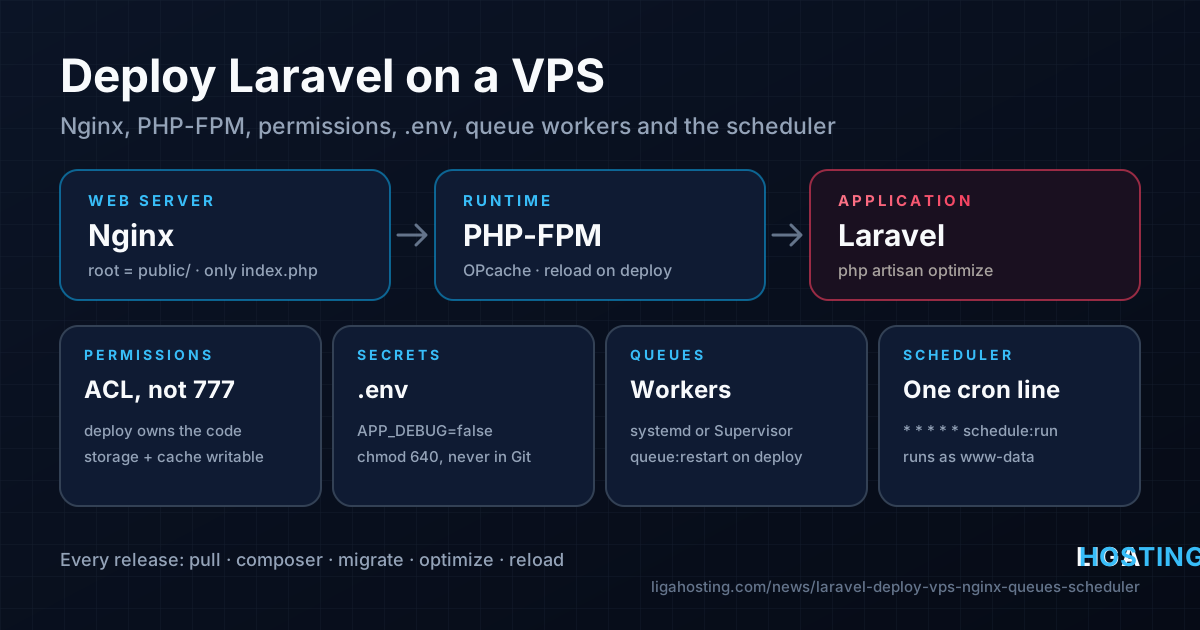
A production Laravel setup is five things: PHP-FPM and Nginx serving the public/ folder, correct permissions on two directories, a production .env, queue workers kept alive by a process manager, and one cron line for the scheduler. This guide sets up each of them on Ubuntu 24.04 or Debian, with notes for AlmaLinux, and shows how to verify every step.
What you need before you start
- A VPS with root access running Ubuntu 24.04, Debian 12/13 or AlmaLinux 9/10. A small Laravel app with a database and one or two workers runs comfortably with 2 vCPU and 4 GB RAM.
- A domain with an A record pointing to the server, for example
example.com→203.0.113.10. - Your code in a Git repository the server can pull from (a read-only deploy key is ideal).
- The PHP version your app requires: see
"php"underrequireincomposer.json.
Step 1 — Install PHP-FPM, Nginx, Composer and a database
On Ubuntu and Debian, the unversioned php-* packages install the distribution's default PHP (8.3 on Ubuntu 24.04, 8.2 on Debian 12, 8.4 on Debian 13):
sudo apt update
sudo apt install -y nginx mariadb-server git unzip acl composer \
  php-fpm php-cli php-mysql php-mbstring php-xml php-curl php-zip \
  php-bcmath php-intl php-gd php-redis

php -v                 # confirm the version matches composer.json
ls /run/php/           # note the socket name, e.g. php8.3-fpm.sock
systemctl status php8.3-fpm --no-pager
On AlmaLinux, install the same set with dnf (on AlmaLinux 9 pick a newer stream first with sudo dnf module enable php:8.3):
sudo dnf install -y nginx mariadb-server git unzip acl \
  php-fpm php-cli php-mysqlnd php-mbstring php-xml php-pdo php-zip \
  php-bcmath php-intl php-gd php-process policycoreutils-python-utils
sudo systemctl enable --now nginx php-fpm mariadb
AlmaLinux has no Composer package in the base repositories; install it with the official instructions from getcomposer.org. Also note that on AlmaLinux the web server user is nginx (not www-data), the PHP-FPM socket is /run/php-fpm/www.sock, and you must set user = nginx and group = nginx in /etc/php-fpm.d/www.conf. Use nginx wherever this guide says www-data.
Create a database and a user for the app:
sudo mariadb -e "CREATE DATABASE laravel CHARACTER SET utf8mb4 COLLATE utf8mb4_unicode_ci;
CREATE USER 'laravel'@'localhost' IDENTIFIED BY 'use-a-long-random-password';
GRANT ALL PRIVILEGES ON laravel.* TO 'laravel'@'localhost';"
Step 2 — A deploy user and the right permissions
The most common Laravel deployment mistake is chmod -R 777. It "fixes" the error by letting every process on the server rewrite your code. Instead, split ownership:
- A normal user, deploy, owns the code. It runs
gitandcomposer. - PHP-FPM runs as www-data and can only read the code.
- Only
storage/andbootstrap/cache/are writable by both users.
sudo adduser --disabled-password --gecos "" deploy
sudo mkdir -p /var/www/example.com
sudo chown deploy:www-data /var/www/example.com

sudo -iu deploy
git clone git@github.com:you/your-app.git /var/www/example.com
cd /var/www/example.com
composer install --no-dev --optimize-autoloader --no-interaction
exit
Now give both users write access to the two runtime directories with ACLs. The second command sets default ACLs, so files created later — by PHP, by a queue worker or by you — inherit the same rights. This is what prevents the classic "laravel.log: Permission denied" after the first deploy:
cd /var/www/example.com
sudo setfacl -R  -m u:www-data:rwX -m u:deploy:rwX storage bootstrap/cache
sudo setfacl -dR -m u:www-data:rwX -m u:deploy:rwX storage bootstrap/cache

# verify
getfacl storage | grep -E 'www-data|deploy'
sudo -u www-data touch storage/logs/test && sudo -u www-data rm storage/logs/test && echo writable
On AlmaLinux with SELinux enforcing, also label the writable directories, otherwise PHP gets "Permission denied" even with correct ACLs:
sudo semanage fcontext -a -t httpd_sys_rw_content_t "/var/www/example.com/(storage|bootstrap/cache)(/.*)?"
sudo restorecon -Rv /var/www/example.com
Step 3 — A production .env
The .env file holds your secrets and is never committed to Git. Create it from the example and edit it as the deploy user:
cd /var/www/example.com
cp .env.example .env
php artisan key:generate
nano .env
The values that matter most in production:
APP_ENV=production
APP_DEBUG=false
APP_URL=https://example.com

LOG_CHANNEL=daily
LOG_LEVEL=warning

DB_CONNECTION=mysql
DB_HOST=127.0.0.1
DB_DATABASE=laravel
DB_USERNAME=laravel
DB_PASSWORD=use-a-long-random-password

QUEUE_CONNECTION=database
CACHE_STORE=database
SESSION_DRIVER=database- APP_DEBUG=false is not optional. With debug on, any error page shows your environment, including database passwords.
- APP_KEY encrypts sessions and cookies. Generate it once and keep it; changing it logs everybody out and makes encrypted data unreadable.
Lock the file down so only the owner and PHP can read it, then run the first migration and build the caches:
chmod 640 .env
sudo chgrp www-data .env    # run this one from your admin account

php artisan migrate --force
php artisan storage:link
php artisan optimize        # caches config, routes, views and events
Remember that after php artisan optimize (or config:cache) Laravel no longer reads .env on each request. Every change to .env needs php artisan optimize again, and any env() call outside the config/ files returns null.
Step 4 — Nginx server block for Laravel
Nginx must use the public/ directory as the document root — never the project root, or your .env becomes downloadable. Create /etc/nginx/sites-available/example.com (on AlmaLinux: /etc/nginx/conf.d/example.com.conf), based on the configuration in the Laravel deployment documentation:
server {
    listen 80;
    listen [::]:80;
    server_name example.com www.example.com;
    root /var/www/example.com/public;

    add_header X-Frame-Options "SAMEORIGIN";
    add_header X-Content-Type-Options "nosniff";

    index index.php;
    charset utf-8;
    client_max_body_size 20m;

    location / {
        try_files $uri $uri/ /index.php?$query_string;
    }

    error_page 404 /index.php;

    location ~ ^/index\.php(/|$) {
        fastcgi_pass unix:/run/php/php8.3-fpm.sock;   # AlmaLinux: unix:/run/php-fpm/www.sock
        fastcgi_param SCRIPT_FILENAME $realpath_root$fastcgi_script_name;
        include fastcgi_params;
        fastcgi_hide_header X-Powered-By;
    }

    location ~ /\.(?!well-known).* {
        deny all;
    }
}
sudo ln -s /etc/nginx/sites-available/example.com /etc/nginx/sites-enabled/
sudo nginx -t && sudo systemctl reload nginx
curl -I http://example.com/ # expect 200 or 302
curl -I http://example.com/.env # expect 403Only index.php is passed to PHP, so an uploaded shell.php in public/ is never executed. Next, add HTTPS — the steps are in Free HTTPS on a VPS with Let's Encrypt; certbot --nginx -d example.com -d www.example.com edits this server block for you.
Step 5 — OPcache and PHP-FPM settings worth changing
OPcache keeps compiled PHP in memory and is the single biggest speed-up for Laravel. Create /etc/php/8.3/fpm/conf.d/99-laravel.ini (AlmaLinux: /etc/php.d/99-laravel.ini):
opcache.enable=1
opcache.memory_consumption=192
opcache.max_accelerated_files=20000
opcache.validate_timestamps=0
upload_max_filesize=20M
post_max_size=20M
With validate_timestamps=0, new code is only picked up after you reload PHP-FPM — the deploy script below does that. Apply with sudo systemctl reload php8.3-fpm. To size the worker pool (pm.max_children) to your RAM, see PHP-FPM Tuning for a Small VPS.
Step 6 — Queue workers that stay running
php artisan queue:work is a long-running process. Started in an SSH session, it dies when you log out, and if it crashes nobody restarts it. You need a process manager, and every modern distribution already has one: systemd. Create a template unit /etc/systemd/system/laravel-worker@.service:
[Unit]
Description=Laravel queue worker %i (example.com)
After=network.target mariadb.service

[Service]
User=www-data
Group=www-data
WorkingDirectory=/var/www/example.com
ExecStart=/usr/bin/php artisan queue:work --sleep=3 --tries=3 --max-time=3600
Restart=always
RestartSec=5
TimeoutStopSec=300

[Install]
WantedBy=multi-user.target
sudo systemctl daemon-reload
sudo systemctl enable --now laravel-worker@1 laravel-worker@2 # two workers
systemctl status 'laravel-worker@*' --no-pager
journalctl -u laravel-worker@1 -f # live output of one worker- --max-time=3600 makes each worker exit after an hour; systemd starts a fresh one. This keeps slow memory leaks in check.
- --tries=3 moves a job that fails three times to
failed_jobs; see them withphp artisan queue:failed, retry withphp artisan queue:retry all. - TimeoutStopSec gives the current job time to finish when the worker is stopped.
- Workers keep the old code in memory. After every deploy run
php artisan queue:restart: workers exit after their current job and systemd restarts them with the new code.
Prefer Supervisor? It is what the Laravel documentation uses and works just as well. Install it with sudo apt install supervisor (AlmaLinux: sudo dnf install epel-release && sudo dnf install supervisor, config files go in /etc/supervisord.d/*.ini) and create /etc/supervisor/conf.d/laravel-worker.conf:
[program:laravel-worker]
process_name=%(program_name)s_%(process_num)02d
command=/usr/bin/php /var/www/example.com/artisan queue:work --sleep=3 --tries=3 --max-time=3600
user=www-data
numprocs=2
autostart=true
autorestart=true
stopasgroup=true
killasgroup=true
stopwaitsecs=300
redirect_stderr=true
stdout_logfile=/var/log/laravel-worker.log
sudo supervisorctl reread
sudo supervisorctl update
sudo supervisorctl statusUse one or the other, never both for the same queue.
Step 7 — The scheduler: one cron line
Tasks defined with Schedule::command(...) in routes/console.php (or app/Console/Kernel.php in older apps) only run if something calls schedule:run every minute. Add one line to the crontab of www-data, so files it creates have the same owner as those created by PHP-FPM:
sudo crontab -u www-data -e

# add this line:
* * * * * cd /var/www/example.com && php artisan schedule:run >> /dev/null 2>&1
Verify that Laravel sees your tasks and when they are due next:
sudo -u www-data php /var/www/example.com/artisan schedule:list
journalctl -u cron --since "-10 min"   # AlmaLinux: journalctl -u crond
For tasks that can take longer than a minute, add ->withoutOverlapping() to the schedule definition so two copies never run at the same time.
Step 8 — A repeatable deploy script
Updating by hand means forgetting a step sooner or later. Save this as /home/deploy/deploy.sh and run it as the deploy user for every release:
#!/usr/bin/env bash
set -euo pipefail
cd /var/www/example.com

php artisan down --retry=15 || true
git pull --ff-only
composer install --no-dev --optimize-autoloader --no-interaction
php artisan migrate --force
php artisan optimize
sudo /usr/bin/systemctl reload php8.3-fpm
php artisan queue:restart
php artisan up
echo "Deployed $(git rev-parse --short HEAD)"
To let the deploy user reload PHP-FPM without a password — and nothing else — add a sudoers rule with sudo visudo -f /etc/sudoers.d/deploy:
deploy ALL=(root) NOPASSWD: /usr/bin/systemctl reload php8.3-fpmIf you build front-end assets with Vite, add npm ci && npm run build to the script, or build them in CI.
Troubleshooting the usual errors
| Symptom | Likely cause and fix |
|---|---|
| Blank "500 Server Error" | Read storage/logs/laravel-*.log. Most often a missing APP_KEY, wrong database credentials or a missing PHP extension. |
| "Permission denied" on storage | ACLs from step 2 missing, or a file created by root. Re-run the two setfacl commands; never run artisan as root. |
| 502 Bad Gateway | Wrong socket path in fastcgi_pass, or PHP-FPM stopped. Compare with ls /run/php/ and check /var/log/nginx/error.log. |
| Jobs stay in the queue | No worker running, or workers use another connection. Check systemctl status 'laravel-worker@*' and QUEUE_CONNECTION. |
| "419 Page Expired" on forms | Session cookie problem: wrong APP_URL or SESSION_DOMAIN, or SESSION_SECURE_COOKIE=true without HTTPS. |
When the Laravel log is empty, the error happened before Laravel started: look in journalctl -u php8.3-fpm and /var/log/nginx/error.log.
Frequently Asked Questions
Should I use systemd or Supervisor for Laravel queue workers?
Both restart crashed workers and start them at boot. systemd is already installed and integrates with journalctl; Supervisor is what the Laravel documentation shows and is convenient if you run many worker groups. Pick one and stay consistent.
Why does a change in .env have no effect?
Because the configuration is cached. After editing .env, run php artisan optimize (or config:cache), then php artisan queue:restart so workers load the new values too.
Do I need Redis for queues and cache?
No. The database driver is fine for small and medium apps. Redis becomes worth it when you process many jobs per second, use Horizon, or want cache and sessions out of the database. Install it with sudo apt install redis-server and set QUEUE_CONNECTION=redis.
Will Liga Hosting set up Laravel on my VPS for me?
No. Our VPS plans are unmanaged: you get full root access and administer the operating system and applications yourself. Our support helps with network, hardware, IP addresses, reverse DNS and billing.
At Liga Hosting, our Standard VPS plans start with 2 GB RAM, and the VPS S with 2 vCPU and 4 GB RAM is a comfortable base for a Laravel app with its database and queue workers. If your jobs are CPU-heavy, the Performance VPS line runs on AMD Ryzen 9 9950X. All plans include NVMe storage, DDoS protection and full root access, and can be billed daily while you test your deployment.