
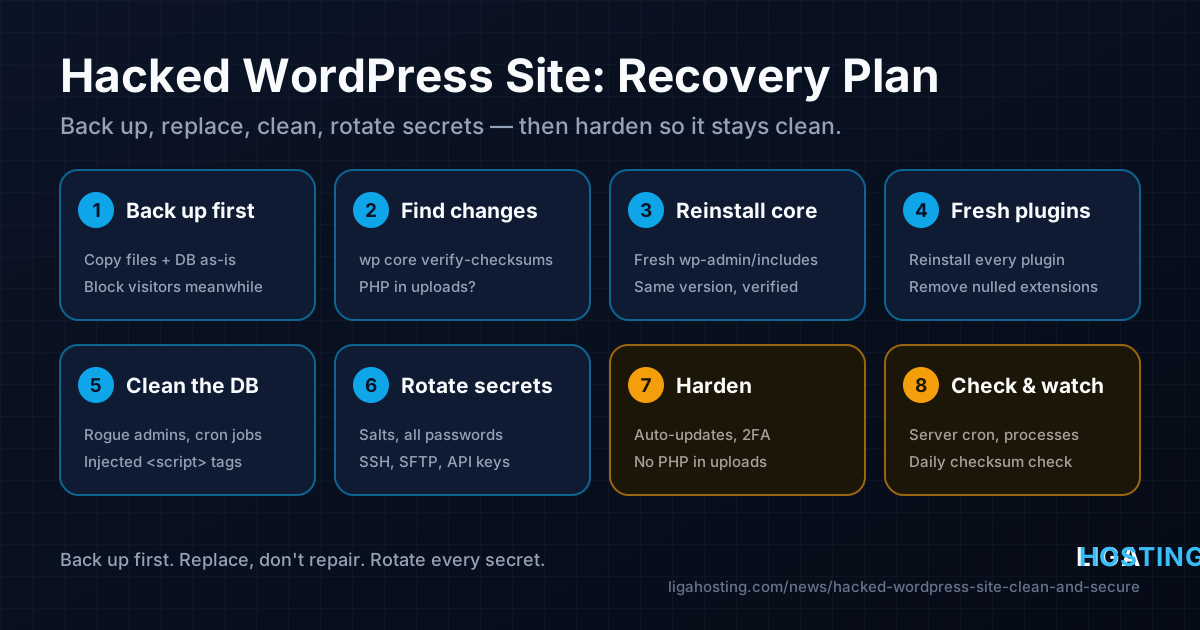
Your WordPress Site Was Hacked — How to Clean It and Keep It Clean
Visitors get redirected to a casino page, Google shows a "This site may be hacked" warning, or your hosting account suddenly sends thousands of emails. Something got into your WordPress site, and the instinct is to start deleting files right away.
Don't. A rushed cleanup usually misses the backdoor, and the site is reinfected a few days later. This guide gives you an order that works: confirm the compromise, preserve evidence, replace everything that can be replaced with clean copies, inspect what cannot be replaced, rotate every secret and then close the hole. The commands use WP-CLI on Ubuntu/Debian, with notes for AlmaLinux and cPanel hosting.
Signs that the site is really compromised
Not every problem is a hack: a broken plugin update can also cause a white screen. These signs, though, point to a compromise:
| Symptom | What it usually means |
|---|---|
| Redirects to spam sites, often only for mobile visitors or visitors coming from Google | Injected JavaScript in posts/options, or PHP code that checks the referrer |
| Unknown administrator accounts | The attacker created a way back in |
PHP files in wp-content/uploads | Uploaded web shell; uploads should only contain media |
| Strange pages in Google results (pharma, replica goods, Japanese text) | SEO spam: generated pages or cloaked content |
| Outgoing mail spikes, high CPU with no traffic | A mailer script or cryptominer running from the site |
Files with recent dates you did not touch, code full of base64_decode or eval | Modified core, plugin or theme files |
Test from a private browser window and from a phone on mobile data. Many infections hide from logged-in administrators on purpose.
Step 1 — Contain the site and take a backup first
Before you change a single file, make a copy of the site as it is now, infection included. You need it to find out how the attacker got in, and to recover content if the cleanup goes wrong. Store it outside the web root so it cannot be executed.
# Adjust the path and the web server user (www-data on Ubuntu/Debian;
# apache or nginx on AlmaLinux; your own account on cPanel)
SITE=/var/www/example.com
WP="sudo -u www-data wp --path=$SITE"

sudo tar -czf ~/hacked-files-$(date +%F).tar.gz -C "$(dirname $SITE)" "$(basename $SITE)"
$WP db export - > ~/hacked-db-$(date +%F).sql
ls -lh ~/hacked-*
If you have older backups, find the last one from before the infection — it is a reference for comparing files and may let you restore the database. Do not simply restore an old backup and stop there: the vulnerability that let the attacker in is still in it. See how to back up a VPS properly for keeping backups off the server in the future.
While you work, keep visitors and search engines away from the infected pages. In Nginx, allow only your own IP at the top of the site's server block (at server level, so PHP requests are covered too):
server {
    allow 203.0.113.10;   # replace with your own public IP
    deny all;
    # ... the rest of the existing configuration
}
Run sudo nginx -t && sudo systemctl reload nginx. On Apache or cPanel, the equivalent is Require ip 203.0.113.10 in the site's .htaccess.
Step 2 — Find what was changed
WordPress publishes checksums for every core file, and for plugins hosted on wordpress.org. WP-CLI compares your files against them:
$WP core verify-checksums
$WP plugin verify-checksums --all
Each "File doesn't verify against checksum" line is a modified file; "File should not exist" is an extra file planted next to core. Then look at the places checksums do not cover:
cd $SITE

# PHP files in uploads — there should be none
sudo find wp-content/uploads -type f \( -name '*.php' -o -name '*.phtml' -o -name '*.phar' \)

# PHP files changed in the last 14 days, newest last
sudo find . -type f -name '*.php' -mtime -14 -printf '%TY-%Tm-%Td %TH:%TM %p\n' | sort

# Typical obfuscation (expect some false positives in legitimate plugins)
sudo grep -rlE 'eval\(|base64_decode\(|gzinflate\(|str_rot13\(|assert\(\$_' --include='*.php' wp-content | head -50

# Code loaded before every request
sudo grep -rn 'auto_prepend_file' . 2>/dev/null
ls -la wp-content/mu-plugins 2>/dev/null
Also open wp-config.php, .htaccess, .user.ini and the root index.php and read them. A clean index.php is about 20 lines; an include of an odd path at the top of wp-config.php, or a rewrite rule sending visitors elsewhere in .htaccess, is a classic hiding place. Write down the dates of the oldest modified files: compare them with the web server access log for that time to find the entry point (a POST to a vulnerable plugin, a login, an upload).
Step 3 — Replace core, plugins and themes with clean copies
Do not try to "fix" infected files line by line. Everything that can be downloaded again should be replaced entirely.
WordPress core. Delete wp-admin and wp-includes (so planted extra files go too), then download the same version fresh. Your content, wp-config.php and wp-content are not touched:
cd $SITE
VER=$($WP core version)
sudo rm -rf wp-admin wp-includes
$WP core download --version="$VER" --skip-content --force
$WP core verify-checksums
Remove any remaining file in the root that "should not exist" after reviewing it. The site directory must be writable by the user that runs wp; on a server where root owns the files, run the commands as root with --allow-root.
Plugins. Save the list, move the old folder out of the web root and install fresh copies. Activation state lives in the database, so plugins come back active:
$WP plugin list --fields=name,version,status --format=csv > ~/plugins-before.csv
sudo mv wp-content/plugins ~/plugins.hacked
sudo -u www-data mkdir wp-content/plugins
for p in $(tail -n +2 ~/plugins-before.csv | cut -d, -f1); do $WP plugin install "$p"; done
$WP plugin list
Plugins that are not on wordpress.org (premium plugins) fail in this loop: download them again from the vendor's site and install the zip with $WP plugin install /path/to/plugin.zip. Never reuse a copy from the hacked folder, and remove "nulled" (pirated) plugins and themes completely — they are one of the most common sources of backdoors.
Themes. Do the same: reinstall wordpress.org themes with $WP theme install <name> --force, get commercial themes from the vendor, and delete themes you do not use. If you edited a theme yourself, compare your files with the version in your pre-infection backup or in Git before putting them back.
Uploads. This folder cannot be downloaded again, so inspect it: delete every PHP file found in step 2 and anything else that is not media. Also check the drop-ins wp-content/advanced-cache.php, object-cache.php and db.php: without a caching plugin that created them, they should not exist.
Step 4 — Clean the database
Many infections live only in the database, so clean files alone are not enough.
# Administrators: delete anyone you do not recognise (reassign their posts)
$WP user list --role=administrator --fields=ID,user_login,user_email,user_registered
$WP user delete 42 --reassign=1

# Site URLs should be yours
$WP option get siteurl
$WP option get home

# Injected scripts in posts and options
P=$($WP db prefix)
$WP db query "SELECT ID, post_title FROM ${P}posts WHERE post_content LIKE '%<script%' OR post_content LIKE '%eval(%'"
$WP db query "SELECT option_name FROM ${P}options WHERE option_value LIKE '%<script%' OR option_value LIKE '%base64_decode%'"

# Scheduled tasks with odd hook names
$WP cron event list
Some legitimate posts contain scripts (embeds, analytics), so look at each result before editing it. For unknown cron hooks, $WP cron event delete <hook> removes them. If the infection is everywhere and you have a clean database backup from before it started, restoring that and re-entering the newer content can be faster.
Step 5 — Change every password and secret
Assume the attacker read wp-config.php and everything in it. Rotate in this order:
- WordPress salts — logs out every session, including the attacker's:
$WP config shuffle-salts - All administrator and editor passwords —
$WP user reset-password $($WP user list --role=administrator --field=user_login)sends each of them a reset link. - Database password — change it in MySQL/MariaDB, then in
wp-config.php:sudo mysql -e "ALTER USER 'wpuser'@'localhost' IDENTIFIED BY 'New-Long-Random-Password';" $WP config set DB_PASSWORD 'New-Long-Random-Password' - SFTP, SSH and hosting control panel passwords, and any SSH keys you are not sure about.
- API keys stored in plugins or
wp-config.php: SMTP, payment gateways, CDN, backups to cloud storage.
Step 6 — Check the server itself
On shared hosting, the account is isolated and the provider maintains the server. On a VPS you are the administrator, so check that the attack did not go beyond the site. The web server user should not be able to do much, but verify:
# Cron jobs for every user, including www-data
for u in $(cut -d: -f1 /etc/passwd); do sudo crontab -l -u "$u" 2>/dev/null | sed "s/^/$u: /"; done
ls -la /etc/cron.d /etc/cron.daily

# Processes using CPU, and unexpected outgoing connections
ps aux --sort=-%cpu | head -15
sudo ss -tnp state established

# Accounts with a shell, and authorised SSH keys
grep -vE 'nologin|false' /etc/passwd
sudo cat /root/.ssh/authorized_keys

# Files in temporary directories owned by the web user
sudo find /tmp /var/tmp /dev/shm -user www-data -type f 2>/dev/null
If you find a process running as root you cannot explain, a new user with sudo rights, or an unknown key in /root/.ssh/authorized_keys, the server itself is compromised. Do not try to clean that: reinstall the operating system, apply the basic security setup (SSH keys, firewall, updates), and move over only the cleaned site files and database.
Step 7 — Harden the site so it stays clean
Most WordPress hacks come from an outdated plugin or theme, a weak or reused password, or a nulled extension. Close those doors:
- Update everything and keep it updated. Core minor releases update automatically; turn on plugin updates too:
$WP plugin auto-updates enable --all. Remove plugins you do not use — deactivated code can still be exploited. - Disable the built-in file editor, so a stolen admin password does not mean PHP code execution:
$WP config set DISALLOW_FILE_EDIT true --raw - Block PHP execution in uploads. Nginx, inside the site's
serverblock:
Apache or cPanel — alocation ~* ^/wp-content/uploads/.*\.(php|phtml|phar)$ { deny all; }.htaccessfile insidewp-content/uploads:<FilesMatch "\.(php|phtml|phar)$"> Require all denied </FilesMatch> - Sane permissions. Directories
755, files644,wp-config.php640(its owner or group must be the web server user):sudo find $SITE -type d -exec chmod 755 {} + sudo find $SITE -type f -exec chmod 644 {} + sudo chmod 640 $SITE/wp-config.php - Protect the login. Unique passwords, two-factor authentication for every administrator, and rate limiting of
wp-login.phpandxmlrpc.php. fail2ban with a WordPress jail handles the last part on a VPS. - Automatic off-site backups of both files and database, kept for several weeks, so the next time you have a clean point to compare against.
The official WordPress hardening guide covers further options.
After the cleanup — monitoring and search engines
Remove the IP restriction from step 1 and test the site again from a private window and a phone. For the next weeks, re-run $WP core verify-checksums, $WP plugin verify-checksums --all and the uploads find regularly — a daily cron job that emails you the output is enough. Any new result means something was missed.
If Google flagged the site, open the Security issues report in Google Search Console, confirm the listed URLs are clean and request a review. Check whether your domain or IP ended up on email blocklists if the site sent spam.
Frequently Asked Questions
Can a security plugin clean the hack for me?
Scanners are useful for finding suspicious files, but a plugin runs inside the infected WordPress and can be fooled or disabled by the malware. Use one as a second opinion; replacing core and plugins with clean copies and checking the database is what actually removes the infection.
Is restoring yesterday's backup enough?
Only if the backup is from before the infection — which is often weeks earlier than the symptoms — and only if you then update or remove the vulnerable plugin and rotate the passwords. Otherwise the same hole is exploited again.
How do I find out how the attacker got in?
Take the dates of the oldest modified files and look at the web server access log around that time: POST requests to plugin files or wp-login.php, uploads, or a successful login from an unknown IP. Then check which installed plugin versions have publicly known vulnerabilities.
The site keeps getting reinfected. What did I miss?
Usually one of: a backdoor in mu-plugins, uploads or another site on the same account; an administrator account or cron event left in the database; a password that was not changed; or a compromised server. Another WordPress installation in the same hosting account can reinfect a cleaned one, so clean or remove them all.
Will my hosting provider clean the site?
On an unmanaged VPS, the operating system and the applications are administered by you, so the cleanup is your task or that of a developer you hire. The provider's support helps with network, hardware, IP and billing questions.
At Liga Hosting, our cPanel web hosting is a simple home for WordPress sites, while our Standard VPS and Performance VPS plans give you NVMe storage, DDoS protection and full root access to apply every check and hardening step in this guide yourself. Contact us if you have questions about your network, IPs or billing.