
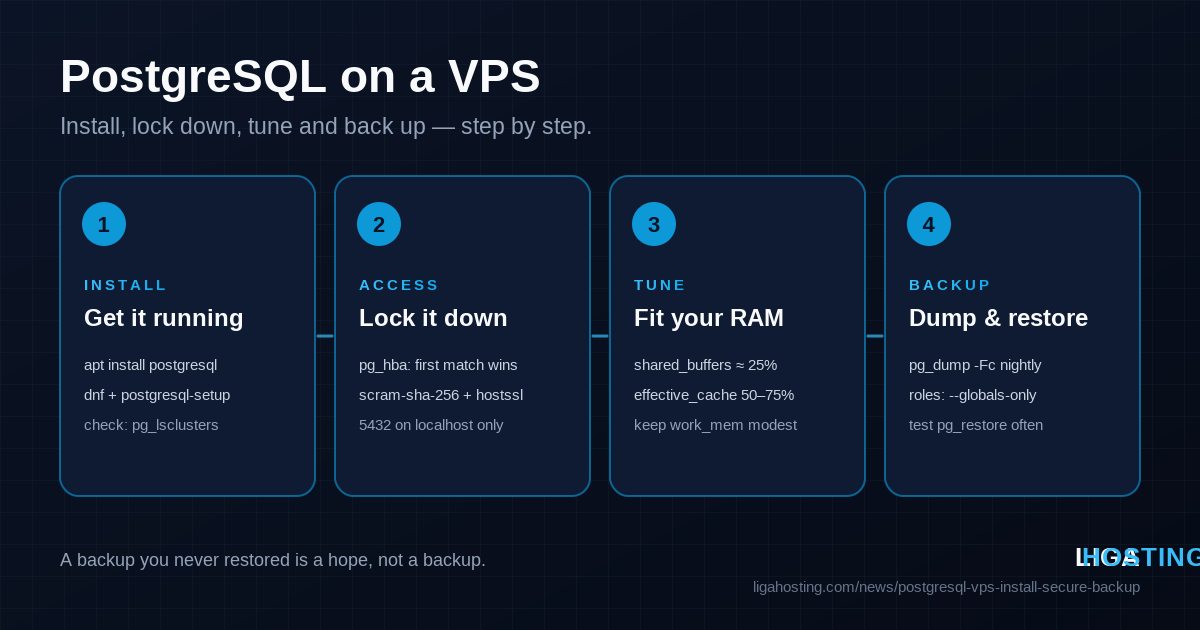
PostgreSQL on a VPS — Install, Secure Access, Tune and Back Up
Many modern applications want PostgreSQL rather than MySQL: Django, Rails, n8n, Mastodon, Odoo and plenty of Laravel and Node.js projects. Installing it takes one command. The parts that cause trouble come later: logins that fail with "peer authentication failed", a database left open to the whole internet, default memory settings that ignore how much RAM you have, and backups that nobody has ever tried to restore.
This guide covers a single PostgreSQL server on a VPS from start to finish: installation on Ubuntu, Debian and AlmaLinux, how authentication actually works, creating an application user, remote access without exposing port 5432 to everyone, sensible memory settings, and nightly backups with a restore test.
Install PostgreSQL
Ubuntu and Debian ship a supported PostgreSQL version in their own repositories. That is the right choice for most servers: security fixes arrive with your normal system updates.
sudo apt update
sudo apt install -y postgresql

# Which version and cluster are running, and where its data lives
pg_lsclusters
sudo systemctl status postgresql --no-pager
On Debian-based systems the server is initialised and started automatically. pg_lsclusters shows the version, the port (5432) and the data directory. The configuration files live in /etc/postgresql/<version>/main/.
AlmaLinux installs the packages but does not create the database cluster for you:
# Optional: see which versions are offered as module streams
dnf module list postgresql

sudo dnf install -y postgresql-server
sudo postgresql-setup --initdb
sudo systemctl enable --now postgresql
Here the data and configuration files are both in /var/lib/pgsql/data/. If you need a newer major version than your distribution provides, the PostgreSQL project maintains its own repositories for both families; the setup steps are on the official download page.
Whatever the distribution, you can always ask the server where its files are instead of guessing:
sudo -u postgres psql -c 'SHOW config_file;' -c 'SHOW hba_file;' -c 'SHOW data_directory;'How PostgreSQL logins work: roles, peer and pg_hba.conf
PostgreSQL has its own accounts called roles. They are separate from Linux users, with one exception: the installation creates a Linux user postgres and a database superuser role with the same name.
Which login method is used is decided by pg_hba.conf ("host-based authentication"). Each line describes a kind of connection, and the first line that matches wins:
# TYPE   DATABASE  USER      ADDRESS         METHOD
local    all       postgres                  peer
local    all       all                       peer
host     all       all       127.0.0.1/32    scram-sha-256
host all all ::1/128 scram-sha-256| Field | Meaning |
|---|---|
local | Connection through the Unix socket (no -h given to psql) |
host / hostssl | TCP connection; hostssl matches only encrypted ones |
peer | Allowed if the Linux user name equals the role name; no password |
scram-sha-256 | Password check using the modern hashing method |
ident | Like peer, but for TCP; the default for TCP on AlmaLinux, and the reason passwords "do not work" there |
This explains the two most common errors:
- "Peer authentication failed for user appuser" — you ran
psql -U appuserover the socket while logged in as a different Linux user. Connect over TCP with-h 127.0.0.1so the password line is used. - "Ident authentication failed" on AlmaLinux — the
hostlines end inident. Change them toscram-sha-256and reload.
After any change to pg_hba.conf, reload and check for mistakes:
sudo systemctl reload postgresql
sudo -u postgres psql -c 'SELECT line_number, type, database, user_name, address, auth_method, error FROM pg_hba_file_rules;'
The error column shows lines PostgreSQL could not parse, before they lock you out.
Create an application user and database
Never let an application connect as postgres. Give each application its own role that owns only its own database:
sudo -u postgres createuser --pwprompt appuser
sudo -u postgres createdb --owner=appuser appdb
--pwprompt asks for the password interactively, so it does not end up in your shell history. To change it later, run sudo -u postgres psql and type \password appuser.
Test the login exactly as the application will make it — over TCP, with a password:
psql -h 127.0.0.1 -U appuser -d appdb -c 'SELECT current_user, version();'The application then uses a connection string like:
postgresql://appuser:YOUR_PASSWORD@127.0.0.1:5432/appdbBecause appuser owns appdb, it can create tables and run migrations there, but it cannot read other databases or create new roles. On PostgreSQL 15 and later, ordinary users can no longer create objects in the public schema of databases they do not own, which is one more reason to make the application role the owner.
Keep PostgreSQL local — and open it safely when you must
By default PostgreSQL listens only on localhost. If the application runs on the same VPS, keep it that way. Check:
sudo ss -ltnp | grep 5432
# 127.0.0.1:5432 = local only (good)   0.0.0.0:5432 = all interfaces
To administer the database from your own computer with a GUI tool such as pgAdmin or DBeaver, you usually do not need to open anything: forward the port over SSH (ssh -L 5432:127.0.0.1:5432 user@203.0.113.10) and connect to localhost on your machine. Our guide to SSH tunnels explains this in detail.
If an application on another server must connect directly, open access in three layers, each limited to that one source address (here 198.51.100.25):
1. Listen on the public interface — in postgresql.conf (this setting needs a restart):
listen_addresses = 'localhost,203.0.113.10'2. Allow only that host, only encrypted, only one database — in pg_hba.conf:
hostssl appdb appuser 198.51.100.25/32 scram-sha-2563. Firewall — allow port 5432 from that address only:
# Ubuntu / Debian with UFW
sudo ufw allow from 198.51.100.25 to any port 5432 proto tcp

# AlmaLinux with firewalld
sudo firewall-cmd --permanent --add-rich-rule='rule family="ipv4" source address="198.51.100.25/32" port port="5432" protocol="tcp" accept'
sudo firewall-cmd --reload

sudo systemctl restart postgresql
hostssl only matches if TLS is enabled. Debian and Ubuntu turn on ssl = on with a self-signed certificate at install time; on AlmaLinux set ssl = on and point ssl_cert_file and ssl_key_file to a certificate readable by the postgres user (the key with mode 600). From the remote server, test with:
psql "host=203.0.113.10 dbname=appdb user=appuser sslmode=require" -c 'SHOW ssl;'Never use host all all 0.0.0.0/0 with a password and call it done. Port 5432 is scanned constantly, and a password is then the only thing between the internet and your data.
Memory settings that fit your VPS
The defaults are deliberately tiny (shared_buffers is 128 MB) so PostgreSQL starts on any machine. A few settings make a real difference:
shared_buffers— PostgreSQL's own cache. About 25% of RAM is the usual starting point.effective_cache_size— not an allocation, only a hint to the query planner about how much the OS file cache can hold. Around 50–75% of RAM.work_mem— memory per sort or hash operation, and a single query can use several. Keep it modest; raising it too far is a common cause of out-of-memory kills.maintenance_work_mem— used byVACUUM, index creation and restores.
Starting points for a VPS that runs PostgreSQL together with a web application (lower them if other services are memory-hungry):
| RAM | shared_buffers | effective_cache_size | work_mem | maintenance_work_mem |
|---|---|---|---|---|
| 2 GB | 512MB | 1GB | 8MB | 128MB |
| 4 GB | 1GB | 2GB | 16MB | 256MB |
| 8 GB | 2GB | 5GB | 16MB | 512MB |
| 16 GB | 4GB | 10GB | 32MB | 1GB |
Apply them with ALTER SYSTEM, which works the same on every distribution and writes to postgresql.auto.conf:
sudo -u postgres psql <<'SQL'
ALTER SYSTEM SET shared_buffers = '1GB';
ALTER SYSTEM SET effective_cache_size = '2GB';
ALTER SYSTEM SET work_mem = '16MB';
ALTER SYSTEM SET maintenance_work_mem = '256MB';
ALTER SYSTEM SET log_min_duration_statement = '500ms';
SQL
sudo systemctl restart postgresql
sudo -u postgres psql -c 'SHOW shared_buffers;'
The last line before the restart logs every query slower than half a second, which is the quickest way to find what to index. Also look at max_connections (default 100): every connection is a separate process with its own memory. If your application opens many connections, use its built-in pool or put PgBouncer in front rather than raising the limit.
Nightly backups with pg_dump
Do not back up a running PostgreSQL by copying its data directory: the copy will usually be inconsistent. Use pg_dump, which produces a consistent snapshot of one database while the application keeps working. The custom format (-Fc) is compressed and lets you restore single tables.
Roles and passwords are not part of a database dump, so save them separately with pg_dumpall --globals-only. Create a backup directory only postgres can read, and a small script:
sudo install -d -o postgres -g postgres -m 700 /var/backups/postgresql
sudo nano /usr/local/bin/pg-backup.sh
#!/bin/sh
# Dump roles and every database, keep 7 days of backups
set -eu
DIR=/var/backups/postgresql
STAMP=$(date +%F_%H%M)
cd "$DIR"
pg_dumpall --globals-only > "globals-$STAMP.sql"
for db in $(psql -At -c "SELECT datname FROM pg_database WHERE datallowconn AND NOT datistemplate"); do
pg_dump -Fc -f "$db-$STAMP.dump" "$db"
done
find "$DIR" -type f -mtime +7 -deletesudo chmod 755 /usr/local/bin/pg-backup.sh
# Run it once by hand and look at the result
sudo -u postgres /usr/local/bin/pg-backup.sh
sudo ls -lh /var/backups/postgresql
# Every night at 02:30 as the postgres user
echo '30 2 * * * postgres /usr/local/bin/pg-backup.sh' | sudo tee /etc/cron.d/pg-backupA copy that stays on the same VPS protects you from a dropped table, not from losing the server. Send the files off the machine as well — our article on the 3-2-1 backup rule shows how. For very large or very busy databases, where losing up to a day of data is not acceptable, look at continuous WAL archiving and point-in-time recovery in the PostgreSQL documentation.
Test a restore before you need it
A backup you have never restored is a hope, not a backup. Restore into a temporary database, look at the data, then remove it:
ls /var/backups/postgresql          # pick the newest appdb-*.dump
sudo -u postgres createdb --owner=appuser appdb_test
sudo -u postgres pg_restore -d appdb_test /var/backups/postgresql/appdb-2026-11-26_0230.dump
sudo -u postgres psql -d appdb_test -c '\dt'
sudo -u postgres psql -d appdb_test -c 'SELECT count(*) FROM your_main_table;'
sudo -u postgres dropdb appdb_test
On a brand-new server, restore globals-*.sql first with sudo -u postgres psql -f globals-….sql so the roles exist, then run pg_restore with --create -d postgres to recreate the database under its original name. Repeat the test every few months and after major upgrades.
Logs and quick health checks
When something is slow or fails, these are the first places to look:
# Log file: Debian/Ubuntu
sudo tail -n 50 /var/log/postgresql/postgresql-*-main.log
# Log files: AlmaLinux
sudo ls /var/lib/pgsql/data/log/

# What is running right now, longest first
sudo -u postgres psql -c "SELECT pid, usename, state, now() - query_start AS runtime, left(query, 60) AS query FROM pg_stat_activity WHERE state <> 'idle' ORDER BY runtime DESC;"

# Database sizes
sudo -u postgres psql -c "SELECT datname, pg_size_pretty(pg_database_size(datname)) FROM pg_database ORDER BY pg_database_size(datname) DESC;"
To stop a runaway query, use SELECT pg_cancel_backend(pid); with the pid from the list above. Connections stuck in idle in transaction for a long time are an application bug: they hold locks and stop VACUUM from cleaning up. Autovacuum is on by default — leave it on.
Frequently Asked Questions
PostgreSQL or MySQL/MariaDB — which should I install?
Install what your application recommends. WordPress and most PHP CMSs expect MySQL or MariaDB; Django, Rails, many Node.js and self-hosted tools prefer PostgreSQL. Both run well on a VPS, and running both on one server is fine if you size the memory settings of each for the share of RAM it actually gets.
How much RAM does PostgreSQL need?
A small database for one application runs comfortably on a 2 GB VPS with the settings above. What matters is how much of your frequently used data fits in memory: if the database grows well beyond RAM and queries slow down, add memory or move to a larger plan.
Is it safe to open port 5432 to the internet?
Not to everyone. Keep PostgreSQL on localhost when the application is on the same server, use an SSH tunnel for administration, and when a remote server must connect, allow only its address in both the firewall and pg_hba.conf, with hostssl and scram-sha-256.
Why do I get "password authentication failed" with the right password?
Usually a different pg_hba.conf line matched first, the role was created without a password, or the password is stored as an old MD5 hash while the line requires scram-sha-256. Check pg_hba_file_rules, reset the password with \password, and read the server log, which names the line that rejected the login.
How do I upgrade to a new major PostgreSQL version?
Minor updates (for example 16.4 to 16.5) arrive with normal package updates. A major upgrade changes the data format: take a fresh backup, then use pg_upgradecluster on Debian and Ubuntu or pg_upgrade elsewhere, or dump and restore into the new version. Test on a copy first.
At Liga Hosting, our Standard VPS plans give PostgreSQL NVMe storage, full root access and DDoS protection from €3.5/month, and the Performance VPS line adds fast Ryzen 9 9950X cores and much more NVMe space for growing databases. The VPS are unmanaged: you run the database, and our support team helps with network, IP and hardware questions.