
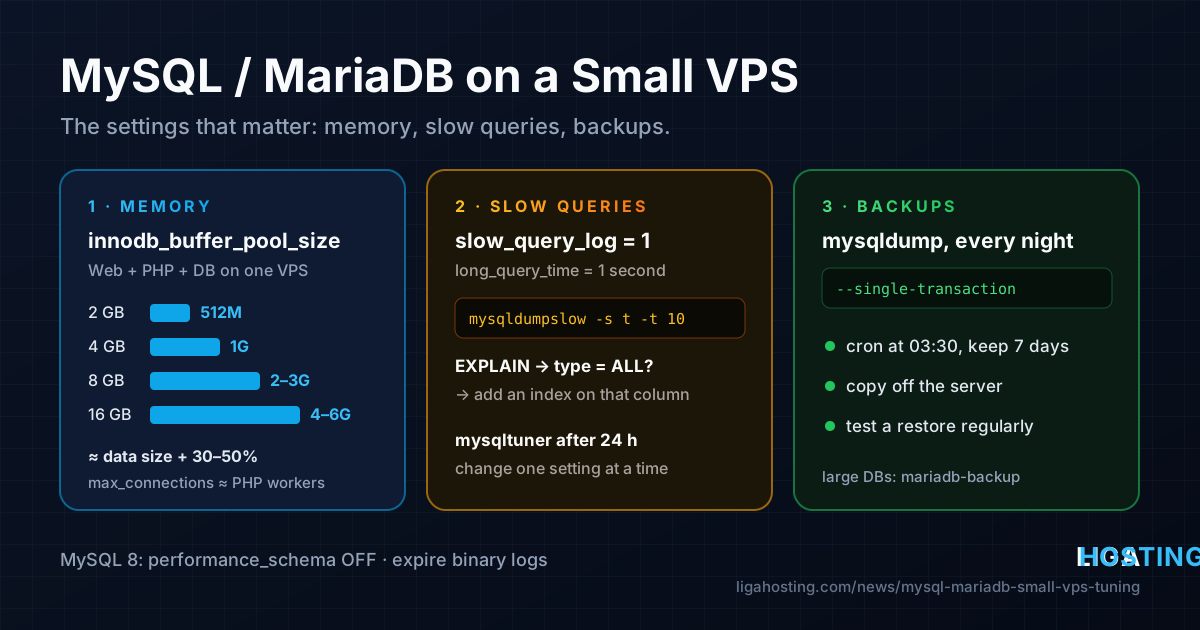
MySQL and MariaDB on a Small VPS — The Settings That Actually Matter
MySQL and MariaDB ship with defaults made to start on almost any machine, not to run well on yours. On a small VPS that also runs Nginx and PHP, that shows up in two ways: either the database barely uses the RAM you pay for and every page hits the disk, or it takes too much and the kernel kills it at 3 a.m.
The good news is that you only need to touch a handful of settings. This guide covers the ones that matter on a 2–8 GB VPS, in the order you should do them: where the config goes, how much memory to give InnoDB, how many connections to allow, how to keep logs from filling the disk, how to find slow queries, how to read mysqltuner, and how to back it all up. Everything applies to both MySQL 8.x and MariaDB 10.11/11.x unless noted.
Step 0 — Know what you are running and where the config lives
First check which server and version you have, and how much memory the VPS has:
mysql --version          # or: mariadb --version
free -h
nproc
df -h /var/lib/mysql
Do not edit the main config file shipped by the package — updates may replace it. Create your own file that is read after the defaults, so your values win:
| System | Create this file | Service name |
|---|---|---|
| MariaDB on Ubuntu / Debian | /etc/mysql/mariadb.conf.d/60-tuning.cnf | mariadb |
| MySQL on Ubuntu / Debian | /etc/mysql/mysql.conf.d/60-tuning.cnf | mysql |
| MariaDB on AlmaLinux | /etc/my.cnf.d/60-tuning.cnf | mariadb |
| MySQL on AlmaLinux | /etc/my.cnf.d/60-tuning.cnf | mysqld |
Every setting below goes under a [mysqld] section in that file. After a change, restart and confirm the server accepted it:
sudo systemctl restart mariadb      # or mysql / mysqld
sudo systemctl status mariadb --no-pager
sudo mysql -e "SHOW VARIABLES LIKE 'innodb_buffer_pool_size';"
If the service does not start, the reason is almost always a typo in your file: check sudo journalctl -u mariadb -n 50.
innodb_buffer_pool_size — the setting that matters most
InnoDB keeps table data and indexes in memory in the buffer pool. When the data a query needs is already there, it is answered from RAM; when it is not, it is read from disk. The default is only 128 MB, which is too little for most real sites and leaves the rest of your RAM unused.
How much to give it depends on what else runs on the VPS. The classic "70–80% of RAM" advice is for a server that runs only the database. On a typical small VPS with Nginx, PHP-FPM and MySQL together, start lower:
| VPS RAM | Web + PHP + database on one VPS | Database-only VPS |
|---|---|---|
| 2 GB | 256M – 512M | 1G |
| 4 GB | 1G | 2560M |
| 8 GB | 2G – 3G | 5G – 6G |
| 16 GB | 4G – 6G | 11G – 12G |
There is also no point in a buffer pool much bigger than your data. Check how large your InnoDB data and indexes are:
sudo mysql -e "SELECT ROUND(SUM(data_length + index_length)/1024/1024) AS innodb_mb
  FROM information_schema.tables WHERE engine = 'InnoDB';"
If the result is 300 MB, a 512M buffer pool already holds all of it with room to grow; giving it 3G only takes memory away from PHP. A good rule: data size plus 30–50%, capped by the table above.
[mysqld]
innodb_buffer_pool_size = 1G
To verify it is working after a day of normal traffic, compare logical reads with reads that had to go to disk:
sudo mysql -e "SHOW GLOBAL STATUS LIKE 'Innodb_buffer_pool_read%';"Innodb_buffer_pool_reads (from disk) should be a tiny fraction — well under 1% — of Innodb_buffer_pool_read_requests. If it is higher and your data is larger than the pool, the pool is too small.
Connections and per-connection memory
The buffer pool is allocated once. Other buffers are allocated per connection, so the number of connections multiplies them. The default max_connections is 151, which a small VPS can rarely serve anyway: 151 simultaneous heavy queries on 2 vCPU will just queue up and consume memory.
A PHP site opens one database connection per PHP-FPM worker, so the useful upper limit is roughly your pm.max_children plus a few for cron jobs and your own sessions (see our guide on PHP-FPM tuning and pm.max_children). Check how many you really use:
sudo mysql -e "SHOW GLOBAL STATUS LIKE 'Max_used_connections';
               SHOW VARIABLES LIKE 'max_connections';"
A sensible starting block for a 2–4 GB VPS:
[mysqld]
max_connections      = 60
tmp_table_size       = 32M
max_heap_table_size  = 32M
# keep per-thread buffers at their defaults unless you have measured a reason
# sort_buffer_size, join_buffer_size, read_buffer_size
tmp_table_size and max_heap_table_size limit how big an in-memory temporary table can grow before it is moved to disk; the smaller of the two applies, so set them together. Do not raise sort_buffer_size or join_buffer_size "for speed" — they are allocated per query, and large values are a common reason a small server runs out of memory under load.
Rough worst case for memory: buffer pool + (max_connections × a few MB) + about 200–300 MB of server overhead. If that number plus PHP and the web server is above your RAM, lower something. If the database has already been killed, read why your VPS runs out of memory and add a small swap file as a safety net.
MySQL 8: performance_schema and binary logs on a small disk
Two MySQL 8 defaults hurt small servers specifically. MariaDB has both off by default, so on MariaDB you can skip this section.
performance_schema collects detailed internal statistics. It is useful, but on MySQL 8 it can reserve a couple of hundred MB of RAM. On a 2 GB VPS that memory is better spent on the buffer pool:
[mysqld]
performance_schema = OFF
Binary logs record every change and are needed for replication and point-in-time recovery. MySQL 8 enables them by default and keeps them for 30 days. On a busy site with a 10–20 GB disk, they can quietly fill the disk and stop the database. Check how much space they use:
sudo mysql -e "SHOW BINARY LOGS;"
sudo du -sh /var/lib/mysql/binlog.* 2>/dev/null | tail -1
If you do not use replication, either turn them off or keep only a few days:
[mysqld]
# option A: no binary log at all
disable_log_bin
# option B: keep them, but only for 3 days
# binlog_expire_logs_seconds = 259200
To free space right away without a restart, use PURGE BINARY LOGS BEFORE NOW() - INTERVAL 3 DAY;. Never delete binlog files with rm — the server keeps an index of them and will complain.
Turn on the slow query log
Tuning settings helps, but most database load on a website comes from a few bad queries: a missing index, a plugin scanning a huge table, a report running on every page view. The slow query log shows you exactly which ones.
[mysqld]
slow_query_log      = 1
slow_query_log_file = /var/log/mysql/mysql-slow.log
long_query_time     = 1
# log_queries_not_using_indexes = 1   # very noisy, enable only for a short test
On AlmaLinux, /var/log/mysql usually does not exist; use /var/log/mariadb/mariadb-slow.log for MariaDB, or create the directory and give it to the mysql user (sudo install -d -o mysql -g mysql /var/log/mysql). You can also enable the log immediately, without a restart:
sudo mysql -e "SET GLOBAL slow_query_log = 1; SET GLOBAL long_query_time = 1;"(The new long_query_time applies to connections opened after the change.) Leave it running for a day of normal traffic, then summarise it instead of reading it line by line:
# top 10 queries by total time (MariaDB also ships it as mariadb-dumpslow)
sudo mysqldumpslow -s t -t 10 /var/log/mysql/mysql-slow.log

# more detail: Percona Toolkit (apt install percona-toolkit)
sudo pt-query-digest /var/log/mysql/mysql-slow.log | less
Take the worst query and run it with EXPLAIN in front:
EXPLAIN SELECT * FROM orders WHERE customer_email = 'user@example.com';If the type column says ALL and rows is close to the size of the table, the server reads the whole table for every call. An index on the filtered column usually fixes it: ALTER TABLE orders ADD INDEX idx_customer_email (customer_email);. Test on a copy first for large tables, and check that the package's logrotate file in /etc/logrotate.d/ also covers your slow log so it does not grow forever.
Check the result with mysqltuner
MySQLTuner is a script that reads the server's status counters and prints warnings and suggestions. It is a second opinion, not an autopilot.
# Ubuntu / Debian
sudo apt install mysqltuner
sudo mysqltuner

# Any distribution, latest version from the official project
wget https://raw.githubusercontent.com/major/MySQLTuner-perl/master/mysqltuner.pl
sudo perl mysqltuner.pl
How to read it sensibly:
- Run it after at least 24 hours of real traffic. Right after a restart, the counters are empty and the advice is meaningless. The script warns you about this itself.
- Read the security section first — anonymous users, accounts without passwords, or users allowed from any host (
'%') are worth fixing right away. - "Maximum possible memory usage" above 100% means your worst case does not fit in RAM. Lower
max_connectionsor the buffer pool. - Treat "increase X" suggestions carefully. It often suggests a bigger buffer pool or join buffer without knowing that PHP shares the same RAM. Change one setting at a time and measure again after another day.
Backups you can actually restore
Copying /var/lib/mysql while the server runs does not give you a reliable backup. Use a logical dump. For InnoDB tables, --single-transaction gives a consistent snapshot without locking the site:
sudo install -d -m 700 /root/db-backups
sudo mysqldump --single-transaction --quick --routines --triggers --events \
  --all-databases | gzip > /root/db-backups/all-$(date +%F).sql.gz
# on MariaDB, mariadb-dump is the same tool under its new name
On Debian and Ubuntu, sudo mysql logs in as root through the local socket without a password. Where root needs a password, put it in /root/.my.cnf (mode 600) in a [client] section instead of on the command line. Then automate it with a daily cron job, for example /etc/cron.d/db-backup:
30 3 * * * root mysqldump --single-transaction --quick --routines --triggers --events --all-databases | gzip > /root/db-backups/all-$(date +\%F).sql.gz && find /root/db-backups -name '*.sql.gz' -mtime +7 -deleteNote the escaped \%: in a crontab, a bare % means a new line. Two more things make the difference between a backup and a hope:
- Test a restore. Every now and then, load a dump into a test database (
gunzip < file.sql.gz | sudo mysqlon a test VPS) and open the site against it. - Copy it off the server. A dump on the same disk will not help if the VPS is lost or compromised. Our guide to the 3-2-1 backup rule shows how to ship it elsewhere.
When databases grow to many gigabytes and dumps take too long, look at physical backups: mariadb-backup for MariaDB or Percona XtraBackup for MySQL. The MariaDB documentation explains how mariadb-backup works.
A complete starting file
Putting it together, here is a reasonable starting point for a 4 GB VPS that runs a website, PHP and the database. Adjust the buffer pool to your data size and RAM using the table above. bind-address = 127.0.0.1 keeps port 3306 closed to the internet, since the site talks to the database locally.
[mysqld]
bind-address            = 127.0.0.1
innodb_buffer_pool_size = 1G
max_connections         = 60
tmp_table_size          = 32M
max_heap_table_size     = 32M
slow_query_log          = 1
slow_query_log_file     = /var/log/mysql/mysql-slow.log
long_query_time         = 1
# MySQL 8 only:
# performance_schema         = OFF
# binlog_expire_logs_seconds = 259200
After a restart, watch it for a day with free -h, the slow log and mysqltuner, then adjust one thing at a time. If the buffer pool hit rate is good, the slow log is quiet and memory still runs out at peak times, the VPS is simply too small for the workload — that is the point to add RAM, not to keep shrinking buffers.
Frequently Asked Questions
Should I choose MySQL or MariaDB for a small VPS?
For WordPress, most PHP applications and typical web workloads, both work well. MariaDB is the default in Debian and many other distributions and has lighter defaults (no performance_schema, no binary logs). Choose MySQL when your application explicitly requires MySQL 8 features. Whichever you choose, the settings in this guide are the same.
Can I change innodb_buffer_pool_size without a restart?
Yes. Both MySQL 8 and current MariaDB versions accept SET GLOBAL innodb_buffer_pool_size = 1073741824; and resize the pool online (see the MySQL reference manual). Put the same value in your config file as well, or it will reset at the next restart.
Is the query cache worth enabling?
No. It was removed in MySQL 8, and in MariaDB it is disabled by default because it becomes a bottleneck when many connections write to the same tables. Use an application-level cache (object cache, page cache) instead.
How much RAM does MySQL need on a VPS?
A small site can run on a 2 GB VPS with a 256–512 MB buffer pool. As a rule of thumb, the buffer pool should hold your working data; if your data grows beyond what you can give it without starving PHP, move to a plan with more RAM or put the database on its own VPS.
Should I set innodb_flush_log_at_trx_commit to 2 for speed?
It reduces disk writes, but if the server crashes you can lose up to about one second of committed transactions. On NVMe storage the default value of 1 is usually fast enough, so keep it unless you have measured that writes are your bottleneck and you accept that risk.
At Liga Hosting, our Standard VPS plans start at 2 GB RAM and double the memory at each step, which suits database-heavy sites, while the Performance VPS line adds high-clock CPUs and much larger NVMe disks. Every VPS is unmanaged with full root access, so you control every setting in this guide; upgrades within the same line can be done from the client area when your data outgrows the buffer pool.