
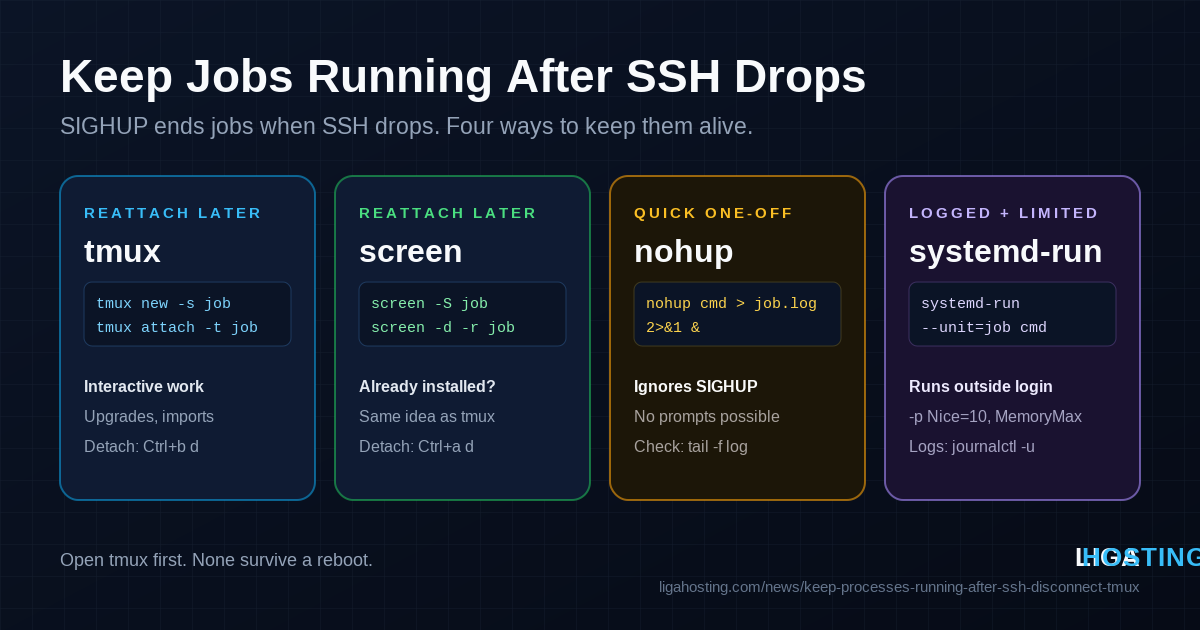
Keep Long Tasks Running After SSH Disconnects — tmux, screen, nohup and systemd-run
You start a database import, a large rsync or a system upgrade over SSH. Forty minutes later your laptop goes to sleep, the Wi-Fi drops, or you see "client_loop: send disconnect: Broken pipe" — and the job you were waiting for has stopped halfway.
This is not a bug and not a problem with the server. It is how Linux treats processes that belong to a terminal. Once you understand that, the fix is simple: run long work somewhere that does not depend on your SSH connection. This guide shows four ways to do that, when to use each one, and how to check that the job is really still running.
Why the job dies when SSH disconnects
When you log in over SSH, the server gives your shell a pseudo-terminal. Every command you start from that shell belongs to the same session. When the connection is closed, the terminal disappears and the kernel and shell send SIGHUP ("hang-up") to the processes of that session. Most programs exit when they receive it.
Even programs that ignore SIGHUP can fail a moment later: they try to print progress to a terminal that no longer exists and get an error on write. That is why "it was running in the background with &" is often not enough.
So there are two ways to protect a long task:
- Give it a terminal that survives you — a terminal multiplexer such as
tmuxorscreenruns on the server, and you only attach to it and detach from it. - Take it out of your session completely —
nohupor asystemd-rununit, with output going to a file or the journal instead of your screen.
| Method | Best for | Can you see it live later? | Survives a reboot? |
|---|---|---|---|
tmux | Interactive work: upgrades, imports that ask questions, watching progress | Yes, reattach | No |
screen | The same, on systems where it is already installed | Yes, reattach | No |
nohup | A quick one-off command with output to a log file | Only through the log | No |
systemd-run | Long non-interactive jobs you want logged, limited and easy to stop | Through journalctl | No (use a real service for that) |
Method 1 — tmux: a terminal that keeps running on the server
tmux is the most useful tool to learn here. It starts a terminal session on the server; you can disconnect at any moment and reconnect later to exactly the same screen, with the command still running.
Install it:
# Ubuntu / Debian
sudo apt update && sudo apt install -y tmux

# AlmaLinux
sudo dnf install -y tmux
Start a named session, run your task, then detach:
tmux new -s import
# you are now inside tmux; run the long command as usual
mysql shop < /root/shop-dump.sql
# detach: press Ctrl+b, release, then press d
You are back in your normal shell, and the import continues inside tmux. You can now log out or lose the connection. Later, from a new SSH login:
tmux ls                    # list sessions, e.g. "import: 1 windows (created ...)"
tmux attach -t import      # reattach to it
tmux kill-session -t import  # end it when you no longer need it
The keys you will use most (all start with the prefix Ctrl+b, released before the next key):
| Keys | What they do |
|---|---|
Ctrl+b d | Detach and leave everything running |
Ctrl+b c | Create a new window inside the session |
Ctrl+b n / Ctrl+b p | Next / previous window |
Ctrl+b % / Ctrl+b " | Split the window side by side / top and bottom |
Ctrl+b + arrow key | Move between split panes |
Ctrl+b [ | Scroll mode (arrows or Page Up); press q to leave |
A small ~/.tmux.conf makes tmux friendlier for beginners:
# ~/.tmux.conf
set -g history-limit 50000   # keep more scrollback
set -g mouse on              # scroll and select panes with the mouse
Apply it in a running session with tmux source-file ~/.tmux.conf.
A good habit: open tmux first, then start anything that takes more than a few minutes — upgrades, restores, large file copies, compiling, or a long certbot or database maintenance run.
Method 2 — screen: the older alternative
GNU screen does the same job and is still found on many servers. If you already know it, there is no need to switch.
# Ubuntu / Debian
sudo apt install -y screen

# AlmaLinux (screen is provided by EPEL)
sudo dnf install -y epel-release
sudo dnf install -y screen
screen -S import # start a named session
# run your command, then detach with Ctrl+a, then d
screen -ls # list sessions
screen -r import # reattach
screen -d -r import # reattach even if it still looks attached from a dead connectionThe last command is the one people miss. After a network drop, the old SSH connection may still be considered alive for a while, so screen -r says the session is attached. -d -r detaches the old one and attaches you. In tmux, tmux attach -d -t import does the same.
Method 3 — nohup: quick background jobs with a log file
When you do not need to interact with the command, nohup is the shortest solution. It makes the process ignore SIGHUP, and you send its output to a file so it never needs your terminal:
nohup rsync -a /var/www/ /backup/www/ > /root/rsync-www.log 2>&1 &
echo $!          # prints the process ID; note it down
What each part does:
nohup— the command will ignore the hang-up signal;> /root/rsync-www.log 2>&1— normal output and errors go to the log file (without this, nohup writes tonohup.outin the current directory);&— runs it in the background so you get your prompt back.
Check on it later:
pgrep -af rsync                 # is it still running? shows PID and full command
ps -o pid,etime,stat,cmd -p 12345   # how long it has been running (etime)
tail -f /root/rsync-www.log     # follow the output; Ctrl+c stops tail, not rsync
The limitation is that you cannot answer prompts. If the command asks "Continue? [y/N]", it will wait forever. Use tmux for anything interactive.
Method 4 — systemd-run: run the job as a temporary service
On every current Ubuntu, Debian and AlmaLinux release, systemd can run any command as a transient unit: a temporary service that is completely independent of your login. You get logging in the journal, a clean way to stop it, and optional resource limits so a heavy job does not slow down your website.
sudo systemd-run --unit=db-dump \
  -p Nice=10 -p IOSchedulingClass=idle \
/bin/bash -c 'mysqldump --single-transaction shop | gzip > /root/shop-$(date +%F).sql.gz'--unit=db-dump— gives the job a name you can refer to;-p Nice=10— lower CPU priority than your web server and database;-p IOSchedulingClass=idle— disk access only when nothing else needs it (this has an effect with I/O schedulers that support priorities, such as BFQ; on others it is simply ignored);/bin/bash -c '...'— needed when you use pipes, redirection or$(...).
Follow and control it:
systemctl status db-dump        # running, finished or failed?
journalctl -u db-dump -f        # live output and errors
sudo systemctl stop db-dump     # stop it cleanly
Two details to know. When the job finishes successfully, the transient unit is removed, so systemctl status will no longer find it — but its log stays in journalctl -u db-dump. If it fails, the unit stays in the "failed" state until you run sudo systemctl reset-failed db-dump; you need to do that before reusing the same name. On systems with cgroup v2 (the default on current releases) you can also add a memory cap such as -p MemoryMax=1G, so a runaway job is stopped before the out-of-memory killer picks your database instead.
If a job should run regularly or start at boot, a transient unit is the wrong tool: write a proper systemd service and timer, or a cron job.
Already started without tmux? Rescue the running job
You realise halfway through a two-hour job that you forgot tmux. If the SSH connection is still open, you can usually save it:
# 1. Pause the foreground job
Ctrl+z
# 2. Continue it in the background
bg
# 3. Tell the shell not to send it SIGHUP when you log out
disown -h %1
# 4. Check
jobs -l
This protects the process from the hang-up signal, but its output still points at your current terminal. Programs that print a lot of progress may still fail after you disconnect. For those, the tool reptyr can move a running process into a tmux session: start tmux, then run sudo reptyr PID inside it. On Ubuntu, kernel security settings usually require running it with sudo. Treat this as a rescue trick, not as your normal workflow.
Make SSH itself drop less often
Many disconnects happen because the connection sits idle and a home router or NAT device forgets it. Small keep-alive packets prevent that. On your own computer, add to ~/.ssh/config:
Host *
    ServerAliveInterval 30
    ServerAliveCountMax 4
Your SSH client now sends a keep-alive every 30 seconds and gives up only after about two minutes without an answer. You can do the same from the server side in /etc/ssh/sshd_config with ClientAliveInterval 30 and ClientAliveCountMax 4, then check the configuration and reload:
sudo sshd -t && sudo systemctl reload ssh     # Ubuntu / Debian
sudo sshd -t && sudo systemctl reload sshd    # AlmaLinux
Keep-alives reduce disconnects; they do not replace tmux. A laptop that goes to sleep will still lose the connection. If you use key-based login, see our guide to SSH keys to make reconnecting quick.
Things that still stop a "protected" job
- A reboot. tmux, screen, nohup and transient units all live in memory. Automatic updates that reboot the server, or a reboot you trigger yourself, end them. Check
tmux lsbefore rebooting. - Out of memory. If the job or something else uses all RAM, the kernel kills processes.
sudo dmesg -T | grep -i "killed process"shows whether that happened. - A full disk. Dumps and copies stop with "No space left on device". Check free space with
df -hbefore starting. - KillUserProcesses. systemd-logind has a setting that kills all user processes at logout, including tmux. It is set to
noby default on Ubuntu, Debian and AlmaLinux. If someone changed it in/etc/systemd/logind.conf, usesystemd-run(which runs outside your login session) or enable lingering for your user withsudo loginctl enable-linger $USER.
For release upgrades specifically, Ubuntu's do-release-upgrade already tries to protect itself when run over SSH, but starting it inside tmux is still the safest choice. Our guide on upgrading Ubuntu or Debian to a new release covers the rest of that process.
Frequently Asked Questions
Should I use tmux or screen?
For a new setup, tmux: it is actively developed, packaged in the main repositories of Ubuntu, Debian and AlmaLinux, and easier to configure. If screen is already installed and you know its keys, it works just as well for keeping a job alive.
Does a tmux session survive a server reboot?
No. The session and everything running inside it end when the server restarts. For work that must continue after a reboot, use a systemd service or make the job resumable, for example with rsync, which skips files already copied.
Is a command with & at the end enough?
Not reliably. A background job started with & still belongs to your session and can receive SIGHUP or fail when it writes to the closed terminal. Add nohup and redirect the output to a file, or run it in tmux.
How do I know whether a nohup or systemd-run job finished successfully?
For nohup, read the end of the log file and check whether the process still exists with pgrep -af. For systemd-run, journalctl -u name shows the output and a final line saying whether the unit succeeded or failed with an exit code.
Can two people attach to the same tmux session?
Yes, if they log in as the same user, both can run tmux attach -t name and see the same screen. This is handy when a colleague wants to watch an upgrade with you.
Every Standard VPS and Performance VPS at Liga Hosting comes with full root access and NVMe storage, so you can install tmux, run long imports and backups, and manage the server exactly as shown in this guide. If your SSH connections drop for reasons that look like the network, contact us and we will check the network side.