
How to Transfer a Domain to Another Registrar — Auth Code, Locks and the 60-Day Rule
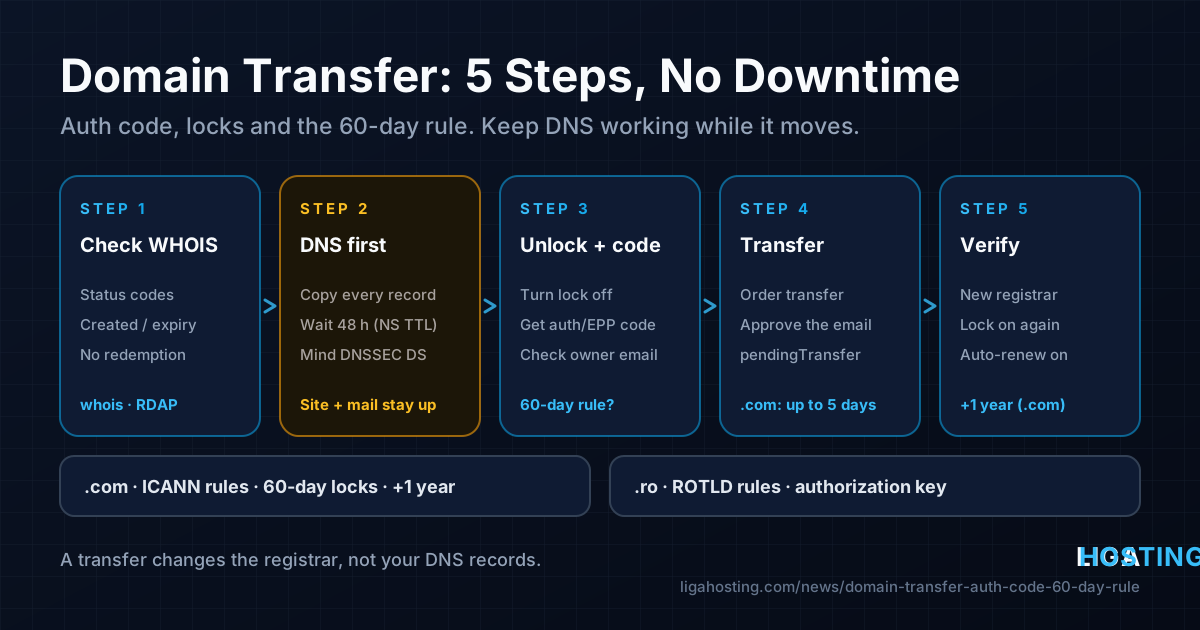
Moving a domain to another registrar sounds risky. People worry that the website will go offline, that email will stop arriving or that the domain could get lost along the way. In practice, a transfer only changes which company you pay to keep the registration. If you prepare properly, visitors and mailboxes notice nothing.
Most failed or stuck transfers come from a short list of causes: the domain is still locked, the auth code is wrong or expired, the domain is inside a 60-day lock window, or the DNS was hosted by the old registrar and disappeared when the transfer finished. This guide works through those causes in the right order. It covers the rules for .com and other ICANN domains, explains where .ro differs, and gives you commands to check each step yourself.
Registrar, registry and DNS host: three different roles
Most transfer confusion comes from mixing up three roles that are often handled by the same company:
| Role | What it does | Changes during a transfer? |
|---|---|---|
| Registry | Runs the whole extension: Verisign for .com, ROTLD for .ro | No |
| Registrar | The company you buy and renew the domain from; it sends changes to the registry | Yes, this is what a transfer changes |
| DNS host | The nameservers that answer for your records (A, MX, TXT…) | Only if you change the nameservers yourself, or they belonged to the old registrar |
Your website and email depend on the DNS host, not on the registrar. A transfer does not change the nameservers listed for the domain. If they point to Cloudflare, your own servers or any DNS provider that does not depend on the old registrar, resolution keeps working without interruption. The real risk is DNS hosted on the old registrar's free nameservers. Some registrars delete that zone once the domain leaves them. That case is covered in step 2.
Step 1 — Check the domain's current state
Before you request anything, check what the registry says about the domain. Install the tools first:
# Ubuntu / Debian
sudo apt install -y whois dnsutils jq

# AlmaLinux / Rocky
sudo dnf install -y whois bind-utils jq
Then look at the registrar, the status codes and the dates:
whois example.com | grep -Ei 'registrar:|domain status|creation date|updated date|expiry date'

# The same data over RDAP, the structured successor of WHOIS (for .com)
curl -s https://rdap.verisign.com/com/v1/domain/example.com | jq '.status, .events'
What to look for:
- clientTransferProhibited (RDAP: "client transfer prohibited") means the registrar lock is on. You must turn it off in the old registrar's control panel. It is normal for this to be on; it protects you from unwanted transfers.
- serverTransferProhibited means the registry has blocked transfers, often because the domain uses a paid "registry lock" service or is under a dispute. Only the current registrar can arrange to have it removed.
- redemptionPeriod or pendingDelete: the domain has expired and is on its way to deletion. It cannot be transferred. Restore it at the current registrar first.
- Creation date and last transfer date: if either is less than 60 days ago, see the 60-day rule below.
- Expiry date: do not leave the transfer until the last few days. A transfer can take up to a week, and a domain that expires mid-transfer is a mess to fix.
Step 2 — Make DNS independent before you move anything
This is the step that keeps your website and email online. Find out who serves your DNS today:
# Nameservers the world sees
dig NS example.com +short

# Nameservers registered at the .com registry (the delegation itself)
dig @a.gtld-servers.net example.com NS +norecurse

# Is DNSSEC enabled? Any output here means a DS record exists
dig DS example.com +short
If the nameservers belong to the old registrar (names like ns1.old-registrar.tld), do this before starting the transfer:
- Write down every record. Most registrars cannot export the zone, and AXFR is usually blocked, so open the DNS panel and copy each A, AAAA, CNAME, MX, TXT (SPF, DKIM, DMARC, verifications), SRV and CAA record. Check the important ones with
dig:for t in A AAAA MX TXT CAA; do echo "== $t"; dig example.com $t +short; done dig www.example.com +short dig default._domainkey.example.com TXT +short # DKIM selector names vary dig _dmarc.example.com TXT +short - Recreate the zone at the new DNS host. That can be the new registrar's DNS, a dedicated DNS provider, or your own nameservers on a VPS. Compare the answers by querying the new nameserver directly:
dig @ns1.new-dns.example example.com A +short dig @ns1.new-dns.example example.com MX +short - Change the nameservers at the old registrar, while you still control the domain there.
- Wait at least 48 hours. The NS records in the .com zone have a TTL of 172800 seconds (two days), so some resolvers keep using the old nameservers that long. Keep the old zone unchanged until then.
Careful with DNSSEC. If dig DS returns a record and you move to a DNS host that signs with different keys, resolvers that validate DNSSEC will reject your domain. Your site will look offline for those users. The safe order is to remove the DS record at the registrar, wait for its TTL to expire (check the TTL in the dig DS example.com output without +short), then change nameservers. Turn DNSSEC on again at the new host afterwards.
If you are unsure what each record does, our article DNS Records Explained covers A, MX, TXT and the rest.
Step 3 — Unlock the domain and get the auth code
The auth code (also called EPP code, AuthInfo code or transfer key) is a password specific to the domain. It proves that you are allowed to move it. At the old registrar:
- Turn off registrar lock / "transfer lock". Run
whoisagain a few minutes later:clientTransferProhibitedshould no longer appear. - Check that the registrant email is current and that you can receive mail there. Many registrars send transfer notices and confirmation links to it.
- Request the auth code. Some panels show it directly, others email it. Treat it like a password: anyone with the code and an unlocked domain can start a transfer.
- If the domain uses a WHOIS privacy or proxy service, check whether the old registrar requires you to turn it off for the transfer. Otherwise the confirmation emails may go to the proxy address instead of you.
Copy the code exactly. A trailing space or a confused l/1 is the most common reason for "invalid auth code", and some registrars generate a new code on every request, so use only the latest one.
The 60-day rule and other locks
For .com, .net, .org and other generic domains governed by ICANN's Transfer Policy, a registrar may refuse a transfer in these situations:
- Within 60 days of registration. A newly registered domain cannot move yet.
- Within 60 days of a previous transfer. You cannot hop between registrars back to back.
- Within 60 days of a change of registrant (a change to the owner's name, organisation or email). Registrars must offer an opt-out of this lock before you make the change. Look for a checkbox such as "allow transfer within 60 days" when editing the contact. If you skip it, the lock applies.
- Other reasons: an ongoing dispute (UDRP), a court order, unpaid fees or evidence of fraud.
There is no way to shorten an active 60-day lock by asking the new registrar. Either wait it out or, for a contact-change lock, ask the old registrar whether they can lift it. ICANN has been revising the Transfer Policy, and some of these windows are due to change. Check the current terms on your registrar's transfer page, and see the policy text at icann.org.
Step 4 — Start the transfer and approve it
At the new registrar, order a transfer (not a new registration), enter the domain and the auth code, and pay. From there:
- The new registrar sends the request to the registry with your auth code.
- The old registrar is notified. Many send you an email to approve or reject the transfer. Approving speeds things up.
- If nobody acts, a .com transfer is approved automatically after 5 days. If you approve it, it usually completes within minutes to hours.
Follow the progress from your terminal:
watch -n 600 "whois example.com | grep -Ei 'registrar:|domain status|expiry date'"While it is in progress you will see pendingTransfer. When the Registrar: line shows the new company, the transfer is done.
What you pay for: a .com transfer includes a one-year renewal, which is added to the current expiry date. Remaining time is not lost, but the total registration cannot go past ten years. One exception: if the domain had already expired and been auto-renewed by the old registrar, transferring it during the 45-day auto-renew grace period can cancel that renewal year. Renew first if you are close to the expiry date.
.com vs .ro: what is different
Country-code domains such as .ro are not governed by ICANN's Transfer Policy. The registry sets its own rules, and for .ro that is ROTLD. The key differences:
| .com (and other gTLDs) | .ro | |
|---|---|---|
| Who sets the rules | ICANN Transfer Policy + Verisign | ROTLD (rotld.ro) |
| Proof of authority | Auth / EPP code from the old registrar | The domain's authorization key, issued for the domain by ROTLD; the registrant can recover it through the registry's procedure |
| 60-day locks | Yes (after registration, transfer, registrant change) | The ICANN 60-day rule does not apply; follow ROTLD's current rules |
| Change of registrar vs change of owner | Separate operations | Also separate: a registrar transfer does not change the holder; changing the holder is its own procedure with its own documents |
| Status check | whois example.com or RDAP | whois example.ro (served by ROTLD) |
| Effect on expiry date | +1 year added | Set by ROTLD policy; check before paying |
Practical tips for .ro: keep the registrant data correct before you start, and have proof of identity (or company documents) ready in case the authorization key has to be recovered through ROTLD. Do not combine a change of owner and a change of registrar. Do one, confirm it in whois example.ro, then do the other. The DNS advice above applies unchanged.
Rules for ccTLDs change more often than ICANN policy, so read the current procedure on rotld.ro and on the new registrar's .ro transfer page before you begin.
Step 5 — After the transfer: verify and lock again
Once whois shows the new registrar, finish the job:
# 1. Registrar, status and new expiry date
whois example.com | grep -Ei 'registrar:|domain status|expiry date'

# 2. Nameservers unchanged and answering
dig NS example.com +short
dig example.com A +short
dig example.com MX +short

# 3. Website and certificate still served from your server
curl -sI https://example.com | head -n 1- Turn the registrar lock back on at the new registrar. Some registrars do this automatically, others do not.
- Enable auto-renew and check the payment method. An expired domain takes your site and email down far more surely than any transfer.
- Re-enable DNSSEC if you turned it off, and confirm with
dig DS example.com +short. - Only then close the old account or delete the old DNS zone.
Your TLS certificates are not affected, because they are tied to the domain name and validated through DNS or HTTP, not through the registrar. Let's Encrypt renewals keep working as long as the records still point to your server.
Troubleshooting a stuck or failed transfer
| Symptom | Likely cause | Fix |
|---|---|---|
| "Domain is locked" | clientTransferProhibited still set | Unlock at the old registrar, confirm with whois, retry |
| "Invalid auth code" | Typo, old code, or code regenerated | Request a fresh code and paste it without spaces |
| Rejected by the old registrar | 60-day lock, unpaid balance or dispute | Check the dates in whois; ask the old registrar for the exact reason |
| No confirmation email | Outdated registrant email or privacy proxy | Update the email (watch for the registrant-change lock), or disable privacy |
| Site down after the transfer | DNS was hosted at the old registrar | Recreate the zone at a new DNS host and set its nameservers at the new registrar |
| Site down for some users only | DNSSEC DS record does not match the new DNS host | Remove or update the DS record at the new registrar |
If you are also moving the website to a new server at the same time, keep the two changes separate. Transfer the domain first, or move the site first, but not both on the same day. The steps for moving a site with no visible downtime are in How to Move a Website to a New Server Without Downtime.
Frequently Asked Questions
Will my website or email go down during a domain transfer?
Not if the nameservers stay the same and do not belong to the old registrar. A transfer changes who manages the registration, not the DNS records. Downtime happens when DNS was hosted on the old registrar's free nameservers, or when a DNSSEC DS record no longer matches the DNS host.
How long does a domain transfer take?
For .com, up to 5 days if nobody acts. It often completes within hours if you approve the transfer email from the old registrar. Rules for .ro are set by ROTLD and can differ, so check its current procedure.
Can I transfer a domain I registered last month?
For .com and other ICANN domains, usually not: registrars may refuse transfers within 60 days of registration or of a previous transfer. The same applies after a change of registrant unless you opted out of that lock. For .ro, the ICANN 60-day rule does not apply; ROTLD's rules do.
Do I lose the remaining time on my registration?
No. A .com transfer adds one year to the current expiry date, up to the ten-year maximum. The exception is a transfer during the auto-renew grace period after expiry, which can cancel the renewal year the old registrar added.
Do I have to change nameservers when I transfer?
No, and it is safer not to change them at the same moment. Move DNS first if it depends on the old registrar, wait 48 hours, then transfer. Point the A records to your server's IP, for example 203.0.113.10, whenever you are ready.
Once your domain is with the registrar you want, point it wherever your site lives. At Liga Hosting, you can choose between cPanel web hosting or a Standard VPS or Performance VPS with full root access and a dedicated IPv4, ready for your A records. Questions about IPs or reverse DNS? Contact us.