
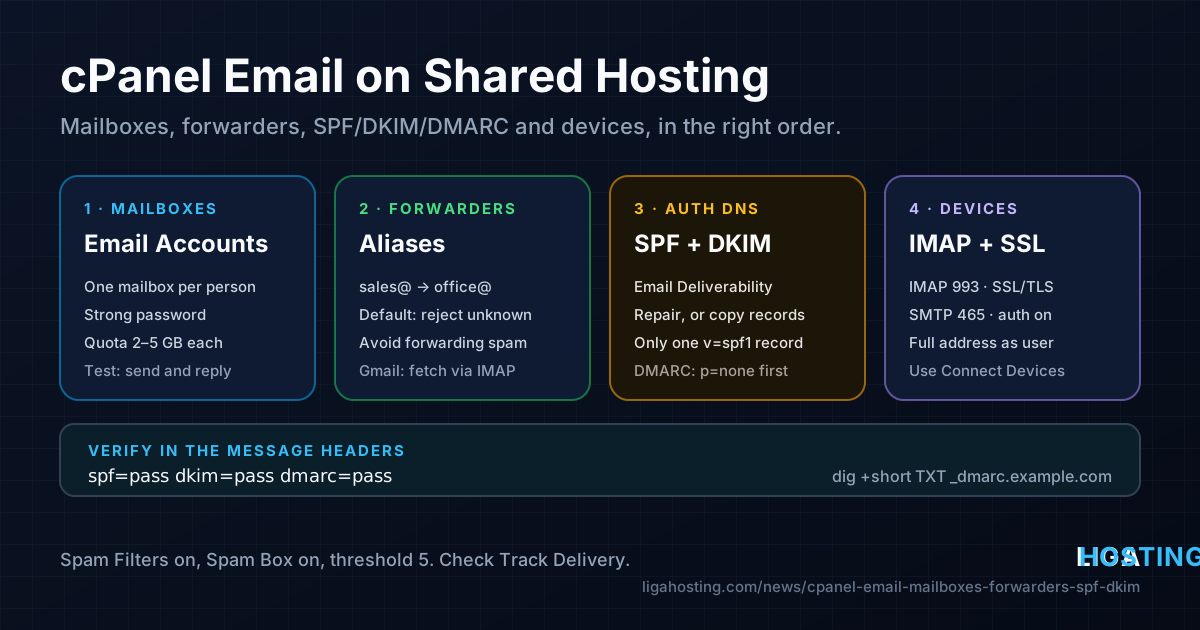
cPanel Email on Shared Hosting — Set Up Mailboxes, Forwarders and Avoid Spam
You have a domain on shared hosting and you want addresses like office@example.com instead of a free webmail address. cPanel can do all of it: real mailboxes, forwarders, webmail, spam filtering and the DNS records that make other providers trust your mail. But one missing record is enough for your messages to land in spam.
This guide goes through the setup in the order that avoids trouble: mailboxes first, then forwarders, then SPF, DKIM and DMARC, then spam filtering and finally your phone and desktop clients. If you run your own mail server on a VPS instead, the server side is different — see Running Your Own Mail Server on a VPS.
Mailbox, forwarder, alias — which one do you need?
cPanel offers several ways to receive mail on an address:
| Option | What it does | Use it for |
|---|---|---|
| Email account | A real mailbox with a password and storage on the server | Every person who reads and sends mail as that address |
| Forwarder | Copies incoming mail to another address; stores nothing itself | Aliases like sales@ or info@ that should reach an existing mailbox |
| Default address | Decides what happens to mail for addresses that do not exist | Usually set to reject; a catch-all mostly collects spam |
A simple rule: create a mailbox for each person, and a forwarder for each role address that points to one of those mailboxes.
Step 1 — Create the mailboxes
In cPanel, open Email → Email Accounts and click Create.
- Choose the domain (if you have several on the account) and type the part before the @, for example
office. - Set a strong password. Weak mailbox passwords are a common way spammers abuse hosting accounts.
- Set Storage. A fixed quota (for example 2–5 GB per mailbox) is safer than "Unlimited": on shared hosting the mailboxes count towards the same disk space as your website, so one forgotten inbox full of attachments can fill the account.
Check it works: click Check Email next to the new account to open webmail, send a message to an external address (for example your personal one) and reply to it. Both directions should arrive within a minute.
Step 2 — Forwarders and the default address
Open Email → Forwarders → Add Forwarder. Enter the address to forward (for example sales) and the destination (for example office@example.com). You can add several forwarders for the same address to deliver one message to several people.
Be careful with forwarding to external providers such as Gmail or Outlook.com. Every spam message that reaches your forwarded address is also sent on, now coming from your hosting server. Large providers notice this and may start treating all mail from the server as suspicious. Prefer forwarding to mailboxes on the same account and reading them over IMAP; to use Gmail, add the mailbox there as a POP/IMAP account. If you must forward externally, enable the spam filter first (step 5).
Next, open Email → Default Address. Select Discard the email while your server processes it by SMTP time with an error message (in older versions this appears as :fail:). Mail for non-existent addresses is then rejected during delivery, and the sender's server reports the error.
Check it works: from an external address, send one message to the forwarder and one to an address that does not exist, such as nobody123@example.com. The first should arrive in the destination mailbox; the second should return a bounce message.
Step 3 — SPF and DKIM with Email Deliverability
Receiving providers check two things before they trust a message from your domain:
- SPF — a TXT record that lists which servers may send mail for your domain.
- DKIM — a digital signature added to every outgoing message; the public key is published in DNS so the receiver can verify the message was not forged or changed.
cPanel manages both in Email → Email Deliverability. Each domain shows a status. If it says Valid, nothing to do. If it says Problems Exist, click Manage: cPanel shows the expected records and, when the domain uses the hosting nameservers, a Repair button that fixes them in one click.
If your DNS is hosted elsewhere (for example at Cloudflare or at your registrar), Repair cannot change it. Copy the records from the Manage page into your DNS provider exactly as shown. They look like this:
; SPF — one TXT record on the domain itself
example.com.                    TXT  "v=spf1 +a +mx +ip4:203.0.113.10 ~all"

; DKIM — TXT record on the "default" selector (the key is much longer)
default._domainkey.example.com. TXT  "v=DKIM1; k=rsa; p=MIIBIjANBgkqhkiG9w0BAQEFAAOCAQ8AMIIBCgKCAQEA..."
Two rules that cause most SPF failures:
- Only one SPF record per domain. If you also send through a newsletter service or another provider, merge them into a single record, for example
v=spf1 +a +mx +ip4:203.0.113.10 include:_spf.example-mailer.com ~all. Two separatev=spf1records make SPF fail for both. - Copy the IP from the Manage page. On shared hosting, mail may leave from a different address than the website.
Check it works from your own computer (Linux or macOS terminal; on Windows use nslookup -type=TXT):
dig +short TXT example.com | grep spf1
dig +short TXT default._domainkey.example.com
dig +short MX example.com
You should see exactly one v=spf1 line, a DKIM key starting with v=DKIM1, and an MX record pointing to your mail host. If MX points elsewhere while the mailboxes are on the hosting, also check that Email → Email Routing is set to Local Mail Exchanger. For what each record type does, see DNS Records Explained.
Step 4 — Add a DMARC record
DMARC tells receiving servers what to do when a message claims to be from your domain but fails SPF and DKIM, and where to send reports. Large mailbox providers expect it.
Open Domains → Zone Editor, click Manage next to the domain and add a TXT record (or add it at your external DNS provider):
_dmarc.example.com. TXT "v=DMARC1; p=none; rua=mailto:dmarc@example.com"p=noneonly monitors — nothing is blocked.rua=is where daily aggregate reports go. Create that mailbox first. The XML reports list which servers sent mail as your domain.- After a few weeks without unexpected senders in the reports, move to
p=quarantine, and later top=rejectif you are sure every legitimate service is covered by SPF or DKIM.
Check it works: dig +short TXT _dmarc.example.com. Then send a message from your new mailbox to a Gmail or Outlook.com address, open it and view the original message or headers. Look for the Authentication-Results line:
Authentication-Results: mx.google.com;
       dkim=pass header.i=@example.com header.s=default;
       spf=pass smtp.mailfrom=office@example.com;
       dmarc=pass (p=NONE) header.from=example.com
All three should say pass. If DKIM fails, the DNS key does not match the server's key — use Repair again or copy the record again without extra spaces or line breaks. If SPF fails, compare the sending IP in the headers with your SPF record.
Step 5 — Keep spam out (and keep your mail out of spam)
Open Email → Spam Filters and enable Process New Emails and Mark them as Spam. cPanel uses Apache SpamAssassin, which gives every incoming message a score; messages above the threshold are marked as spam.
- Spam threshold score — the default of 5 is a reasonable start. Lower means stricter (more spam caught, but also more false positives).
- Move New Spam to a Separate Folder (Spam Box) — enable it. Spam goes to a "spam" folder instead of the inbox, so you can still check it.
- Automatically Delete New Spam — only with a high score (for example 10 or more). Deleting at the default threshold will sooner or later remove a real message.
- Allow list — add important senders that get marked as spam.
For your outgoing mail, these habits matter as much as the DNS records:
- Send from the mailbox that matches the "From" address, using authenticated SMTP — not from PHP's
mail()with a random sender. In WordPress, use an SMTP plugin that logs in to a real mailbox. - Do not send bulk newsletters from a shared hosting mailbox. Use a service built for it and add it to SPF.
- If something does not arrive, open Email → Track Delivery. It shows whether each message was accepted, deferred or rejected, with the remote server's answer.
Step 6 — Webmail, phones and desktop clients
Webmail works from any browser at https://example.com/webmail or https://example.com:2096. Log in with the full email address and its password. Roundcube is the usual interface.
Phones and desktop clients: go to Email Accounts, click Connect Devices next to the mailbox. The page shows the exact server names for your account and offers automatic setup scripts and configuration profiles for iPhone, iPad and macOS Mail. Always choose the Secure SSL/TLS Settings. The standard values are:
| Setting | Value |
|---|---|
| Username | The full address, e.g. office@example.com |
| Incoming (IMAP) | Server from Connect Devices, port 993, SSL/TLS |
| Incoming (POP3) | Same server, port 995, SSL/TLS |
| Outgoing (SMTP) | Same server, port 465 (SSL/TLS), authentication required |
Choose IMAP if you read mail on more than one device: messages stay on the server and folders stay in sync. POP3 downloads messages to one device and, with default settings, often removes them from the server.
If a client says the certificate does not match, use the server name from the Connect Devices page. To test the connection from a terminal, look for Verify return code: 0 (ok) and a * OK greeting:
openssl s_client -connect mail.example.com:993 -servername mail.example.com -quietFrequently Asked Questions
Do I need SPF, DKIM and DMARC for a small business domain?
Yes. Large providers check them for every message, and without them your mail is far more likely to land in spam or be rejected. In cPanel, SPF and DKIM take a few clicks in Email Deliverability, and DMARC is a single TXT record.
Should I use IMAP or POP3 on my phone?
IMAP. Messages and folders stay on the server and are the same on your phone, laptop and webmail. POP3 makes sense only if you deliberately want to keep mail on one computer.
Why does forwarding to Gmail cause problems?
The forwarder also forwards spam, and Gmail sees it coming from your hosting server. This hurts the server's reputation. Prefer fetching the mailbox over IMAP or POP3 from Gmail, and enable the spam filter before forwarding anything.
When does a VPS make more sense for email?
When you need full control over the mail server, large volumes or special software. A VPS is unmanaged: you install and maintain the mail server yourself and handle reputation, reverse DNS and security. For normal business mailboxes, shared hosting with cPanel is the simpler choice.
At Liga Hosting, our cPanel web hosting plans include email accounts, a free SSL certificate and 24/7 technical support, and Web Pro and Web Business add unlimited email accounts and daily backups. If you would rather run your own mail stack, our VPS plans give you full root access. Contact us if you are not sure which fits.