
Core Web Vitals and Hosting — What Your Server Can and Cannot Fix
PageSpeed Insights shows red numbers, and the first idea is often "we need a faster server". Sometimes that is right. Often it is not: a bigger VPS will not stop a banner from shifting the layout, and it will not make heavy JavaScript react faster to a click.
This guide separates the two: which part of each Core Web Vital depends on hosting, how to measure it, and the Nginx settings that improve it. For general VPS tuning see our VPS speed optimization guide; here we stay focused on what Google measures.
The three Core Web Vitals and where the server fits
Google measures three metrics on real visitors' devices and evaluates them at the 75th percentile:
| Metric | What it measures | "Good" | How much hosting matters |
|---|---|---|---|
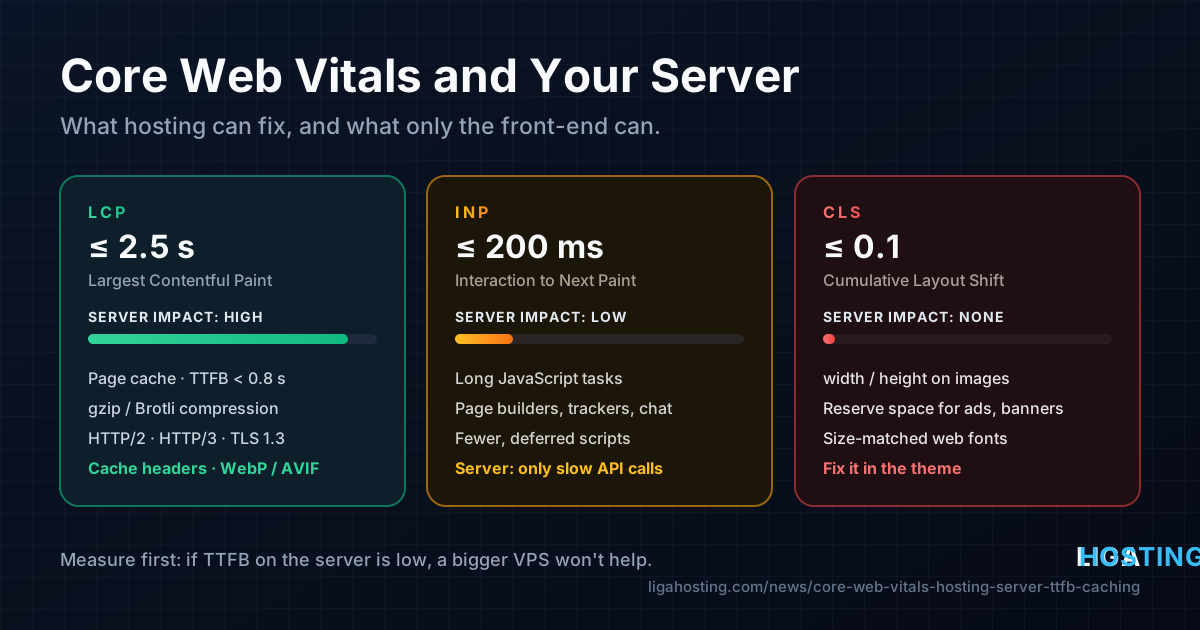
| LCP — Largest Contentful Paint | When the biggest image or text block appears | ≤ 2.5 s | A lot: response time, compression and file delivery all come before the paint |
| INP — Interaction to Next Paint | How quickly the page reacts to clicks and taps | ≤ 200 ms | Very little: JavaScript in the browser decides it |
| CLS — Cumulative Layout Shift | How much content jumps while loading | ≤ 0.1 | Almost none: it depends on the HTML and CSS |
TTFB (Time to First Byte) is not a Core Web Vital, but it is the first slice of LCP. Google's guidance treats about 0.8 seconds as good. If the HTML arrives after 1.5 seconds, an LCP under 2.5 seconds is nearly impossible. TTFB is where your server has the most influence.
Measure first: field data, lab data and TTFB
PageSpeed Insights shows two kinds of results:
- Field data comes from Chrome users over the last 28 days. This is what counts for search, and after a fix it takes up to four weeks to fully change.
- Lab data (the Lighthouse score) is one simulated load. It reacts immediately, so use it to test changes.
To see how much of the load time is the server, use curl from your own computer:
curl -o /dev/null -s -w 'dns: %{time_namelookup}\nconnect: %{time_connect}\ntls: %{time_appconnect}\nttfb: %{time_starttransfer}\ntotal: %{time_total}\n' https://example.com/Values are cumulative seconds; ttfb minus tls is roughly the time the server spent building the page. Then run the request on the VPS itself, which removes the network:
curl -o /dev/null -s -w 'ttfb: %{time_starttransfer}\n' \
--resolve example.com:443:127.0.0.1 https://example.com/- Slow on the server too (for example 0.9 s): the application is slow — PHP, database queries, external API calls. A page cache helps most.
- Fast on the server, slow from outside: time is lost on the way — distance to visitors, TLS setup, no connection reuse. See the protocol section, and consider where your server is relative to your audience.
Cut server response time with a page cache
For PHP sites (WordPress, WooCommerce, most CMSs), the biggest TTFB win is to stop generating the same page for every anonymous visitor. Nginx can store the finished HTML with fastcgi_cache. In the http { } block:
fastcgi_cache_path /var/cache/nginx/pages levels=1:2 keys_zone=PAGES:50m
                   max_size=1g inactive=60m use_temp_path=off;
In the site's server { } block, exclude what must never be cached, then enable the cache for PHP:
set $skip_cache 0;
if ($request_method = POST) { set $skip_cache 1; }
if ($query_string != "")     { set $skip_cache 1; }
if ($request_uri ~* "/wp-admin/|/cart|/checkout|/my-account") { set $skip_cache 1; }
if ($http_cookie ~* "wordpress_logged_in|comment_author|woocommerce_items_in_cart|PHPSESSID") {
    set $skip_cache 1;
}

location ~ \.php$ {
    include snippets/fastcgi-php.conf;
    fastcgi_pass unix:/run/php/php8.3-fpm.sock;   # match your PHP version

    fastcgi_cache PAGES;
    fastcgi_cache_key "$scheme$request_method$host$request_uri";
    fastcgi_cache_valid 200 301 10m;
    fastcgi_cache_bypass $skip_cache;
    fastcgi_no_cache $skip_cache;
    fastcgi_cache_use_stale error timeout updating http_500 http_503;
    fastcgi_cache_lock on;
    add_header X-Cache $upstream_cache_status;
}
On AlmaLinux, replace the snippets/ line with include fastcgi_params; plus fastcgi_param SCRIPT_FILENAME $document_root$fastcgi_script_name;; the socket is usually /run/php-fpm/www.sock. Then:
sudo mkdir -p /var/cache/nginx/pages
sudo nginx -t && sudo systemctl reload nginx

# Run twice: the first should say MISS, the second HIT
curl -s -o /dev/null -D - https://example.com/ | grep -i x-cache
If you always see MISS, the application probably sends Set-Cookie or Cache-Control: no-cache on every page, and Nginx refuses to cache it — a safe default. Fix that in the application instead of forcing the cache. To clear the cache after publishing, run sudo rm -rf /var/cache/nginx/pages/*.
Pages that cannot be cached (logged-in users, carts) depend on PHP and the database. Keep OPcache enabled and give PHP-FPM enough workers — see our PHP-FPM tuning guide.
Compression: gzip and Brotli
HTML, CSS, JavaScript and SVG shrink by 70–80% when compressed, so the browser can start rendering sooner. Check what your site sends:
curl -s -o /dev/null -D - -H 'Accept-Encoding: br, gzip' https://example.com/ | grep -i content-encodingNo output means no compression. Even with gzip on, Nginx compresses only text/html by default. In the http { } block:
gzip on;
gzip_comp_level 5;
gzip_min_length 256;
gzip_vary on;
gzip_proxied any;
gzip_types text/plain text/css text/xml application/javascript application/json
           application/xml application/rss+xml image/svg+xml;
Brotli compresses text roughly 15–20% better than gzip. On recent Debian and Ubuntu releases it is packaged:
sudo apt install libnginx-mod-http-brotli-filter libnginx-mod-http-brotli-staticAdd brotli on;, brotli_comp_level 5; and a brotli_types line with the same types as above, and keep gzip as the fallback. Do not compress JPEG, PNG, WebP, AVIF or WOFF2: they are already compressed. On AlmaLinux, Brotli is not in the base repositories; gzip alone is a good result.
HTTP/2, HTTP/3 and TLS
HTTP/2 loads all files of a page in parallel over one connection, which matters for pages with many CSS, JavaScript and font files. Check your site:
curl -s -o /dev/null -w '%{http_version}\n' https://example.com/If it prints 1.1, enable HTTP/2. The syntax depends on nginx -v:
# Nginx 1.25.1 and newer
listen 443 ssl;
http2 on;

# Older Nginx (for example 1.22 or 1.24)
listen 443 ssl http2;
HTTP/3 runs over UDP (QUIC) and helps most on mobile networks with packet loss. It needs Nginx 1.25+ built with the HTTP/3 module: check with nginx -V 2>&1 | grep -o with-http_v3_module. The packages from nginx.org include it.
server {
    listen 443 ssl;
    listen 443 quic reuseport;   # reuseport in one server block only
    http2 on;
    http3 on;
    ssl_protocols TLSv1.2 TLSv1.3;
    add_header Alt-Svc 'h3=":443"; ma=86400' always;
    ...
}
Open UDP port 443: sudo ufw allow 443/udp, or on AlmaLinux sudo firewall-cmd --permanent --add-port=443/udp && sudo firewall-cmd --reload. Browsers switch to HTTP/3 on a later request, so verify in DevTools → Network with the "Protocol" column after two reloads: you should see h3. Details are in the Nginx HTTP/3 documentation. TLS 1.3 saves a round trip on every new connection, and a non-zero keepalive_timeout lets visitors reuse connections.
Cache headers for static files
Visitors moving between pages should not download your CSS, JavaScript, fonts and logos again. If file names contain a version or hash (app.3f9a1c.css, style.css?ver=6.5), browsers can keep them for a year:
location ~* \.(css|js|woff2|svg|png|jpe?g|webp|avif|gif|ico)$ {
    add_header Cache-Control "public, max-age=31536000, immutable";
    access_log off;
    try_files $uri =404;
}
Only do this for files whose name changes when the content changes; otherwise use something like max-age=86400. Note that an add_header in a location replaces those inherited from server, so repeat any security headers there. Verify:
curl -s -o /dev/null -D - https://example.com/assets/app.css | grep -i cache-controlImages: what the server can and cannot do
On most sites the LCP element is an image: a hero banner or a product photo. The server can deliver it quickly, but it cannot make a 2 MB photo small. Convert and resize before uploading, or in bulk on the server:
# Debian/Ubuntu: sudo apt install webp libavif-bin
cwebp -q 80 hero.jpg -o hero.webp
avifenc -q 60 hero.jpg hero.avif
ls -lh hero.*
WebP is usually 25–35% smaller than a comparable JPEG, AVIF often smaller still. A photo shown 1200 pixels wide does not need to be 4000 pixels wide. On WordPress, an image optimization plugin can do this on upload.
The rest is HTML: serve formats with <picture> and srcset, never lazy-load the LCP image, and give it fetchpriority="high" so the browser downloads it first.
What the server cannot fix
When TTFB is good and files are compressed and cached, the remaining problems are in the page itself. A bigger hosting plan will not change them:
- CLS: images and embeds without
widthandheight, ads and cookie banners pushed above content, web fonts swapping with a different size. Reserve space for everything that loads late. - INP: long JavaScript tasks — heavy page builders, chat widgets, trackers, tag managers. Fewer, lighter or deferred scripts fix it. The server matters only when a click waits for a slow API response.
- Render-blocking CSS and scripts in
<head>, and third-party fonts, videos and maps served from other domains.
If Lighthouse reports a low server response time and lists mostly JavaScript, layout or image issues, the next step is front-end work, not a server upgrade.
Frequently Asked Questions
Will a faster VPS improve my Core Web Vitals?
It improves TTFB, and therefore LCP, when the server is the bottleneck: high CPU, full PHP-FPM pools or slow queries. It does not change CLS and rarely changes INP. Measure TTFB on the server first; if it is already low, more CPU will not help.
What is a good TTFB?
About 0.8 seconds or less for real visitors. A cached page from Nginx takes only milliseconds on the server; most of the rest is network distance and connection setup.
Why did my PageSpeed field data not change after the fix?
Field data covers Chrome users over a rolling 28-day window, so improvements appear over about four weeks. Use the lab test and the curl commands to confirm changes right away.
Can I do this on shared hosting?
The web server configuration belongs to the provider, so you cannot edit Nginx. You can still check compression, HTTP version and cache headers with curl, use a caching plugin and optimize images. Full control needs a VPS.
At Liga Hosting, our Standard VPS and Performance VPS plans run on KVM with NVMe storage, DDoS protection and full root access in Frankfurt and Tulcea, so you can set up the page cache, compression and HTTP/3 exactly as shown here. For simpler sites, Web Hosting with cPanel includes a free SSL certificate. Contact us if you are not sure which fits.