
How to Optimize a VPS for Maximum Speed in 2026 — Practical Guide
You got a good VPS, set it up, but feel it could be faster? An "out of the box" VPS runs decently, but it's far from the hardware's real potential. With proper optimizations, you can get 2-3x more requests per second, lower latency, and a website that responds instantly.
This guide shows you the optimizations I apply in real setups — from kernel tuning to web server, database to caching. All with concrete commands, not theory.
Before you start — benchmark first
You can't optimize what you don't measure. Before any change, run benchmarks so you can compare after:
# CPU benchmark
sysbench cpu --cpu-max-prime=20000 run

# Disk I/O
fio --name=test --filename=/tmp/testfile --size=1G --bs=4k --rw=randread --runtime=10 --time_based --iodepth=64 --ioengine=libaio --direct=1

# Memory speed
sysbench memory --memory-block-size=1M --memory-total-size=10G run

# Network
speedtest-cli
Save results to a file. After optimizations, run the same tests and see real differences.
Optimization 1 — Kernel tuning for network
The Linux kernel has conservative default settings, designed for old hardware. On modern VPS with fast network, these settings are suboptimal.
Edit /etc/sysctl.conf and add:
# TCP buffer sizes (for fast network)
net.core.rmem_max = 67108864
net.core.wmem_max = 67108864
net.core.rmem_default = 26214400
net.core.wmem_default = 26214400
net.ipv4.tcp_rmem = 4096 87380 67108864
net.ipv4.tcp_wmem = 4096 65536 67108864

# TCP performance
net.ipv4.tcp_fastopen = 3
net.ipv4.tcp_slow_start_after_idle = 0
net.ipv4.tcp_no_metrics_save = 1

# Connection tracking for high-traffic servers
net.netfilter.nf_conntrack_max = 1000000
net.ipv4.tcp_max_syn_backlog = 8192
net.core.somaxconn = 65535

# Reduce TIME_WAIT connections
net.ipv4.tcp_tw_reuse = 1
net.ipv4.tcp_fin_timeout = 30

# File descriptors
fs.file-max = 2097152
Apply changes:
sudo sysctl -pOptimization 2 — Enable BBR (TCP congestion control)
BBR is a TCP congestion control algorithm developed by Google that dramatically improves throughput on connections with variable latency. In my tests, I've seen 30-50% increases in transfer speed for users on other continents.
Check if your kernel supports BBR:
sysctl net.ipv4.tcp_available_congestion_controlIf you see "bbr" in the list, activate it by adding to /etc/sysctl.conf:
net.core.default_qdisc = fq
net.ipv4.tcp_congestion_control = bbr
Apply:
sudo sysctl -p
# Verify
sysctl net.ipv4.tcp_congestion_control
You should see bbr as result.
Optimization 3 — Swap configuration
Many VPS come without swap configured. That means if RAM fills up, processes will be killed by the OOM killer. Swap, while slower than RAM, provides a safety net.
For a 4GB RAM VPS, configure 2GB swap (general rule: half of RAM for servers; for very small VPS under 2GB, set swap equal to RAM):
# Create swap file
sudo fallocate -l 2G /swapfile
sudo chmod 600 /swapfile
sudo mkswap /swapfile
sudo swapon /swapfile

# Persistent (after reboot)
echo '/swapfile none swap sw 0 0' | sudo tee -a /etc/fstab

# Configure swappiness (how "eager" to use swap)
echo 'vm.swappiness=10' | sudo tee -a /etc/sysctl.conf
echo 'vm.vfs_cache_pressure=50' | sudo tee -a /etc/sysctl.conf
sudo sysctl -p
Swappiness 10 means the system uses swap only when really out of RAM, preserving performance.
Optimization 4 — Web server (Nginx)
Default Nginx is okay, but can be much faster with tuning. Edit /etc/nginx/nginx.conf:
worker_processes auto;
worker_rlimit_nofile 65535;

events {
    worker_connections 4096;
    use epoll;
    multi_accept on;
}

http {
    # Buffers
    client_body_buffer_size 16K;
    client_header_buffer_size 1k;
    client_max_body_size 64m;
    large_client_header_buffers 4 8k;

    # Timeouts
    client_body_timeout 12;
    client_header_timeout 12;
    keepalive_timeout 30;
    keepalive_requests 1000;
    send_timeout 10;

    # MIME types
    types_hash_max_size 2048;
    server_names_hash_bucket_size 64;

    # Gzip
    gzip on;
    gzip_vary on;
    gzip_min_length 1024;
    gzip_proxied expired no-cache no-store private auth;
    gzip_types text/plain text/css text/xml application/json application/javascript application/xml+rss application/atom+xml image/svg+xml;

    # Brotli (if you have the module)
    # brotli on;
    # brotli_comp_level 6;
    # brotli_types text/plain text/css application/json application/javascript text/xml;

    # File handle caching
    open_file_cache max=10000 inactive=20s;
    open_file_cache_valid 30s;
    open_file_cache_min_uses 2;
    open_file_cache_errors on;

    # Sendfile
    sendfile on;
    tcp_nopush on;
    tcp_nodelay on;

    # Hide Nginx version
    server_tokens off;
}
Restart Nginx:
sudo nginx -t  # Test config
sudo systemctl restart nginx
Optimization 5 — PHP-FPM (for WordPress and PHP apps)
PHP-FPM has conservative defaults. For a 4GB RAM VPS, adjust /etc/php/8.3/fpm/pool.d/www.conf:
pm = dynamic
pm.max_children = 30
pm.start_servers = 5
pm.min_spare_servers = 5
pm.max_spare_servers = 10
pm.max_requests = 500
pm.process_idle_timeout = 10s
Calculating pm.max_children: divide RAM available for PHP by average consumption per process. For WordPress, ~80MB per process. On 2GB allocated to PHP: 2048 / 80 ≈ 25-30 children.
Enable OPcache in /etc/php/8.3/fpm/php.ini:
opcache.enable=1
opcache.memory_consumption=256
opcache.interned_strings_buffer=16
opcache.max_accelerated_files=20000
opcache.revalidate_freq=60
opcache.fast_shutdown=1
opcache.enable_cli=1
opcache.validate_timestamps=1
OPcache keeps pre-compiled PHP code in memory — the difference is huge (3-5x faster for WordPress).
Optimization 6 — Database (MariaDB / MySQL)
MySQL/MariaDB has default settings for old hardware. For a modern VPS with 4GB+ RAM, edit /etc/mysql/mariadb.conf.d/50-server.cnf:
[mysqld]
# InnoDB
innodb_buffer_pool_size = 1G  # ~50% of RAM available for DB
innodb_log_file_size = 256M
innodb_flush_log_at_trx_commit = 2  # 2 = faster, 1 = safer
innodb_flush_method = O_DIRECT
innodb_file_per_table = 1
innodb_io_capacity = 2000  # NVMe can handle much more
innodb_io_capacity_max = 4000

# Query cache (deprecated in MySQL 8, OK in MariaDB)
query_cache_type = 1
query_cache_size = 64M
query_cache_limit = 2M

# Connections
max_connections = 200
thread_cache_size = 50

# Buffers
table_open_cache = 2000
table_definition_cache = 1400
sort_buffer_size = 2M
read_buffer_size = 2M
read_rnd_buffer_size = 4M
join_buffer_size = 4M

# Slow query logging (for debugging)
slow_query_log = 1
slow_query_log_file = /var/log/mysql/slow.log
long_query_time = 2
Restart:
sudo systemctl restart mariadbCheck performance with mysqltuner:
wget https://raw.githubusercontent.com/major/MySQLTuner-perl/master/mysqltuner.pl
perl mysqltuner.pl
Optimization 7 — Redis for object caching
Redis is crucial for dynamic site performance. Stores in memory DB query results, sessions, WordPress object cache.
Install:
sudo apt install redis-server -y
sudo systemctl enable redis-server
sudo systemctl start redis-server
For WordPress, install the "Redis Object Cache" plugin from admin and activate. The difference: DB queries from 50-100 per page to 5-10.
Optimization 8 — Cron setup for backup and updates
Automated maintenance settings — not direct speed optimizations, but they prevent problems:
# Edit crontab
crontab -e

# Add:
# Daily backup at 3 AM
0 3 * * * /home/user/scripts/backup.sh

# Weekly updates
0 4 * * 0 apt update && apt upgrade -y

# Cleanup old logs (over 30 days)
0 5 * * * find /var/log -name "*.log" -mtime +30 -delete

# Weekly Nginx restart (prevents memory leaks)
0 6 * * 0 systemctl reload nginx
Optimization 9 — Basic security
An optimized but compromised VPS is useless. Three minimums:
Change default SSH port:
# In /etc/ssh/sshd_config:
Port 2222  # pick a random port between 1024-65535
PermitRootLogin no
PasswordAuthentication no  # SSH keys only

sudo systemctl restart sshd
Install Fail2ban:
sudo apt install fail2ban -y
sudo systemctl enable fail2ban
sudo systemctl start fail2ban
Strict firewall:
sudo ufw default deny incoming
sudo ufw default allow outgoing
sudo ufw allow 2222/tcp  # custom SSH port
sudo ufw allow 80/tcp
sudo ufw allow 443/tcp
sudo ufw enable
Optimization 10 — Monitoring
Without monitoring, you don't know when something goes wrong until it's too late. Minimal setup:
# Netdata - real-time monitoring dashboard
bash <(curl -Ss https://my-netdata.io/kickstart.sh)

# Access at http://your-IP:19999
# You should restrict access with nginx reverse proxy + basic auth
Plus alerts with Uptime Robot (free) or BetterUptime for notifications when server goes down.
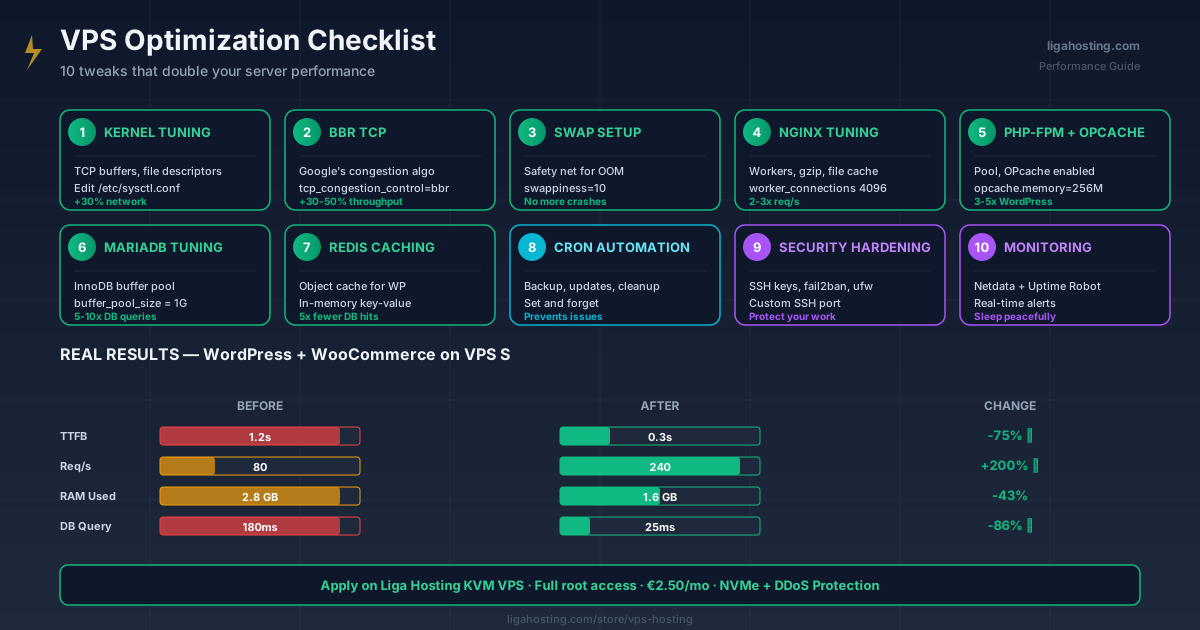
Real results after optimizations
On a typical setup (VPS S — 4GB RAM, 2 vCPU, NVMe), WordPress site with WooCommerce (200 products), here's what differences I've seen:
- TTFB: from 1.2s to 0.3s (-75%)
- Requests per second: from 80 to 240 (+200%)
- Memory used: from 2.8GB to 1.6GB (-43%)
- Query DB time: from 180ms to 25ms (-86%)
- Page load: from 3.2s to 0.9s (-72%)
Numbers vary by site, but 2-5x improvements are normal after applying these optimizations.
Frequently Asked Questions
How often do I need to redo these optimizations?
Kernel and config settings are persistent — once done, they stay. But it's good to revisit them after major OS or software upgrades (Nginx, MySQL, PHP), as defaults can change.
Do these optimizations work on any Linux distribution?
Kernel ones (sysctl) and BBR work on any recent distribution (Ubuntu 22.04+, Debian 11+, AlmaLinux 9+, Rocky 9+). Specific commands (apt vs dnf) vary. On older distributions (Ubuntu 18.04, CentOS 7), some settings aren't available.
Can I apply all optimizations on a 2GB RAM VPS?
Yes, but adjust values. For 2GB RAM, set innodb_buffer_pool_size to 256-512M, pm.max_children to 10-15, and OPcache with 64MB instead of 256MB.
What's the next step after basic optimizations?
After base tuning, focus shifts to application level: image optimization (WebP, AVIF), CDN usage (Cloudflare), removing unused plugins, lazy loading for media, CSS/JS optimization (minify, combine). Another 2-3x is possible there on poorly-configured WordPress sites.
Does Liga Hosting have these optimizations preconfigured?
All our VPS are unmanaged — you control everything, including configurations. You have complete freedom to apply exact optimizations matching your workload. For those preferring a standard preconfigured setup, free control panels exist (CyberPanel, aaPanel) with auto setup.
At Liga Hosting we offer KVM VPS with NVMe and full root access — exactly what you need to apply these optimizations. Contact us if you need config recommendations for your specific project.