
How Much Bandwidth Does Your Website Really Need?
Hosting plans talk about bandwidth in two different ways: as a monthly amount of data (GB or TB) and as a connection speed (Mbps or Gbps). People mix them up all the time, and the result is either paying for capacity you will never use or being surprised when a busy day slows the site down.
This guide separates the two, shows how to estimate both from page size and visits, how to measure what your server really sends, and how much a CDN changes the math.
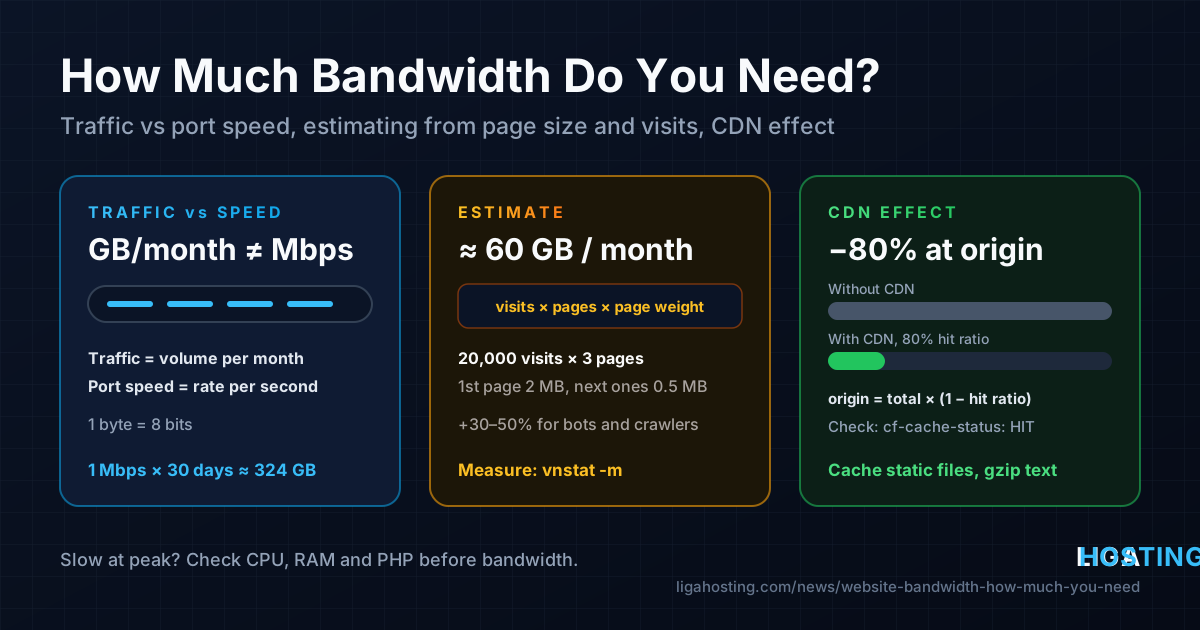
Traffic and port speed are two different things
- Traffic (data transfer) is a volume: how many gigabytes leave your server in a month. It is like the total amount of water that flows through a pipe in 30 days.
- Port speed is a rate: how many megabits per second can flow at one moment. It is the width of the pipe.
The two are connected by time. Note the units: speeds are in bits (Mbps), file sizes in bytes (MB), and 1 byte = 8 bits. If a line were used at full speed for a whole 30-day month (2,592,000 seconds), it would move:
| Sustained rate, 24/7 | Data per month (approx.) |
|---|---|
| 1 Mbps | ~324 GB |
| 10 Mbps | ~3.2 TB |
| 100 Mbps | ~32 TB |
| 1 Gbps | ~324 TB |
Real websites never run flat out all month: traffic is quiet at night and spikes when a newsletter goes out. That is why you need two numbers: the monthly total (does the plan's traffic allowance cover it?) and the peak rate (is the connection wide enough at the busiest minute?).
Estimate monthly traffic from page size and visits
The basic formula is simple:
monthly traffic = visits per month × pages per visit × average page weightTake a small business site: 20,000 visits a month, 3 pages per visit, 2 MB per page.
20,000 × 3 × 2 MB = 120,000 MB ≈ 120 GB per monthThat is a worst-case number, because it assumes every page view downloads everything again. In practice the browser caches CSS, JavaScript, fonts and logos after the first page, so the second and third pages of a visit are often only a fraction of the first. A more realistic estimate counts the first page at full weight and the following ones at the weight of the HTML plus new images:
20,000 × (2 MB + 2 × 0.5 MB) = 60,000 MB ≈ 60 GB per monthAdd a safety margin of 30–50% for bots, crawlers, feeds and your own admin work.
| Site type | Visits / month | Typical page weight | Rough traffic / month |
|---|---|---|---|
| Personal blog | 3,000 | 1.5 MB | 5–15 GB |
| Business brochure site | 20,000 | 2 MB | 60–150 GB |
| Online shop with many photos | 100,000 | 3 MB | 0.5–1.5 TB |
| Downloads, video or podcast files | any | file size × downloads | usually the biggest item |
The last row matters most: a 100 MB file downloaded 10,000 times is 1 TB on its own. Estimate hosted files separately.
How to measure your real page weight
Do not guess the page weight. Open the page in Chrome or Firefox, press F12, go to the Network tab, tick "Disable cache" and reload. The bottom bar shows two numbers: transferred (what actually crossed the network, after compression) and resources (the uncompressed size). Use transferred for bandwidth. Reload again with it unticked to see a returning visitor's (much smaller) page view.
From the command line you can check the HTML document itself, with and without compression:
# Bytes transferred for the HTML only, compressed as a browser would request it
curl -so /dev/null --compressed -w 'compressed: %{size_download} bytes\n' https://example.com/

# Same page without compression, for comparison
curl -so /dev/null -w 'uncompressed: %{size_download} bytes\n' https://example.com/
If both numbers are the same, compression is off (see below).
Measure what your server really sends
vnStat counts traffic per network interface and keeps history across reboots. It reads kernel counters, so it adds almost no load.
# Ubuntu / Debian
sudo apt update && sudo apt install -y vnstat
sudo systemctl enable --now vnstat

# AlmaLinux (vnStat comes from EPEL)
sudo dnf install -y epel-release && sudo dnf install -y vnstat
sudo systemctl enable --now vnstat
vnStat needs a few minutes to collect its first data. Then:
vnstat            # summary: today, this month, estimated total
vnstat -d         # per day
vnstat -m         # per month
vnstat -h         # per hour - shows your daily peak pattern
vnstat -l         # live rate, press Ctrl+C to stop
For a website, the tx (transmitted) column is the one that matters: it is what your server sends to visitors. The rx column (received) includes uploads, package updates and incoming backups.
Nginx access logs tell you what uses the traffic. In the default combined log format, field 10 is the number of response bytes sent:
# Total response bytes in the current log, in GB
awk '{s+=$10} END {printf "%.2f GB\n", s/1024/1024/1024}' /var/log/nginx/access.log

# The 15 URLs that send the most data
awk '{b[$7]+=$10} END {for (u in b) printf "%10.1f MB  %s\n", b[u]/1048576, u}' \
  /var/log/nginx/access.log | sort -rn | head -15
Rotated logs are compressed as access.log.2.gz and so on; read them with zcat in the same pipeline. Typical findings: a huge unoptimized image, a backup archive left in the web root, or a bot crawling every page several times a day.
How much port speed do you need at peak?
The monthly total says little about the busiest moment. To size the rate, estimate how many page views you serve per second at peak:
peak Mbps = page views per second at peak × page weight in MB × 8Example: a shop sends a newsletter and gets 30 page views per second for a few minutes, at 2 MB each:
30 × 2 MB × 8 = 480 MbpsThat is a short burst, assuming every view has an empty cache. The average for the same shop might be under 5 Mbps. Some useful rules:
- Average rate = monthly GB × 8,000 ÷ 2,592,000. For 120 GB a month that is about 0.4 Mbps.
- Peak is usually 5–10 times the average for a regular site, and much more during campaigns or when a post goes viral.
- Under load, CPU, PHP workers and the database usually run out long before the network. If
vnstat -lshows a low rate while the site is slow, look at the application.
What a CDN changes
A CDN (content delivery network) such as Cloudflare keeps copies of your static files on servers close to your visitors. When a file is served from the CDN cache, it does not leave your server at all. Your origin traffic becomes:
origin traffic = total traffic × (1 − cache hit ratio)Images, CSS, JavaScript and fonts are often 70–90% of a page's weight, and they cache well. A site with an 80% byte hit ratio sends only a fifth of the data from the VPS. The HTML itself is usually not cached by default, because it can contain logged-in content, so the origin still handles every page request — the CDN reduces bytes, not necessarily requests.
Check whether a file is served from the cache by looking at the response headers:
curl -sI https://example.com/wp-content/themes/mytheme/style.css | grep -iE 'cf-cache-status|cache-control|age'cf-cache-status: HIT— served from Cloudflare, your server did not send it;MISSorEXPIRED— fetched from your server this time, cached for next time;DYNAMICorBYPASS— not cached at all.
CDNs follow the Cache-Control headers your server sends. If static files have no cache lifetime, the CDN may keep them only briefly. In Nginx, give versioned static files a long lifetime:
location ~* \.(css|js|woff2|svg|png|jpg|jpeg|webp|avif|ico)$ {
    expires 30d;
    add_header Cache-Control "public";
    access_log off;
}
Test and reload with sudo nginx -t && sudo systemctl reload nginx, then repeat the curl -sI check twice: the second request should show HIT. Use long lifetimes only for versioned files (?ver= or a hash in the name).
Reduce bandwidth before buying more
These steps lower both the total and the peak, and make pages faster:
- Turn on compression. Text (HTML, CSS, JS, JSON, SVG) usually shrinks by 60–80% with gzip. Nginx compresses only
text/htmlby default; add the other types in/etc/nginx/nginx.confinside thehttpblock:
Verify withgzip on; gzip_comp_level 5; gzip_min_length 1024; gzip_vary on; gzip_proxied any; gzip_types text/css application/javascript application/json image/svg+xml text/plain application/xml;curl -sI -H 'Accept-Encoding: gzip' https://example.com/ | grep -i content-encoding: it should printcontent-encoding: gzip. - Resize and convert images. A photo straight from a camera can be 5 MB; resized to the display width and saved as WebP or AVIF it is often under 200 KB.
- Lazy-load images below the fold with
loading="lazy", and keep videos and big downloads off the VPS or behind a CDN.
For more server-side speed work, see our guide on optimizing a VPS for speed.
What this means for a Liga Hosting VPS
All our Standard VPS and Performance VPS plans come with unmetered bandwidth under a fair usage policy, 1 dedicated IPv4 and DDoS protection. The Frankfurt location runs on a 40 Gbps network and Tulcea on a 10 Gbps network. In practice you size the plan by CPU, RAM and storage, and use the measurements above to understand your traffic rather than to count gigabytes.
If you plan something that pushes a lot of data continuously, such as large public downloads or streaming, contact us before launch so we can talk about whether it fits fair usage. Our VPS plans are unmanaged: you install and tune Nginx, the CDN and the tools in this guide yourself, while support helps with the network, hardware, IP addresses, reverse DNS and billing.
Frequently Asked Questions
Is 100 GB of bandwidth a month enough for a website?
For a personal blog or a small business site, usually yes. 100 GB covers roughly 25,000–50,000 visits a month with 2 MB pages and normal browser caching. Photo-heavy shops and download or video sites need more. Measure with vnStat after the first month.
What is the difference between bandwidth and data transfer?
Strictly, bandwidth is the speed of the connection (Mbps or Gbps) and data transfer is the amount sent over a period (GB or TB per month). Many hosting offers use "bandwidth" for both, so read whether a number is a rate or a monthly total.
Does "unmetered" mean unlimited?
Unmetered means your traffic is not counted against a fixed monthly quota and billed per gigabyte. It is offered under a fair usage policy: normal websites and applications fit easily, while continuous, very high-volume use should be discussed with the provider first.
My site is slow at peak times. Do I need more bandwidth?
Probably not. Run vnstat -l during a slow period: if the outgoing rate is far below the connection's capacity, the bottleneck is CPU, RAM, PHP workers or the database. Caching and a bigger plan usually help more than a faster port.
At Liga Hosting, every Standard VPS and Performance VPS includes unmetered bandwidth (fair usage), NVMe storage, DDoS protection and full root access, so you can measure and tune your traffic with the tools in this guide. For smaller sites, our cPanel web hosting plans are a simple start. Contact us if you are unsure which plan fits your traffic.