
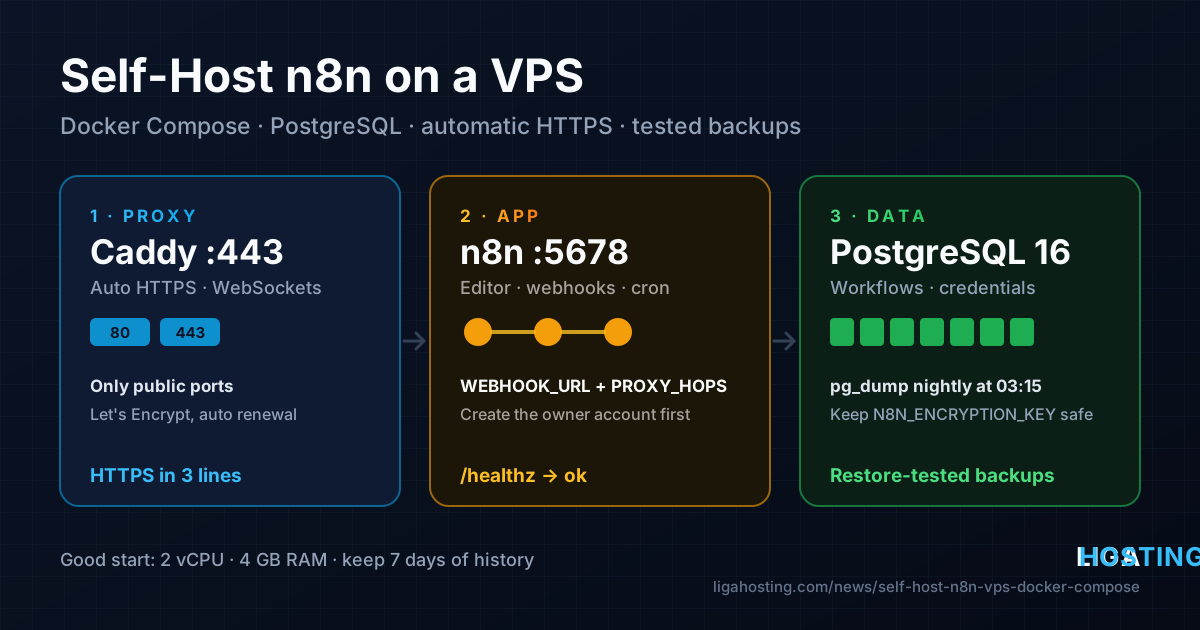
Self-Host n8n on a VPS — Docker Compose, HTTPS, Backups and Sizing
n8n is a workflow automation tool: you connect apps, APIs and databases with nodes in a visual editor, and n8n runs the workflows on a schedule or when a webhook is called. Self-hosting it means no per-execution limits from a hosted plan and full control over where your data and credentials live.
This guide sets up n8n on a fresh VPS the way you would run it in production: Docker Compose with PostgreSQL, automatic HTTPS through Caddy, a minimal firewall, tested backups and a safe update routine — plus a sizing table at the end.
What you need before you start
- A VPS with Ubuntu 24.04, Debian 12 or AlmaLinux 9 and root access; 2 vCPU and 4 GB RAM is a comfortable start (sizing below).
- A subdomain such as
n8n.example.comwith an A record to your VPS IP (here203.0.113.10). Create it first: the certificate can only be issued once DNS resolves. - Docker Engine and the Compose plugin. New to Docker? Read Docker on a VPS for Beginners; the short version is below.
Check DNS first:
dig +short n8n.example.com
# should print 203.0.113.10
Step 1 — Install Docker and open the firewall
Ubuntu / Debian — Docker's official script adds the repository and installs Engine and Compose:
curl -fsSL https://get.docker.com -o get-docker.sh
sudo sh get-docker.sh
sudo systemctl enable --now docker
docker compose version
AlmaLinux 9 — add the repository and install the packages with dnf:
sudo dnf -y install dnf-plugins-core
sudo dnf config-manager --add-repo https://download.docker.com/linux/rhel/docker-ce.repo
sudo dnf -y install docker-ce docker-ce-cli containerd.io docker-compose-plugin
sudo systemctl enable --now docker
Only SSH, HTTP and HTTPS need to be reachable. n8n (5678) and PostgreSQL (5432) are not published; they talk on Docker's internal network.
# Ubuntu / Debian with UFW
sudo ufw allow OpenSSH
sudo ufw allow 80/tcp
sudo ufw allow 443/tcp
sudo ufw allow 443/udp
sudo ufw enable

# AlmaLinux with firewalld
sudo firewall-cmd --permanent --add-service=http --add-service=https
sudo firewall-cmd --permanent --add-port=443/udp
sudo firewall-cmd --reload
Important: ports published by Docker bypass UFW, because Docker writes its own iptables rules. That is why the compose file below publishes only Caddy's ports.
Step 2 — Create the project folder and secrets
Everything lives in /opt/n8n. The .env file holds the values Compose substitutes into the configuration, including two secrets:
sudo mkdir -p /opt/n8n && cd /opt/n8n
sudo tee .env > /dev/null <<EOF
N8N_HOST=n8n.example.com
TZ=Europe/Bucharest
POSTGRES_PASSWORD=$(openssl rand -hex 24)
N8N_ENCRYPTION_KEY=$(openssl rand -hex 32)
EOF
sudo chmod 600 .env
sudo cat .env
N8N_ENCRYPTION_KEY encrypts every credential you save. Lose it and the credentials in your backups cannot be decrypted. Copy .env to your password manager now.
Step 3 — The docker-compose.yml file
Create /opt/n8n/docker-compose.yml with three services: PostgreSQL, n8n and Caddy (reverse proxy with HTTPS).
services:
  postgres:
    image: postgres:16
    restart: unless-stopped
    environment:
      POSTGRES_USER: n8n
      POSTGRES_PASSWORD: ${POSTGRES_PASSWORD}
      POSTGRES_DB: n8n
    volumes:
      - postgres_data:/var/lib/postgresql/data
    healthcheck:
      test: ["CMD-SHELL", "pg_isready -U n8n -d n8n"]
      interval: 10s
      timeout: 5s
      retries: 5

  n8n:
    image: docker.n8n.io/n8nio/n8n:latest
    restart: unless-stopped
    environment:
      DB_TYPE: postgresdb
      DB_POSTGRESDB_HOST: postgres
      DB_POSTGRESDB_PORT: 5432
      DB_POSTGRESDB_DATABASE: n8n
      DB_POSTGRESDB_USER: n8n
      DB_POSTGRESDB_PASSWORD: ${POSTGRES_PASSWORD}
      N8N_ENCRYPTION_KEY: ${N8N_ENCRYPTION_KEY}
      N8N_HOST: ${N8N_HOST}
      N8N_PORT: 5678
      N8N_PROTOCOL: https
      WEBHOOK_URL: https://${N8N_HOST}/
      N8N_PROXY_HOPS: 1
      GENERIC_TIMEZONE: ${TZ}
      TZ: ${TZ}
      EXECUTIONS_DATA_PRUNE: "true"
      EXECUTIONS_DATA_MAX_AGE: 168
    volumes:
      - n8n_data:/home/node/.n8n
    depends_on:
      postgres:
        condition: service_healthy

  caddy:
    image: caddy:2
    restart: unless-stopped
    ports:
      - "80:80"
      - "443:443"
      - "443:443/udp"
    volumes:
      - ./Caddyfile:/etc/caddy/Caddyfile:ro
      - caddy_data:/data
      - caddy_config:/config
    depends_on:
      - n8n

volumes:
  postgres_data:
  n8n_data:
  caddy_data:
  caddy_config:
What the important settings do:
| Setting | Why it matters |
|---|---|
DB_TYPE: postgresdb | Uses PostgreSQL instead of the default SQLite file: better for concurrent executions, clean backups. |
WEBHOOK_URL | Public address for webhook and OAuth callback URLs. Without it, n8n shows localhost:5678 links nobody can reach. |
N8N_PROXY_HOPS: 1 | One reverse proxy sits in front, so n8n trusts X-Forwarded-* headers and sees real client IPs. |
GENERIC_TIMEZONE | Time zone for Schedule triggers; if wrong, "daily at 08:00" runs at the wrong hour. |
EXECUTIONS_DATA_MAX_AGE: 168 | Deletes execution history older than 7 days — the usual reason the database keeps growing. |
The latest tag keeps the example simple. In production, pin an exact version from the n8n release notes, so a restart never pulls a new major version by surprise.
Step 4 — Automatic HTTPS with Caddy
Caddy obtains and renews a Let's Encrypt certificate by itself and forwards the WebSockets the editor uses. Create /opt/n8n/Caddyfile:
n8n.example.com {
    reverse_proxy n8n:5678
}
Start the stack and watch the logs:
cd /opt/n8n
sudo docker compose up -d
sudo docker compose ps
sudo docker compose logs -f n8n caddy
Wait for n8n to report the editor is accessible and Caddy to report the certificate was obtained, then verify from your computer:
curl -s https://n8n.example.com/healthz
# {"status":"ok"}
A certificate error from Caddy almost always means DNS does not point to the server yet, or port 80/443 is blocked. Already running Nginx? Publish n8n as "127.0.0.1:5678:5678", proxy to it and pass the WebSocket headers (see the Nginx WebSocket docs).
Step 5 — Create the owner account immediately
Open https://n8n.example.com and create the owner account right away: until an owner exists, whoever opens the URL first can claim the instance.
- Use a long, unique password and enable two-factor authentication in your user settings.
- Build a tiny test workflow: a Webhook node followed by Respond to Webhook. Activate it and call the production URL:
curl -X POST https://n8n.example.com/webhook/your-path. A response means webhooks, HTTPS andWEBHOOK_URLare correct. The test URL (/webhook-test/) only works while the editor is listening.
Step 6 — Backups you can actually restore
Save three things: the database (workflows, credentials, history), the n8n_data volume (config, binary files) and .env (encryption key). Save this script as /opt/n8n/backup.sh:
#!/bin/bash
set -euo pipefail
cd /opt/n8n
STAMP=$(date +%F-%H%M)
DEST=/var/backups/n8n
mkdir -p "$DEST"

# 1. Consistent database dump (custom format, compressed)
docker compose exec -T postgres pg_dump -U n8n -d n8n -Fc > "$DEST/db-$STAMP.dump"

# 2. The n8n data volume
docker run --rm -v n8n_n8n_data:/data:ro -v "$DEST":/backup alpine \
  tar czf "/backup/n8n-data-$STAMP.tar.gz" -C /data .

# 3. Configuration and secrets
tar czf "$DEST/config-$STAMP.tar.gz" .env docker-compose.yml Caddyfile
chmod 600 "$DEST"/*-"$STAMP".*

# Keep 14 days locally
find "$DEST" -type f -mtime +14 -delete
sudo chmod 700 /opt/n8n/backup.sh
sudo /opt/n8n/backup.sh && ls -lh /var/backups/n8n
# Run every night at 03:15
echo '15 3 * * * root /opt/n8n/backup.sh' | sudo tee /etc/cron.d/n8n-backupCompose prefixes volume names with the folder name, hence n8n_n8n_data (check with docker volume ls). Copy /var/backups/n8n off-site too, as in the 3-2-1 backup rule in practice.
Restore test (do it once, on a test VPS or before you need it):
cd /opt/n8n
# put back .env, docker-compose.yml and Caddyfile from config-*.tar.gz first
sudo docker compose stop n8n
sudo docker compose up -d postgres
sudo docker compose exec -T postgres pg_restore -U n8n -d n8n --clean --if-exists < /var/backups/n8n/db-2026-11-06-0315.dump
sudo docker run --rm -v n8n_n8n_data:/data -v /var/backups/n8n:/backup alpine \
  tar xzf /backup/n8n-data-2026-11-06-0315.tar.gz -C /data
sudo docker compose up -d
Log in and open a saved credential: if it opens without error, the key matches and the restore worked.
Step 7 — Updating n8n safely
Read the release notes, run sudo /opt/n8n/backup.sh, change the pinned tag, then pull and recreate:
cd /opt/n8n
sudo docker compose pull
sudo docker compose up -d
sudo docker compose logs --tail=50 n8n
sudo docker image prune -f
n8n runs database migrations automatically on start. They are not always reversible, so if something breaks, set the previous tag back and restore the backup you just made.
How much server does n8n need?
n8n's memory use depends far more on what your workflows do than on how many you have: large JSON responses, files, spreadsheets or many items in one execution are what use RAM. PostgreSQL and Caddy add a moderate, predictable amount.
| Use case | Suggested resources | Liga Hosting plan |
|---|---|---|
| Personal automations, a few scheduled workflows, light webhooks | 1 vCPU, 2 GB RAM | VPS XS (€2.5/month) — keep history short; 10 GB NVMe fills quickly |
| Small team, PostgreSQL, dozens of active workflows | 2 vCPU, 4 GB RAM | VPS S (€5/month) |
| Many parallel executions, Code nodes, AI/LLM calls, larger payloads | 4 vCPU, 8 GB RAM | VPS M (€10/month) |
| Workflows that store many files or keep long execution history | Same CPU/RAM, much more disk | VPS Performance S (€10/month, 200 GB NVMe) or larger |
Measure with docker stats --no-stream (CPU/RAM per container) and docker system df (disk). If n8n is killed during big executions, process data in smaller batches (Loop Over Items). Upgrades within the same VPS line are self-service from the client area.
Frequently Asked Questions
Can I use SQLite instead of PostgreSQL?
Yes. Without the DB_* variables and the postgres service, n8n uses a SQLite file in the n8n_data volume — fine for one user with light traffic. For anything you depend on, PostgreSQL handles concurrency better and gives clean pg_dump backups.
Why do my webhook URLs show localhost:5678?
WEBHOOK_URL is missing or wrong. Set it to your public address with a trailing slash, e.g. https://n8n.example.com/, and run docker compose up -d to recreate the container.
I moved n8n to a new server and the credentials no longer work. Why?
The new installation has a different N8N_ENCRYPTION_KEY, and credentials are encrypted with it. Copy the original key from the old .env into the new one and recreate the n8n container.
Is it safe to expose n8n to the internet?
This setup exposes only HTTPS, protects the editor with an owner account and keeps the database private. Add two-factor authentication, keep n8n and the OS updated, and use header authentication on sensitive webhooks.
At Liga Hosting, a Standard VPS such as VPS S (2 vCPU, 4 GB RAM) fits n8n with PostgreSQL well, and the Performance VPS line adds far more NVMe for file-heavy workflows. Every VPS is unmanaged with full root access; contact us for network, IP or billing questions.