
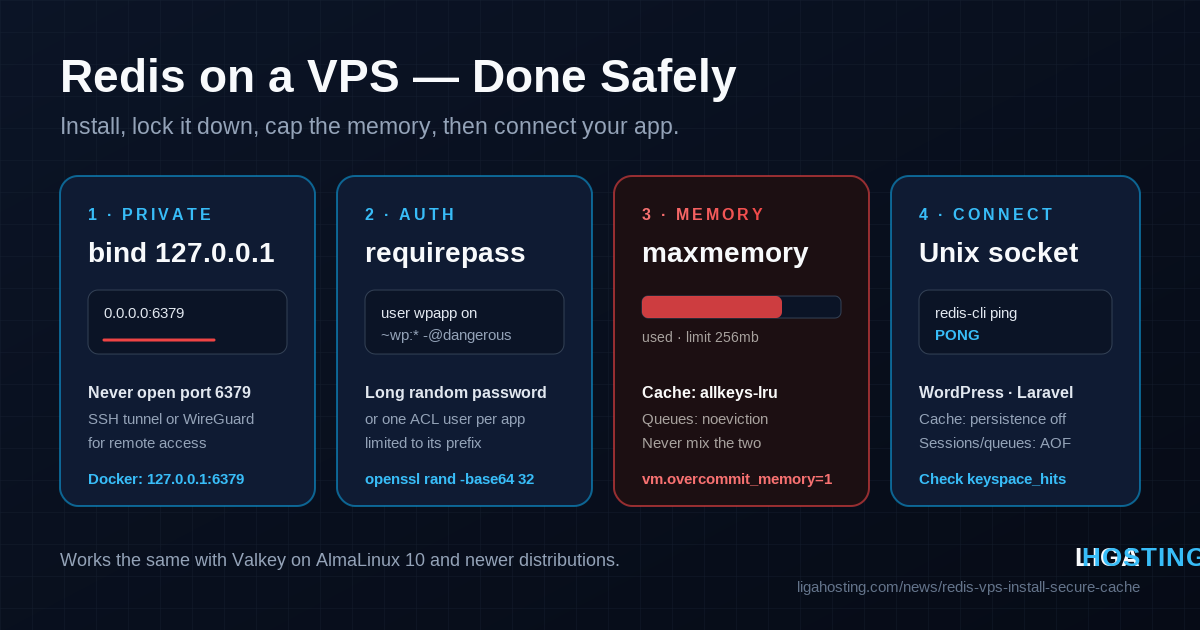
Redis on a VPS — Install, Secure and Use It as a Cache
Redis is a small in-memory database that answers in well under a millisecond. On a VPS it is usually used for three things: as an object cache that saves your database from repeating the same queries, as a session store, and as a queue for background jobs. WordPress, Laravel, Django, Node.js and most modern frameworks can use it with a few lines of configuration.
Installing it takes one command. Running it well takes a few more decisions: who may connect, how much RAM it may use, and whether the data has to survive a restart. An unprotected Redis reachable from the internet is one of the most common ways small servers get compromised, so this guide treats security as part of the installation, not an extra.
When Redis actually helps
Redis does not make every site faster. It helps when the same data is computed or fetched again and again:
- Dynamic sites with many database queries — WordPress with WooCommerce or many plugins, forums, membership sites. A persistent object cache stores query results in RAM between requests.
- Sessions — keeping PHP or application sessions in Redis instead of files avoids disk locking and lets several app servers share sessions.
- Queues and rate counters — Laravel queues, Sidekiq, BullMQ, Celery and similar tools use Redis lists and streams for jobs.
It helps little on a static site, or on a site where every page is already served from a full-page cache. If your pages are slow because of one heavy query, fix the query first; Redis hides the problem only until the cache expires.
Install Redis (or Valkey)
In 2024 Redis changed its license, and the Linux Foundation started Valkey, a fork that is protocol-compatible with Redis. Some distributions now ship one, some the other, some both. For the uses in this guide they behave the same: same commands, same configuration options, same client libraries.
Ubuntu and Debian:
sudo apt update
sudo apt install -y redis-server
sudo systemctl enable --now redis-server
redis-cli ping
AlmaLinux 9:
sudo dnf install -y redis
sudo systemctl enable --now redis
redis-cli ping
AlmaLinux 10 ships Valkey instead of Redis:
sudo dnf install -y valkey
sudo systemctl enable --now valkey
valkey-cli ping
The answer to ping should be PONG. Check the version with redis-server --version (or valkey-server --version). The rest of this guide uses the Debian/Ubuntu names; the differences are summarised here:
| Distribution | Service | Configuration file | CLI |
|---|---|---|---|
| Ubuntu / Debian | redis-server | /etc/redis/redis.conf | redis-cli |
| AlmaLinux 9 | redis | /etc/redis/redis.conf | redis-cli |
| AlmaLinux 10 (Valkey) | valkey | /etc/valkey/valkey.conf | valkey-cli |
Avoid installing Redis from random third-party scripts. The distribution package gets security updates through the same channel as the rest of the system.
Step 1 — Keep Redis off the internet
Redis was designed for trusted networks. Anyone who can connect to an unprotected instance can read all data, delete it, and — through features such as CONFIG SET — often write files on the server. Automated scanners look for open port 6379 all day.
The packaged configuration listens only on localhost, which is what you want when the application runs on the same VPS. Confirm it:
sudo grep -E '^(bind|protected-mode|port)' /etc/redis/redis.conf
sudo ss -ltnp | grep 6379
You should see bind 127.0.0.1 -::1, protected-mode yes, and the socket listening on 127.0.0.1:6379 (and [::1]:6379), never on 0.0.0.0:6379 or *:6379. If someone changed bind to 0.0.0.0 "to make it work", change it back.
Then test from your own computer, not from the VPS:
nc -vz 203.0.113.10 6379The connection must fail. Do not open 6379 in UFW or firewalld. If an application on another machine needs Redis, use an SSH tunnel or a private VPN such as WireGuard between the servers, and bind Redis to the private address only.
Docker users, careful: docker run -p 6379:6379 redis publishes the port on all interfaces, and Docker's iptables rules bypass UFW. Publish it on localhost only — -p 127.0.0.1:6379:6379 — or, better, do not publish it at all and let containers reach Redis over the Compose network.
Step 2 — Require a password (or an ACL user)
Binding to localhost stops outside attackers, but every process and user on the VPS can still connect. A password adds a second layer — useful if a web application is ever compromised or a port is exposed by mistake. Generate a long random one:
openssl rand -base64 32Set it in /etc/redis/redis.conf:
requirepass PASTE-THE-LONG-RANDOM-STRING-HEREThe file contains the password, so make sure only root and the redis user can read it:
sudo chown redis:redis /etc/redis/redis.conf
sudo chmod 640 /etc/redis/redis.conf
sudo systemctl restart redis-server
Verify. Without the password you get an error; with it, PONG. Passing the password in an environment variable keeps it out of your shell history and the process list:
redis-cli ping
# (error) NOAUTH Authentication required.

read -rs REDISCLI_AUTH; export REDISCLI_AUTH
redis-cli ping
# PONG
For more control, Redis 6 and newer support ACL users. You can give each application its own user, limited to its own key prefix and without dangerous commands. Add lines like these to the configuration file:
user default off
user admin on >ADMIN-LONG-PASSWORD ~* &* +@all
user wpapp on >APP-LONG-PASSWORD ~wp:* +@all -@dangerous
This disables the passwordless default user, keeps a full admin account for you, and lets wpapp touch only keys that start with wp: and run no administrative commands such as FLUSHALL, CONFIG or DEBUG. Log in with redis-cli --user admin --pass ... and list users with ACL LIST. If you use ACL users, remove the requirepass line to avoid confusion. Older guides recommend rename-command to hide dangerous commands; ACLs are the modern replacement.
Step 3 — Set a memory limit and an eviction policy
By default Redis has no memory limit: it grows until the VPS runs out of RAM and the kernel's OOM killer starts killing processes — often your database or Redis itself. If you have met that problem before, our guide on the OOM killer and swap explains what happens. Always set a limit:
maxmemory 256mb
maxmemory-policy allkeys-lru
How much to give it depends on what else runs on the server. As a starting point, budget the database, PHP-FPM workers and the web server first, then give Redis part of what is left. On a 2 GB VPS running a typical WordPress stack, 128–256 MB is plenty; check real usage after a few days and adjust.
The policy decides what happens when the limit is reached:
| Policy | Behaviour | Use it for |
|---|---|---|
allkeys-lru | Removes the least recently used keys | Pure cache (WordPress object cache, page fragments) |
allkeys-lfu | Removes the least frequently used keys | Cache with a small set of very popular keys |
volatile-lru | Removes only keys that have an expiry time | Mixed use: cache keys with TTL, plus data that must stay |
noeviction | Refuses new writes with an error | Queues and sessions, where losing a key is a bug |
Do not use an evicting policy for a job queue: Redis would silently drop jobs when memory is full. If you need both a cache and a queue, the cleanest solution is two separate Redis instances, each with its own limit and policy.
Apply and verify without a restart:
redis-cli CONFIG SET maxmemory 256mb
redis-cli CONFIG SET maxmemory-policy allkeys-lru
redis-cli INFO memory | grep -E 'used_memory_human|maxmemory_human|maxmemory_policy'
CONFIG SET changes only the running instance; keep the same values in the configuration file so they survive a restart (or run CONFIG REWRITE).
Step 4 — Decide whether the data must survive a restart
Redis keeps everything in RAM, but it can save to disk in two ways:
- RDB snapshots — the whole dataset is written to
dump.rdbat intervals defined bysavelines. Compact and fast to load, but you lose the changes since the last snapshot. - AOF (append-only file) — every write is logged. With
appendfsync everysecyou lose at most about one second of writes. Larger and a little slower.
For a pure cache, persistence only costs disk writes; the application rebuilds the cache on its own. Turn it off:
save ""
appendonly no
For sessions and queues, keep it on. A reasonable setup is:
appendonly yes
appendfsync everysec
The data files live in /var/lib/redis (on AlmaLinux 10, /var/lib/valkey). If Redis holds data you care about, include dump.rdb and the AOF directory in your server backups. Run redis-cli BGSAVE before copying the RDB file so the snapshot is fresh.
Step 5 — Fix the kernel warnings in the log
After a restart, look at the Redis log:
sudo journalctl -u redis-server -n 50 --no-pager
sudo tail -n 50 /var/log/redis/redis-server.log
The most common warning is "Memory overcommit must be enabled!". When Redis saves a snapshot it forks itself; with strict overcommit the fork can fail on a busy server, and saving stops. Fix it permanently:
echo 'vm.overcommit_memory = 1' | sudo tee /etc/sysctl.d/90-redis.conf
sudo sysctl --system
sudo systemctl restart redis-server
Some kernels also log a warning about Transparent Huge Pages, which can cause latency spikes during saves. Check it with cat /sys/kernel/mm/transparent_hugepage/enabled; if it shows [always], setting it to madvise or never removes the warning. On many current Ubuntu and Debian images it is already madvise.
Step 6 — Connect your application
Use a Unix socket when the app is on the same VPS. It skips the TCP stack and cannot be reached over the network. In redis.conf:
unixsocket /run/redis/redis-server.sock
unixsocketperm 770
Then add the web server user to the redis group and restart both services, so PHP can open the socket:
sudo usermod -aG redis www-data      # AlmaLinux: nginx or apache
sudo systemctl restart redis-server php8.3-fpm
redis-cli -s /run/redis/redis-server.sock ping
Replace php8.3-fpm with the PHP-FPM service on your system (systemctl list-units '*fpm*' shows it).
WordPress: install the PHP extension (sudo apt install php-redis, or php-pecl-redis on AlmaLinux with the right PHP repository), then add to wp-config.php above the "stop editing" line:
define( 'WP_REDIS_HOST', '127.0.0.1' );
define( 'WP_REDIS_PORT', 6379 );
define( 'WP_REDIS_PASSWORD', 'PASTE-THE-PASSWORD' );
define( 'WP_REDIS_PREFIX', 'wp:' );
define( 'WP_REDIS_DATABASE', 0 );
Install and enable a Redis object cache plugin (for example "Redis Object Cache"), and check its status page: it should say "Connected". With several WordPress sites on one Redis, give each a different prefix.
Laravel: install php-redis, then set in .env:
REDIS_CLIENT=phpredis
REDIS_HOST=127.0.0.1
REDIS_PASSWORD=PASTE-THE-PASSWORD
REDIS_PORT=6379
CACHE_STORE=redis
SESSION_DRIVER=redis
QUEUE_CONNECTION=redis
On older Laravel versions the cache variable is CACHE_DRIVER instead of CACHE_STORE. Run php artisan config:clear after editing. Remember the earlier warning: if cache and queue share one instance, an evicting policy can delete jobs.
Check that the cache is working
A cache that is never hit only uses RAM. A few commands tell you how it performs:
# Hits vs misses since start
redis-cli INFO stats | grep -E 'keyspace_hits|keyspace_misses|evicted_keys'

# How many keys, per database
redis-cli INFO keyspace

# Watch live commands for a few seconds (Ctrl+C to stop; avoid on busy servers)
redis-cli MONITOR

# Latency from the client's point of view
redis-cli --latency- High hits, few misses: the cache is doing its job.
- Many misses and few keys: the application is not using Redis as you think — check the plugin or framework settings.
- evicted_keys growing fast:
maxmemoryis too small for your working set; raise it if there is free RAM. - Latency above a millisecond or two on localhost: the VPS is short on CPU or memory, or swapping. Check
free -hand the load average.
Never run KEYS * on a large production instance: it blocks Redis until it has scanned every key. Use redis-cli --scan --pattern 'wp:*' | head instead.
Frequently Asked Questions
Should I install Redis or Valkey?
Use whatever your distribution packages. For caching, sessions and queues they are interchangeable: the same clients, the same commands and the same configuration options work with both, and you get security updates from your distribution either way.
Is it safe to run Redis without a password if it only listens on localhost?
Localhost binding is the most important protection, and many setups run that way. A password or ACL user is still worth adding: it protects you if the bind address is changed by mistake, a port is published through Docker, or another account on the server is compromised.
How much RAM does Redis need?
As much as the data you put in it, plus some overhead. A typical WordPress object cache uses tens to a few hundred megabytes. Set maxmemory, watch used_memory_human and evicted_keys for a few days, and adjust.
Will I lose data if Redis restarts?
With persistence off, yes — which is fine for a cache. For sessions and queues, enable AOF with appendfsync everysec, so at most about a second of writes is lost, and include the data directory in your backups.
Can several websites share one Redis instance?
Yes, if each uses its own key prefix or ACL user. For unrelated projects, or when you need a cache and a queue with different eviction policies, separate instances are cleaner and easier to monitor.
At Liga Hosting, our Standard VPS and Performance VPS plans run on KVM with NVMe storage, DDoS protection and full root access, so you can install Redis or Valkey, tune its memory and keep it private exactly as described here. If your cache needs more RAM, upgrades within the same VPS line are available from the client area.