
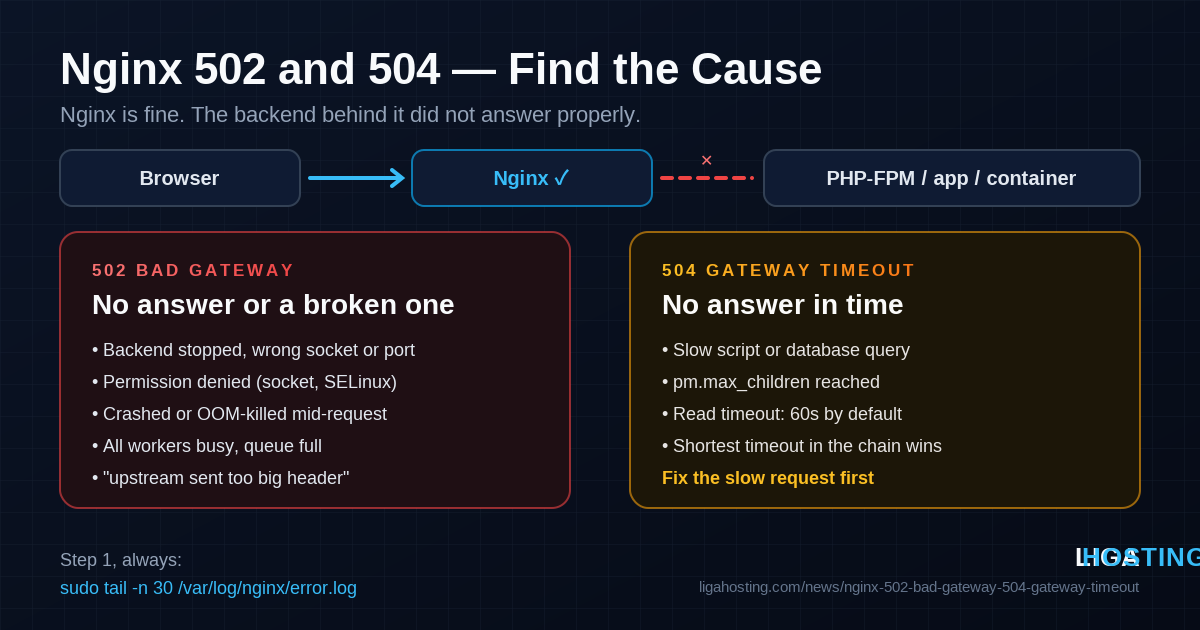
Nginx 502 Bad Gateway and 504 Gateway Timeout — Find the Cause and Fix It
The site was working, you changed something — or nothing at all — and now the browser shows a plain white page with "502 Bad Gateway" or "504 Gateway Timeout" and the word nginx underneath. Restarting everything sometimes helps for an hour, then it comes back.
Both errors mean the same thing from Nginx's point of view: Nginx itself is fine, but the program behind it — PHP-FPM, a Node.js or Python app, a Docker container — did not give it a usable answer. The good news is that Nginx writes down exactly why in its error log. This guide shows you how to read that line and what to do for each message, with commands for Ubuntu, Debian and AlmaLinux.
502 vs 504 — what Nginx is telling you
When Nginx works as a reverse proxy, every request goes through two connections: browser → Nginx, and Nginx → backend (the upstream). Errors in the 5xx "gateway" family describe the second connection:
| Code | What happened between Nginx and the backend | Typical cause |
|---|---|---|
| 502 | Could not connect, or got a broken / invalid answer | Backend stopped or crashed, wrong socket or port, permissions, headers too big |
| 504 | Connected, but no answer arrived in time | Slow script or query, all workers busy, timeout set too low |
| 503 | Nginx refused the request itself | Rate limiting (limit_req), maintenance rule |
| 500 | The backend answered, with an error | Bug or fatal error in the application — check the app's own log |
So: 502 is usually "nobody home" or "garbage answer", 504 is "nobody answered in time". That alone halves the search.
Step 1 — Read the Nginx error log
Do not guess. Reproduce the error once in the browser, then look at the last lines of the error log:
sudo tail -n 30 /var/log/nginx/error.log

# If a site has its own error_log, find where it writes
sudo nginx -T 2>/dev/null | grep -E '^\s*error_log'

# Watch live while you reload the page
sudo tail -f /var/log/nginx/error.log
A typical line looks like this:
2026/11/19 10:42:07 [error] 1234#1234: *5678 connect() to unix:/run/php/php8.3-fpm.sock failed
(2: No such file or directory) while connecting to upstream, client: 198.51.100.7,
server: example.com, request: "GET / HTTP/1.1", upstream: "fastcgi://unix:/run/php/php8.3-fpm.sock:"
Two parts matter: the message in brackets (here 2: No such file or directory) and the upstream address Nginx tried to reach. The table below maps the common messages to their section in this guide.
| Message in error.log | Code | Go to |
|---|---|---|
(2: No such file or directory) | 502 | Cause 1 — wrong socket path or backend down |
(111: Connection refused) | 502 | Cause 1 — nothing listens on that port |
(13: Permission denied) | 502 | Cause 2 — socket permissions or SELinux |
upstream prematurely closed connection, (104: Connection reset by peer) | 502 | Cause 3 — backend crashed or was killed |
(11: Resource temporarily unavailable) | 502 | Cause 4 — all workers busy, queue full |
upstream sent too big header | 502 | Cause 5 — buffers too small |
upstream timed out (110: Connection timed out) | 504 | Cause 6 — slow backend or low timeout |
Cause 1 — The backend is down or Nginx points to the wrong address
"No such file or directory" for a socket, or "Connection refused" for a port, means nothing is listening where Nginx is looking. Check both sides: what Nginx expects and what is actually running.
# What does Nginx try to reach?
sudo nginx -T 2>/dev/null | grep -E 'fastcgi_pass|proxy_pass'

# Is PHP-FPM running? (Ubuntu 24.04 ships PHP 8.3, Debian 12 ships 8.2)
systemctl status php8.3-fpm        # AlmaLinux: systemctl status php-fpm
ls -l /run/php/                    # AlmaLinux: ls -l /run/php-fpm/

# Which TCP ports have a listener, and which program owns them?
sudo ss -ltnp
Typical findings and fixes:
- PHP was upgraded (for example after a release upgrade) and the socket is now
php8.3-fpm.sock, while the site still points tophp8.1-fpm.sock. Updatefastcgi_passto the socket that exists, thensudo nginx -t && sudo systemctl reload nginx. - The service is stopped or failed to start. Start it and read why it failed:
sudo systemctl restart php8.3-fpm, thensudo journalctl -u php8.3-fpm -n 50. A typo in a pool file is the usual reason;sudo php-fpm8.3 -t(AlmaLinux:sudo php-fpm -t) tests the configuration. - The app listens on a different port than
proxy_passuses, or listens only on::1while Nginx connects to127.0.0.1. Use an explicit address on both sides — for example the app on127.0.0.1:3000andproxy_pass http://127.0.0.1:3000;— instead oflocalhost, which can resolve to IPv4 or IPv6.
Test the backend directly, without Nginx. If this fails, the problem is the app, not Nginx:
curl -sv http://127.0.0.1:3000/ -o /dev/null
# For a PHP site, a small PHP file through Nginx tells you whether PHP-FPM answers at all
Cause 2 — Permission denied on the socket (and SELinux)
A Unix socket is a file, so it has an owner and permissions. Nginx runs its workers as www-data on Ubuntu and Debian and as nginx on AlmaLinux. If that user cannot open the socket, you get (13: Permission denied).
ls -l /run/php/php8.3-fpm.sock
# srw-rw---- 1 www-data www-data 0 ... /run/php/php8.3-fpm.sock
The socket ownership is set in the PHP-FPM pool file (/etc/php/8.3/fpm/pool.d/www.conf, or /etc/php-fpm.d/www.conf on AlmaLinux):
listen = /run/php/php8.3-fpm.sock
listen.owner = www-data
listen.group = www-data
listen.mode = 0660
On AlmaLinux the default pool uses listen.acl_users = apache,nginx; make sure nginx is in that list. Restart PHP-FPM after any change.
SELinux on AlmaLinux causes a confusing variant: permissions look correct, but Nginx still gets "Permission denied" when proxying to a TCP port such as 127.0.0.1:3000. SELinux blocks web server processes from making network connections by default. Confirm and fix it:
sudo ausearch -m avc -ts recent | grep nginx
sudo setsebool -P httpd_can_network_connect 1
Do not disable SELinux entirely to "fix" this — the boolean above is the intended switch.
Cause 3 — The backend crashed or was killed mid-request
upstream prematurely closed connection while reading response header or Connection reset by peer mean the backend accepted the request and then died or hung up before answering. The three usual reasons:
- The kernel's OOM killer ended the process because the VPS ran out of memory.
- PHP-FPM ended the request because it hit
request_terminate_timeout. - The application crashed — a segfault in a PHP extension, or an unhandled exception that killed a Node.js process.
# Memory kills
sudo dmesg -T | grep -iE 'out of memory|killed process' | tail
free -h

# PHP-FPM side
sudo tail -n 50 /var/log/php8.3-fpm.log      # AlmaLinux: /var/log/php-fpm/error.log
# look for: "execution timed out", "exited on signal 11 (SIGSEGV)"

# App managed by systemd
sudo journalctl -u myapp -n 100 --no-pager
If memory is the problem, lower the number of workers so they fit in RAM, add swap as a safety net, or move to a larger plan — our guide to the OOM killer and swap walks through it. If it is a crash, the application log is where the real error is; Nginx only sees the dropped connection.
Cause 4 — All workers are busy
PHP-FPM serves at most pm.max_children requests at the same time. When all children are busy, new requests wait in the socket's queue. If the queue fills up, Nginx gets (11: Resource temporarily unavailable) and returns 502; if requests wait too long, you get 504 instead. The PHP-FPM log says it plainly:
sudo grep -i 'max_children' /var/log/php8.3-fpm.log | tail
# WARNING: [pool www] server reached pm.max_children setting (5), consider raising it
Raising pm.max_children helps only if there is RAM for the extra workers. Measure how much one worker uses, divide the memory you can spare by that, and set the limit accordingly — the full method is in PHP-FPM tuning for a small VPS. Often the better fix is to make each request faster: page caching, an object cache, and slow-query fixes in the database free workers much sooner than any setting.
Cause 5 — "upstream sent too big header"
Nginx reads the backend's response headers into one fixed buffer (4 KB or 8 KB by default, depending on the platform). Applications that set many or large cookies — WordPress with some plugins, sessions with big tokens, single sign-on — can exceed it, and Nginx answers 502. Increase the buffers in the server or location block that talks to the backend:
# For PHP-FPM (fastcgi_pass)
fastcgi_buffer_size 32k;
fastcgi_buffers 16 16k;

# For apps behind proxy_pass
proxy_buffer_size 16k;
proxy_buffers 8 16k;
proxy_busy_buffers_size 32k;
sudo nginx -t && sudo systemctl reload nginxCause 6 — 504: the backend is too slow, or the timeout is too short
upstream timed out (110: Connection timed out) while reading response header from upstream means Nginx waited the full read timeout — 60 seconds by default — without receiving a response. First find out what is slow, then decide whether a longer timeout is really the fix.
Add upstream timing to the access log so you can see which URLs are slow:
# In the http { } block of /etc/nginx/nginx.conf
log_format timing '$remote_addr [$time_local] "$request" $status '
                  'rt=$request_time urt=$upstream_response_time us=$upstream_status';

# In the server { } block of the site
access_log /var/log/nginx/example.com-timing.log timing;
sudo nginx -t && sudo systemctl reload nginx
# Slowest requests first
awk -F'urt=' '{split($2, a, " "); print a[1], $0}' /var/log/nginx/example.com-timing.log | sort -nr | headFor PHP, turn on the slow log in the pool file. It writes a stack trace of any request that runs longer than the threshold, showing the exact function that is waiting:
request_slowlog_timeout = 10s
slowlog = /var/log/php8.3-fpm-slow.log
If the slow part is a legitimate long task — an import, an export, a report — the timeouts in the chain must agree. Each layer has its own limit and the shortest one wins:
| Layer | Setting | Default |
|---|---|---|
| Nginx → PHP-FPM | fastcgi_read_timeout | 60s |
| Nginx → app | proxy_read_timeout | 60s |
| PHP-FPM pool | request_terminate_timeout | 0 (off) |
| PHP | max_execution_time in php.ini | 30s |
| Cloudflare proxy (if used) | origin response timeout | 100s (shown as 524) |
Raise timeouts only for the location that needs it, not for the whole site:
location /admin/export {
    include snippets/fastcgi-php.conf;
    fastcgi_pass unix:/run/php/php8.3-fpm.sock;
    fastcgi_read_timeout 300s;
}
Anything that regularly takes minutes belongs in a background job (a queue worker or a cron task), not in a web request that a visitor — and every proxy in between — has to wait for.
Verify the fix and keep it fixed
- Test before reload: always run
sudo nginx -t; a reload with a broken config is refused, but a restart would take the site down. - Reproduce:
curl -sI https://example.com/ | head -1should returnHTTP/2 200(orHTTP/1.1 200 OK). - Watch the log for a while:
sudo tail -f /var/log/nginx/error.logduring normal traffic. Intermittent 502s that return at busy hours point to Causes 3 and 4. - Restart automatically after crashes: for apps run by systemd,
Restart=on-failurein the unit file brings the backend back without you.
Frequently Asked Questions
Is a 502 error a problem with Nginx itself?
Almost never. Nginx is the messenger: it reports that the backend behind it was unreachable or answered badly. The fix is nearly always in PHP-FPM, the application, its configuration or the server's memory.
Why does restarting PHP-FPM fix the 502 only for a while?
A restart frees all workers and memory, so the symptom disappears until the same pressure returns. If the error comes back at busy times, look for "server reached pm.max_children" in the PHP-FPM log and for OOM kills in dmesg; those are the real causes.
Should I just set every timeout to 600 seconds?
No. Long timeouts hide slow code and let stuck requests occupy workers, which makes overload worse. Find the slow request with the timing log and slow log, fix it or move it to a background job, and raise the timeout only for the specific location that genuinely needs it.
The site is behind Cloudflare — is a 502 from Cloudflare the same thing?
If the error page shows nginx at the bottom, it comes from your server and this guide applies. If it is Cloudflare's branded page, the problem is between Cloudflare and your server; codes 521–524 each have a specific meaning there.
Can my hosting provider fix a 502 for me?
On an unmanaged VPS the web server, PHP and the application are administered by you. The provider can help when the VPS itself is unreachable or there is a network or hardware issue, which shows up as a timeout before Nginx answers at all, not as an Nginx error page.
At Liga Hosting, our Standard VPS and Performance VPS plans come with NVMe storage, DDoS protection and full root access, so you can read every log and change every setting in this guide. If your backend needs more workers than your RAM allows, upgrades within the same VPS line are done from the client area. Prefer not to manage a server? Web hosting with cPanel runs the web server and PHP for you.