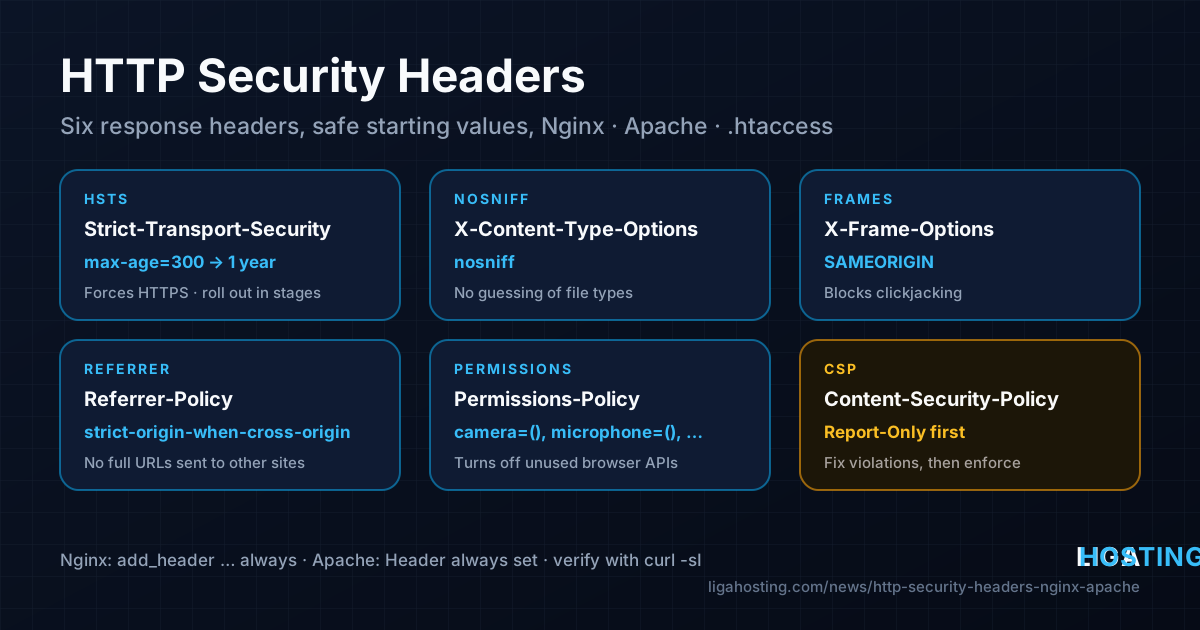
HTTP Security Headers on Your Server — HSTS, CSP and the Rest Done Right
Your site has HTTPS, the firewall is set up and the software is up to date. Then someone runs a scanner against your domain and the report is full of red: "Strict-Transport-Security missing", "Content-Security-Policy missing", "X-Frame-Options missing".
These are HTTP response headers — short lines your web server sends with every page, telling the browser how to treat it. Adding them takes a few minutes, but adding them carelessly can lock visitors out of your site or break the checkout page. This guide explains what each header does, which values are safe to start with, and how to set them in Nginx, Apache and on cPanel shared hosting, with commands to verify the result.
What security headers do — and what they do not
Security headers are instructions for the visitor's browser. They do not protect the server itself: they do not stop brute-force attacks, SQL injection or a vulnerable plugin. What they do is close several browser-side attacks — someone loading your login page inside an invisible frame, a downgrade from HTTPS to HTTP on public Wi-Fi, or an injected script sending data to a foreign domain.
| Header | What it protects against | Safe starting value |
|---|---|---|
| Strict-Transport-Security (HSTS) | Downgrade to HTTP, cookie theft on insecure networks | max-age=300, increased later |
| X-Content-Type-Options | Browser "guessing" a file type and running it as script | nosniff |
| X-Frame-Options | Clickjacking — your pages inside someone else's frame | SAMEORIGIN |
| Referrer-Policy | Full URLs (with tokens or search terms) leaking to other sites | strict-origin-when-cross-origin |
| Permissions-Policy | Embedded or injected code using camera, microphone, location | camera=(), microphone=(), geolocation=() |
| Content-Security-Policy (CSP) | Cross-site scripting, loading resources from unknown domains | Start in Report-Only mode |
One header you will still see in old tutorials is X-XSS-Protection. Modern browsers have removed the filter it controlled, and the old setting could itself be abused. Do not add it; a Content-Security-Policy is its replacement.
Step 1 — See what your site sends today
Start by looking at the current response headers. From any Linux or macOS terminal (or from the server itself):
curl -sI https://example.com/ | grep -iE 'strict-transport|content-security|x-frame|x-content-type|referrer-policy|permissions-policy|server|x-powered-by'Run the same command for a page that does not exist and for a static file, because the headers are often different there:
curl -sI https://example.com/this-page-does-not-exist | grep -i strict-transport
curl -sI https://example.com/favicon.ico | grep -i x-content-type
Write down what is already present. WordPress security plugins, frameworks and Cloudflare can add some of these headers on their own; setting them a second time on the server creates duplicates, which browsers handle inconsistently (more on that below).
Step 2 — Add the headers in Nginx
Keep the headers in one snippet file and include it in every HTTPS server block. On Ubuntu and Debian the /etc/nginx/snippets directory already exists; on AlmaLinux create it with sudo mkdir -p /etc/nginx/snippets.
sudo nano /etc/nginx/snippets/security-headers.conf# /etc/nginx/snippets/security-headers.conf
add_header Strict-Transport-Security "max-age=300" always;
add_header X-Content-Type-Options "nosniff" always;
add_header X-Frame-Options "SAMEORIGIN" always;
add_header Referrer-Policy "strict-origin-when-cross-origin" always;
add_header Permissions-Policy "camera=(), microphone=(), geolocation=()" always;Then include it in the site configuration, inside the server block that listens on 443:
server {
    listen 443 ssl;
    server_name example.com www.example.com;
    include /etc/nginx/snippets/security-headers.conf;
    # ... certificates, root, locations ...
}
sudo nginx -t && sudo systemctl reload nginxTwo details decide whether this actually works:
- The
alwaysparameter. Without it, Nginx adds the header only to successful responses (200, 301, 302 and a few others). Error pages, including your 404 and 502 pages, would be sent without protection. - The inheritance trap.
add_headerdirectives are inherited from theserverlevel only if thelocationblock has noadd_headerof its own. A common pattern likelocation ~* \.(css|js)$ { add_header Cache-Control "public"; }silently drops all your security headers for CSS and JS files. The fix is to repeat the include inside every location that sets its own header.
location ~* \.(css|js|png|jpg|svg|woff2)$ {
    add_header Cache-Control "public, max-age=2592000";
    include /etc/nginx/snippets/security-headers.conf;
}
If Nginx is a reverse proxy in front of an application that already sends, for example, X-Frame-Options, hide the application's copy so the browser receives only one: add proxy_hide_header X-Frame-Options; in the proxied location (or fastcgi_hide_header for PHP-FPM). The ngx_http_headers_module documentation describes these rules in detail.
Step 3 — Add the headers in Apache
Apache sets headers with mod_headers. On Ubuntu and Debian enable the module and create a configuration file:
sudo a2enmod headers
sudo nano /etc/apache2/conf-available/security-headers.conf
# /etc/apache2/conf-available/security-headers.conf
Header always set Strict-Transport-Security "max-age=300"
Header always set X-Content-Type-Options "nosniff"
Header always set X-Frame-Options "SAMEORIGIN"
Header always set Referrer-Policy "strict-origin-when-cross-origin"
Header always set Permissions-Policy "camera=(), microphone=(), geolocation=()"sudo a2enconf security-headers
sudo apache2ctl configtest && sudo systemctl reload apache2On AlmaLinux, mod_headers is loaded by default (check with httpd -M | grep headers). Put the same lines in /etc/httpd/conf.d/security-headers.conf and run sudo apachectl configtest && sudo systemctl reload httpd.
Use Header always set, not Header set: always includes error responses and redirects, and set replaces an existing value instead of adding a second one. A global file applies the HSTS header to port 80 as well; that is harmless, because browsers ignore HSTS received over plain HTTP.
Step 4 — Shared hosting with cPanel: use .htaccess
On shared hosting you cannot edit the server configuration, but you can set the same headers per site in the .htaccess file in your document root (usually public_html). Open it in cPanel's File Manager (enable "Show Hidden Files") and add at the top:
<IfModule mod_headers.c>
    Header always set Strict-Transport-Security "max-age=300"
    Header always set X-Content-Type-Options "nosniff"
    Header always set X-Frame-Options "SAMEORIGIN"
    Header always set Referrer-Policy "strict-origin-when-cross-origin"
    Header always set Permissions-Policy "camera=(), microphone=(), geolocation=()"
</IfModule>
The <IfModule> wrapper prevents a "500 Internal Server Error" if the module is ever unavailable. If you use WordPress, keep these lines outside the # BEGIN WordPress / # END WordPress block, because WordPress rewrites that block when permalinks are saved. Make sure the site already works over HTTPS with a valid certificate before adding HSTS.
Step 5 — Turn on HSTS without locking yourself out
HSTS tells the browser: "for the next max-age seconds, only ever connect to this domain over HTTPS". It is the most valuable header on the list, and the only one that can really hurt you, because the browser remembers it. If the certificate expires or HTTPS breaks while HSTS is active, visitors cannot click through the warning — the site is simply unreachable for them until you fix it.
Roll it out in stages:
max-age=300(5 minutes) — check that every page and subdomain you use loads over HTTPS without warnings.max-age=86400(1 day) — leave it for a few days and confirm certificate renewal works (sudo certbot renew --dry-runon a VPS).max-age=31536000(1 year) — the normal production value.; includeSubDomains— add only when every subdomain (mail, panel, staging, old test hosts) has a valid certificate.
You may also see preload. It asks browser makers to hard-code your domain as HTTPS-only through hstspreload.org. It requires a one-year max-age, includeSubDomains and an HTTP-to-HTTPS redirect, and getting a domain removed from the list later can take months. Treat it as optional and permanent.
If you use our earlier guide to free HTTPS with Let's Encrypt and Certbot, finish that first and confirm automatic renewal before going past step 2.
Step 6 — Content-Security-Policy without breaking the site
CSP is a whitelist of where the page may load scripts, styles, images, fonts and frames from. A strict policy stops most injected scripts from running, but a wrong policy breaks analytics, payment widgets, embedded videos and chat boxes. That is why you start with Content-Security-Policy-Report-Only: the browser reports what would be blocked, but blocks nothing.
A reasonable first policy for a typical site (Nginx syntax; in Apache use Header always set with the same quoted value):
add_header Content-Security-Policy-Report-Only "default-src 'self'; script-src 'self'; style-src 'self' 'unsafe-inline'; img-src 'self' data: https:; font-src 'self' data:; frame-ancestors 'self'; base-uri 'self'; form-action 'self'; object-src 'none'" always;Reload the web server, open the site with the browser's developer tools (F12 → Console), and click through the important pages: home, login, contact form, checkout. Every violation is printed as a message naming the blocked URL and the directive. For each one, decide:
- It is a service you use (for example a payment provider's script or a font CDN): add its domain to the matching directive, such as
script-src 'self' https://js.example-payments.com. - You do not recognise it: find out where it comes from before allowing it. An unknown script domain can be a sign of an injected script.
When the console stays clean for a few days, rename the header to Content-Security-Policy to enforce it. Inline scripts are the hard part: many CMS themes and plugins print <script> blocks directly into the HTML, which script-src 'self' blocks. Adding 'unsafe-inline' to script-src makes the site work but removes most of the XSS protection; for such sites a policy that only restricts frame-ancestors, object-src, base-uri and form-action is still a useful, low-risk start. The full directive list is documented on MDN.
Note that frame-ancestors 'self' in CSP does the same job as X-Frame-Options: SAMEORIGIN. Keep both: older clients understand only the second one, and they agree with each other.
Step 7 — Stop advertising software versions
Not a security header as such, but checked by the same scanners: by default, many servers announce their exact versions, which makes it easy to match your server against known vulnerabilities.
- Nginx: add
server_tokens off;to thehttpblock in/etc/nginx/nginx.conf. The header becomes justServer: nginx. - Apache: set
ServerTokens ProdandServerSignature Off. On Ubuntu and Debian these are in/etc/apache2/conf-available/security.conf; on AlmaLinux add them to a file in/etc/httpd/conf.d/. - PHP: set
expose_php = Offin the PHP-FPMphp.ini(/etc/php/*/fpm/php.inion Ubuntu and Debian,/etc/php.inion AlmaLinux) and restart PHP-FPM. This removes theX-Powered-By: PHP/...header.
Hiding versions is not a substitute for updating. It only removes an easy hint; keeping packages patched is what actually protects you.
Step 8 — Verify, and watch for duplicates
After every change, check again from outside the server:
for u in / /this-page-does-not-exist /favicon.ico; do
  echo "== $u"
  curl -sI "https://example.com$u" | grep -iE 'strict-transport|content-security|x-frame|x-content-type|referrer-policy|permissions-policy'
done
Each header should appear exactly once on every URL. Typical causes of duplicates:
- a WordPress security plugin or the application framework sets the same header that the server adds;
- Cloudflare's HSTS setting is enabled and the origin sends HSTS — choose one place;
- both an Nginx proxy and the Apache or application behind it add headers.
Two different X-Frame-Options values can make the browser ignore the header completely, and two CSP headers are combined so that only resources allowed by both load. For a quick external grade, the MDN HTTP Observatory scans a public site and explains each finding.
Frequently Asked Questions
Do security headers slow down my website?
No. They add a few hundred bytes to each response and the browser processes them instantly. The only performance-related effect is positive: with HSTS, returning visitors skip the HTTP-to-HTTPS redirect.
Which header should I add first if I only do one?
X-Content-Type-Options: nosniff and X-Frame-Options: SAMEORIGIN are risk-free for almost every site. HSTS brings the most protection but needs a working certificate and the staged rollout described above.
I enabled HSTS and now the site does not open. What do I do?
Fix HTTPS first — renew or reinstall the certificate — because visitors who already received the header will keep refusing HTTP until max-age expires. Lowering max-age only takes effect after the browser fetches a page over working HTTPS again.
Can I set these headers on shared hosting without root access?
Yes. On cPanel hosting with Apache-compatible .htaccess support, the Header always set lines from step 4 work per site, with no server access needed.
Does my VPS provider set these headers for me?
Not on an unmanaged VPS. The web server and its configuration belong to you, so headers are part of your own setup, just like the firewall and the certificate.
At Liga Hosting, our Standard VPS and Performance VPS plans give you full root access, so you control Nginx or Apache and every header in this guide, while cPanel web hosting includes a free SSL certificate and lets you set the same headers through .htaccess. If you host several sites on one VPS, our guide to an Nginx reverse proxy shows where the include fits.