
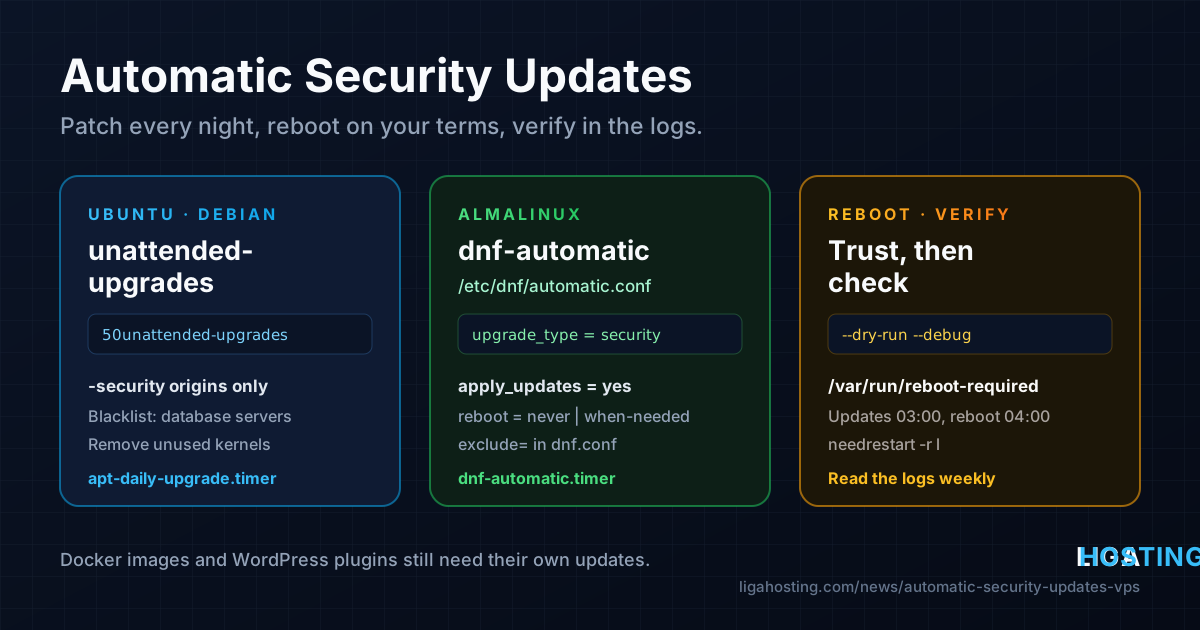
Automatic Security Updates on a VPS — unattended-upgrades and dnf-automatic
Most servers that get broken into are not attacked with anything clever. They run a package with a known, already-fixed vulnerability, because nobody logged in to run apt upgrade for three months. A VPS that patches itself every night closes most of that window without you having to remember anything.
This guide shows how to set up automatic security updates on Ubuntu, Debian and AlmaLinux, how to decide what gets updated and when the server reboots, and — most importantly — how to check that it is actually working, instead of assuming it is.
What automatic updates should (and should not) do
The goal is not "install everything, always". A sensible setup on a production VPS looks like this:
- Security updates are installed automatically, every day, from the official distribution repositories.
- Normal feature and bug-fix updates are either left for you to install manually, or included only if the server runs nothing fragile.
- Packages you do not want touched (for example the database server) can be excluded.
- Reboots happen at a time you choose, or never automatically — but you are told when one is needed.
- Every run is logged, so you can see what changed when something behaves differently.
Security updates from Ubuntu, Debian and AlmaLinux are deliberately small: they backport the fix to the version you already run instead of jumping to a new release. That is why installing them automatically is low-risk, and why it is the default on Ubuntu Server.
Ubuntu and Debian — install and enable unattended-upgrades
On Ubuntu Server the unattended-upgrades package is usually already installed and enabled. On Debian, and on minimal images, install it yourself:
sudo apt update
sudo apt install -y unattended-upgrades apt-listchanges

# Turn on the daily package list refresh and the daily unattended upgrade
sudo dpkg-reconfigure -plow unattended-upgrades   # answer "Yes"
The dpkg-reconfigure step writes /etc/apt/apt.conf.d/20auto-upgrades. Check that it contains these two lines (create the file with this content if it does not exist):
APT::Periodic::Update-Package-Lists "1";
APT::Periodic::Unattended-Upgrade "1";
The "1" means "every 1 day". Confirm that APT sees the setting and that the systemd timers which trigger it are active:
apt-config dump APT::Periodic::Unattended-Upgrade
systemctl list-timers 'apt-daily*'
You should see apt-daily.timer (refreshes package lists) and apt-daily-upgrade.timer (installs the updates), each with a "NEXT" time in the coming hours.
Choose what gets updated — the Allowed-Origins list
The main configuration file is /etc/apt/apt.conf.d/50unattended-upgrades. Its most important block decides which repositories updates may come from. On Ubuntu it looks like this:
Unattended-Upgrade::Allowed-Origins {
        "${distro_id}:${distro_codename}";
        "${distro_id}:${distro_codename}-security";
        "${distro_id}ESMApps:${distro_codename}-apps-security";
        "${distro_id}ESM:${distro_codename}-infra-security";
//      "${distro_id}:${distro_codename}-updates";
};
Lines starting with // are comments. The -security lines are the important ones. If you also uncomment -updates, the server will install regular bug-fix updates too — fine for a simple web server, but leave it off if you prefer to review those yourself.
Debian uses a pattern-based block called Origins-Pattern instead. The defaults include the security repository and the point-release updates of your stable version:
Unattended-Upgrade::Origins-Pattern {
        "origin=Debian,codename=${distro_codename},label=Debian";
        "origin=Debian,codename=${distro_codename},label=Debian-Security";
        "origin=Debian,codename=${distro_codename}-security,label=Debian-Security";
};
Third-party repositories such as nginx.org, Docker or a PHP repository are not updated unless you add them. To find the exact origin and codename values of a repository, look at the o=, n= and l= fields here:
apt-cache policy | grep -E 'release|http' | head -40Then add a matching line, for example "origin=nginx,codename=${distro_codename}"; inside Origins-Pattern (this block works on Ubuntu as well). Only do this for repositories you trust to ship safe updates.
Exclude packages you want to upgrade by hand
Some upgrades are better done while you are watching: a database server that restarts and replays its logs, or an application that pins a specific library version. List them in the blacklist in the same file. Entries are regular expressions matched against package names:
Unattended-Upgrade::Package-Blacklist {
        "mariadb-";
        "mysql-server";
        "postgresql-";
};
Keep this list short. Every package on it is a package that will not receive security fixes until you remember to update it. A reasonable rule: exclude only services where an unexpected restart would hurt, and put a monthly reminder in your calendar to update them manually.
A few other options in the same file are worth enabling on almost every VPS:
// Remove old kernels and dependencies that are no longer needed
Unattended-Upgrade::Remove-Unused-Kernel-Packages "true";
Unattended-Upgrade::Remove-Unused-Dependencies "true";

// Finish safely if the run is interrupted (e.g. by a shutdown)
Unattended-Upgrade::MinimalSteps "true";
Removing old kernels matters more than it looks: on a small disk, a year of leftover kernels can fill /boot or the root filesystem and make the next update fail.
Reboots — automatic, scheduled or manual
Most updates take effect when the affected service restarts. Kernel updates, and updates to core libraries such as glibc, only fully apply after a reboot. Ubuntu and Debian signal this with a file:
# Exists only when a reboot is needed
cat /var/run/reboot-required
cat /var/run/reboot-required.pkgs   # which packages asked for it
You have three options:
| Option | Setting | Good for |
|---|---|---|
| Never reboot automatically | Automatic-Reboot "false"; (default) | Servers where you plan every reboot yourself |
| Reboot at a fixed time when needed | Automatic-Reboot "true"; + Automatic-Reboot-Time "04:00"; | Single-purpose servers that start everything at boot |
| Reboot only if nobody is logged in | Add Automatic-Reboot-WithUsers "false"; | Servers where you sometimes work late over SSH |
The settings go into 50unattended-upgrades with the Unattended-Upgrade:: prefix, for example:
Unattended-Upgrade::Automatic-Reboot "true";
Unattended-Upgrade::Automatic-Reboot-Time "04:00";
Unattended-Upgrade::Automatic-Reboot-WithUsers "false";
Before you enable automatic reboots, make sure everything comes back on its own: run systemctl is-enabled nginx mariadb (with your own services), check that Docker containers use restart: unless-stopped, and do one manual sudo reboot to prove it. The time is the server's local time — check it with timedatectl.
For services that need a restart without a reboot, install needrestart (already present on recent Ubuntu releases). After an update, list what is still running old code:
sudo apt install -y needrestart
sudo needrestart -r l      # list only, restart nothing
Control when updates run
By default, apt-daily-upgrade.timer fires around 06:00 with a random delay of up to an hour. If you prefer a quieter time, override the timer instead of editing the packaged file:
sudo systemctl edit apt-daily-upgrade.timerAdd these lines in the editor that opens. The empty OnCalendar= line clears the default before setting a new one:
[Timer]
OnCalendar=
OnCalendar=*-*-* 03:00
RandomizedDelaySec=20m
Apply and verify:
sudo systemctl daemon-reload
systemctl list-timers apt-daily-upgrade.timer
If you enabled automatic reboots, keep the reboot time after the upgrade window, for example updates at 03:00 and reboot at 04:00.
Test it and read the logs
Do not wait until tomorrow to find out whether the configuration is valid. A dry run shows exactly which origins are allowed and which packages would be upgraded, without changing anything:
sudo unattended-upgrade --dry-run --debug 2>&1 | lessLook for the line Allowed origins are: ... and check that it lists the repositories you expect. A syntax error in the config file (a missing semicolon or quote) also shows up here immediately.
After real runs, the history is in three places:
# What unattended-upgrades decided and installed
sudo tail -n 50 /var/log/unattended-upgrades/unattended-upgrades.log

# Full dpkg output of those upgrades
sudo less /var/log/unattended-upgrades/unattended-upgrades-dpkg.log

# Every apt operation, manual or automatic
grep -A3 'Start-Date' /var/log/apt/history.log | tail -n 30
If you want an email after each run, set Unattended-Upgrade::Mail "you@example.com"; and Unattended-Upgrade::MailReport "on-change";. This needs a working local mail command (mailx or sendmail) that can actually deliver mail — which on a VPS is not a given. A simpler and more reliable option is to check the log as part of your regular monitoring; our guide to monitoring a VPS with alerts shows how.
AlmaLinux and Rocky Linux — dnf-automatic
On AlmaLinux 9 and 10 the equivalent tool is dnf-automatic. Install it and open its configuration file:
sudo dnf install -y dnf-automatic
sudo nano /etc/dnf/automatic.conf
The important settings are in the [commands] section:
[commands]
# "security" = only updates marked as security errata; "default" = everything
upgrade_type = security
download_updates = yes
apply_updates = yes
# never | when-changed | when-needed
reboot = never
With apply_updates = no the tool only downloads and reports, which is a good first week while you build trust in it. reboot = when-needed reboots only when an updated package (such as the kernel) requires it. The reboot option exists in the dnf-automatic shipped with current AlmaLinux 9 and 10 releases; on an older install, run sudo dnf upgrade dnf-automatic first.
Enable the timer and confirm it is scheduled:
sudo systemctl enable --now dnf-automatic.timer
systemctl list-timers dnf-automatic.timer
Check what would be installed, whether a reboot is pending, and what the last runs did:
sudo dnf updateinfo list security        # pending security updates
sudo dnf needs-restarting -r             # exit code 1 = reboot needed (dnf-plugins-core)
journalctl -u dnf-automatic.service --since "-7 days"
sudo tail -n 50 /var/log/dnf.log
To exclude packages, add an exclude= line to the [main] section of /etc/dnf/dnf.conf, for example exclude=mariadb-server*. As on Debian, keep the list as short as you can.
What automatic updates do not cover
An updated operating system is only part of the picture. These still need your attention:
- Docker images. Containers keep running the image they were started from. Pull new images and recreate the containers on a schedule (see our Docker on a VPS guide).
- Applications you installed yourself — WordPress core and plugins, Composer and npm dependencies, binaries downloaded from GitHub.
- End-of-life releases. When a distribution version stops receiving security support, there is nothing left to install automatically. Plan the upgrade to the next release before that date.
- Backups. A rare bad update is easy to survive if you have a recent backup or snapshot of your data.
Check which release you run and when its support ends with cat /etc/os-release and the distribution's release page.
Frequently Asked Questions
Can automatic updates break my server?
It is rare with security-only updates, because they patch the version you already run instead of upgrading to a new one. The more realistic risks are a service that does not restart cleanly and third-party repositories that ship big changes. Limit automatic updates to official security repositories, exclude the few packages you upgrade by hand, and keep backups.
Should I enable automatic reboots?
Enable them if all your services start automatically at boot and a few minutes of downtime at night is acceptable. Otherwise leave them off, but watch for /var/run/reboot-required (Ubuntu, Debian) or dnf needs-restarting -r (AlmaLinux) and reboot yourself within a few days of a kernel update.
How do I know the updates are really being installed?
Run systemctl list-timers to see the next scheduled run, then read /var/log/unattended-upgrades/unattended-upgrades.log or journalctl -u dnf-automatic.service. Running apt list --upgradable or dnf updateinfo list security should show few or no pending security updates on a healthy server.
Does unattended-upgrades update Docker containers or WordPress?
No. It only updates packages installed from the configured APT repositories. Container images, WordPress, plugins and application dependencies must be updated with their own tools.
Do I need to do this on shared web hosting?
No. On shared hosting you do not have root access and do not manage the operating system. What you still update yourself are your applications, such as WordPress and its plugins.
Every Liga Hosting Standard VPS and Performance VPS runs on KVM with full root access, so you choose the distribution, the update policy and the reboot window yourself. If you would rather not manage an operating system at all, our cPanel web hosting plans are the simpler option.