
Nginx FastCGI Cache for PHP and WordPress — Faster Pages Without a Plugin
Each time someone opens a page on a PHP site, Nginx passes the request to PHP-FPM. PHP loads the application, queries the database and builds the HTML. For a blog post that changes once a month, that is a lot of work to repeat for every visitor. When traffic grows, the PHP workers fill up, pages slow down and eventually you see 502 or 504 errors.
Nginx can save the finished HTML and serve it straight from disk to the next visitors, without starting PHP at all. This is called FastCGI cache. It is built into the standard Nginx packages on Ubuntu, Debian and AlmaLinux, so there is nothing extra to install. This guide sets it up step by step for WordPress and other PHP sites. It covers the rules that keep private pages out of the cache, how to confirm it works and how to clear it.
How FastCGI cache works
FastCGI cache sits between Nginx and PHP-FPM. For each request, Nginx builds a cache key (usually scheme + method + host + URL) and looks for a stored response with that key:
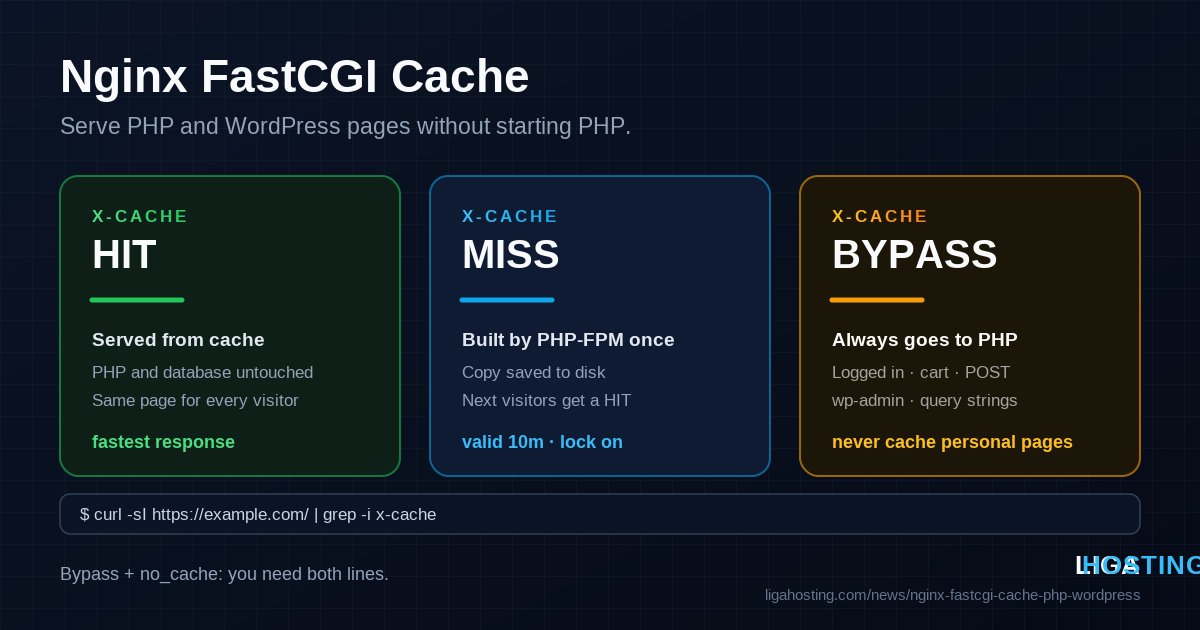
- Found and still fresh (HIT): Nginx sends the stored page. PHP and the database are not touched.
- Not found or expired (MISS / EXPIRED): Nginx asks PHP-FPM as usual, sends the answer to the visitor and saves a copy for the next ones.
- Bypassed (BYPASS): a rule you define (logged-in user, POST request, cart cookie) says "never use the cache here", so the request always goes to PHP.
The stored pages are files on disk. Their keys and metadata are kept in a shared memory zone. Because the Linux page cache keeps recently read files in RAM, popular pages are usually served from memory anyway.
| Approach | Where it runs | PHP started on a cache hit? |
|---|---|---|
| WordPress cache plugin (file-based) | Inside PHP or via rewrite rules | Depends on the plugin and setup |
| Object cache (Redis, Memcached) | Caches database query results | Yes — PHP still builds the page |
| Nginx FastCGI cache | In the web server, before PHP | No |
The object cache and the page cache solve different problems and work well together. The object cache speeds up the pages that cannot be cached (admin, cart, account). FastCGI cache removes the PHP work for everything else.
Step 1 — Define the cache zone
The cache storage is declared once, in the http context. On Ubuntu and Debian, create /etc/nginx/conf.d/fastcgi-cache.conf. Files in conf.d are included inside http on Ubuntu, Debian and AlmaLinux alike:
fastcgi_cache_path /var/cache/nginx/fastcgi levels=1:2 keys_zone=PHPCACHE:64m
                   max_size=1g inactive=60m use_temp_path=off;
fastcgi_cache_key "$scheme$request_method$host$request_uri";
What each part means:
/var/cache/nginx/fastcgi— the directory where cached pages are stored.levels=1:2— spreads the files over two levels of subdirectories so no single directory holds thousands of files.keys_zone=PHPCACHE:64m— the name of the zone and the shared memory for keys. The Nginx documentation says one megabyte holds about 8,000 keys, so 64 MB is plenty for most sites.max_size=1g— the most disk space the cache may use. When it is full, Nginx removes the least recently used entries.inactive=60m— entries nobody requested for 60 minutes are deleted, even if they have not expired yet.use_temp_path=off— writes files directly into the cache directory instead of copying them from a temporary location.
The key includes $scheme and $host. This way the HTTP and HTTPS versions, and different sites on the same server, never share entries. Create the directory and give it to the user Nginx runs as:
# Ubuntu / Debian (Nginx runs as www-data)
sudo mkdir -p /var/cache/nginx/fastcgi
sudo chown www-data:www-data /var/cache/nginx/fastcgi

# AlmaLinux (Nginx runs as nginx)
sudo mkdir -p /var/cache/nginx/fastcgi
sudo chown nginx:nginx /var/cache/nginx/fastcgi
On AlmaLinux, /var/cache/nginx already has the right SELinux label for web server cache files. Keep the cache under it rather than in a custom path such as /home/cache.
Step 2 — Decide what must never be cached
This is the most important step. A careless page cache can show one user's account page, cart or admin bar to everyone else. Put these rules in the server block of your site, before the location blocks:
set $skip_cache 0;

# Only GET and HEAD requests are cached
if ($request_method !~ ^(GET|HEAD)$) { set $skip_cache 1; }

# URLs with a query string (search, filters, previews)
if ($query_string != "") { set $skip_cache 1; }

# Admin, login, API, feeds and shop pages that are always personal
if ($request_uri ~* "/wp-admin/|/wp-login\.php|/xmlrpc\.php|/wp-json/|/feed/|sitemap(_index)?\.xml|/cart/|/checkout/|/my-account/") {
    set $skip_cache 1;
}

# Logged-in users, commenters, password-protected posts and WooCommerce sessions
if ($http_cookie ~* "wordpress_logged_in|wp-postpass|comment_author|woocommerce_items_in_cart|woocommerce_cart_hash|wp_woocommerce_session") {
    set $skip_cache 1;
}

# Requests with HTTP authentication
if ($http_authorization != "") { set $skip_cache 1; }
Using if with set at the server level is safe. The well-known warnings about if in Nginx are about other directives used inside location blocks.
For a non-WordPress application, replace the URL and cookie lists with your own. The rule is simple: if a page can look different for different people, it must be skipped. Use the login cookie, the session cookie, the cart cookie or the account URLs to tell such requests apart.
Step 3 — Turn the cache on in the PHP location
Now add the cache directives to the block that passes requests to PHP-FPM. On Ubuntu 24.04 (PHP 8.3) it looks like this. On Debian 12 the socket is php8.2-fpm.sock. Check yours with ls /run/php/.
location ~ \.php$ {
    include snippets/fastcgi-php.conf;
    fastcgi_pass unix:/run/php/php8.3-fpm.sock;

    fastcgi_cache PHPCACHE;
    fastcgi_cache_valid 200 301 302 10m;
    fastcgi_cache_valid 404 1m;
    fastcgi_cache_bypass $skip_cache;
    fastcgi_no_cache $skip_cache;

    fastcgi_cache_use_stale error timeout updating http_500 http_503;
    fastcgi_cache_background_update on;
    fastcgi_cache_lock on;

    add_header X-Cache $upstream_cache_status always;
}
On AlmaLinux there is no snippets/fastcgi-php.conf, and the default PHP-FPM pool listens on /run/php-fpm/www.sock:
location ~ \.php$ {
    try_files $uri =404;
    include fastcgi_params;
    fastcgi_param SCRIPT_FILENAME $document_root$fastcgi_script_name;
    fastcgi_pass unix:/run/php-fpm/www.sock;
    # ... the same fastcgi_cache lines as above ...
}
What the cache directives do:
fastcgi_cache_valid— how long responses stay fresh: 10 minutes for normal pages and redirects, 1 minute for "not found".fastcgi_cache_bypass— when$skip_cacheis 1, do not read from the cache.fastcgi_no_cache— when$skip_cacheis 1, do not save the response either. You need both lines.fastcgi_cache_use_stale— if PHP fails or times out, serve the last good copy instead of an error page.fastcgi_cache_background_update— when an entry expires, the visitor gets the old copy at once while Nginx refreshes it in the background.fastcgi_cache_lock— if a hundred visitors request the same uncached page at the same moment, only one request goes to PHP. The others wait for its result.add_header X-Cache— shows the cache status in the response headers so you can check it.alwaysadds it to error responses too.
Test the configuration and reload:
sudo nginx -t && sudo systemctl reload nginxStep 4 — Verify that pages are really cached
Request the same page twice and look at the header:
curl -sI https://example.com/ | grep -i x-cache
# x-cache: MISS
curl -sI https://example.com/ | grep -i x-cache
# x-cache: HIT

# Requests that must bypass the cache
curl -sI "https://example.com/?s=test" | grep -i x-cache
# x-cache: BYPASS
curl -sI -H "Cookie: wordpress_logged_in_abc=1" https://example.com/ | grep -i x-cache
# x-cache: BYPASS
The second request should be a HIT. Compare the time to first byte before and after:
for i in 1 2 3; do curl -o /dev/null -s -w '%{http_code} %{time_starttransfer}s\n' https://example.com/; doneYou can also check the disk. Cached entries appear as files in the subdirectories, and each file contains a line starting with KEY: that shows which URL it belongs to:
sudo find /var/cache/nginx/fastcgi -type f | head
sudo du -sh /var/cache/nginx/fastcgi
sudo grep -rah '^KEY:' /var/cache/nginx/fastcgi | head
Finally, log in to WordPress in a browser, open the site and check the header in the developer tools (Network tab). It must say BYPASS while you are logged in. If it says HIT, your cookie rule does not match. Fix it before you leave the cache on.
Why a page stays MISS forever
If the header never changes to HIT, Nginx is refusing to store the response. By default it will not cache a response that:
- contains a
Set-Cookieheader; - has
Cache-Control: private,no-cacheorno-store, or anExpiresdate in the past; - has an
X-Accel-Expires: 0header.
Look at what PHP sends:
curl -sI https://example.com/ | grep -Ei 'set-cookie|cache-control|expires|pragma'A common cause is a plugin or theme that calls session_start() on every page. PHP then sends a session cookie together with Cache-Control: no-store, no-cache and an Expires date from 1981. These headers are telling you the page is personal, so the cache is doing the right thing here. Find out which plugin starts the session and whether it really needs to on public pages.
You can tell Nginx to ignore these headers with fastcgi_ignore_headers Cache-Control Expires Set-Cookie;. Do this only if you are certain the pages are the same for everyone, and never just to "make it work". If you ignore Set-Cookie, a stored response can carry one visitor's session cookie to everyone else. If you do use it, also add fastcgi_hide_header Set-Cookie;.
Clearing the cache after changes
Open-source Nginx has no built-in "purge this URL" command. That feature is part of the commercial edition or comes from third-party modules. In practice, three simple approaches cover most needs:
- Short lifetimes. With
fastcgi_cache_valid 200 10m, an edited post is visible to everyone within ten minutes. For many sites that is enough, and nothing needs to be purged. - Clear everything after a theme change, plugin update or large edit. Nginx simply rebuilds the cache on the next requests:
sudo find /var/cache/nginx/fastcgi -type f -delete - Clear one page. The file name is the MD5 hash of the cache key. With
levels=1:2, the first directory is the last character of the hash and the second is the two characters before it:KEY='httpsGETexample.com/about/' H=$(echo -n "$KEY" | md5sum | cut -d' ' -f1) sudo rm -f "/var/cache/nginx/fastcgi/${H: -1}/${H: -3:2}/$H"
The key is built exactly as defined in fastcgi_cache_key: scheme, method, host and URI with nothing between them. A HEAD request from curl uses a different key from a browser's GET. That is why the example uses GET.
Microcaching for busy dynamic pages
Some pages change all the time but are still the same for every anonymous visitor: a news front page, a product listing, a public API response. For those, a very short cache lifetime gives most of the benefit with almost no stale content:
fastcgi_cache_valid 200 5s;With 5-second microcaching, a page that gets 50 requests per second is generated by PHP once every five seconds instead of 250 times. Together with fastcgi_cache_lock and fastcgi_cache_use_stale updating, this also protects the server from sudden traffic peaks. You can set fastcgi_cache_valid separately in different location blocks to give each part of the site its own lifetime.
The same idea works for Node.js, Python and other apps behind proxy_pass. The directives have the same names with proxy_ instead of fastcgi_ (proxy_cache_path, proxy_cache, proxy_cache_valid and so on). See the Nginx FastCGI module documentation and the proxy module documentation for every option.
Common mistakes to avoid
- Only
fastcgi_cache_bypasswithoutfastcgi_no_cache. Logged-in pages are not read from the cache but are still saved to it, and anonymous visitors may see them later. - A cache key without
$host. Two sites on the same server can then serve each other's pages. - Forgetting that Cloudflare or another CDN caches too. If you clear the Nginx cache but the CDN keeps an old copy, visitors still see the old page. Clear both, or keep the CDN's HTML caching off and let Nginx do it.
- Caching error pages for a long time. Keep
fastcgi_cache_validshort for 404 and do not list 5xx codes there.fastcgi_cache_use_stalealready covers PHP failures. - Putting the cache on tmpfs without a size limit. A RAM-based cache is fast, but
max_sizemust be lower than the tmpfs size, and the memory is taken away from PHP and the database. On NVMe storage, the disk cache plus the kernel page cache is usually just as fast.
Frequently Asked Questions
Do I still need a WordPress cache plugin?
Not for page caching. FastCGI cache does that job before PHP even starts. A plugin can still help with other tasks, such as purging changed pages automatically, minifying files or managing an object cache. Just don't run two full-page caches on top of each other, or you will spend hours finding out which one serves an old page.
Is FastCGI cache safe for WooCommerce?
Yes, if the bypass rules are right. Cart, checkout and account pages must be excluded by URL, and visitors with WooCommerce session or cart cookies must be excluded by cookie, as in step 2. Test by adding a product to the cart in a private browser window and checking that the header shows BYPASS.
How much disk space and memory does it need?
Each cached page takes about the size of its HTML, usually tens of kilobytes. A site with a few thousand pages fits easily in a few hundred megabytes. The max_size setting caps the disk use. The key zone needs about one megabyte per 8,000 pages.
Does it work behind Cloudflare?
Yes. Cloudflare's requests arrive at Nginx like any other request, and the cookies of logged-in users are passed on, so the bypass rules still work. Without an explicit cache rule, Cloudflare usually does not cache HTML, so the Nginx cache is what actually takes the load off PHP.
How do I turn it off quickly if something looks wrong?
Comment out the fastcgi_cache PHPCACHE; line (or set fastcgi_cache off;), then run sudo nginx -t && sudo systemctl reload nginx. Requests go straight to PHP again. Then clear the cache directory before you turn it back on.
At Liga Hosting, our Standard VPS and Performance VPS plans run on NVMe storage with full root access, so you can configure Nginx, PHP-FPM and the cache exactly as described in this guide. Not sure which line fits your site? Contact us.