
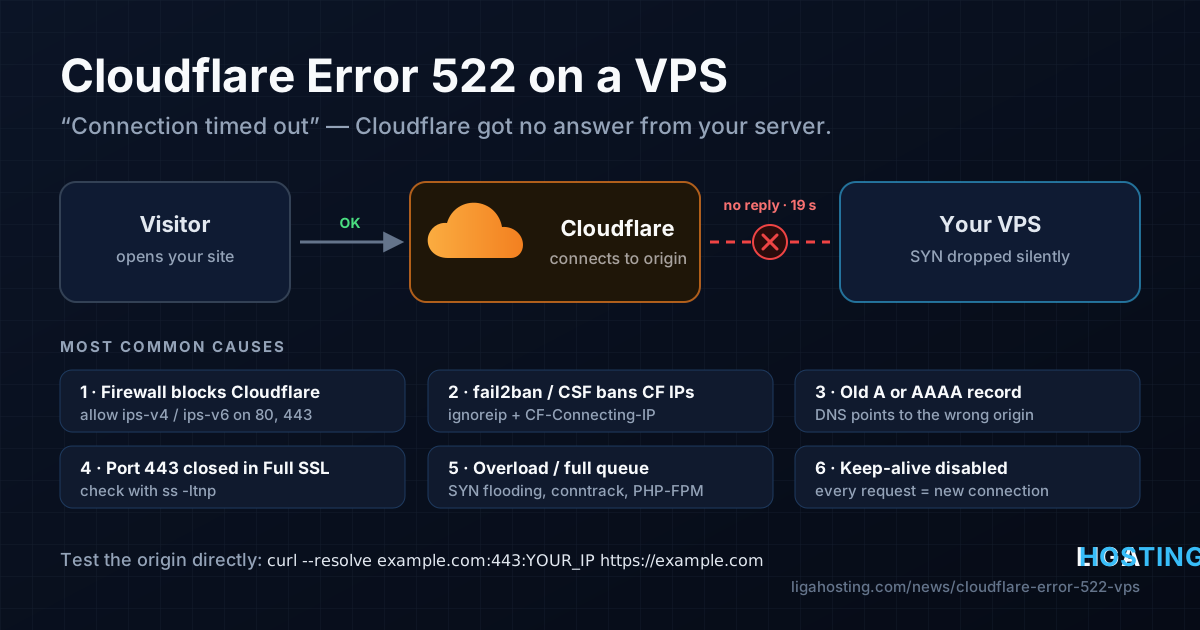
Cloudflare Error 522 on Your VPS — Causes and How to Fix It
Your site is behind Cloudflare, everything worked yesterday, and now some visitors get a grey page: "Error 522 — Connection timed out". Often it is not even constant: the site loads, then fails, then loads again.
The good news is that 522 is a very specific error. It tells you exactly where the problem is — between Cloudflare and your server — and in most cases the cause is on the server itself and can be fixed in a few minutes. This guide walks through the causes from the most common to the rarest, with commands you can copy.
What error 522 actually means
When someone opens your site, they connect to Cloudflare, and Cloudflare opens its own connection to your server (the origin). Error 522 means that second connection could not be completed:
- Cloudflare sent a connection request (TCP SYN) to your server and got no answer within about 19 seconds, or
- the connection was opened, but your server did not acknowledge Cloudflare's request within about 90 seconds.
"No answer" is the key part. If your web server were simply stopped, the server would actively refuse the connection and Cloudflare would show 521 instead. A 522 almost always means packets are being dropped silently — by a firewall, by a full connection queue, or because Cloudflare is talking to the wrong address.
| Error | What happened between Cloudflare and your server |
|---|---|
| 521 | Connection refused — nothing is listening on the port, or a firewall rejects it |
| 522 | No answer — the connection request was dropped or never arrived |
| 523 | Origin unreachable — Cloudflare cannot route to the address in your DNS |
| 524 | Connected, but the page took longer than 100 seconds to generate |
| 525 / 526 | SSL handshake failed / invalid certificate on the origin |
Step 0 — Confirm the origin itself responds
Before changing anything, check whether your server answers when Cloudflare is out of the picture. From your own computer (not from the VPS), send the request directly to the server's IP while keeping the correct host name:
# Replace example.com with your domain and 203.0.113.10 with your VPS IP
curl -sv --resolve example.com:443:203.0.113.10 https://example.com/ -o /dev/null

# Is the port reachable at all?
nc -vz 203.0.113.10 443
nc -vz 203.0.113.10 80- It answers quickly: the web server is fine. The problem is something that treats Cloudflare's traffic differently — usually a firewall rule, fail2ban, or DNS (steps 1–4).
- It hangs as well: the server is overloaded or the port is filtered for everyone (step 5).
- "Connection refused": nothing is listening on that port. Start the web server, or check that it listens on the port Cloudflare uses (see step 4).
Cause 1 — The firewall does not allow Cloudflare's IP ranges
When a site is proxied through Cloudflare, every visitor reaches your server from a Cloudflare IP address. A firewall that only allows certain addresses, or a hosting panel firewall in strict mode, will drop that traffic and produce 522.
Cloudflare publishes its ranges at https://www.cloudflare.com/ips-v4 and https://www.cloudflare.com/ips-v6. Allow them on ports 80 and 443.
UFW (Ubuntu, Debian):
for ip in $(curl -s https://www.cloudflare.com/ips-v4) $(curl -s https://www.cloudflare.com/ips-v6); do
  sudo ufw allow proto tcp from "$ip" to any port 80,443 comment 'Cloudflare'
done
sudo ufw reload
sudo ufw status numbered | grep -c Cloudflare
iptables with ipset (one rule instead of dozens):
sudo apt install -y ipset
sudo ipset create cloudflare4 hash:net -exist
for ip in $(curl -s https://www.cloudflare.com/ips-v4); do sudo ipset add cloudflare4 "$ip" -exist; done
sudo iptables -I INPUT -p tcp -m multiport --dports 80,443 -m set --match-set cloudflare4 src -j ACCEPT
# Make it permanent with your distribution's tool (netfilter-persistent, iptables-save, etc.)
CSF (common with cPanel, DirectAdmin and similar panels): add each Cloudflare range to /etc/csf/csf.allow and /etc/csf/csf.ignore, then run csf -r. The second file matters: it stops CSF's automatic blocking (connection limits, port scan detection) from ever banning Cloudflare.
Cloudflare's list changes rarely, but it does change. Re-run the loop every few months, or from a monthly cron job.
Cause 2 — fail2ban or rate limiting is banning Cloudflare
This is the classic reason for intermittent 522 errors. Because all visitors arrive from a small set of Cloudflare addresses, anything that counts connections or failed requests per IP sees one "visitor" doing a huge amount of traffic — and bans it. For the next minutes every visitor routed through that Cloudflare IP gets a 522, then the ban expires and the site works again.
Typical culprits:
- fail2ban jails on Nginx/Apache logs (bad bots, 404 floods, WordPress login attempts);
- CSF connection tracking (
CT_LIMIT) and port flood protection; - iptables
connlimit/hashlimitrules or Nginxlimit_connper IP.
Check whether a Cloudflare address is currently banned:
# fail2ban: list banned IPs in every jail
sudo fail2ban-client status | sed -n 's/.*Jail list:\s*//p' | tr ',' '\n' | \
  while read -r j; do echo "== $j"; sudo fail2ban-client status "$j" | grep 'Banned IP'; done

# CSF: search the temporary and permanent deny lists for an address
sudo csf -g 172.68.10.20
The fix has two parts. First, never ban Cloudflare itself — add its ranges to ignoreip in /etc/fail2ban/jail.local:
[DEFAULT]
ignoreip = 127.0.0.1/8 ::1 173.245.48.0/20 103.21.244.0/22 103.22.200.0/22 103.31.4.0/22
           141.101.64.0/18 108.162.192.0/18 190.93.240.0/20 188.114.96.0/20 197.234.240.0/22
           198.41.128.0/17 162.158.0.0/15 104.16.0.0/13 104.24.0.0/14 172.64.0.0/13 131.0.72.0/22
# (copy the current list from https://www.cloudflare.com/ips-v4 and ips-v6)
Second, make your web server log the real visitor IP, which Cloudflare sends in the CF-Connecting-IP header. Then fail2ban bans the actual attacker instead of Cloudflare.
Nginx:
(for ip in $(curl -s https://www.cloudflare.com/ips-v4) $(curl -s https://www.cloudflare.com/ips-v6); do
   echo "set_real_ip_from $ip;"
 done
 echo "real_ip_header CF-Connecting-IP;") | sudo tee /etc/nginx/conf.d/cloudflare-realip.conf
sudo nginx -t && sudo systemctl reload nginx
Apache: enable mod_remoteip (sudo a2enmod remoteip), add RemoteIPHeader CF-Connecting-IP and one RemoteIPTrustedProxy line per Cloudflare range, then reload Apache.
Bans based on the real IP only work for HTTP traffic that passes through the web server. Do not "fix" the problem by banning at the firewall level based on log entries that still show Cloudflare addresses.
Cause 3 — DNS points to the wrong place (including IPv6)
Cloudflare connects to whatever address your DNS records say. Two mistakes are very common after a migration:
- An old A record. The domain still points to the previous server, which is switched off or no longer has the site. Compare the record in the Cloudflare dashboard with the real IP of your VPS:
curl -4 ifconfig.meon the server. - A leftover AAAA (IPv6) record. If an AAAA record exists, Cloudflare may connect to your origin over IPv6. If that address is old, or your web server and firewall are not set up for IPv6, connections over it time out — and you get 522 for part of the traffic. Remove AAAA records unless your VPS really serves the site over IPv6.
Also check the "proxied" (orange cloud) records one by one: www, the bare domain and any subdomains can each point somewhere different.
Cause 4 — Wrong port for the SSL mode
The SSL/TLS mode in Cloudflare decides which port it uses to reach you:
- Flexible — Cloudflare connects to your server on port 80 (HTTP).
- Full / Full (strict) — Cloudflare connects on port 443 (HTTPS).
If the mode is Full but port 443 is filtered by the firewall, or the site only listens on port 80, the connection never completes. Check what is listening and on which ports:
sudo ss -ltnp | grep -E ':(80|443)\s'The recommended setup is Full (strict) with a certificate on the origin. A free Cloudflare Origin Certificate or Let's Encrypt both work, and you avoid redirect loops caused by Flexible mode.
Cause 5 — The server is overloaded or the connection queue is full
If the direct test from step 0 also hangs, the server is not accepting new connections fast enough. When the queue of pending connections is full, the kernel drops new SYN packets — exactly what Cloudflare reports as 522.
# Load and memory
uptime
free -h

# Pending connections waiting to be accepted (Recv-Q close to Send-Q = full queue)
sudo ss -ltn '( sport = :80 or sport = :443 )'

# Kernel messages about dropped connections
sudo dmesg -T | grep -Ei 'SYN flooding|conntrack: table full|Out of memory' | tail
What the results mean and what to do:
- "possible SYN flooding on port 443" — the listen queue is too small for your traffic. Raise
net.core.somaxconn(for example to 4096) andnet.ipv4.tcp_max_syn_backlog(8192) in/etc/sysctl.conf, apply withsudo sysctl -p, and make sure Nginx'slistendirective does not set a smallbacklog. - "nf_conntrack: table full, dropping packet" — the firewall's connection table is full. Raise
net.netfilter.nf_conntrack_max, and look for what opens so many connections. - All PHP workers busy — if
pm.max_childrenin PHP-FPM is reached, requests wait in line, and under heavy load new connections stop being accepted in time. Check the PHP-FPM log for "server reached pm.max_children", add caching, or move to a VPS with more CPU and RAM. - Out of memory — the kernel killed processes (often MySQL or PHP). Reduce memory use or upgrade the plan.
Cause 6 — Keep-alive is disabled
Cloudflare reuses connections to your server when it can. If keep-alive is turned off, every request needs a brand-new TCP connection, which multiplies the load on your connection queue and firewall. Make sure keep-alive is enabled:
- Nginx:
keepalive_timeoutmust not be0(the default of 75 seconds is fine). - Apache:
KeepAlive On, with aKeepAliveTimeoutof a few seconds.
See it happen with tcpdump
If you are still not sure, watch the connection attempts arrive. Run this on the VPS while you reload the site through Cloudflare:
sudo tcpdump -ni any 'tcp port 443 and tcp[tcpflags] & (tcp-syn) != 0' -c 20- SYN from a Cloudflare address, followed by a SYN-ACK from your server: the network path is fine; look at the web server and application.
- SYN arrives, but no SYN-ACK goes out: something on the server drops it — firewall, fail2ban, CSF or a full queue (causes 1, 2 and 5).
- Nothing arrives at all: Cloudflare is connecting somewhere else (cause 3), or the traffic is filtered before it reaches the VPS.
When to contact your hosting provider
If the origin answers direct requests, the firewall allows Cloudflare, nothing is banned, DNS is correct and tcpdump shows no incoming connection attempts during the errors, the problem may be in the network before your server. Open a ticket and include:
- the Ray ID and the exact time shown on the 522 page;
- your domain and the origin IP it should use;
- what you have already checked from this guide.
With the time and Ray ID, we can follow the traffic on our side, including the DDoS filtering in front of your VPS.
Frequently Asked Questions
Is error 522 Cloudflare's fault or my server's?
In the vast majority of cases it is on the origin side: a firewall, a ban, an overloaded server or a wrong DNS record. Cloudflare's own status is published at cloudflarestatus.com — if there is no incident there and the error affects only your site, start with your server.
Why do I get 522 only sometimes?
Intermittent 522 errors usually come from temporary bans (fail2ban, CSF connection limits) on Cloudflare addresses, from short load peaks that fill the connection queue, or from a stale AAAA record that affects only connections made over IPv6.
Should I allow only Cloudflare on ports 80 and 443?
It is a good hardening step once everything works: it hides your origin from direct attacks. Make sure every hostname is proxied first, keep the ranges up to date, and keep SSH and other services on their own rules.
Will pausing Cloudflare fix the 522?
Pausing Cloudflare (or switching the record to "DNS only") sends visitors straight to your server. If the site then works, the cause is something that treats Cloudflare's traffic differently — usually the firewall or fail2ban. If it still does not load, the problem is the server itself.
Can a VPS plan be too small for my traffic?
Yes. If you keep finding full PHP-FPM pools, high load or out-of-memory messages during traffic peaks, caching helps first; after that, more vCPU and RAM do. Upgrades within the same VPS line can be done from the client area.
At Liga Hosting, our Standard VPS and Performance VPS plans include NVMe storage, DDoS protection and full root access, so you control the firewall, the web server and every setting in this guide. Contact us with your Ray ID if a 522 will not go away.