
How to Choose the Best VPS for WordPress in 2026
If you've already gone through the frustration of a slow WordPress site on shared hosting, you're probably eyeing VPS now and wondering: how much RAM do I need? What CPU? How much bandwidth? The answer depends more on your site type than on its size — and mistakes here cost you every month.
This guide shows exactly which specs matter for WordPress, how to estimate your real needs, and which plan fits each situation.
Why WordPress needs more resources than you think
WordPress, by default, is a dynamic CMS — every page is generated from the database on each request. That means without caching configured, every visitor puts pressure on CPU, RAM, and disk simultaneously. Add plugins (an average site has 20-30), and resource consumption grows exponentially.
On shared hosting, this works up to a point. On VPS you have full control — you can configure server-level caching, optimize PHP, use Redis or Memcached, and the server responds. The speed difference can be from 3-4 seconds to under 800ms for the same page.
The specs that actually matter
RAM — the most critical resource for WordPress
WordPress consumes on average 60-100MB RAM per PHP request. That means a VPS with 2GB RAM can handle around 15-20 simultaneous PHP requests, plus the database, plus the web server, plus the operating system.
Practical rules:
- Simple presentation site / small blog: 2GB RAM
- Active blog / portfolio: 4GB RAM
- WooCommerce under 1000 products: 4-8GB RAM
- WooCommerce 1000-5000 products: 8-16GB RAM
- Large WooCommerce / multi-site: 16GB+ RAM
CPU — real vCPUs, not marketing
WordPress isn't very CPU-intensive normally, but plugins and WooCommerce change that story. At baseline traffic, 1-2 vCPUs are enough. At high traffic with abandoned cart emails, syncs, dynamic search — you need 4+ vCPUs.
Important: not all providers offer real vCPUs. Some oversubscribe (oversell) the CPU, meaning your vCPU is shared with others. At Liga Hosting VPS resources are allocated, not shared.
Storage — NVMe is the standard in 2026
For WordPress, disk speed matters enormously. The database does thousands of read/write operations per minute. On SATA SSD: 200-500 microsecond latency. On NVMe: 20-50 microsecond latency. In practice, database queries run 5-10x faster on NVMe.
Space itself is rarely the issue — an average WordPress site uses 2-5GB including uploads. Exception: media-heavy sites (photo galleries, video) or extensive local backups.
Bandwidth — calculate realistically
An optimized WordPress page weighs 1-3MB. At 10,000 monthly visitors × 5 pages per visit × 2MB = ~100GB bandwidth. For most sites, 1-2TB is more than enough. For sites with video or downloads, calculate separately.
The recommended stack for WordPress in 2026
The configuration that keeps WordPress fast and stable:
- Web server: Nginx or LiteSpeed (Apache is losing ground fast)
- PHP: 8.2 or 8.3, with OPcache enabled
- Database: MariaDB 10.11+ or MySQL 8
- Object cache: Redis (better than Memcached for WordPress)
- Page cache: LiteSpeed Cache (if using LiteSpeed) or Nginx FastCGI cache
- CDN: Cloudflare (decent free plan available)
On a VPS with this configuration, an optimized WordPress site can serve 100,000+ monthly visitors without issues, even on a modest plan.
How much traffic each VPS plan supports for WordPress
The numbers below assume optimized WordPress (caching enabled, compressed images, only necessary plugins):
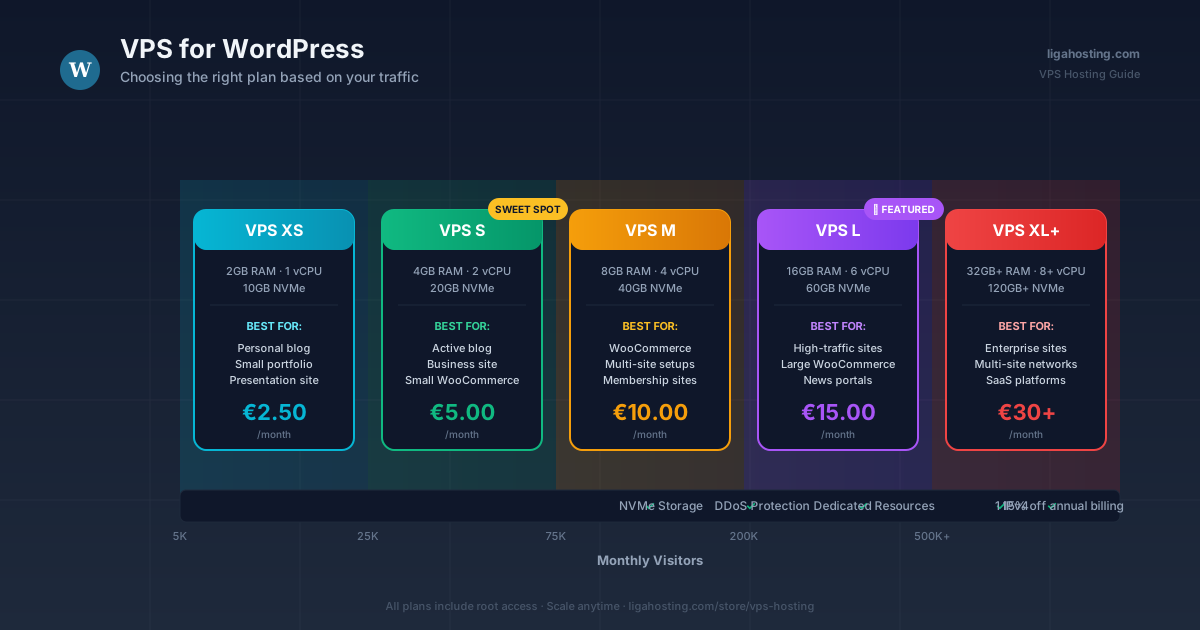
- VPS XS (2GB RAM): 5,000-15,000 monthly visitors — ideal for personal blog or presentation site
- VPS S (4GB RAM): 15,000-50,000 monthly visitors — perfect for active blog or business site
- VPS M (8GB RAM): 50,000-150,000 monthly visitors — ideal for small-medium WooCommerce
- VPS L (16GB RAM): 150,000-400,000 monthly visitors — recommended for serious WooCommerce or high-traffic sites
- VPS XL and above: Enterprise sites, multi-site networks, very high traffic
Caveat: these numbers assume decently configured WordPress. A site with 50 active plugins and no caching will consume 3-4x more resources for the same traffic.
Common mistakes I see during migration
Migrating without optimizing first. Many people migrate a slow site from shared to VPS and wonder why speed doesn't increase dramatically. VPS gives you the resources, but doesn't fix poorly configured WordPress. Optimize plugins, images, and caching BEFORE migrating.
Undersizing to save money. A VPS XS for a WooCommerce store with 2000 products is a trap. You pay €2.50 per month but lose sales due to speed. The difference up to VPS M (€10) is covered by 1-2 extra orders.
Ignoring backups. On VPS you're responsible for backups. Configure daily automated backups to external storage from day 1. Use UpdraftPlus, BlogVault, or custom rsync scripts.
No monitoring. Without monitoring, you find out the server is down when a customer tells you. Set up at minimum Uptime Robot (free) plus alerts on RAM/CPU usage.
Managed vs Unmanaged — what to choose for WordPress
If you're not familiar with Linux, configuring a VPS for WordPress from scratch means: installing LEMP/LAMP stack, configuring firewall, SSL setup, backup configuration, security hardening. It's a few hours of work for someone experienced, days for a beginner.
Two real options for someone without technical experience:
- Unmanaged VPS + free control panel (CyberPanel, aaPanel) — greatly simplifies administration
- Unmanaged VPS + licensed cPanel — familiar experience from shared hosting, but on VPS
At Liga Hosting you get full root access, so you can install whatever panel you prefer.
The practical conclusion
For most WordPress sites, VPS S (€5/month) is the sweet spot for starting — enough RAM to run comfortably, NVMe for speed, DDoS protection included. If you're on WooCommerce or have traffic above 50,000 monthly, jump straight to VPS M.
Key point to remember: you can start modest and scale vertically when needed. At Liga Hosting, upgrading between plans takes a few clicks, with no data loss.
Frequently Asked Questions
Can I run multiple WordPress sites on a single VPS?
Yes, as long as you fit within the resources. On a VPS S (4GB RAM) you can comfortably run 3-5 small WordPress sites. On VPS M, 10-15 sites. Use a control panel (CyberPanel, cPanel, Plesk) to separate accounts.
Do I need to know Linux to use a VPS for WordPress?
Not necessarily. With a free control panel like CyberPanel, the experience is similar to cPanel from shared hosting. For minimal Linux knowledge (how to install a panel, how to configure a firewall), there are free tutorials and our technical support can help with initial installation.
How long does it take to migrate a WordPress site from shared to VPS?
For a standard site, 30 minutes - 2 hours with a migration plugin (Duplicator, All-in-One WP Migration). For complex sites, 2-4 hours. Real downtime, if you handle DNS correctly, can be under 5 minutes.
What's the real difference between a €2.50 VPS and a €5 one?
Double vCPU, double RAM, double space. In practice, a WordPress site on VPS XS can "survive" medium traffic, but on VPS S it runs comfortably with growth margin. For €2.50 extra per month, the clear recommendation is VPS S from the start if your site is active.
At Liga Hosting we offer VPS with NVMe storage, included DDoS Protection, and support in Romanian, English, and Chinese. Have questions about which plan fits your WordPress site? Contact us and we'll respond quickly.